Home
» New Trends
»
Where to Generate 80s-Style AI Selfies: 7 Free Tools and Prompt Recipes
Where to Generate 80s-Style AI Selfies: 7 Free Tools and Prompt Recipes
If you want an 80s-style AI selfie, the most useful free tools are not all good at the same thing. Some are better at preserving your face while changing hair, wardrobe, lighting, and background. Others offer more visual controls, faster experimentation, or easier social-media design. The right choice depends on whether your priority is identity consistency, creative control, free usage volume, or a finished shareable design.
As of September 12, 2026, the strongest free or freemium options include ChatGPT Images, Gemini, Leonardo.Ai, Adobe Firefly, Microsoft Designer, Fotor, and Canva. “Free” does not mean unlimited: most services use daily quotas, monthly credits, or separate image-generation limits, and those limits can change. The comparisons below use each provider's current official documentation rather than assuming a permanent number of free generations.
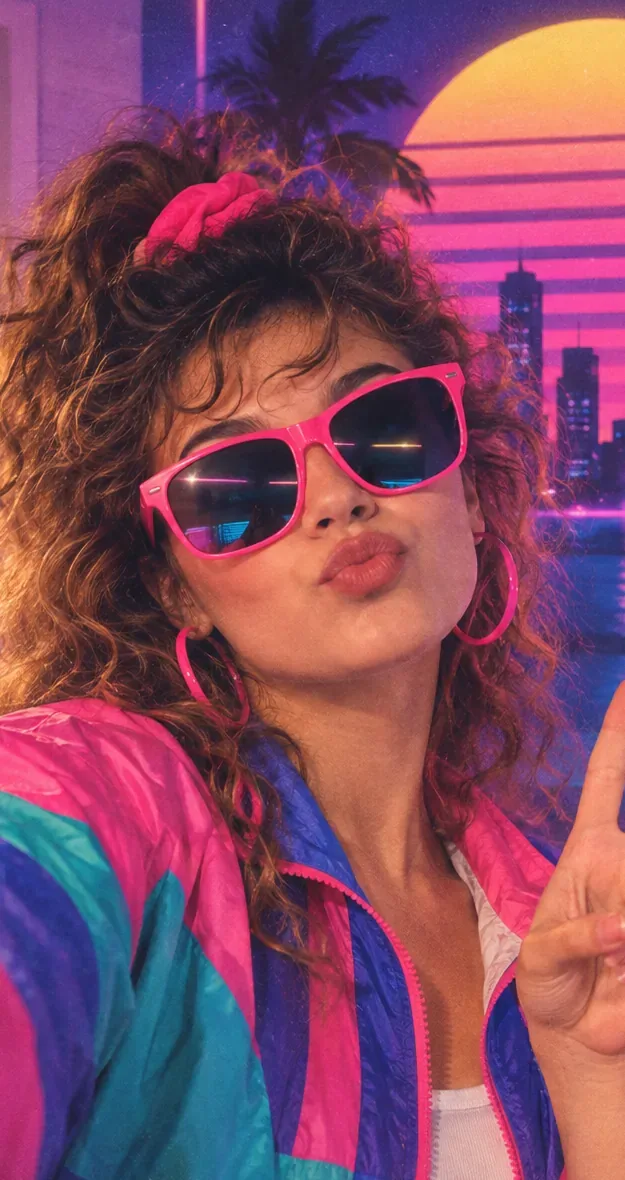
An 80s-inspired selfie can lean on recognizable visual cues such as teased hair, oversized sunglasses, color-blocked sportswear, direct flash, saturated neon, and a retro studio or synthwave backdrop.
Quick Comparison: Which Free Tool Fits Your Goal?
Tool
Free access in 2026
Best use
Main trade-off
ChatGPT Images
Available on Free and paid tiers; image creation has separate usage limits
Conversational selfie restyling and iterative edits
Free quota is limited and can reset independently from normal chat
Gemini
Image generation and editing available without a paid AI plan, subject to eligibility and quotas
Keeping a person consistent while changing scene, wardrobe, or hairstyle
Availability and limits vary by account, country, and age
Leonardo.Ai
150 free tokens per day
More model/settings control and reference-image experimentation
Different models consume different token amounts; some features are paid
Adobe Firefly
Limited free daily generations
Design-oriented workflows and later editing in Adobe tools
Free model/feature availability is limited compared with paid plans
Microsoft Designer
Free plan with monthly AI credits
Fast social-ready images, frames, and simple restyling
Less low-level generation control than specialist image tools
Fotor
Free-forever Basic plan with limited free credits
Quick portrait generation plus familiar photo-editing tools
Basic exports can be watermarked and premium models/features cost more
Canva
Free users can access AI tools until their AI allowance is reached
Turning a generated portrait into a story, post, invitation, or collage
Best as a design workflow; not my first pick when face fidelity is the only goal
1. ChatGPT Images: Best for Conversational Restyling
ChatGPT is a strong starting point if you already have a selfie and want to describe the transformation in ordinary language. OpenAI's current Images in ChatGPT documentation says image creation and editing are available on all tiers, and you can upload an existing image and describe the edits you want. The Free Tier FAQ confirms that Free users can create images, but image generation has its own usage limit.
Choose it if: you want to say “keep my face and pose, but give me 1980s mall-studio hair, makeup, wardrobe, and lighting,” inspect the result, and then refine one detail at a time.
Trade-off: free image usage is capped separately from text chat, so it is better for deliberate iterations than for generating dozens of variants in one sitting.
Prompt to try
Use my uploaded selfie as the identity reference. Preserve my facial proportions, apparent age, skin tone, eye shape, and recognizable features. Restyle only the hair, clothes, lighting, and background as a realistic 1987 mall portrait studio photo: teased voluminous hair, color-blocked windbreaker, subtle blue-and-pink eyeshadow, soft direct flash, mottled gray-blue studio backdrop, 35mm film grain, slightly warm color cast. No text, no logo, no watermark.
2. Gemini: Best Free Choice for Person Consistency
Google's current Gemini image generation and editing guide describes Nano Banana 2 as supporting character consistency, local edits, uploaded-image editing, and multiple-image composition. Google specifically gives personalized use cases such as seeing yourself with different hairstyles or in different scenes. Without an AI plan, generated images can be downloaded at 1K resolution; higher-resolution and Pro regeneration features are tied to paid access.
Choose it if: your main concern is keeping the person recognizably similar while making substantial wardrobe and environment changes.
Trade-off: editing requires an eligible account and is restricted by age, country, account type, and current quota. Paid Nano Banana Pro is a separate step, so do not assume every feature shown online is part of the free experience.
Prompt to try
Edit this selfie into a photorealistic late-1980s arcade portrait. Keep the same person, face structure, expression, and skin tone. Add a denim jacket over a graphic-free black T-shirt, feathered hair, neon magenta and cyan rim lighting, CRT arcade cabinets softly out of focus, subtle flash reflection, Kodak-era color response, fine film grain. Do not add words, logos, or fictional brand marks.
3. Leonardo.Ai: Best for People Who Want More Controls
Leonardo.Ai is useful when you want more knobs than a chat-first tool provides. Its official token FAQ currently gives Free users 150 tokens every 24 hours. Its image-generation guide lets you choose models, generation mode, dimensions, image count, and other settings. Leonardo's Nano Banana documentation says Free users can use one reference image; at the time checked, Nano Banana costs 40 tokens per generated image.
Choose it if: you want to compare aspect ratios, models, prompt variations, and reference-image strength rather than staying in a simple chat loop.
Trade-off: tokens disappear quickly with expensive models and advanced options. Also note that Leonardo says private mode is a paid feature, which matters if you are uploading a personal face photo and care about generation visibility.
Prompt to try
1986 glamour portrait, same person as the reference image, recognizable facial identity, shoulder-up framing, large softly curled hair, satin cobalt jacket, geometric earrings, magenta gel light from camera left, cyan gel light from behind, black studio background with faint haze, sharp eyes, realistic skin texture, 50mm portrait lens look, analog film grain, period-correct styling, no modern smartphone, no text, no logos.
4. Adobe Firefly: Best for an Adobe-Centered Workflow
Adobe's current Firefly plans page lists a Free tier with limited free daily generations across selected image, video, and audio models. Adobe's generative credits documentation explains that feature and model choice determine credit use.
Choose it if: the selfie is only one part of a broader Photoshop, Adobe Express, or Firefly workflow. It is especially practical when you expect to extend the background, adjust composition, or build finished creative assets afterward.
Trade-off: the exact free allowance and model availability can change, and the Free plan is intentionally more limited than paid Firefly plans. Treat it as a high-quality trial/creative workspace rather than an unlimited free portrait factory.
Prompt to try
Restyle the portrait as an authentic 1980s department-store fashion photo: bold shoulder pads, jewel-tone blazer, layered gold-tone accessories, voluminous blowout hairstyle, hard on-camera flash softened by studio fill, pastel mauve and blue seamless background, slight halation, realistic 35mm negative grain, editorial but natural skin texture, no typography or logos.
5. Microsoft Designer: Best for Quick Social Posts
Microsoft Designer has a Free plan with monthly AI credits. Microsoft says the free product can create images, avatars, stickers, designs, and other assets from text, and can also edit photos by moving or removing objects, restyling them, or adding frames.
Choose it if: you want a retro portrait and then immediately need a social card, collage, profile image, or invitation without switching apps.
Trade-off: Designer prioritizes convenience and design composition over the detailed model selection and reference controls available in specialist generators. It is a better “make something shareable quickly” option than a laboratory for exact face-preservation settings.
Prompt to try
Transform this portrait into a cheerful 1980s school-yearbook-style photo. Preserve the person's face and expression. Add a patterned knit sweater in teal, purple, and cream, softly feathered hair, neutral gray-blue studio background, gentle frontal flash, mild film grain, realistic photography, slightly faded print colors. No school name, no text, no watermark.
6. Fotor: Best for a Familiar Photo-Editor Experience
Fotor combines generation and traditional photo editing. Its official pricing page lists Fotor Basic as “Free forever” with limited free credits and one concurrent generation. The same page says Basic exports can carry watermarks. Fotor's AI image generator supports text prompts and reference images and advertises free daily credits for trying different models.
Choose it if: you like a traditional photo-editing interface and want generation, retouching, cropping, and simple finishing tools in one place.
Trade-off: free credits are limited and watermarked output is a material downside if your goal is a clean profile picture. Check the export screen before spending time perfecting a result.
Prompt to try
Keep the same person and facial identity. Create a realistic 1980s aerobics-magazine portrait with a bright turquoise windbreaker, pink headband, high-volume curled hair, clean studio flash, pale peach backdrop, subtle analog grain, energetic but believable styling, crisp eyes, natural skin. Avoid text, brand logos, exaggerated plastic skin, and extra accessories.
7. Canva: Best When the Selfie Is Going Into a Design
Canva's Magic Media help page documents AI image generation from a written description, while its AI tools guidance says Free-plan users can use AI tools until they reach their AI credit limit. Canva AI also supports adding uploaded files to a prompt-driven workflow.
Choose it if: you want to take an 80s portrait and immediately turn it into a story, poster, birthday invite, profile card, or collage.
Trade-off: if your only requirement is “make this face look exactly like me,” I would start with ChatGPT, Gemini, or a reference-heavy Leonardo workflow, then bring the final portrait into Canva for layout.
Three 80s Looks That Produce More Predictable Results
Authentic mall-studio portrait
This is the safest option if you want an image that could plausibly have been taken in the decade rather than a modern synthwave fantasy. Use phrases such as 1987 mall portrait studio, mottled muslin backdrop, on-camera flash, soft fill light, 35mm print grain, feathered hair, color-blocked windbreaker.
Neon arcade portrait
Use this when you want a recognizably retro entertainment aesthetic: late-1980s arcade, magenta and cyan practical lighting, CRT glow, denim jacket, shallow depth of field, direct flash, film grain. Keep fictional signage out of the prompt if you do not want generators inventing unreadable text.
Retro-futurist synthwave
Choose this for maximum visual impact rather than historical accuracy. A glowing striped sunset, palms, purple-blue gradients, reflective grid floors, and neon rim light are strongly associated with modern retro-wave art. They evoke “the 80s” culturally, but they should not be confused with an ordinary real-world 1980s selfie.
A Better Prompt Formula for Your Own Selfie
The most reliable prompt separates what must stay the same from what may change. A useful structure is:
Use my uploaded photo as the identity reference. Preserve [face shape, eye shape, skin tone, apparent age, expression]. Change only [hair, makeup, wardrobe, background]. Style: [specific 1980s sub-style]. Lighting: [flash/studio/neon]. Camera/texture: [35mm grain, mild halation, faded print]. Composition: [close-up/shoulder-up/full body]. Avoid: [text, logo, watermark, extra fingers, face reshaping, modern objects].
That structure is better than simply writing “make me look 80s,” because “80s” can mean a yearbook portrait, punk club, glam-rock studio shot, aerobics ad, Miami nightlife, arcade, New Wave fashion, or modern synthwave poster. Naming the sub-style gives the generator fewer conflicting possibilities.
How to Keep the Result Looking Like You
Start with a sharp, front-facing photo with even light and an unobstructed face.
Ask the model to preserve facial geometry, skin tone, apparent age, and expression before describing the style changes.
Change a few categories at a time. Hair + outfit + background is easier to control than changing pose, age, hairstyle, makeup, camera angle, and facial expression simultaneously.
If identity drifts, return to the original selfie rather than repeatedly editing an already altered result.
Use a reference-image or photo-editing mode when available. Pure text-to-image generation has no reliable reason to reproduce your identity.
Free Does Not Mean the Same Thing Everywhere
Free image tools fall into three practical groups. ChatGPT and Gemini expose image features to free users but apply usage quotas. Leonardo uses a visible daily token allowance. Firefly, Microsoft Designer, Fotor, and Canva use credits or limited free generations whose exact amount or feature access can vary. Before committing to a tool, check three things: whether uploading a reference selfie is included, whether the output is watermarked, and whether the free quota is large enough for several retries.
This matters because an AI selfie often needs more than one generation. The first result may nail the lighting but change the jawline; the second may preserve the face but make the clothing too modern. A tool with fewer but stronger edit iterations may be a better choice than one that produces many unrelated images.
Which Tool Should You Use?
For the easiest face-preserving edit: start with ChatGPT Images or Gemini. Both let you upload a photo and request changes conversationally.
For more generation controls on a free daily allowance: try Leonardo.Ai. Its 150 daily tokens and reference-image workflows make it useful for experimentation, but watch per-model token costs.
For an Adobe creative workflow: use Firefly, especially if the portrait will later be edited or composed in Adobe products.
For a fast social asset: Microsoft Designer or Canva can get you from an idea to a shareable layout quickly.
For a photo-editor-style interface: Fotor is convenient, but check the free export watermark before treating it as your final destination.
The practical strategy is to generate or restyle the portrait in the tool that gives you the best identity control, then finish the crop, layout, or social format in the design tool you already know. That is usually more reliable than forcing one free service to be the best generator, editor, and publishing app at the same time.
One Last Privacy Check Before You Upload a Selfie
A face photo is personal data, so use only photos you have the right to upload and avoid including IDs, addresses, badges, children's information, or other unnecessary sensitive details in the frame. Free-plan data handling and public-generation settings can differ by provider. In particular, review visibility controls before using community-oriented generation platforms, and check the provider's current privacy settings if the selfie is sensitive.
With that precaution, an 80s-style AI selfie is a good use case for free image tools because the desired transformation is mostly visual: wardrobe, hair, makeup, lighting, film texture, and background. The more precisely you define those elements—and the more clearly you tell the model what not to change—the closer the output is likely to be to the person you recognize in the original photo.