How to Download Games to Your Xbox Remotely: 2026 Guide

Learn how to download games to your Xbox remotely in 2026, set up Sleep and remote features, choose the right console, and fix stalled installs.
To download and install Riot Vanguard on Windows, use the official installer for a game that requires it, such as VALORANT or League of Legends. Vanguard is delivered through Riot's game installation process. If the game is already installed, launching it through the Riot Client can trigger Vanguard's reinstallation.
You do not need a third-party “Vanguard setup” package. Start with Riot's official game page, complete the installation, restart when required, and then check whether the game launches without a Vanguard error.
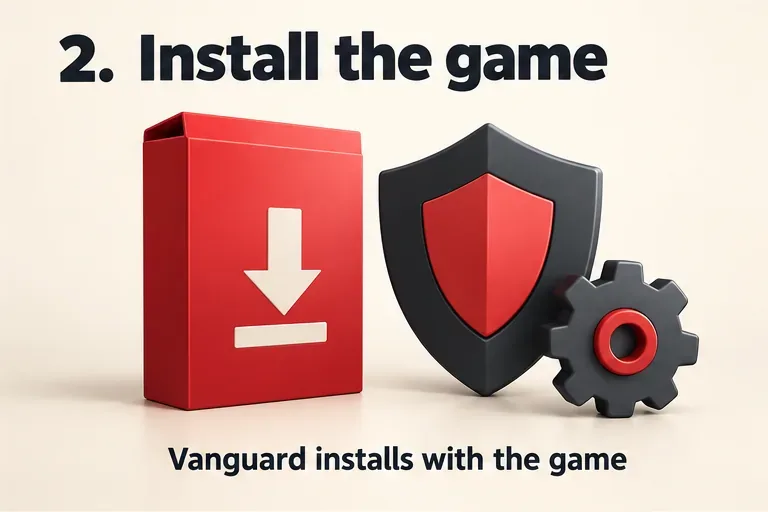
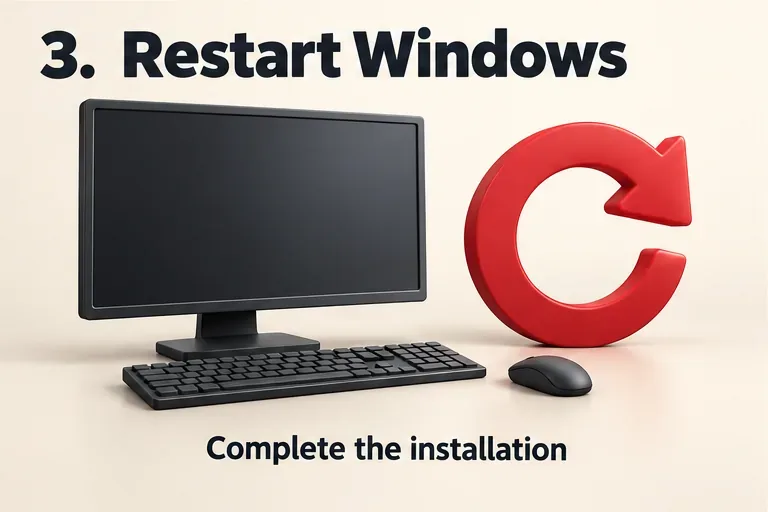
Official guidance checked November 1, 2026. The four illustrations below explain the installation stages; they are not software screenshots.
Riot describes Vanguard as its game security software, consisting of a client and a kernel-mode driver. On Windows, that means the installation includes a system-level component, rather than only a normal game executable.
Vanguard must be active when a game requires it. Riot's League of Legends FAQ also confirms that Teamfight Tactics on PC uses Vanguard through the League Client. Having Vanguard files on your drive is therefore different from having it available and running correctly.
Use a Windows account with administrator access and check the requirements for the game you intend to play. Installing Vanguard cannot make unsupported hardware or an unsupported environment compatible.
For example, Riot's VALORANT PC specifications list 64-bit Windows 10 or Windows 11, with TPM 2.0 and UEFI Secure Boot required on Windows 11. The same page says ARM processors, cloud gaming, and virtual machines are unsupported. Additional Vanguard restrictions can depend on your system, so read any requirement shown on your own PC.
Open the official download page for the game you want:
Use the installer reached through that page. A search result offering an old Vanguard version, an unofficial download mirror, or an individual driver file is not necessary for Riot's documented installation route.
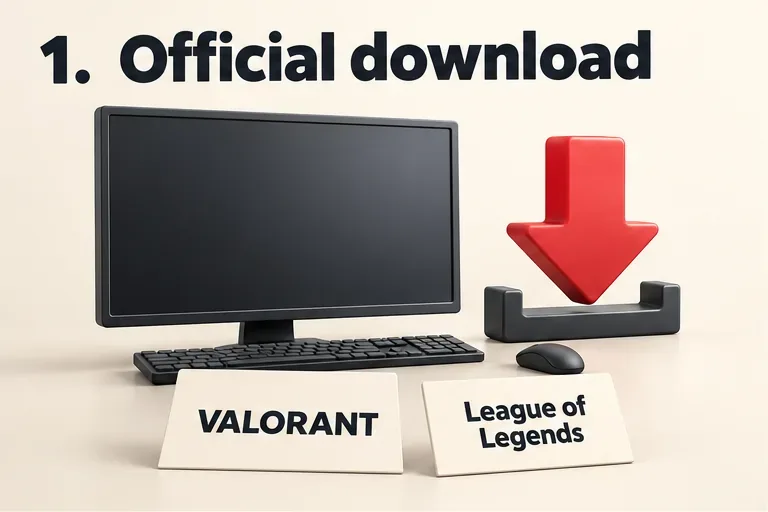
Open the downloaded installer, sign in to or create your Riot account when prompted, and follow the setup instructions. Allow the game and required components to finish installing or updating. Approve an administrator prompt only when it belongs to the installer you deliberately opened from Riot's official page.
Riot's VALORANT installation guidance states that VALORANT, the Riot Client, and Riot Vanguard are available through the VALORANT installer. There is no need to copy Vanguard files manually into a game folder.
Save your work and restart the computer when setup requests it. Riot's installation guidance includes a restart so the required programs can finish installing and updating. Closing and reopening the Riot Client does not perform that Windows restart.
If you still see a restart-required message, confirm that the restart actually completed before downloading another installer. Repeated downloads will not resolve an installation that is simply waiting for a reboot.
Open the Riot Client and launch your game. The useful result is that the game gets past its Vanguard checks without a missing-component or restart-required error. An installed-app entry or folder alone does not establish that the anti-cheat is working.
If a message appears, record its exact wording and code. Where available, the Vanguard system tray tool, also called VGTray, shows security status and links to relevant support guidance. Its behavior can differ when optional on-demand mode is enabled, as explained below.
If Vanguard appears damaged or is missing, follow Riot's uninstall and reinstall guide. Close the game and Riot Client, exit Vanguard as directed, and use Windows' Add or remove programs search to find and uninstall Riot Vanguard.
Once it is removed, launch the Riot Client or a Vanguard-dependent game to reinstall it automatically. Follow the prompts and restart when requested. This route lets you repair Vanguard without immediately committing to a complete game reinstall.
If ordinary uninstallation fails, use the advanced instructions in Riot's guide or contact support. Manually deleting a folder is not the same as completing the documented uninstall process.
Installation and security eligibility are separate checks. Riot's Vanguard Security Requirements page explains that a PC may need features such as TPM 2.0, Secure Boot, Memory Integrity, or IOMMU enabled. The requirement depends on the system and the message it receives.
| What you see | What to check next |
|---|---|
| A missing or damaged Vanguard installation | Use Riot's uninstall/reinstall route, then complete any requested restart. |
| A message naming TPM, Secure Boot, or another security feature | Follow the support link for that exact requirement. |
| VAN: RESTRICTION | Check the specific Windows version or security change named in the message. |
| A Pre-Check requirement that is not met | Determine whether this concerns optional on-demand eligibility or a separate game-launch restriction. |
For VAN: RESTRICTION, Riot explicitly directs players to use the requirement stated in the error. Reinstalling the same files will not enable a missing firmware setting. For BIOS or UEFI changes, use your PC or motherboard manufacturer's instructions; the menu names and applicable steps vary by device.
Not on every eligible PC. Riot's Vanguard Pre-Check guidance, dated June 24, 2026, describes an optional on-demand mode. It lets Vanguard start with a Riot game and stop after gameplay, instead of starting automatically with Windows.
Its listed requirements include Windows 11 version 25H2 or newer, Secure Boot, TPM 2.0, IOMMU, Virtualization-Based Security, and Hypervisor-Protected Code Integrity. Check eligibility through VGTray. These are the requirements for that optional mode; do not treat them as a universal installation checklist for every player.
With standard startup behavior, exiting Vanguard generally means restarting before playing again. With eligible on-demand operation, a permanently visible tray icon outside gameplay is not a reliable installation test.
The Windows installation steps above do not apply to macOS. Riot's League patch 25.S1.2 notes explain that the Mac version uses Embedded Vanguard, with cheat detection integrated into the game client and no additional installation required. Use League's official Mac installer rather than a Windows Vanguard package.
If a Windows installation still fails, record the game name, Windows version, exact error code, and the point where setup stops. Use Riot's installation troubleshooting page or its linked support form with those details, rather than repeatedly downloading unrelated installers.
Learn how to download games to your Xbox remotely in 2026, set up Sleep and remote features, choose the right console, and fix stalled installs.
Fortnite lagging despite fast internet? Learn how to identify ping spikes, packet loss, FPS drops, shader stutter, and server issues—and what to try next.
Fix PS5 controller input lag on PC with a wired baseline, firmware updates, Bluetooth checks, Steam Input settings, and a repeatable response test.
Understand how Riot Vanguard anti-cheat works, why it uses a kernel driver, what On-Demand changes, and how privacy, security, and game access fit together.
Yes, Warzone is free to play. Learn what is included, which purchases and subscriptions are optional, and what platform limits to check before downloading.
Find the official VALORANT Mobile APK, check China-region availability, install it on Android, and understand how it differs from the Riot Mobile companion app.
Find out where you can play League of Legends, which PCs and Macs are supported, how Wild Rift differs, and what Xbox, browser, and region listings mean.
Learn how to play PUBG on Mac by streaming from a Windows PC with Steam Link, plus setup steps, compatibility limits, and fixes for common problems.
Learn how to save your game in GTA 5 with Quick Save, safehouse beds, and autosave, plus how to leave GTA Online and check that your progress was saved.
Can you still download Warzone on PS4? Check the 2026 restrictions, existing-library reinstall steps, support cutoff, and fixes for eligible downloads.