How to Download Games to Your Xbox Remotely: 2026 Guide
Learn how to download games to your Xbox remotely in 2026, set up Sleep and remote features, choose the right console, and fix stalled installs.
To download games to your Xbox remotely, prepare your console’s remote settings, then use the Xbox mobile app to send a game to the correct console. Your Xbox downloads the files at home while you are somewhere else. The important checks are power, connectivity, available storage, and whether that game supports remote installation.
This 2026 guide covers Xbox Series X|S and Xbox One. Microsoft’s official Xbox mobile app page still supports remote console installations. Menu placement can change between app releases, so follow the action labels below rather than relying on an old screenshot.
On iPhone or iPad, check that the developer is Microsoft Corporation; Microsoft’s Xbox listing on the App Store also confirms remote console installation. You do not need a phone controller to send an installation request.
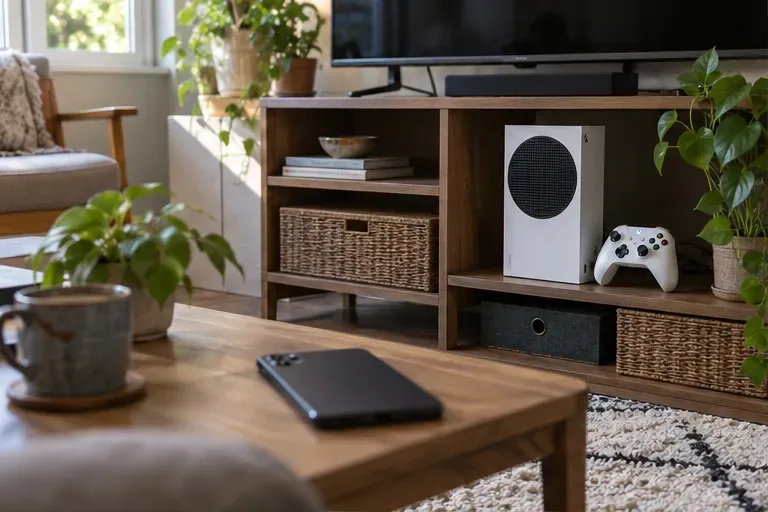
Sign in on the console with the Xbox profile you will use in the app. Press the Xbox button and open Profile & system > Settings > Devices & connections > Remote features. Turn on Enable remote features, as described in Xbox’s remote installation instructions.
If you manage multiple consoles, give each a recognizable name in its console settings before you leave. A name tied to a room or location makes the destination easier to identify than several nearly identical default names.
Choose Sleep in the console’s power options. You can review power settings under Settings > General > Power options. Do not assume a console that looks switched off is still reachable.
Also check its active hours. Xbox explains that a console using Sleep can fully shut down outside its selected active hours. Mobile game installs are available during those active hours. If you plan to send a download request during your lunch break, make sure that time falls inside the console’s configured window. See Xbox’s explanation of Sleep and active hours.
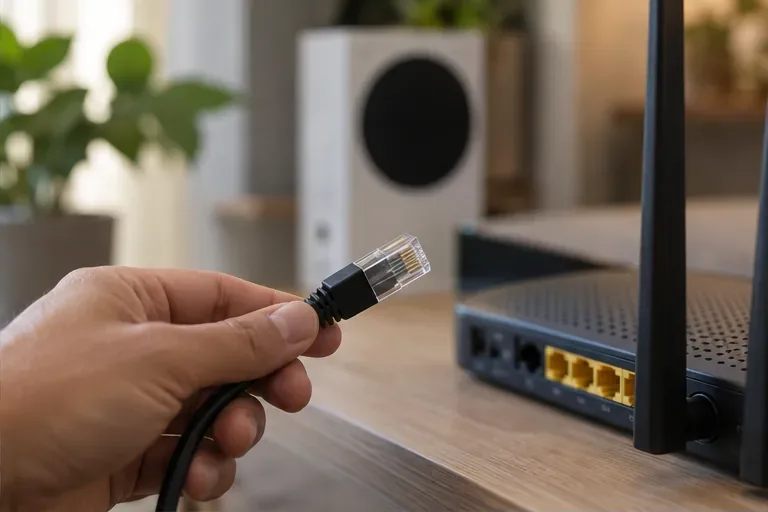
Keep your router online as well. A reachable power mode cannot compensate for an unplugged router or a disconnected network cable. If Wi-Fi has been unreliable, consider connecting the console to the router with Ethernet before leaving.
Install or update the Xbox app on your phone, open it, and sign in. Check the gamertag shown in your profile before selecting a game, particularly if your household uses several Microsoft accounts.
Complete any console setup prompts the app presents. Do this while you can still access the Xbox if possible. Finding an account mismatch before a trip is much easier than trying to fix it after you have left the console behind.
Search for the game in the app and open its details. Select Download to console, choose your enabled Xbox, and confirm any prompt. Check the destination before submitting.
A purchase button, a cloud play option, and an installation action serve different purposes. Microsoft’s April 2026 Xbox update describes buying, installing, and connecting to remote play as separate actions from a game’s product page. Choose the installation action when your goal is to have files downloaded at home.
An accepted request is not proof of a completed download. When you can access the console, open My games & apps > Manage > Queue. Look for the game and check whether it is installing, queued, or paused. For a paused entry, open its options and select Resume installation when available.
Once installation finishes, launch the game to check access and any remaining setup. A successful outcome means the right game is installed on the right console and the account you intend to use can open it.
Yes. For a game purchased on Xbox.com, open its store details, select Install To, choose the console, and select Install Now. Use the account associated with the purchase. Not every game offers both console and PC installation.
This is useful when you are already shopping on a computer. Before buying, confirm that the listing supports your Xbox model; a Windows-only edition will not become a console game because you send a remote request.
| Symptom | What to check |
|---|---|
| Your console is missing | Check the app’s signed-in profile, the console setup, and whether remote features remain enabled. |
| The request was accepted, but nothing arrives | Check console power, active hours, and the home internet connection before sending another request. |
| The installation is paused | Read its queue status and error message, then resume it after resolving the stated issue. |
| There is insufficient space | Check Settings > System > Storage devices and free enough space on a suitable drive. |
| The download is unusually slow | Close or suspend running games and review the speed displayed in Queue. |
| No remote installation action appears | Check title support and platform compatibility. Start the installation directly on the console when necessary. |
Xbox specifically excludes EA, Ubisoft, Battle.net, and Riot games available through Game Pass from remote installation. That limitation does not mean your console settings are necessarily wrong.
For slow transfers, Xbox’s download troubleshooting guide explains that running games can constrain background downloads. Close the active game or use Suspend my game in Queue when offered. Reducing other large downloads on your home network or trying Ethernet may also help. Judge progress by the console’s queue rather than your phone’s connection speed.
According to Xbox’s storage management guide, you can inspect each drive’s used and available space under Settings > System > Storage devices. Uninstall an unused game or move suitable content when you need room. For games optimized for Series X|S, plan to use the internal SSD or a compatible Storage Expansion Card for play; ordinary USB storage is not an equivalent play location for those titles.
Downloading does not buy a game. The mobile app can install games you have not purchased, but you still need the appropriate right to play. For a paid title outside your subscription access, arrange the purchase before expecting it to launch. A subscription download also does not guarantee permanent access to that game.
No. Remote installation sends files to your Xbox so you can play later. Xbox Remote Play streams games installed on your console to another supported device. Xbox Cloud Gaming streams a supported game through the cloud rather than installing it on your console.
If you only want a game ready after work, send the download request and leave the console reachable. You do not need to keep a streaming session open. Before relying on the feature for a large game, try a small installation while you can still check the console’s queue.
Learn how to download games to your Xbox remotely in 2026, set up Sleep and remote features, choose the right console, and fix stalled installs.
Fortnite lagging despite fast internet? Learn how to identify ping spikes, packet loss, FPS drops, shader stutter, and server issues—and what to try next.
Fix PS5 controller input lag on PC with a wired baseline, firmware updates, Bluetooth checks, Steam Input settings, and a repeatable response test.
Understand how Riot Vanguard anti-cheat works, why it uses a kernel driver, what On-Demand changes, and how privacy, security, and game access fit together.
Yes, Warzone is free to play. Learn what is included, which purchases and subscriptions are optional, and what platform limits to check before downloading.
Find the official VALORANT Mobile APK, check China-region availability, install it on Android, and understand how it differs from the Riot Mobile companion app.
Find out where you can play League of Legends, which PCs and Macs are supported, how Wild Rift differs, and what Xbox, browser, and region listings mean.
Learn how to play PUBG on Mac by streaming from a Windows PC with Steam Link, plus setup steps, compatibility limits, and fixes for common problems.
Learn how to save your game in GTA 5 with Quick Save, safehouse beds, and autosave, plus how to leave GTA Online and check that your progress was saved.
Can you still download Warzone on PS4? Check the 2026 restrictions, existing-library reinstall steps, support cutoff, and fixes for eligible downloads.