How to Download Games to Your Xbox Remotely: 2026 Guide

Learn how to download games to your Xbox remotely in 2026, set up Sleep and remote features, choose the right console, and fix stalled installs.
To save your game in GTA 5 Story Mode, open your character’s phone, choose Quick Save, select a save slot, and confirm. You can also save at a safehouse bed and use autosave as a backup. Before quitting, check that the save finished and that the correct file appears in the load list.
GTA Online works differently: it records your character’s progress through Rockstar’s online services rather than Story Mode’s manual save slots. Follow the section for your mode so you do not mistake a single-player save for an online backup.
| Method | Best use | Main limitation |
|---|---|---|
| Story Mode Quick Save | Make a deliberate save during free roam without returning home. | It is unavailable during certain activities, including main missions. |
| Story Mode safehouse bed | Save when you are already at a character’s available home. | You must reach the bed; sleeping advances in-game time. |
| Story Mode autosave | Keep an additional record as you progress. | It does not give you a separate, permanent backup for every decision. |
| GTA Online saving | Record online character progress and purchases. | Saving depends on communication with Rockstar’s services. |
Use this method once you have access to normal Story Mode free roam. Rockstar’s support instructions confirm the Story Mode phone’s Quick Save function.

For example, before a major story decision, keep one manual save from before the choice and save later progress into another slot. This gives you a specific point to return to instead of depending entirely on the latest autosave.
A safehouse is a home available to your Story Mode character. Enter an accessible home, approach the bed, and follow the displayed sleep/save prompt. Choose your save slot and confirm rather than leaving the save-selection screen without saving.

This is useful when you are already at home, but sleeping also moves the in-game clock forward. Use the phone when you simply want to record progress without a trip to the bedroom. Follow the on-screen interaction prompt because the button depends on your platform and control settings.
Open the Pause menu, choose Settings, and locate the saving options. Set Autosave to On. Rockstar documents this setting in its Story Mode saving instructions. That article temporarily disables autosave for a specific troubleshooting procedure; ordinary play does not require that workaround.
Autosave records progress at game-defined points. Treat it as a helpful extra rather than a promise that every recent action has already been written to storage.
After making an important manual save, open Pause > Game > Load Game and inspect the file list. Look for the slot you used and its updated save details, including its date and time. Simply highlighting a file does not load it.
Do not load an older file while you still have unsaved progress you want to keep. Loading replaces the current session with the selected save.
GTA Online does not offer Story Mode’s selectable manual save files. Rockstar’s guidance on missing online progress recommends pausing and returning to single-player to trigger a save.
Rockstar warns that purchases made immediately before powering off or exiting through console system menus may not be recorded. If you use the standalone GTA Online edition, use its in-game exit option; the documented return-to-single-player route applies when Story Mode is available. Menu wording can vary by edition.
A Story Mode Quick Save is not an independent backup of your GTA Online character. Likewise, a console’s suspended session is not evidence that the latest online transaction reached Rockstar’s services.
First check whether you are in GTA Online or in a Story Mode mission. Online uses its own saving system, while manual Story Mode saving is restricted during some gameplay. Return to ordinary free roam and try the phone again. If you have just started the story, continue through the opening missions until saving becomes available.
Rockstar says this can happen when a Story Mode save was not registered. Its Prologue troubleshooting advice is to play until you reach Franklin’s house and save. Confirm that the new file appears before ending the session.
Do not assume the latest progress is secure while that warning remains. Pause major purchases or other progress you would be concerned about losing, and check Rockstar Games Service Status for your platform.
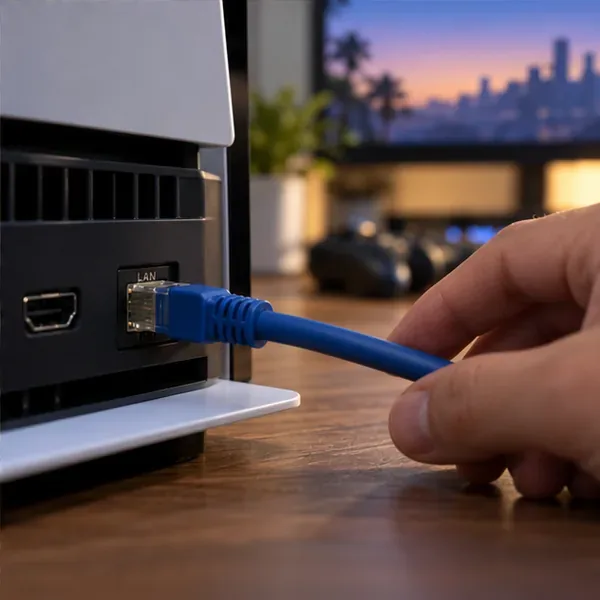
Rockstar’s PC connection troubleshooting guide lists this error and recommends checking both service availability and your internet connection. It also suggests trying a wired connection when wireless problems continue. A healthy status page does not prove that your individual connection is working.
If saving remains unreliable, contact Rockstar Support with your platform, account nickname, exact warning, and the date and time of the problem. Include your time zone so the incident can be identified accurately. Local Story Mode saving cannot repair an online service interruption.
No. Rockstar’s cheat-code guidance says saving remains available, but achievements are temporarily disabled. Keep a separate file before experimenting. Reloading a save resets cheats; do not assume turning one cheat off restores every achievement condition during the same session.
For Story Mode, aim for a completed manual save, a recent entry in the load list, and at least one older file you have preserved. For GTA Online, finish the activity, leave through the in-game menu, and allow saving to complete. If an error remains, treat the latest progress as unconfirmed rather than assuming a fixed waiting period guarantees success.
Learn how to download games to your Xbox remotely in 2026, set up Sleep and remote features, choose the right console, and fix stalled installs.
Fortnite lagging despite fast internet? Learn how to identify ping spikes, packet loss, FPS drops, shader stutter, and server issues—and what to try next.
Fix PS5 controller input lag on PC with a wired baseline, firmware updates, Bluetooth checks, Steam Input settings, and a repeatable response test.
Understand how Riot Vanguard anti-cheat works, why it uses a kernel driver, what On-Demand changes, and how privacy, security, and game access fit together.
Yes, Warzone is free to play. Learn what is included, which purchases and subscriptions are optional, and what platform limits to check before downloading.
Find the official VALORANT Mobile APK, check China-region availability, install it on Android, and understand how it differs from the Riot Mobile companion app.
Find out where you can play League of Legends, which PCs and Macs are supported, how Wild Rift differs, and what Xbox, browser, and region listings mean.
Learn how to play PUBG on Mac by streaming from a Windows PC with Steam Link, plus setup steps, compatibility limits, and fixes for common problems.
Learn how to save your game in GTA 5 with Quick Save, safehouse beds, and autosave, plus how to leave GTA Online and check that your progress was saved.
Can you still download Warzone on PS4? Check the 2026 restrictions, existing-library reinstall steps, support cutoff, and fixes for eligible downloads.