How to Download Games to Your Xbox Remotely: 2026 Guide

Learn how to download games to your Xbox remotely in 2026, set up Sleep and remote features, choose the right console, and fix stalled installs.
If Fortnite is lagging but your internet seems fine, first find out whether the problem is delayed network traffic, uneven frame delivery, or the match itself. A fast download speed does not establish that your connection to Fortnite is stable, and it says nothing about how smoothly your device renders the game. The useful fix depends on which symptom you can observe.
Start with the Epic Games service status page. Look at the Fortnite components and any incident details. If an incident matches your problem, follow its updates before making major changes to your setup. A service status page is a useful check, but it cannot diagnose your individual match.
Next, open Fortnite's Settings > Game UI, enable Net Debug Stats, and apply the change. Enter a match: Epic says you need an active match to see real ping and packet-loss results. Follow its packet-loss instructions if the menu looks different after an update.
On PC, also enable Show FPS in the Video tab's Advanced Graphics section. Epic's PC settings guide documents this option. Watch the readings when the hitch happens, rather than checking only in the lobby.
| What you notice | What it suggests | What to check next |
|---|---|---|
| Players snap backward or movement updates arrive late while FPS stays steady. | Network delay, loss, or a server problem. | Watch ping and loss; compare another match. |
| The entire view hitches and FPS drops at the same time. | A local rendering or workload issue is more likely. | Test lower graphics settings and check background activity. |
| Several players on separate connections experience the same interruption. | A shared match or service issue becomes more plausible. | Check service notices and try another mode. |
These are diagnostic clues, not proof. For example, a normal-looking ping reading cannot establish that every part of the server simulation is running correctly. Record the symptom and the readings together.
Bandwidth and latency measure different things. Bandwidth describes transfer capacity; ping measures the round trip to a server. Jitter is variation in that delay, while packet loss means some data fails to arrive. Streaming video working normally does not establish that these gaming conditions are healthy.
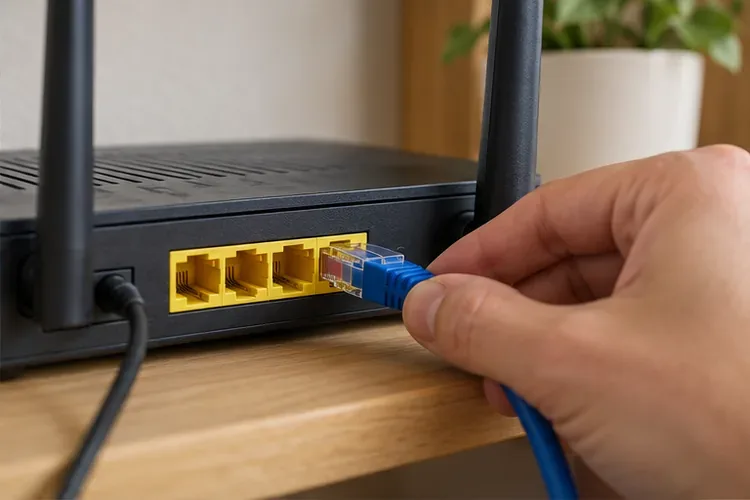
Epic's latency troubleshooting guidance recommends checking the connection under the same load that causes trouble. Try a wired Ethernet connection, pause large transfers, and restart the router. If the router supports quality-of-service controls, consult its manual before changing them. Test each change separately.
A cloud backup or another device's upload is worth checking even when download speeds remain high. If lag improves with those transfers paused, that supports investigating congestion. It does not automatically mean you need a faster internet plan.
Open Settings > Game > Language and Region > Matchmaking Region. Epic recommends Auto, which selects the region with the best ping. The displayed millisecond estimates help you compare alternatives if Auto still produces poor results. Its region settings instructions also explain subregion preferences.
Do not pick a region simply because someone else's settings recommend it. Apply a change, join a match, and compare the actual experience. A geographically familiar region name is less useful than your measured connection.
When the whole image pauses or becomes choppy, work on the device side too. Epic's low-FPS troubleshooting page identifies hardware limitations, background programs, graphics drivers, and cooling as relevant checks. These conditions can affect Fortnite even when your network is working well.
Close unnecessary recording software and other demanding applications. On PC, use the Epic Games Launcher to open Library > Fortnite's three-dot menu > Manage > Verify if damaged installation files are a possibility. This checks the installation without requiring a full reinstall.
Then lower the graphics quality as a comparison. Epic's graphics troubleshooting instructions recommend a Low preset and gradually raising settings if stability improves. On laptops or systems with multiple GPUs, check that Fortnite uses the high-performance GPU. If performance deteriorates after extended play, check for blocked vents and heat. That pattern suggests a cooling investigation; it does not confirm overheating by itself.
On PC, Epic says Performance rendering mode may improve low FPS. Find it under Settings > Video > Display > Rendering Mode, apply it, and restart Fortnite. Follow Epic's Performance mode instructions for the current labels.
The tradeoff is reduced visual detail. Compare smoothness in similar gameplay before keeping it. A graphics setting cannot repair packet loss, so leave network troubleshooting in the picture if that reading is still abnormal. These Windows and rendering-mode directions are PC-specific; console players should skip them.
Epic documents a problem in which Fortnite repeatedly recompiles DirectX shaders, causing heavy stutter in DirectX 12 mode. Its shader-cache support article provides graphics-vendor-specific cleanup instructions.
If that description matches your situation, close Fortnite and the launcher and follow the official procedure carefully. Epic warns that the first match afterward can still stutter while shaders rebuild. Do not treat every post-update hitch as a confirmed cache problem, or repeatedly clear caches as routine maintenance.
It is possible for your connection and device to be healthy while a particular experience runs poorly. Epic's technical performance documentation for island creators explains that an overloaded island server can produce lag or rubber-banding for players. It also describes hitches caused by heavy island workloads.
If one Creative island consistently performs badly while other experiences run well, an island-specific problem is a reasonable hypothesis. Try another island or an Epic-made mode and note the difference. If people in the same match report the same interruption on different connections, include that in a report. Neither comparison proves which component failed.
Likewise, a new issue appearing after an update is worth reporting, but timing alone does not identify its cause. Use a verified Epic notice when one exists; otherwise describe it as an unresolved symptom rather than claiming a confirmed widespread bug.
Change one thing at a time and compare similar gameplay. Keep a short record of:
Illustrative example: If the camera freezes, FPS falls, and ping remains near its usual level, prioritize the rendering checks. If FPS stays stable but movement snaps backward as packet loss appears, prioritize the connection. These examples describe how to interpret your observations; they are not measured test results.
If the issue persists, send Epic Support your observations, affected mode, platform, and time with a named time zone or UTC offset. For a connection investigation, share the same evidence with your ISP. Epic notes that command-line ping tests use ICMP while gameplay uses UDP, so a clean ping test alone cannot rule out a gameplay-path problem.
Learn how to download games to your Xbox remotely in 2026, set up Sleep and remote features, choose the right console, and fix stalled installs.
Fortnite lagging despite fast internet? Learn how to identify ping spikes, packet loss, FPS drops, shader stutter, and server issues—and what to try next.
Fix PS5 controller input lag on PC with a wired baseline, firmware updates, Bluetooth checks, Steam Input settings, and a repeatable response test.
Understand how Riot Vanguard anti-cheat works, why it uses a kernel driver, what On-Demand changes, and how privacy, security, and game access fit together.
Yes, Warzone is free to play. Learn what is included, which purchases and subscriptions are optional, and what platform limits to check before downloading.
Find the official VALORANT Mobile APK, check China-region availability, install it on Android, and understand how it differs from the Riot Mobile companion app.
Find out where you can play League of Legends, which PCs and Macs are supported, how Wild Rift differs, and what Xbox, browser, and region listings mean.
Learn how to play PUBG on Mac by streaming from a Windows PC with Steam Link, plus setup steps, compatibility limits, and fixes for common problems.
Learn how to save your game in GTA 5 with Quick Save, safehouse beds, and autosave, plus how to leave GTA Online and check that your progress was saved.
Can you still download Warzone on PS4? Check the 2026 restrictions, existing-library reinstall steps, support cutoff, and fixes for eligible downloads.