How to Download Games to Your Xbox Remotely: 2026 Guide
Learn how to download games to your Xbox remotely in 2026, set up Sleep and remote features, choose the right console, and fix stalled installs.
You can access PUBG: BATTLEGROUNDS through a browser-based cloud PC, but that is streaming the installed PC game—not running a native browser edition. Shadow specifically documents this route on its PUBG: BATTLEGROUNDS page: subscribe to a remote Windows computer, install the game there, and access it through a browser.
Sources checked November 1, 2026. The instructions below follow published provider documentation. They are not a hands-on performance test or a guarantee that a particular subscription, region, or future game update will work. Before signing up, distinguish the PC game from PUBG MOBILE and confirm the service supports the exact edition you want.
PUBG: BATTLEGROUNDS is the PC and console battle royale, a survival shooter in which players gather equipment and fight as the playable area shrinks. PUBG MOBILE is the mobile product. A browser listing for one should not be treated as access to the other.
| Option | What actually runs | What to verify |
|---|---|---|
| BATTLEGROUNDS on a cloud PC | The PC installation runs on a remote Windows machine; your browser receives its video and sends your inputs. | Game compatibility, subscription, service area, browser support, and connection quality. |
| PUBG MOBILE through a mobile-cloud provider | The mobile game runs remotely and is streamed to your device. | The exact mobile edition and whether a playable session is available on your connection. |
| A local PC or mobile installation | The appropriate game runs on your own compatible device. | System requirements, storage, updates, and the official download source. |
The publisher's BATTLEGROUNDS Steam listing identifies the PC title as free to play. For mobile downloads, start from the official PUBG MOBILE website. Do not assume that selecting a similarly named game gives you the account, matchmaking environment, or edition your friends use.
A cloud PC is a remote computer you control over the internet. Shadow's PUBG page explicitly describes installing Steam or the Epic Games Launcher on that computer and playing through a browser tab. That provides a documented setup route, rather than relying on a generic “cloud gaming supports everything” claim.
Check the current Shadow offers for your location, the subscription price, storage, and activation conditions before purchasing. BATTLEGROUNDS being free to play does not make the rented computer free. A cloud subscription and access to the game are separate matters.
Compatibility can change. Shadow's anti-cheat compatibility guidance explains that some games block virtual machines, the software-based computers used by its service. Steam also identifies BATTLEGROUNDS as using kernel-level anti-cheat. Confirm current PUBG support with the provider if that is your main reason for subscribing; a marketing page is not a promise that every later patch will remain compatible.
now.gg's own PUBG MOBILE guide describes opening its game page and selecting “Play in browser.” However, opening the linked game page during this check returned “Proxy/VPN Detected,” so a playable session could not be confirmed.
That response does not establish what every reader will see. It does mean this article cannot promise instant access, availability in your country, or compatibility with your account. If the provider does not offer a working launch option on your connection, use an official installation or another service with confirmed support.
Use the provider's official site to confirm that its current offering covers your location and intended game. For the Shadow route described here, you need an activated cloud PC account and a game-store account such as Steam. Check the complete price and subscription terms before paying.
Decide whether cloud access solves your actual problem. It can provide a Windows gaming environment when your local computer cannot run the game, but it adds an ongoing service cost and a streaming connection. If you already own a suitable gaming PC, a local installation is worth considering before renting another computer.
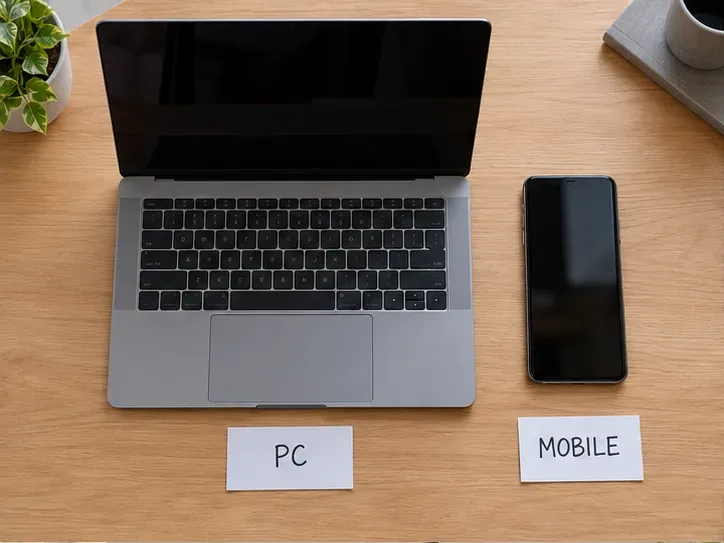
Shadow's browser FAQ identifies supported Chromium-based browsers such as Google Chrome and Microsoft Edge, and requires H.264 video decoding support. H.264 is the video format your device must decode to display the stream. Keep the browser updated.
Its network guidance lists a minimum 15 Mbps download connection and at least 5 Mbps upload, with ping of 30 milliseconds or less described as ideal. Ping measures network delay. These are provider guidelines, not a guarantee of responsive shooting.
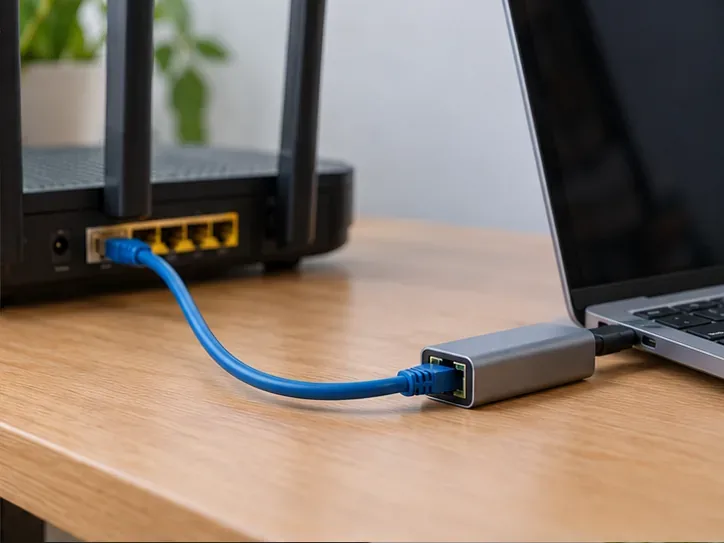
Use Ethernet where practical and check the connection to the provider's data center, not just a nearby speed-test server. Prepare a keyboard, mouse, and any headset you intend to use. A high headline download speed alone does not establish that aiming will feel responsive.
Open the official Shadow browser launcher, sign in, and access your activated cloud PC. Shadow's browser FAQ says the desktop begins streaming in a window when ready.
Inside that remote Windows desktop, install or open Steam or the Epic Games Launcher, sign in to your own store account, and install PUBG: BATTLEGROUNDS from its genuine store page. Allow the game and required components to finish updating, then launch it from the remote machine.
The location of the installation matters: the large game files belong on the cloud PC in this route. Downloading the Steam installer onto your local laptop instead will begin a local setup. “No local game download” still involves a game installation and storage on the rented computer.
Use the provider's full-screen option if it helps with input focus. Shadow documents a Fullscreen control in its Quick Menu and notes that microphone access requires browser permission. Grant microphone access only if you intend to use it, then confirm both playback and voice input.
In the game, use an available training or low-pressure session to check camera movement, aiming, key bindings, sound, and text readability. You are looking for consistent response and a clear enough picture to follow movement. If the mouse feels delayed or the stream repeatedly freezes, troubleshoot before joining a demanding match.
When finished, exit the game normally and follow the provider's session-ending controls. On a shared device, sign out of the cloud service rather than leaving a remote desktop accessible to the next user.
| Symptom | Useful next check |
|---|---|
| Blurry video, freezing, or stuttering | Check connection stability, packet loss, and competing downloads. Compare Ethernet with Wi-Fi and reduce streaming quality if the service offers that setting. |
| Clear video but delayed aiming | Examine latency to the cloud data center. Lowering in-game graphics alone may not solve network delay. |
| No voice input | Check browser microphone permission and the selected input device before changing unrelated game settings. |
| The game will not launch after updating | Record the exact message and check current service compatibility and game support. Do not assume that every failure is a browser problem. |
Shadow's network guide specifically identifies congestion, weak Wi-Fi, latency, jitter, and packet loss as possible streaming problems. Jitter means variation in delay; packet loss means some transmitted data does not arrive. These checks help separate a poor connection from a game-launch or remote-computer issue.
For regular play on a capable PC, installing BATTLEGROUNDS locally avoids the extra cloud-streaming connection, although the online game still needs internet access. For players who specifically want PUBG MOBILE, the official mobile download is an alternative when a browser listing cannot be launched.
Choose based on the edition you need, verified availability, recurring cost, and how the controls actually respond on your connection. Browser streaming can remove the need for a local gaming installation; it cannot remove service requirements, network delay, or the distinction between the PC and mobile games.
Learn how to download games to your Xbox remotely in 2026, set up Sleep and remote features, choose the right console, and fix stalled installs.
Fortnite lagging despite fast internet? Learn how to identify ping spikes, packet loss, FPS drops, shader stutter, and server issues—and what to try next.
Fix PS5 controller input lag on PC with a wired baseline, firmware updates, Bluetooth checks, Steam Input settings, and a repeatable response test.
Understand how Riot Vanguard anti-cheat works, why it uses a kernel driver, what On-Demand changes, and how privacy, security, and game access fit together.
Yes, Warzone is free to play. Learn what is included, which purchases and subscriptions are optional, and what platform limits to check before downloading.
Find the official VALORANT Mobile APK, check China-region availability, install it on Android, and understand how it differs from the Riot Mobile companion app.
Find out where you can play League of Legends, which PCs and Macs are supported, how Wild Rift differs, and what Xbox, browser, and region listings mean.
Learn how to play PUBG on Mac by streaming from a Windows PC with Steam Link, plus setup steps, compatibility limits, and fixes for common problems.
Learn how to save your game in GTA 5 with Quick Save, safehouse beds, and autosave, plus how to leave GTA Online and check that your progress was saved.
Can you still download Warzone on PS4? Check the 2026 restrictions, existing-library reinstall steps, support cutoff, and fixes for eligible downloads.