How to Download Games to Your Xbox Remotely: 2026 Guide
Learn how to download games to your Xbox remotely in 2026, set up Sleep and remote features, choose the right console, and fix stalled installs.
You can update DualSense or DualSense Edge controller firmware on a Windows PC with Sony's PlayStation Accessories app. A PS5 is not required for this method. For a straightforward first attempt, use a USB data cable, install the official app, and let it check the connected controller. Allow time for downloads and installation; finish when the app confirms completion, rather than relying on a promised number of minutes.
The right approach depends on your controller, computer and existing setup. A wired PC connection avoids Bluetooth pairing, while an already configured wireless connection may be convenient. If you mainly play on PS5, updating through the console can save you a separate Windows installation.
Sony's PlayStation Accessories guide and download page lists two supported controller families:
| Controller | Firmware updates in the Windows app | Profile customization in the app |
|---|---|---|
| DualSense wireless controller | Supported | Not offered for this model |
| DualSense Edge wireless controller | Supported | Supported |
| DUALSHOCK 4 | Not listed as supported | Not listed as supported |
Do not confuse playing on a PC with firmware-update support. Sony documents DUALSHOCK 4 connections to a Windows PC using a compatible micro-USB cable or its USB wireless adapter. That does not make it compatible with the DualSense updater. For a third-party controller, use its manufacturer's model-specific instructions.
| Option | Best fit | Practical tradeoff |
|---|---|---|
| Windows PC with USB | First-time setup or unreliable Bluetooth detection | Requires a compatible data cable and USB port; avoids wireless pairing. |
| Windows PC with Bluetooth | A controller already recognized by PlayStation Accessories | Depends on the PC's Bluetooth support and controller charge; follow any connection instructions shown by the app. |
| PS5 console | Someone who already uses a PS5, or lacks a suitable Windows PC | Uses the console's device-software update route instead of installing the Windows app. |
Sony's app guide supports both USB and Bluetooth connections, although it does not support every Bluetooth adapter. USB is the recommendation for this walkthrough because it removes the pairing step. Sony's updater requirements list Windows, so being able to play with the controller on a Mac does not establish a native Mac firmware-update route.
For the cable, Sony's DualSense support instructions specify a cable that supports charging and data, not a charge-only cable. A light or charging response alone is not proof that the app can communicate with the controller.
Open the official PlayStation Accessories page linked above and choose Download for Windows. Run Sony's installer and follow its prompts, then open the app. Use the current official download instead of a firmware file from an unrelated website.
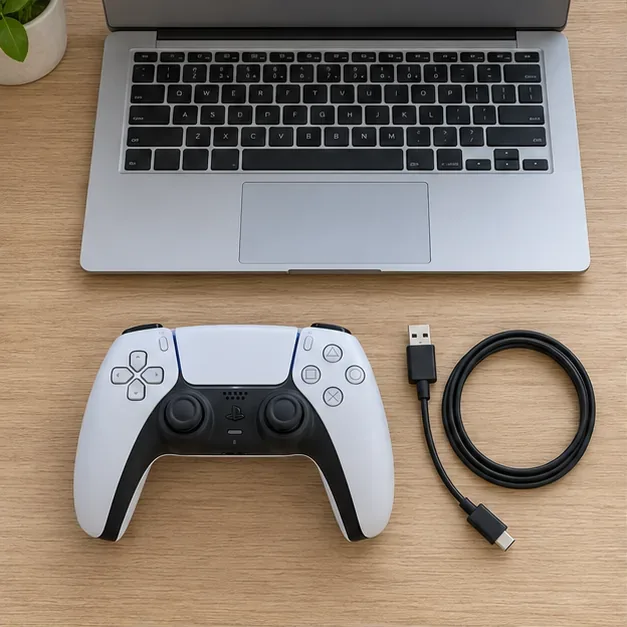
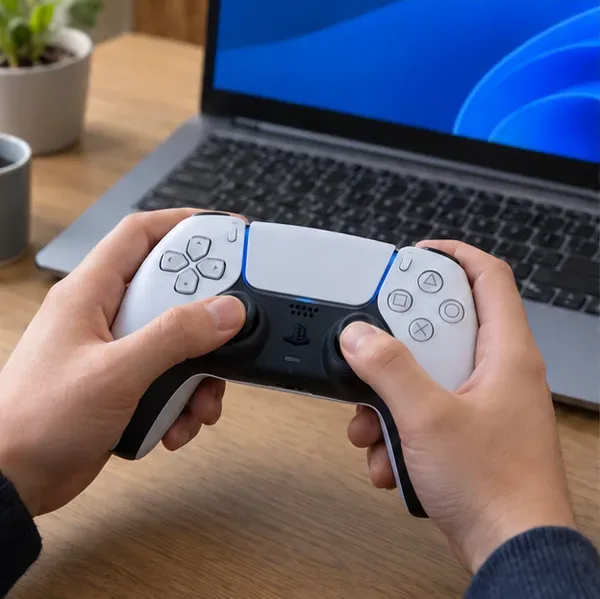
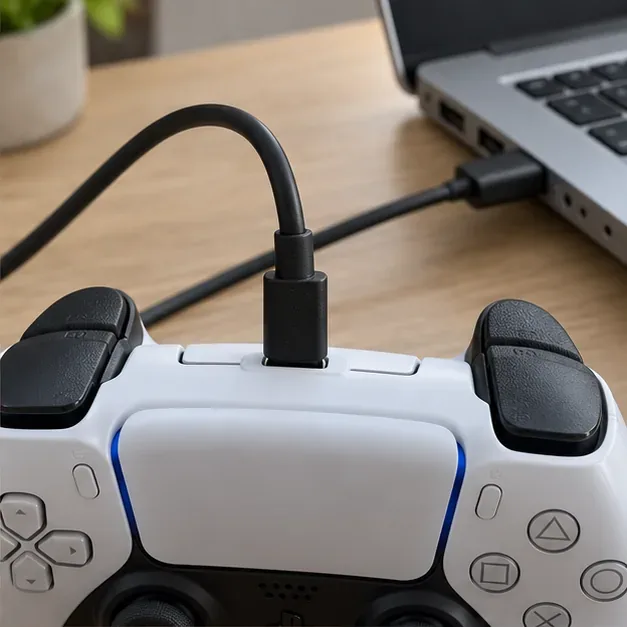
Connect the cable to the controller's USB-C port and a compatible USB port on your PC. Wait for the app to display the controller. If several controllers are connected, identify the one you intend to update. Sony's DualSense PC connection guide confirms USB-C as a supported connection method.
Find the controller's firmware information. Sony documents an Update option when new firmware is available. Select it and follow the on-screen instructions. Do not disconnect the controller or turn off the PC during the update. Update multiple controllers individually. Sony's DualSense Edge app guide documents the same firmware controls and precautions alongside its additional customization settings.
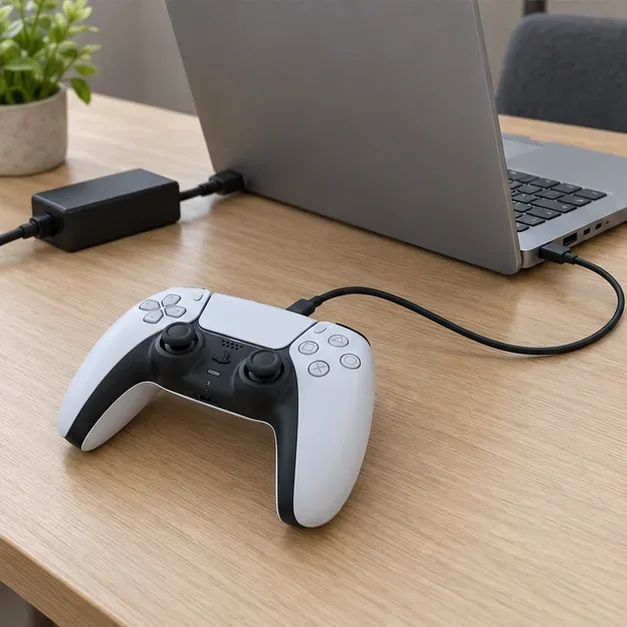
Wait for the update to finish before unplugging anything. Return to the controller's firmware information and check that the app has no further update pending. Keep the app version and controller firmware version separate; they identify different software. Then open a compatible game and check normal button, stick and trigger input. This confirms basic operation without assuming that every advanced feature is available.
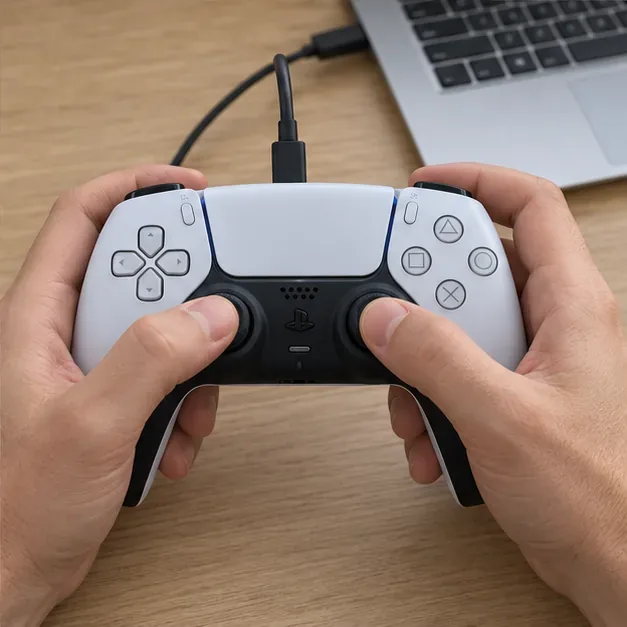
For persistent connection problems, consult Sony's DualSense troubleshooting guide or PlayStation Repairs. Resetting is a troubleshooting measure, not a substitute for completing a firmware update, and should not be attempted during one.
If your controller is already paired with a PS5, Sony's DualSense support guide provides a manual update route under Settings > Accessories > Controller (General) > DualSense Wireless Controller Device Software. That is useful when you do not have a suitable Windows computer available.
DualSense Edge owners who want button assignments, stick sensitivity or trigger deadzones can stay in PlayStation Accessories after updating. Its customization guide explains those options and how profiles are stored on the controller. Standard DualSense owners should not expect the same profile editor.
Finally, firmware cannot establish game support by itself. Sony's PC compatibility guidance says DualSense haptic feedback requires a USB connection and a supporting game; other features also depend on the game and device. If basic controls work but an effect is missing, check the game's documented support and your connection method before repeating the update. For ongoing stick, button or battery faults, use the relevant hardware troubleshooting route instead of assuming firmware will repair the controller.
Learn how to download games to your Xbox remotely in 2026, set up Sleep and remote features, choose the right console, and fix stalled installs.
Fortnite lagging despite fast internet? Learn how to identify ping spikes, packet loss, FPS drops, shader stutter, and server issues—and what to try next.
Fix PS5 controller input lag on PC with a wired baseline, firmware updates, Bluetooth checks, Steam Input settings, and a repeatable response test.
Understand how Riot Vanguard anti-cheat works, why it uses a kernel driver, what On-Demand changes, and how privacy, security, and game access fit together.
Yes, Warzone is free to play. Learn what is included, which purchases and subscriptions are optional, and what platform limits to check before downloading.
Find the official VALORANT Mobile APK, check China-region availability, install it on Android, and understand how it differs from the Riot Mobile companion app.
Find out where you can play League of Legends, which PCs and Macs are supported, how Wild Rift differs, and what Xbox, browser, and region listings mean.
Learn how to play PUBG on Mac by streaming from a Windows PC with Steam Link, plus setup steps, compatibility limits, and fixes for common problems.
Learn how to save your game in GTA 5 with Quick Save, safehouse beds, and autosave, plus how to leave GTA Online and check that your progress was saved.
Can you still download Warzone on PS4? Check the 2026 restrictions, existing-library reinstall steps, support cutoff, and fixes for eligible downloads.