How to Download Games to Your Xbox Remotely: 2026 Guide

Learn how to download games to your Xbox remotely in 2026, set up Sleep and remote features, choose the right console, and fix stalled installs.
You search for Warzone on your PS5, but the Store shows paid Call of Duty editions, bundles, or an application simply called Call of Duty. The important distinction is the game you want to play: Call of Duty: Warzone is free-to-play on PS5, with optional purchases. You do not need to buy a paid Call of Duty edition just to start Warzone.
The reliable route is to find the Warzone listing, add it to your account, download the PS5 version, and complete its required installation before signing in. The four stages below also cover what to do if the download stalls or the game still asks for content.
Sign in to the PlayStation account you intend to use for the download. Have your Activision account details available too: this is a separate account used for Warzone's online play and progression.
Check for console updates under Settings > System > System Software > System Software Update and Settings. Install available system updates before starting the game installation, as recommended in Activision's Warzone installation guide.
Next, open Settings > Storage and check your available space. Avoid planning around an old download-size estimate: the current application, selected content, and updates determine what your console needs. Read the space requirement shown for the current product and any installation prompts.
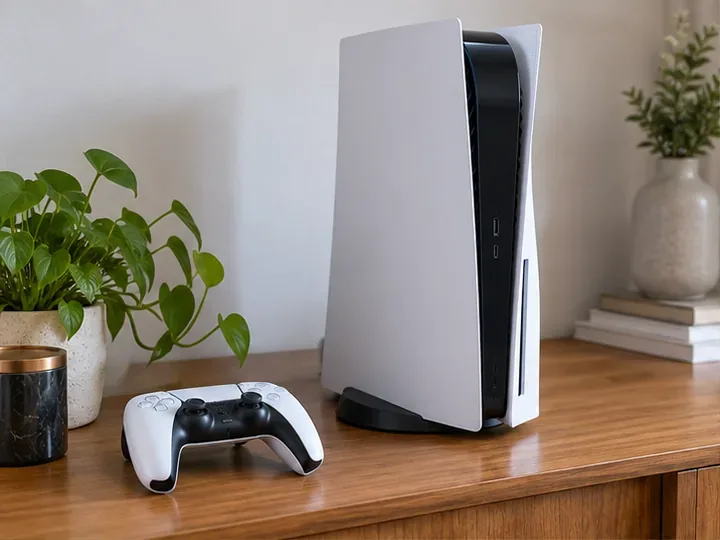
Open PlayStation Store on your PS5 and search for Call of Duty: Warzone. Check the product name and PS5 designation before selecting the free download or library option. Menu wording can vary by region and whether the title is already associated with your account.
The official PlayStation Warzone page identifies the game as free, with optional in-game purchases. A paid edition, currency pack, or bonus-content bundle is a different listing.
If Warzone is already in your collection, use the route documented by Sony and Activision: Games home > Game Library > Your Collection, select Warzone, and choose Download. Installation then proceeds automatically. See Sony's game and add-on download instructions for the library route.
Depending on the current packaging, the installed application may use broader Call of Duty branding. Open it and select Warzone rather than a paid campaign or multiplayer tile. If prompted to install Warzone content, follow that mode's installation prompt; another Call of Duty mode appearing nearby does not mean you must purchase it.
For online play, Sony's PlayStation Plus FAQ lists Warzone among free-to-play games that do not normally require membership. However, download conditions can differ by account region: the German Store listing says a PlayStation Plus subscription may be required to download.
If your Store displays a subscription requirement, check its regional terms and confirm that you are viewing the base game rather than a Plus-exclusive pack. Do not assume another country's Store instructions apply to your account.
Open Downloads/Uploads in the PS5 control center and review the queue. Let the game, its required content, and available updates finish. Reaching a launcher screen is not sufficient proof that Warzone itself is ready.
If you need room, review Settings > Storage > Console Storage > Games and Apps and remove games or optional content you no longer use. Check the selected items before confirming deletion.
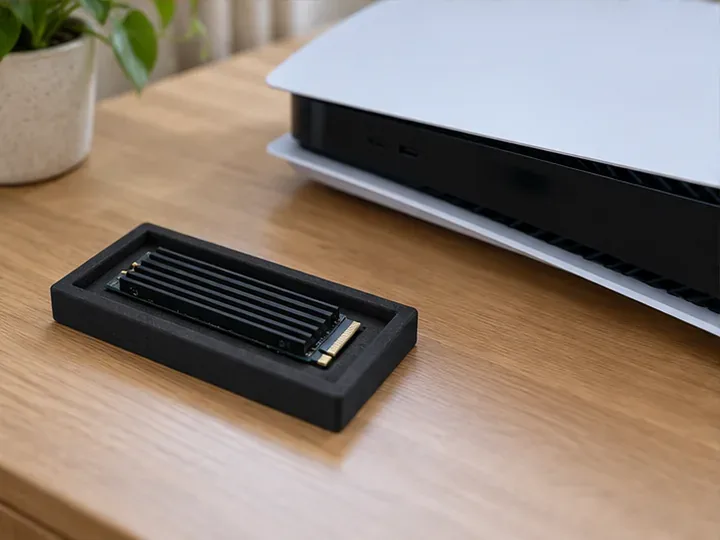
PS5 games run from console storage or a compatible installed M.2 SSD, which is an internal solid-state storage expansion. A USB extended-storage drive can hold PS5 game data, but you must move that data back to console storage or M.2 storage before playing. An expansion drive is optional, not a prerequisite for Warzone. Sony explains these distinctions in its PS5 storage guide.
Match the symptom to the next action, beginning with the simpler checks:
| Symptom | What to try |
|---|---|
| The download will not start | Open Downloads/Uploads, select the item, and pause and resume it. Recheck free storage. |
| The download remains stuck | Check PlayStation service status and test your connection under Settings > Network > Connection Status > Test Internet Connection. |
| The queued download repeatedly fails | After the basic checks, cancel and delete the failed download entry, then start it again from Game Library. This requires downloading it again. |
| A padlock appears or content cannot be located | Confirm the correct PlayStation account, then try Settings > Users and Accounts > Other > Restore Licenses and select the relevant license. |
These actions follow Sony's download troubleshooting guide and license-restoration instructions. Restoring licenses does not affect your data. If the problem continues, record the exact error code for support before trying more disruptive repairs.
Launch the installed application and enter Warzone. When prompted, sign in to your existing Activision account or create one. If you previously played on another platform, use the same Activision account associated with your progress. Activision warns that linking your PlayStation account to a different Activision account does not transfer that existing progression.
The requirements are explained in Activision's account-registration guide. Use an email address you can access so you can complete account verification when required.
Check your result:
Instructions and official sources were checked on November 1, 2026. If these checks pass but matchmaking produces a connection or service error, the installation is no longer the only issue to investigate; use the displayed error to guide your next support check.
Learn how to download games to your Xbox remotely in 2026, set up Sleep and remote features, choose the right console, and fix stalled installs.
Fortnite lagging despite fast internet? Learn how to identify ping spikes, packet loss, FPS drops, shader stutter, and server issues—and what to try next.
Fix PS5 controller input lag on PC with a wired baseline, firmware updates, Bluetooth checks, Steam Input settings, and a repeatable response test.
Understand how Riot Vanguard anti-cheat works, why it uses a kernel driver, what On-Demand changes, and how privacy, security, and game access fit together.
Yes, Warzone is free to play. Learn what is included, which purchases and subscriptions are optional, and what platform limits to check before downloading.
Find the official VALORANT Mobile APK, check China-region availability, install it on Android, and understand how it differs from the Riot Mobile companion app.
Find out where you can play League of Legends, which PCs and Macs are supported, how Wild Rift differs, and what Xbox, browser, and region listings mean.
Learn how to play PUBG on Mac by streaming from a Windows PC with Steam Link, plus setup steps, compatibility limits, and fixes for common problems.
Learn how to save your game in GTA 5 with Quick Save, safehouse beds, and autosave, plus how to leave GTA Online and check that your progress was saved.
Can you still download Warzone on PS4? Check the 2026 restrictions, existing-library reinstall steps, support cutoff, and fixes for eligible downloads.