How to Download Games to Your Xbox Remotely: 2026 Guide
Learn how to download games to your Xbox remotely in 2026, set up Sleep and remote features, choose the right console, and fix stalled installs.
The best Free Fire sensitivity settings for headshots are the ones that let you move toward a target's head and stop there consistently. Higher sensitivity can make a short swipe move your aim farther, but it can also make you overshoot. Copying a high-value preset is therefore a starting point, not proof that your headshot rate will improve.
For a beginner using a confirmed 0–200 sensitivity scale, the sample profile below offers a place to begin. It is an editorial practice setup, not an official Garena preset, a device-specific benchmark, or a tested promise of better results. If your current settings already feel comfortable, tune those instead of replacing everything.
Sensitivity describes how strongly an aiming or camera control responds to your finger movement. The crosshair is the on-screen aiming marker. A headshot is a hit to an opponent's head; a drag is a short swipe used to move the crosshair, often upward. These are aiming techniques, not automatic-headshot features.
Overshooting means moving past the intended point; undershooting means stopping short. Those two observations are more useful for tuning than a vague feeling that you need “more sensitivity.” A shot can also miss for reasons that a slider will not fix, including timing, movement, weapon behavior, or an inconsistent starting aim position.
Garena's April 16, 2024 patch notes documented increasing the sensitivity cap to 200. Check the range displayed in your installed game before entering values. Do not assume an old 0–100 guide or a simple doubling rule produces the same aiming response. Sources for this guide were checked on November 1, 2026.
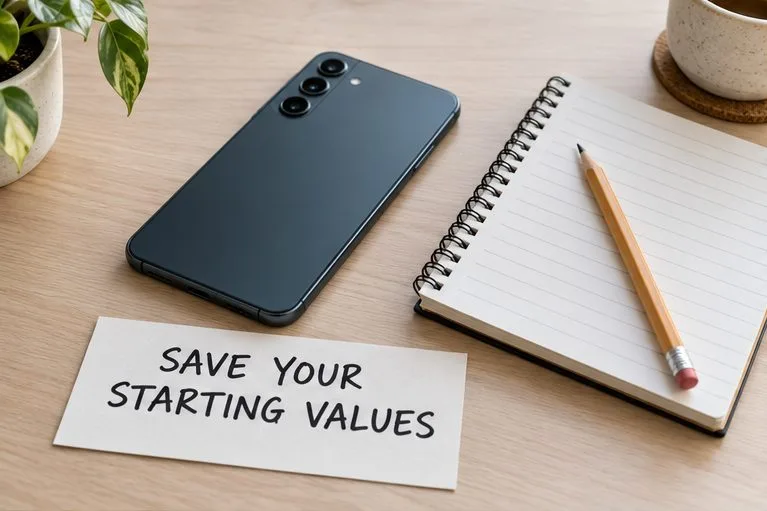
A baseline is the configuration you will compare against. Take screenshots of your current sensitivity and control layout, or write the values down. Keep the same phone, grip, screen orientation, fire-button position, and aiming-assistance choices during the comparison.
Your HUD, or heads-up display, includes the on-screen controls and indicators. Avoid importing a new HUD while testing sensitivity: Garena's January 9, 2026 OB52 notes explain that pro-player HUD presets and share codes can include sensitivity, with an option to synchronize those linked values. Read that choice before applying a code.
Make sure the game runs reasonably smoothly before tuning. FPS means frames per second, a measure of how often the game renders a new image. If play stutters, first consider lowering graphics quality and closing unnecessary background apps, as recommended in Garena's lag troubleshooting guidance. Increasing sensitivity does not resolve the underlying performance problem.
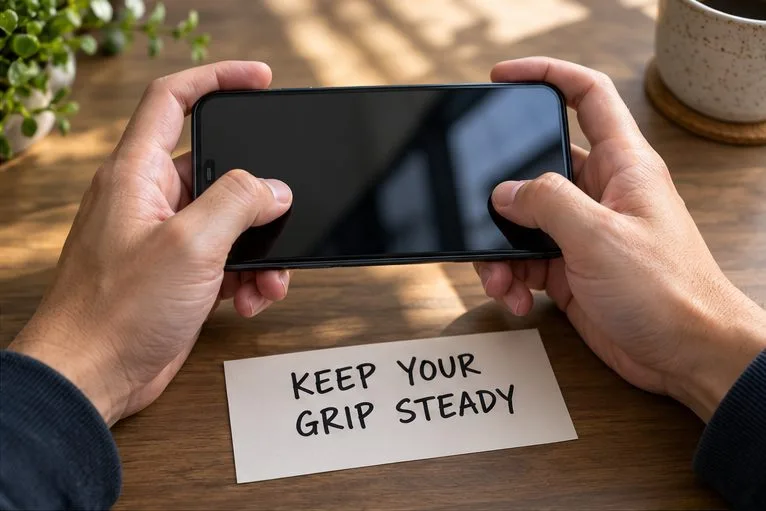
Open Settings and look for In-Match > Sensitivity. Garena documented this organization, explanatory setting descriptions, and one-unit adjustment buttons in its February 19, 2025 settings update. Follow your installed build's labels if the layout differs.
| Setting | Sample value, 0–200 scale | What to focus on while testing |
|---|---|---|
| General | 160 | Unscoped turning and aiming movements |
| Red Dot | 150 | Control while using a red-dot sight |
| 2x Scope | 140 | Small corrections with the 2x sight |
| 4x Scope | 120 | Keeping finer scoped movements manageable |
| Sniper Scope | 70 | Placing precise scoped corrections |
| Free Camera / Free Look | 90 | Comfort when looking around with the free-camera control |
These example values deliberately give the aiming scopes less speed than General. That is a choice to explore finer control, not a requirement for every player. Free-camera sensitivity concerns looking around; treat it separately from your firing aim. Read the in-game explanations to identify the relevant control.
Do not choose a profile solely because someone labels it “for 4 GB RAM” or “for 120 Hz.” RAM is working memory, while Hz describes display refresh frequency; neither label tells you how far your thumb moves or how well you stop on a target. Use what you observe on your own device.
Enter Training Grounds and use one familiar weapon, the same attachments, a stationary target, and a repeatable distance. Start with unscoped aiming to evaluate General, then test the sights you actually use. Keep each test's starting crosshair position and swipe length as similar as you can.
| What you observe repeatedly | What to try next |
|---|---|
| A short, controlled swipe passes above the intended point | Lower the sensitivity for the active aiming mode by 5 points, then repeat |
| The same movement repeatedly stops below the intended point | Raise the relevant slider by 5 points, then repeat |
| Aim alternates above and below the target | Keep the value steady and check swipe consistency, grip, and frame stability |
| Only one sight feels difficult to control | Test that sight's sensitivity instead of changing every slider |
| Aim placement looks right, but shots still miss | Check timing, movement, range, and weapon behavior before adding sensitivity |
Five points is a suggested small comparison step, not a special threshold. As control becomes comfortable, smaller changes may be easier to judge. A point means one unit on the slider, not a percentage improvement in accuracy.
Practice placing the crosshair near the intended head position before firing. Use a short correction when needed rather than expecting a long upward drag to rescue every low starting position. Keep the movement controlled enough that you can repeat it.
Try a short practice block of 10 comparable attempts with your baseline, then 10 with the candidate value. Count how often the crosshair reaches the intended position, how often it passes above, and how often it stops below. Note actual head hits separately from crosshair placement. This is a suggested personal drill, not a benchmark result.
Repeat the comparison rather than deciding from one good attempt. Return to the baseline if necessary: warming up can make a later block feel better even when the setting is not the reason. Keep the candidate only if the improvement in control is repeatable and ordinary tracking still feels manageable.
Next, try the setting against movement in practice and in a few casual matches. An isolated stationary-target drill does not reproduce every fight. If control becomes erratic, restore the recorded baseline or back off the most recent change. Avoid judging a configuration only by one match's headshot percentage.
A useful final setup lets you reach the intended aiming point with a comfortable movement, stop without repeatedly correcting backward, and maintain control when a target moves. Keep a record of that setup so you can compare it again after an update or a device change.
Learn how to download games to your Xbox remotely in 2026, set up Sleep and remote features, choose the right console, and fix stalled installs.
Fortnite lagging despite fast internet? Learn how to identify ping spikes, packet loss, FPS drops, shader stutter, and server issues—and what to try next.
Fix PS5 controller input lag on PC with a wired baseline, firmware updates, Bluetooth checks, Steam Input settings, and a repeatable response test.
Understand how Riot Vanguard anti-cheat works, why it uses a kernel driver, what On-Demand changes, and how privacy, security, and game access fit together.
Yes, Warzone is free to play. Learn what is included, which purchases and subscriptions are optional, and what platform limits to check before downloading.
Find the official VALORANT Mobile APK, check China-region availability, install it on Android, and understand how it differs from the Riot Mobile companion app.
Find out where you can play League of Legends, which PCs and Macs are supported, how Wild Rift differs, and what Xbox, browser, and region listings mean.
Learn how to play PUBG on Mac by streaming from a Windows PC with Steam Link, plus setup steps, compatibility limits, and fixes for common problems.
Learn how to save your game in GTA 5 with Quick Save, safehouse beds, and autosave, plus how to leave GTA Online and check that your progress was saved.
Can you still download Warzone on PS4? Check the 2026 restrictions, existing-library reinstall steps, support cutoff, and fixes for eligible downloads.