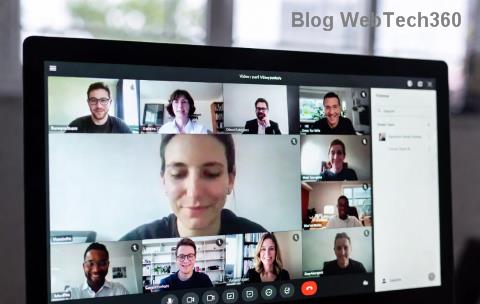
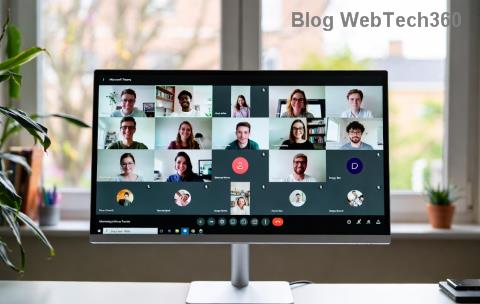
Imagine transforming chaotic large meetings into focused, productive discussions. That's the magic of Breakout Rooms in Microsoft Teams. These powerful features let you divide participants into smaller groups for deeper collaboration, idea-sharing, and problem-solving. Whether you're leading workshops, classes, or team brainstorms, mastering Breakout Rooms elevates every session.
But success isn't automatic—it demands smart strategies. In this guide, we'll dive into best practices for using Breakout Rooms in Microsoft Teams that deliver real results. Ready to level up? Let's jump in! 🚀
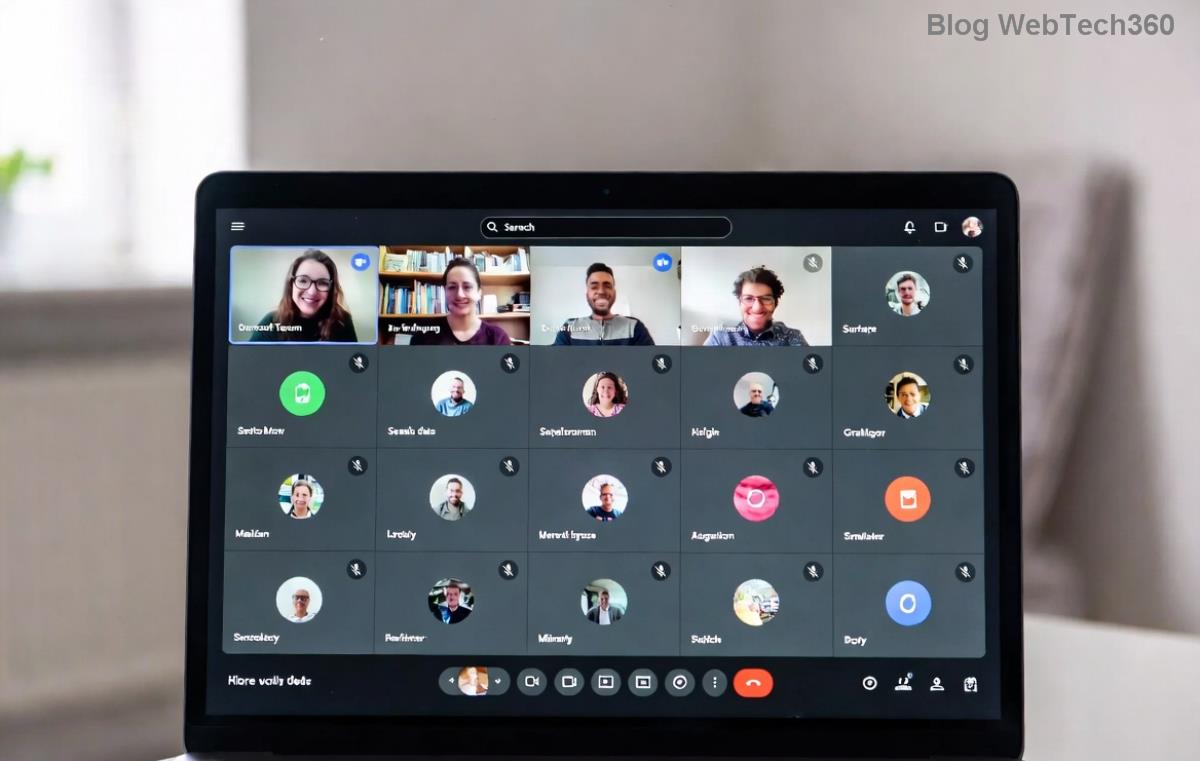
1. Plan Ahead: Design Your Breakout Rooms with Purpose ⭐
The foundation of great Breakout Rooms starts with preparation. Before your meeting:
- Define objectives: What will each room achieve? Brainstorming? Role-playing? Skill-building?
- Pre-assign participants: Use Teams' pre-assignment feature to group by expertise, roles, or randomly for diversity.
- Set room limits: Aim for 4-8 people per room to foster interaction without overwhelming anyone.
Pro tip: Share the agenda via chat beforehand. This builds excitement and reduces confusion. Planning like this ensures everyone hits the ground running.
2. Communicate Clear Instructions from the Start 📢
Nothing derails momentum like vague directions. Kick off by explaining:
- 1️⃣ Room purpose and tasks.
- 2️⃣ Time limits (e.g., 10-15 minutes per session).
- 3️⃣ How to return to the main room.
- 4️⃣ What to report back (key takeaways, decisions).
Pin instructions in the main chat or use a shared OneNote/Teams tab. Clear comms = confident participants. Watch engagement soar! 👍
3. Leverage Automatic and Manual Room Management 🛠️
Microsoft Teams offers flexible options:
| Feature | Best Use Case | Tip |
|---|
| Automatic | Large groups needing random mix | Counts down before opening |
| Manual | Custom groups by skill/topic | Drag-and-drop for quick edits |
| Countdown | All scenarios | Add 2-3 min buffer |
Switch rooms mid-session if energy dips. This keeps things dynamic and inclusive.
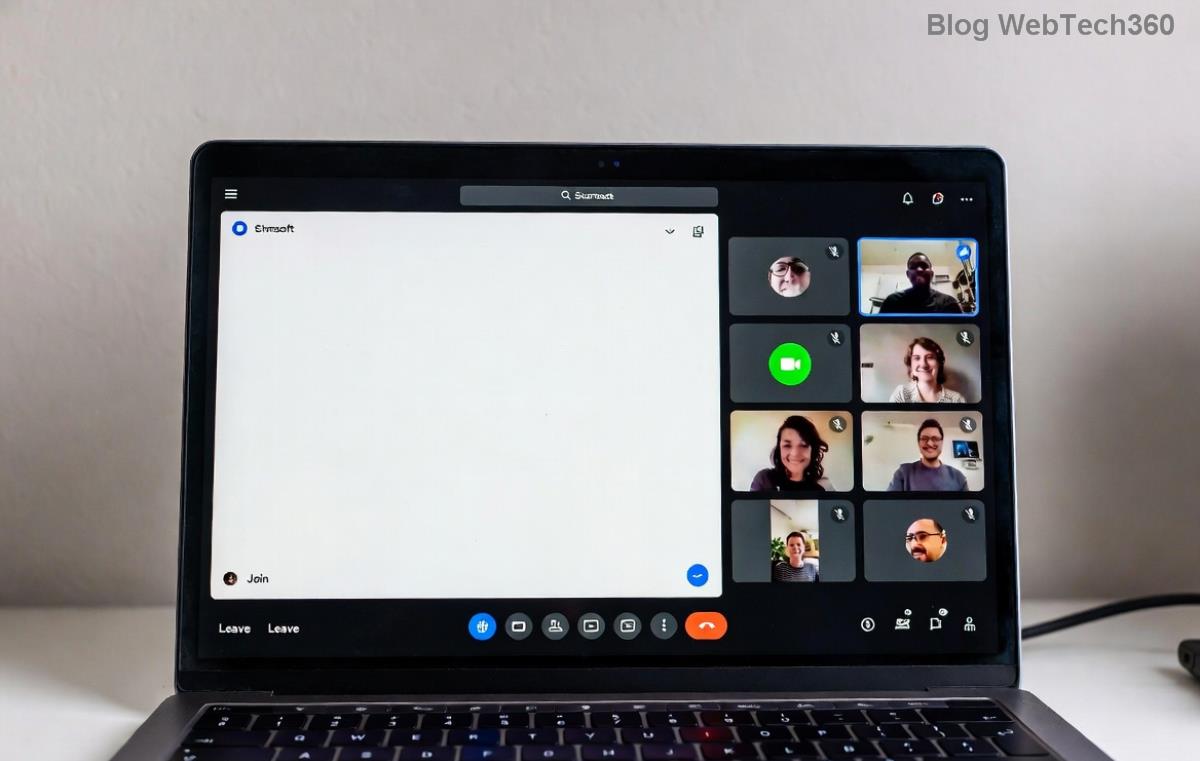
4. Assign Roles for Smooth Facilitation 👥
Empower participants:
- Room leader: Keeps time, facilitates discussion.
- Note-taker: Captures action items in a shared doc.
- Timekeeper: Signals 2 minutes left with a fun emoji (⏰).
Rotate roles across sessions for fairness. This distributes workload and builds ownership—your groups will thank you! 😊
5. Time It Right: Master the Clock ⏱️
Short bursts work best: 10-20 minutes per room. Use the built-in timer and announce returns clearly ("Breakout Rooms closing in 60 seconds!").
After rejoining, allocate 5 minutes for share-outs. Structured timing prevents overrun and maximizes insights.
6. Encourage Inclusivity and Engagement 🌍
Make every voice count:
- Mix diverse groups for fresh perspectives.
- Enable video/audio for connection (but offer mute options).
- Monitor via "Visit Rooms" without disrupting—peek in silently first.
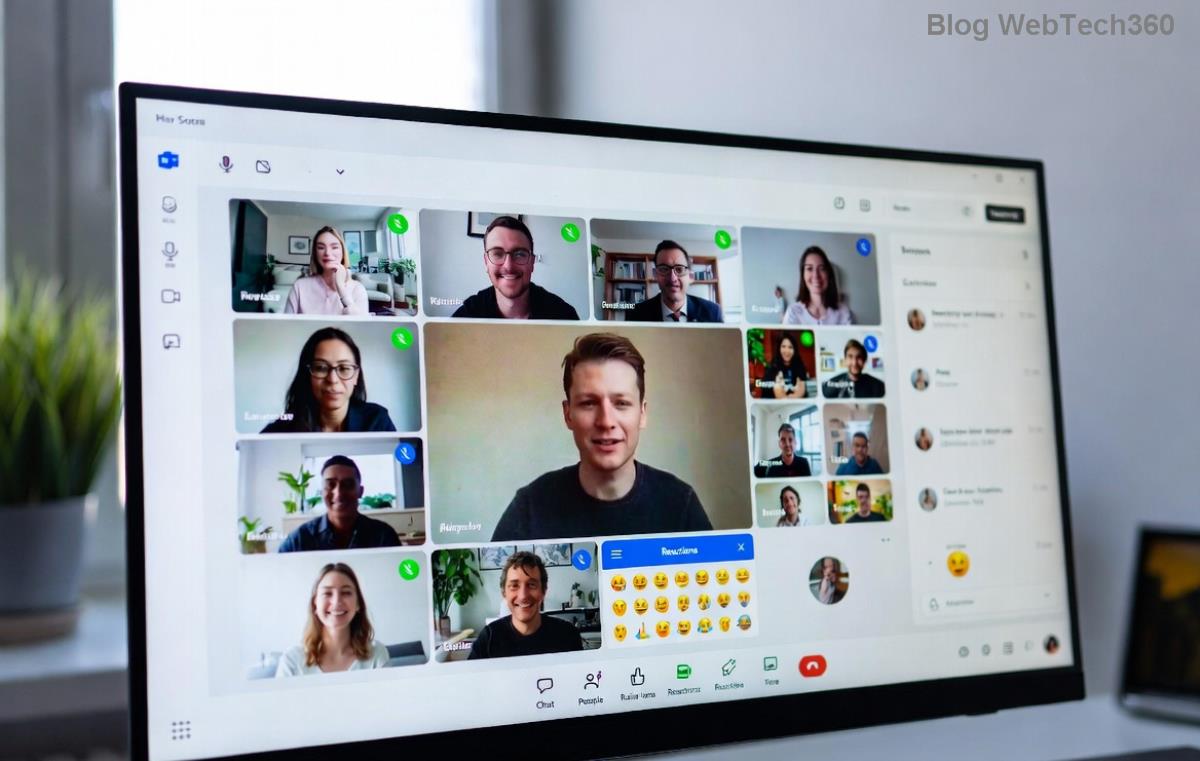
For remote teams, pair with polls or reactions. Inclusivity turns good sessions into unforgettable ones.
7. Integrate Tools for Deeper Collaboration 🔗
Supercharge with native integrations:
- Share whiteboards via Microsoft Whiteboard.
- Use Forms for quick polls or feedback.
- Loop components for real-time notes.
For advanced setups, check Microsoft's official guide. These tools make outputs actionable.
8. Handle Challenges Proactively ⚠️
Common hiccups? Tech glitches or shy participants. Prep with:
- Test audio/video pre-meeting.
- Have a "help" channel in chat.
- Pair quiet folks with outgoing ones.
Stay calm—you're the anchor. Quick fixes keep flow uninterrupted.
9. Debrief and Gather Feedback 🔄
Post-session gold: Dedicated debrief time. Ask: "What worked? What to tweak?" Use Teams feedback forms.
This refines future use and shows you value input. Continuous improvement = loyal participants.
10. Experiment with Advanced Features 🚀
Recent updates shine:
- Room switching for participants.
- Persistent rooms across recurring meetings.
- Co-host management for load-sharing.
Test in practice meetings. Innovation keeps your sessions fresh.
11. Scale for Different Scenarios 📈
Tailor to context:
| Scenario | Room Strategy |
|---|
| Training | Topic-based groups |
| Team Building | Random + icebreakers |
| Workshops | Pre-assigned experts |
Adaptability is key to versatility.
12. Measure Success and Iterate 📊
Track wins: Attendance rates, feedback scores, follow-up actions completed. Celebrate successes publicly—clap it up! 👏
Wrap-Up: Your Path to Breakout Rooms Mastery
Implementing these best practices for using Breakout Rooms in Microsoft Teams turns ordinary meetings into collaboration powerhouses. Start small, iterate boldly, and watch productivity explode.
What's your next meeting? Apply one tip today and share your wins in the comments. You've got this! 🌟