Imagine your team collaborating seamlessly, meetings running like clockwork, and files shared instantly—without the chaos of scattered emails. That's the power of Microsoft Teams for business. As the go-to hub for modern workplaces, Microsoft Teams integrates chat, video, files, and apps into one powerhouse platform. Whether you're a small startup or a global enterprise, this complete guide walks you through how to use Microsoft Teams for business effectively. Ready to transform your workflow? Let's dive in! 😊
Getting Started: Set Up Microsoft Teams for Your Business
🚀 First things first: ensure your organization has a Microsoft 365 subscription. Teams is included in most plans like Business Basic, Standard, or Premium.
- Download and Install: Head to the official Teams download page. Install on desktop (Windows/Mac), mobile (iOS/Android), or use the web version.
- Sign In: Use your work email. Admins can enable single sign-on (SSO) for smooth access.
- Create Your First Team: Click Teams on the left sidebar > Join or create a team > Create team. Choose a template (e.g., Manage a project) for pre-built channels.
| Teams Plan |
Key Features |
Best For |
| Free |
Basic chat, meetings up to 60 mins |
Small teams testing |
| Business Basic |
Unlimited chat, 30-hour meetings, 1TB storage |
Growing businesses |
| Business Premium |
Advanced security, AI copilot |
Enterprises |
Pro tip: Enable Teams Premium for AI-powered features like intelligent recaps. Your setup is now ready—keep reading for interface mastery!
Navigating the Microsoft Teams Interface Like a Pro
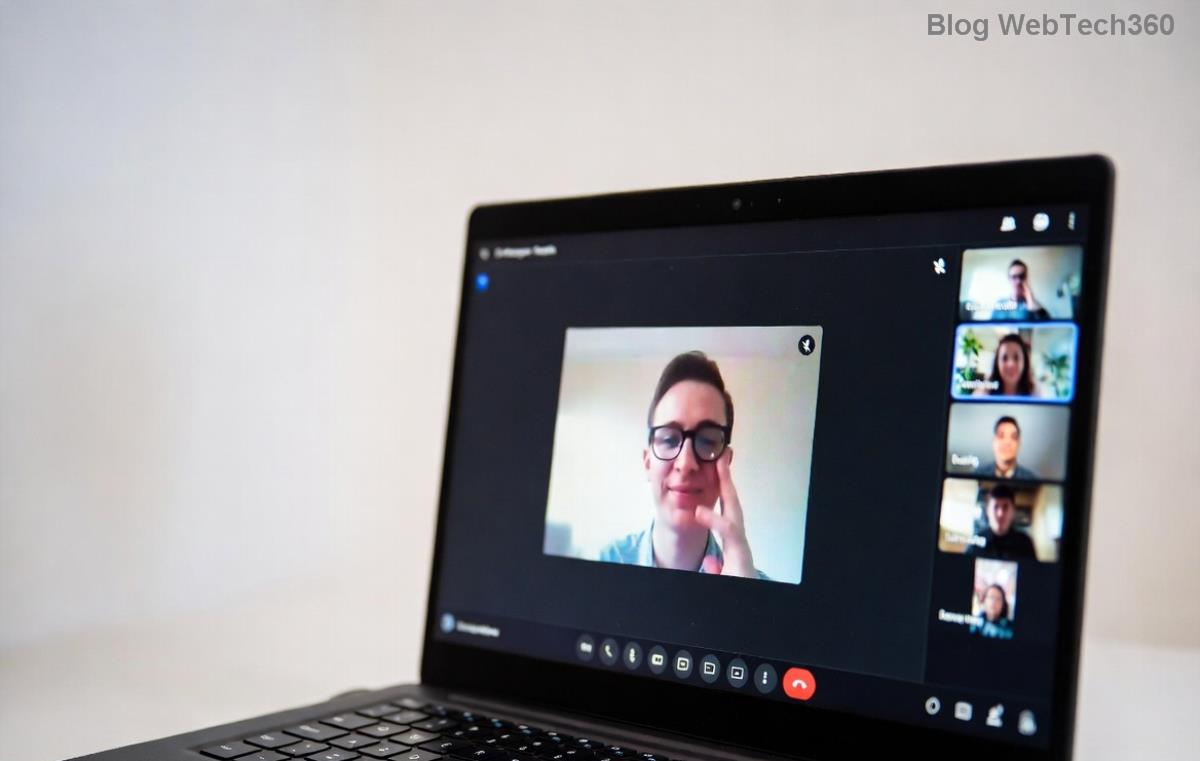
The left sidebar is your command center: Activity (notifications ⭐), Chat, Teams, Calendar, and Apps. Customize it via your profile icon.
- ☝️ Activity Feed: Never miss mentions or replies.
- 📅 Calendar: Schedule meetings directly, synced with Outlook.
- 🔍 Search: Ctrl+F to find messages, files, or people instantly.
Switch to New Teams (if available) for a faster, Copilot-enhanced experience. Fluid navigation keeps you focused—next, let's build your collaboration hub.
Creating and Managing Teams & Channels
Teams are like digital workspaces; channels are focused folders within them.
- 1️⃣ Create a Team: From sidebar, select Teams > Create a team. Add members via email.
- 2️⃣ Add Channels: In a team, click ... > Add channel. Use private channels for sensitive topics.
- 3️⃣ Manage Permissions: Owners control who adds members; go to Manage team for settings.
⭐ Standard channels for general discussions; private for execs. Tabs pin apps like Planner or OneNote at the top for quick access.
Host Seamless Meetings and Calls in Microsoft Teams
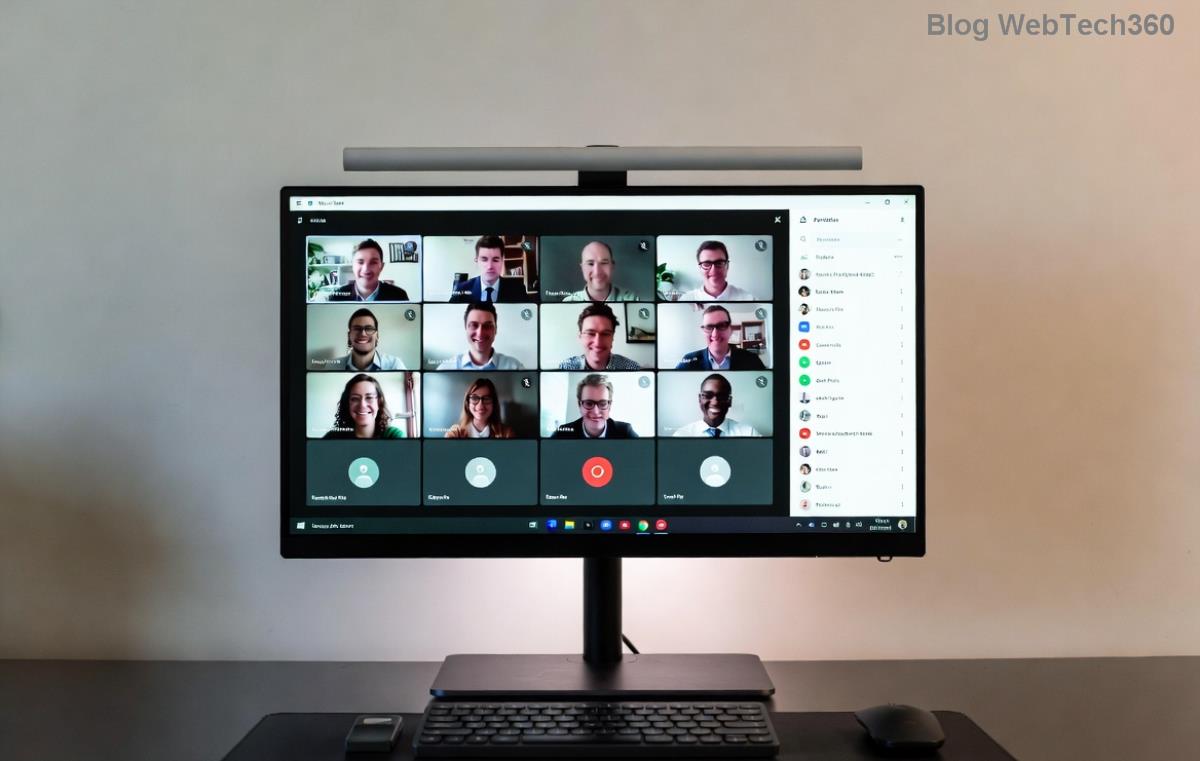
Microsoft Teams meetings rival Zoom with breakout rooms, live captions, and recording.
- 📞 Schedule: Calendar > New meeting. Add attendees, set recurrence.
- 🎥 Join: One-click from invite. Share screen, spotlight speakers.
- 🔒 Advanced: Use Together Mode for immersive views or noise suppression.
For large events, leverage Town Hall features. Record and transcribe automatically—review later via Recap tab. Teams shines here!
Chat, Collaborate, and Share Files Effortlessly
Chat is real-time magic: @mention for alerts, emojis for quick reactions.
- 💬 Start a 1:1 or group chat.
- 📎 Share Files: Drag-drop to chat/channel. Edits sync via OneDrive/SharePoint.
- 🔗 Loops & Tasks: Create collaborative pages or assign tasks with @mentions.
Files tab shows version history—restore easily. No more email attachments!
Integrate Apps and Automate Workflows
App store has 2,000+ integrations: Add Power Automate for bots, Trello for tasks.
- ⭐ Pin apps to channels (e.g., Forms for polls).
- 🤖 Use Copilot for summaries: "Summarize this channel."
- ⚙️ Workflows: Automate approvals with Power Automate templates.
Boost efficiency without leaving Teams.
Security & Admin Best Practices for Business
Protect data with multi-factor authentication (MFA), data loss prevention (DLP), and guest access controls.
| Feature |
Benefit |
| Conditional Access |
Block risky logins |
| End-to-End Encryption |
Secure calls |
| Compliance Recording |
Meet regulations |
Admins: Use Teams Admin Center for policies. Stay compliant and safe.
Pro Tips to Supercharge Microsoft Teams Productivity
- ⌨️ Keyboard shortcuts: Ctrl+Shift+M (mute), Alt+N (raise hand).
- 🎯 Custom backgrounds and reactions for engaging meetings.
- 📱 Mobile push for on-the-go access.
- 🔄 Focus Mode: Hide distractions during deep work.
👏 Experiment with these to save hours weekly.
Wrap Up: Elevate Your Business with Microsoft Teams
From setup to pro hacks, you've got the full blueprint on how to use Microsoft Teams for business. Implement one section today—watch productivity soar! Share your wins in the comments or explore Microsoft's Teams resources for more. Your team's future starts now. 🚀