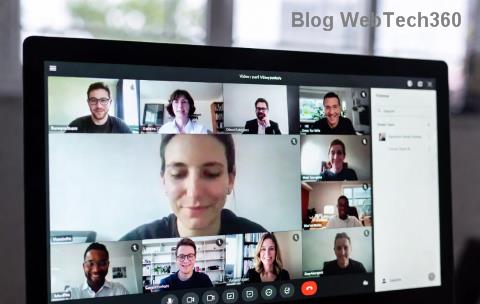
Imagine transforming a large, overwhelming Microsoft Teams meeting into focused, productive discussions. That's the magic of Breakout Rooms in Microsoft Teams! Whether you're a teacher facilitating group projects or a manager running brainstorming sessions, creating Breakout Rooms boosts collaboration and keeps everyone engaged. 😊
This concise guide walks you through every step with crystal-clear instructions, pro tips, and visuals to get you started instantly. Ready to level up your meetings? Let's dive in!
Why Use Breakout Rooms in Microsoft Teams? ✨
- Enhance Engagement: Split large groups into smaller rooms for deeper talks.
- Flexible Assignments: Auto-assign, manually pick, or let participants choose.
- Seamless Control: Host can visit rooms, share content, and bring everyone back effortlessly.
- Time-Saver: Perfect for workshops, classes, or team huddles.
Pro tip: Breakout Rooms work in scheduled meetings, instant meetings, and channel meetings—host privileges only!
Prerequisites Before Creating Breakout Rooms in Microsoft Teams ✅
Ensure you're set up for success:
- Teams License: Available in most plans (check your admin settings).
- Meeting Role: Must be the meeting organizer or co-organizer.
- Desktop/Web App: Best experience on Teams desktop or web (mobile limited).
- Participants Joined: Rooms shine with 10+ attendees.
Step-by-Step: Creating Breakout Rooms in Microsoft Teams 👆
Follow these exact steps during an active meeting. We'll use the latest Microsoft Teams interface for accuracy.
- Start or Join Your Meeting: Launch Microsoft Teams, schedule or start a meeting, and have participants join. Wait for most to arrive.
- Open the Participants Pane: Click People or Participants icon (top-right or meeting toolbar). See everyone listed? Great!
- Access Breakout Rooms: In the Participants pane, click Breakout rooms at the top. A creation panel pops up—exciting!
- Choose Room Count & Type:
- Enter number of rooms (e.g., 5).
- Select assignment: Automatically, Manually, or Let participants choose.
- Create Rooms: Hit Create. Teams auto-generates rooms and assigns folks (or prompts manual selection).
- Customize Rooms (Optional): Rename rooms (e.g., "Group Alpha"), add timers, or move participants via drag-and-drop.
- Open Rooms: Click Open or Start. Participants get notified and auto-redirected. Boom—rooms live! 🚀
- Manage as Host:
- Visit Rooms: Select a room > Join.
- Swap Participants: Drag between rooms.
- Add Timer: Set countdown for auto-return.
- Close Rooms & Rec convene: When ready, click Close breakout rooms > Confirm. Everyone returns to main session. High-five! 👏
- Repeat if Needed: You can recreate rooms multiple times per meeting.
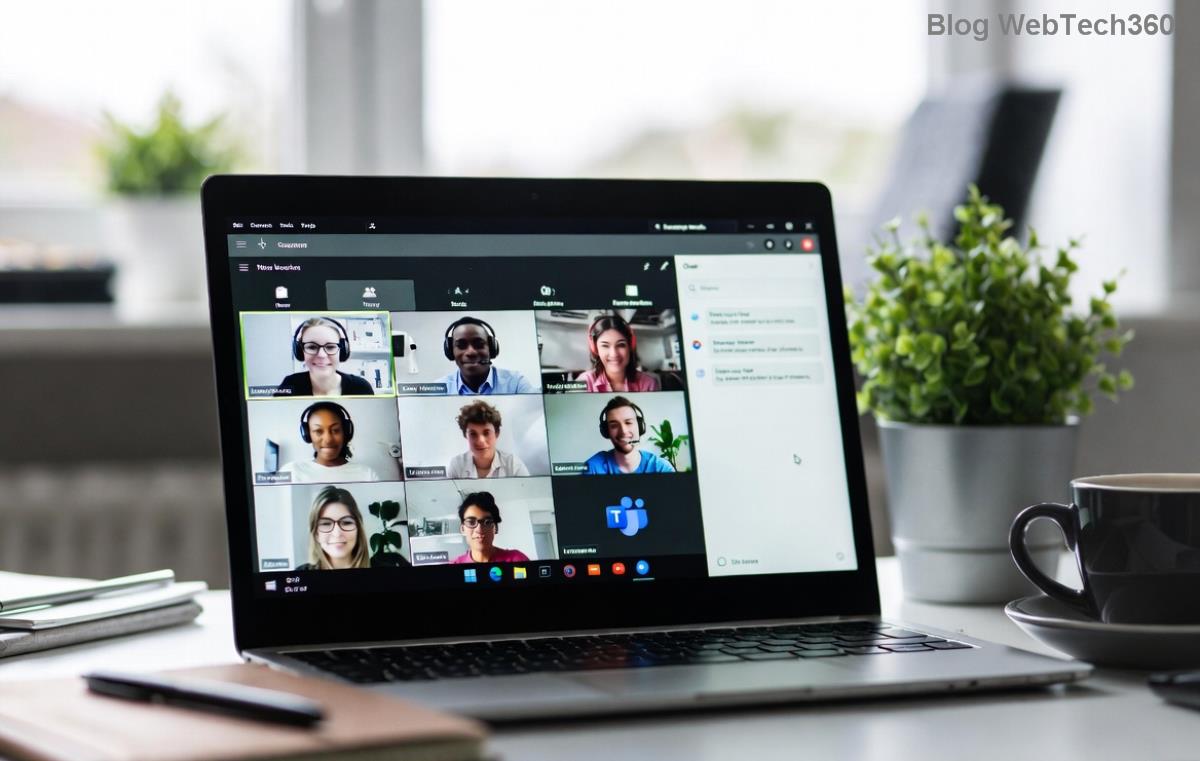

Advanced Tips for Breakout Rooms Microsoft Teams Mastery 🌟
Go beyond basics:
- Pre-Assign in Calendar: Schedule meetings > Breakout rooms tab > Pre-assign participants before starting.
- Share Content: Upload files to specific rooms via the rooms menu.
- Countdown Timer: Keeps groups on track—set 5-15 mins per session.
- Permissions: Co-organizers can manage too; presenters cannot.
Troubleshooting Common Issues: Quick Fixes Table 🔧
| Issue | Solution |
|---|---|
| No Breakout Option | Confirm host role; update Teams app. Microsoft Docs |
| Participants Not Joining | Notify via chat; check notifications enabled. |
| Can't Edit Assignments | Use manual mode; recreate if needed. |
| Mobile Limitations | Switch to desktop for full control. |
Pro Hacks to Wow Your Team 🎉
- Room Templates: Number rooms sequentially or theme them (e.g., "Brainstorm 1").
- Feedback Rounds: After closing, poll for insights.
- Hybrid Meetings: Works with in-room and online participants seamlessly.
Mastering creating Breakout Rooms in Microsoft Teams will make your sessions unforgettable. Start experimenting today—your team will thank you! Got questions? Drop them in the comments. Share this guide and keep collaborating smarter. 👇
For the latest updates, visit official Microsoft Teams Support.