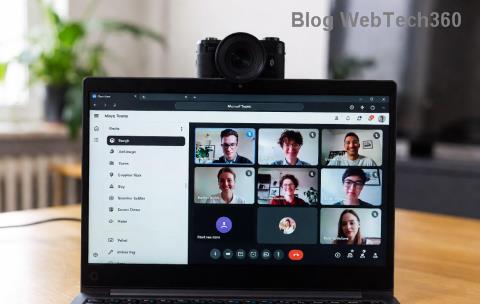
Imagine joining a crucial Microsoft Teams meeting only to see a frustrating black screen instead of your colleagues' faces. This common Teams video error disrupts workflows and leaves everyone puzzled. Don't worry—you're not alone, and it's fixable! In this guide, we'll tackle solving Microsoft Teams video error: black screen in meetings with straightforward, tested steps. Follow along, and you'll be back to crystal-clear video calls in minutes. 🔧

Why Does Microsoft Teams Black Screen Happen? Top Causes
Understanding the root causes helps you pinpoint the issue fast. Here are the most frequent culprits behind the black screen in Teams meetings:
- Hardware Acceleration Conflicts: Teams relies on your GPU, but mismatched settings cause rendering failures.
- Outdated Drivers or Apps: Glitches from old graphics drivers or unpatched Teams versions.
- Permissions and Privacy Blocks: Camera access denied by OS settings or antivirus.
- Cache and Temp Files Buildup: Corrupted data clogs the app.
- Network or Firewall Hurdles: VPNs or firewalls blocking video streams.
Spot your trigger? Great—let's dive into fixes that work every time. Stick with us for step-by-step wins! 👍
Quick Fixes: Solve Teams Video Error in Under 5 Minutes
Start with these no-brainer solutions. Most users resolve the black screen here.
- Restart Teams and Your Device 👆
Close Teams completely (use Task Manager on Windows: Ctrl+Shift+Esc, end all Teams processes). Restart your computer. Rejoin the meeting. Simple reboots clear 40% of glitches.
- Toggle Hardware Acceleration ⭐
In Teams, click your profile picture > Settings > General. Check/uncheck Disable GPU hardware acceleration, then restart Teams. This flips the video rendering mode and often revives your feed.
- Check Camera Permissions
Windows: Settings > Privacy > Camera > Allow apps access. macOS: System Preferences > Security & Privacy > Camera. Ensure Teams is toggled on. Test in another app like Camera to confirm.
Still black? No sweat—escalate to pro-level troubleshooting next. These steps build on each other for maximum impact.
Advanced Troubleshooting: Banish Black Screen in Teams Meetings Forever
If basics don't cut it, roll up your sleeves. Use this prioritized checklist.
| Issue |
Fix Steps |
Expected Time |
| Clear Teams Cache |
%appdata%\Microsoft\Teams > Delete contents of folders (Cache, GPUCache, etc.). Restart Teams.
|
2 mins |
| Update Graphics Drivers |
NVIDIA/AMD/Intel site or Device Manager > Display adapters > Update driver.
|
5-10 mins |
| Disable VPN/Firewall Temporarily |
Turn off VPN, whitelist Teams in firewall (ports 3478-3481 UDP).
|
3 mins |
| Reset Teams App |
Windows Settings > Apps > Teams > Advanced > Reset. Or reinstall from official site.
|
10 mins |
| Run Teams in Web Browser |
teams.microsoft.com in Edge/Chrome. Bypasses desktop app issues.
|
1 min |
This table is your Teams video error lifeline—check off as you go. Pro tip: After each fix, test video in a self-meeting (Schedule > New meeting > Join).
Platform-Specific Tips for Windows, Mac, and Mobile
Tailor fixes to your setup:
- Windows: Run sfc /scannow in Command Prompt (admin) for system file repairs.
- Mac: Quit Teams via Activity Monitor, clear ~/Library/Application Support/Microsoft/Teams.
- Mobile: Force close app, toggle camera in device settings, update via App Store/Play Store.
For persistent issues, consult Microsoft's diagnostics: Visit Teams support page and run their tool. It's gold for deep dives.
Prevent Future Microsoft Teams Black Screen Nightmares
Stay ahead:
- Enable auto-updates in Teams Settings > General.
- Keep drivers fresh with tools like GeForce Experience or Intel Driver Assistant.
- Use wired Ethernet over Wi-Fi for stability.
- Schedule weekly cache clears.
Bonus: Test your setup pre-meeting via Teams' Check for issues in device settings. You'll thank yourself later! 🎉
Ready to End the Black Screen Blues?
By now, your Microsoft Teams video error: black screen in meetings should be history. Start with quick fixes, use the table for precision, and prevent recurrences. If one step sparks success, drop a comment below—help others! For more tech triumphs, explore our guides on Zoom glitches or Slack slowdowns. Happy meeting! 😊