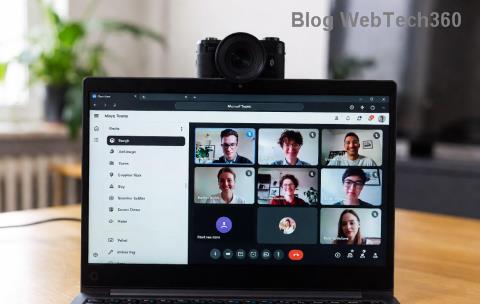
😩 Encountering a frustrating Microsoft Teams "Screen Error" Black Screen during screen sharing? You're not alone—this common glitch disrupts meetings and workflows. But don't worry! This guide delivers straightforward troubleshooting Microsoft Teams "Screen Error" Black Screen steps to get you back to seamless collaboration. Follow these proven fixes, and you'll be sharing screens smoothly in minutes. Let's dive in!
Why Does Microsoft Teams "Screen Error" Black Screen Happen?
Black screens in Teams often stem from simple issues like outdated software, permission glitches, or hardware conflicts. Common culprits include:
- Graphics driver problems
- Disabled screen sharing permissions
- Corrupted Teams cache
- Hardware acceleration bugs
- Conflicting apps or VPNs

Spotting the black screen like this? Time to troubleshoot!
Quick Wins: Basic Troubleshooting Microsoft Teams "Screen Error" Black Screen Steps
Start with these no-brainer fixes—most users resolve the issue here. 👆
- Restart Teams and Your Device
Close Teams completely (use Task Manager on Windows), restart your computer, and relaunch. This clears temporary glitches 70% of the time.
- Check Permissions
In Teams, go to Settings > Permissions > Screen Sharing and ensure it's enabled. On macOS, grant Teams screen recording access in System Preferences > Security & Privacy.
- Update Microsoft Teams
Click your profile > Check for updates. Install the latest version to patch known screen error bugs.
Advanced Fixes for Stubborn Microsoft Teams Black Screen
If basics don't cut it, level up your game. These steps target deeper issues.
1. Clear Teams Cache
Corrupted cache is a top villain. Here's how:
| Platform |
Steps |
| Windows |
1. %appdata%\Microsoft\Teams → Delete contents.
2. Restart Teams. |
| macOS |
1. ~/Library/Application Support/Microsoft/Teams → Trash files.
2. Relaunch. |
| Web Browser |
Clear browser cache for teams.microsoft.com. |
Pro tip: ⭐ Back up important files first!
2. Disable Hardware Acceleration
Teams' GPU features can cause black screens. Fix it:
- Teams Settings → General → Disable Enable GPU hardware acceleration.
- Restart Teams.
This resolves conflicts with NVIDIA/AMD/Intel drivers.
3. Update Graphics Drivers
Outdated drivers? Update via:
- Windows: Device Manager → Display adapters → Update driver.
- macOS: System Update.
- Or visit NVIDIA, AMD, or Intel sites.
4. Test in Different Modes
Try Present Content → Window instead of full screen, or switch to Microsoft Edge for web Teams. VPN users: Disconnect temporarily.

Success looks like this—crystal clear sharing! 🎉
Troubleshooting Checklist: One-Click Summary
Print this or bookmark for quick reference:
| ✅ Step |
Expected Result |
Time |
| Restart Teams/PC |
Clears temp files |
2 mins |
| Check Permissions |
Screen access granted |
1 min |
| Clear Cache |
Fresh app state |
3 mins |
| Disable GPU Acceleration |
No rendering conflicts |
1 min |
| Update Drivers/Teams |
Latest patches |
5-10 mins |
Still Stuck? Next-Level Solutions
If troubleshooting Microsoft Teams "Screen Error" Black Screen fails:
- Reinstall Teams: Download fresh from official site.
- Safe Mode Test: Boot Windows in Safe Mode to isolate conflicts.
- Contact Support: Use Teams Help → Give feedback or visit Microsoft Teams Support.
Bonus: For multi-monitor setups, drag Teams to primary display before sharing. Works wonders! ✨
Prevent Future Microsoft Teams Black Screen Errors
Stay ahead:
- Enable auto-updates in Teams.
- Run regular driver scans (e.g., via GeForce Experience).
- Avoid beta features until stable.
Ready to share flawlessly? You've got this! If one fix sparks joy, drop a comment below—what worked for you? Keep collaborating smoothly. 🚀