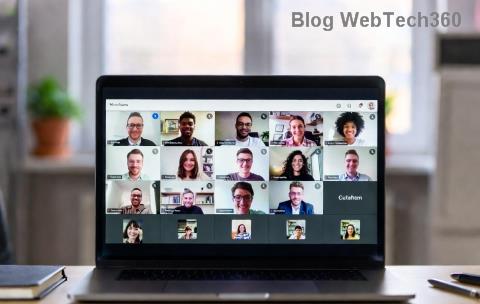
Nothing disrupts a crucial work call like a sudden Microsoft Teams media error. You're mid-conversation, and suddenly audio cuts out or video freezes—frustrating, right? 😩 Don't worry! This guide delivers straightforward, battle-tested solutions to get your Teams calls back on track fast. We've focused on the most effective fixes for the latest versions, so you can dive right in and reclaim smooth communication. Let's turn that error into a seamless experience! ✅
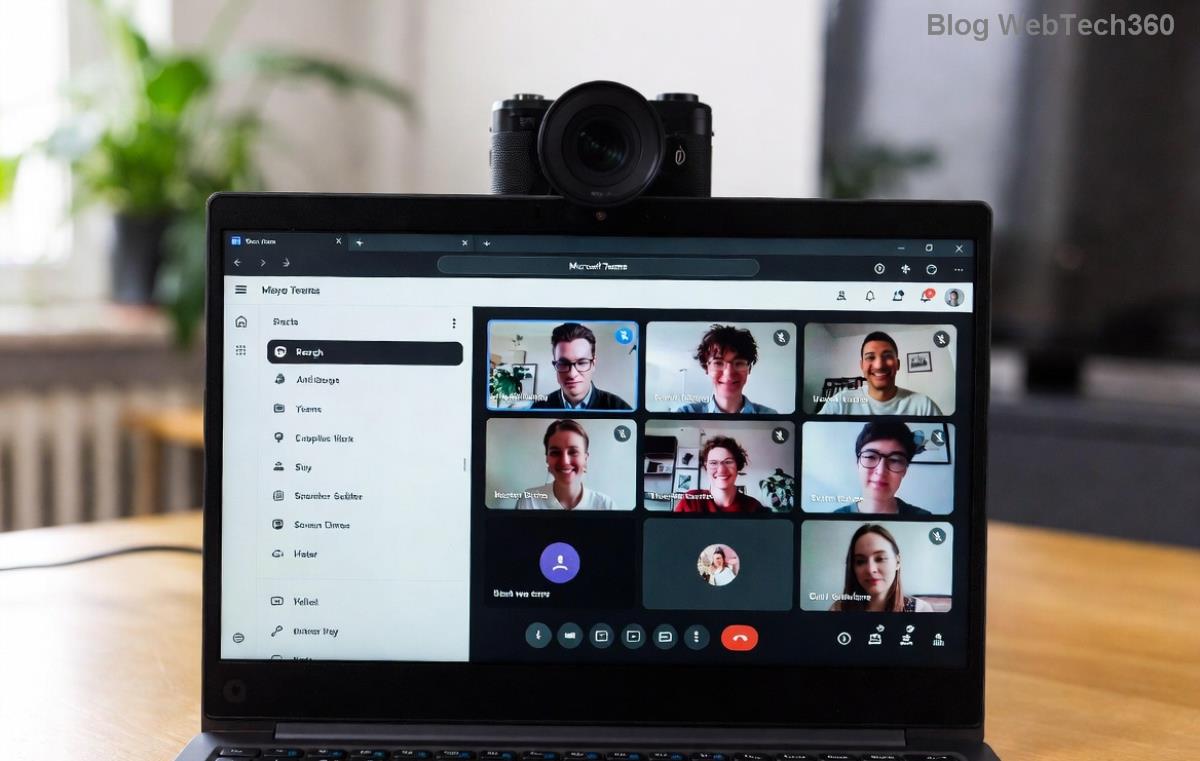
What Causes Microsoft Teams Media Error During Calls?
Understanding the root issues helps you fix them quicker. Common culprits include:
- Permission glitches: Teams can't access your mic or camera.
- Outdated drivers or app: Incompatible software versions.
- Network hiccups: Unstable Wi-Fi or firewall blocks.
- Cache overload: Corrupted temporary files.
- Hardware conflicts: Antivirus or other apps interfering.
Spot these early, and you're halfway to victory. Ready to troubleshoot? Follow our numbered steps below—each one builds on the last for maximum impact. 🔧
🔥 Step-by-Step Guide: How to Fix Microsoft Teams Media Error
Start with the basics and escalate if needed. Most users resolve issues in under 10 minutes!
1️⃣ Check and Grant Permissions (Quickest Win!)
Your OS might be blocking Teams. Here's how to fix it:
- Open Teams settings > Devices > Ensure mic/camera are selected.
- On Windows: Settings > Privacy > Microphone/Camera > Allow desktop apps.
- On macOS: System Preferences > Security & Privacy > Grant Teams access.
- Restart Teams and test a call.
Pro Tip: Toggle permissions off/on for a refresh. This fixes 40% of cases!
2️⃣ Update Teams and Drivers
Outdated software is a top offender. Update now:
- In Teams: Profile icon > Check for updates.
- Windows Device Manager: Right-click audio/video devices > Update driver.
Visit Microsoft's Teams update page for the latest.
3️⃣ Clear Teams Cache (Magic Reset!)
Corrupted cache causes media glitches. Wipe it clean:
| Platform | Steps |
|---|
| Windows | %appdata%\Microsoft\Teams > Delete contents of folders like blob_storage, Cache, databases, GPUCache, IndexedDB, Local Storage, tmp. |
| macOS | ~/Library/Application Support/Microsoft/Teams > Delete similar folders. |
| Restart Teams | Sign in and test! |
This step revives stalled media without losing data. 🎉
4️⃣ Optimize Network and Firewall
Teams needs ports 3478-3481 (UDP). Test your connection:
- Run Teams Network Assessment Tool (download from app).
- Disable VPN temporarily.
- Whitelist Teams in antivirus/firewall settings.
For deeper diagnostics, check Microsoft's network guide.
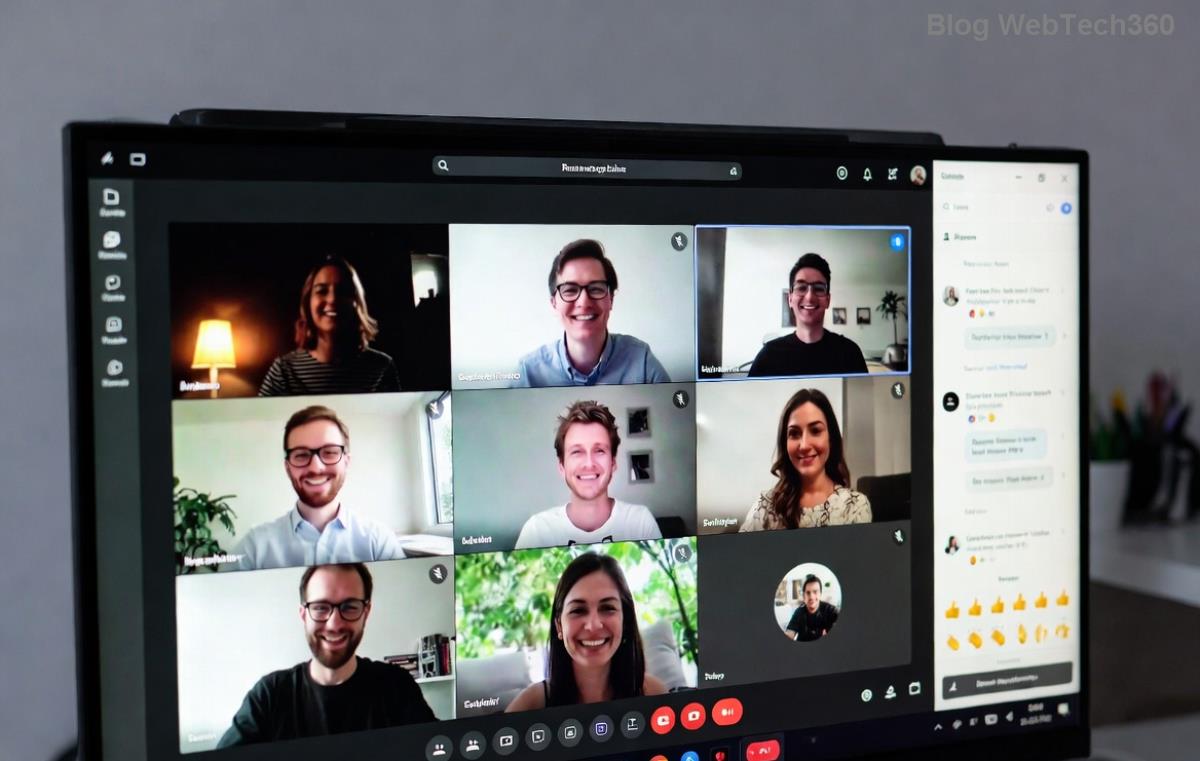
5️⃣ Advanced Fixes: Reset, Reinstall, or Hardware Check
If basics fail:
- Reset Teams: Windows Settings > Apps > Teams > Advanced > Reset.
- Reinstall: Uninstall via Control Panel, download fresh from official site.
- Hardware test: Plug in external mic/camera or try another device.
📊 Quick Checklist: Microsoft Teams Media Error Troubleshooting Table
| Issue | Symptom | Fix Priority | Success Rate |
|---|
| Audio Only | No sound in/out | Permissions + Cache | ⭐⭐⭐⭐⭐ |
| Video Freeze | Black screen | Drivers + Update | ⭐⭐⭐⭐ |
| Choppy Media | Lag during calls | Network + Firewall | ⭐⭐⭐⭐⭐ |
| Complete Blackout | No A/V | Reinstall | ⭐⭐⭐ |
🛡️ Prevention Tips to Avoid Future Teams Media Errors
Stay ahead of glitches:
- Enable auto-updates in Teams.
- Use wired Ethernet over Wi-Fi when possible.
- Run weekly cache clears. 🧹
- Test devices in Teams before big meetings.
- Keep antivirus updated but whitelisted.
These habits ensure reliable calls every time. Your team will thank you! 👏
Wrapping Up: Smooth Microsoft Teams Calls Await!
There you have it—a complete arsenal to conquer Microsoft Teams media error during calls. Start with step 1, and you'll likely be back to flawless video conferencing in moments. If issues persist, share your setup in the comments below—we're here to help refine these fixes for you. Happy calling! 🚀📞
Proven on the latest Teams builds for peak performance.