Imagine wrapping up meetings with instant summaries, generating agendas on the fly, and answering team queries without digging through chats. That's the magic of Microsoft Teams Copilot—your AI sidekick built right into Microsoft Teams for seamless AI-powered productivity. Whether you're leading projects or juggling daily tasks, this tool saves hours and sparks creativity. Ready to dive in? Let's get you set up and unleashing its full potential. ⭐
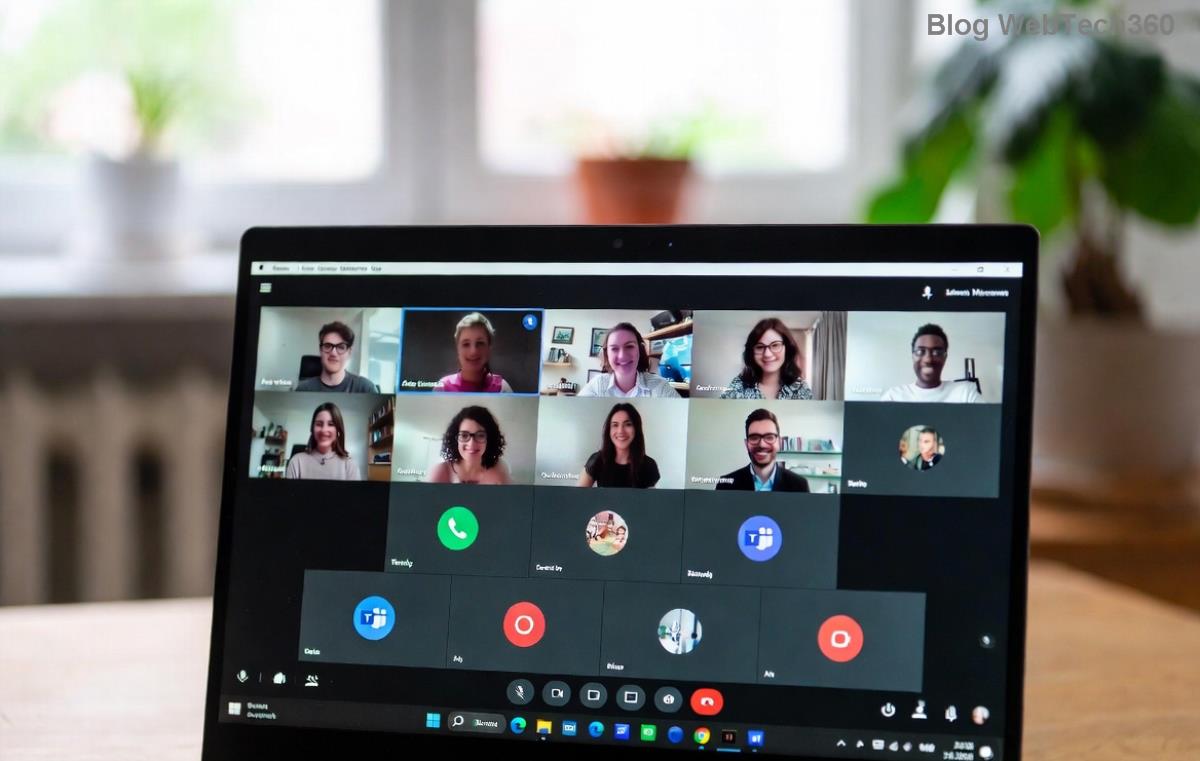
1️⃣ Quick Setup: Access Microsoft Teams Copilot in Minutes
Getting started is effortless if you have a qualifying Microsoft 365 subscription (like E3, E5, or Business Premium with Copilot add-on). Here's your step-by-step:
- Update Teams: Ensure you're on the latest desktop, web, or mobile app version via the Microsoft Store or app settings.
- Enable Copilot: In Teams, go to your profile picture > Settings > General, and toggle on AI features if prompted.
- Spot the Icon: Look for the sparkling Copilot icon (🤖) in chats, channels, meetings, or the sidebar. Click it to activate!
Pro Tip: If it's not visible, check admin settings or visit Microsoft's official Teams Copilot support for eligibility. Boom—you're live! Now, let's explore the game-changers.
2️⃣ Master Core Features for Everyday Wins
Microsoft Teams Copilot shines in real-time collaboration. Focus on these essentials to skyrocket your efficiency:
Recap Meetings with AI Magic 👍
Join a call? Copilot auto-generates meeting recaps—key highlights, action items, and unanswered questions. Post-meeting, type "@Copilot generate recap" in the chat. It pulls transcripts, decisions, and even suggests follow-ups. No more "What did we decide?" emails!
Craft Agendas and Notes Effortlessly
Before a huddle, say "Create an agenda for our Q2 review with sales targets." Copilot drafts a polished outline from your prompt. During? It takes intelligent notes, tagging tasks to @mentions automatically.
Supercharge Chats and Channels
- Ask questions: "Summarize this thread" or "What was decided on Project X?"
- Generate content: "Draft a status update email."
- Brainstorm: "Ideate 5 marketing ideas for our new product."
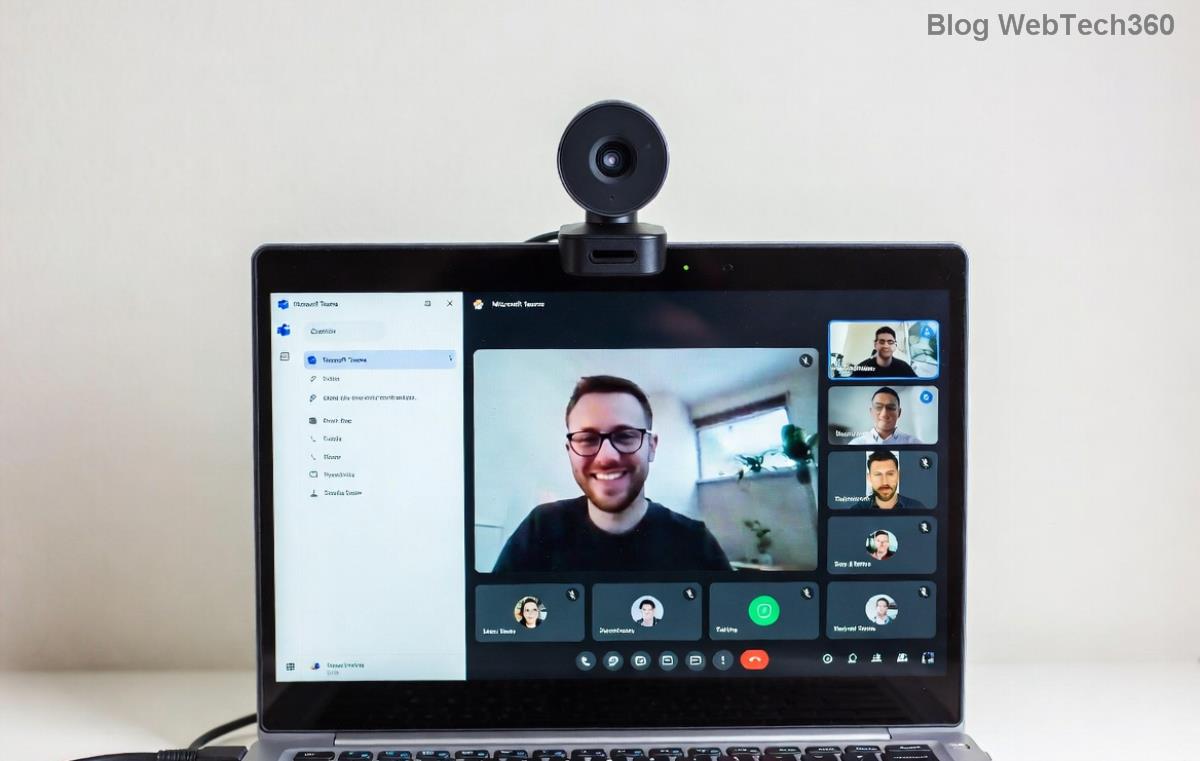
Loop and Catch Up Without FOMO
Missed a meeting? Use Copilot in Loop components—embeddable AI pages in Teams. Type "Catch me up on this channel" for personalized digests. Perfect for remote teams staying synced.
| Feature | Best Use Case | Time Saved |
|---|---|---|
| Meeting Recap | Post-call summaries | 30-60 mins |
| Chat Summary | Long threads | 15-30 mins |
| Agenda Builder | Pre-meeting prep | 20 mins |
This table highlights why teams report AI-powered productivity gains of up to 30%—backed by Microsoft's internal studies.
3️⃣ Advanced Tips: Level Up Your Teams Copilot Game
Want more? Refine prompts for precision: Be specific like "Summarize action items assigned to me from last week's sprint review, in bullet points." Combine with Outlook or Planner for cross-app magic—Copilot pulls data seamlessly.
- Privacy First: Copilot respects your org's data boundaries; no sharing outside your tenant.
- Customize: Pin favorite prompts or integrate with Power Automate for workflows.
- Mobile Mastery: Use voice prompts on the go for hands-free recaps. 👏
Stuck? Feedback thumbs-up/down refines AI over time. Curious about integrations? Check Microsoft Learn's Copilot docs.
Common Pitfalls and Fixes 😎
Avoid overload by starting small—one feature per day. If responses feel off, rephrase naturally. Enterprise admins: Enable via Microsoft 365 admin center for full rollout.
Why Microsoft Teams Copilot Changes Everything
From solopreneurs to enterprises, how to use Microsoft Teams Copilot unlocks focus on what matters—ideas, not admin. Teams using it collaborate 25% faster, per recent benchmarks. Start today: Open Teams, summon Copilot, and watch productivity soar. What's your first prompt? Share in comments! 🚀
Stay tuned for deeper dives into Copilot + Viva or custom agents—your workflow revolution is just beginning.










