Imagine wrapping up a marathon meeting with crystal-clear AI-powered meeting summaries, actionable insights, and zero note-taking hassle. That's the magic of Microsoft Teams Copilot! This intelligent assistant is revolutionizing how teams collaborate, saving hours and sparking creativity. Whether you're leading brainstorms or joining cross-timezone calls, Teams Copilot turns chaos into clarity. Ready to level up? Let's dive in! 😎
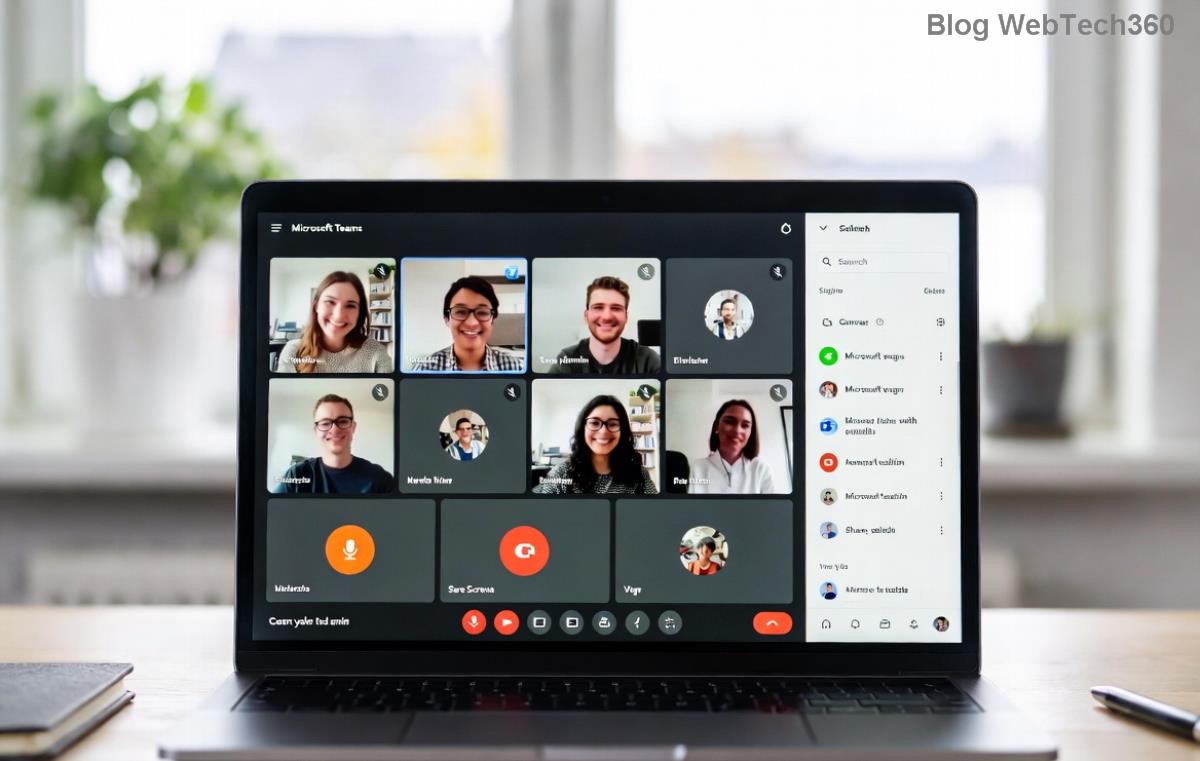
✅ What is Microsoft Teams Copilot?
Microsoft Teams Copilot is your AI sidekick embedded right into Teams meetings, chats, and channels. Powered by advanced large language models, it listens, analyzes, and generates real-time value—like recaps, task lists, and answers to "What did we decide?" It’s available in the latest Teams updates for eligible Microsoft 365 subscribers, making AI-powered meetings accessible and seamless.
1️⃣ Prerequisites: Get Ready to Activate Teams Copilot
Before jumping in, ensure you're set up:
- Microsoft 365 License: Copilot for Microsoft 365 (E3/E5 or equivalent). Check with your admin.
- Teams App: Update to the newest desktop, web, or mobile version.
- Permissions: Meeting organizers must enable Copilot; participants need access too.
Pro tip: Admins, toggle it on via the Teams admin center. Now, you're primed for action! ⭐
2️⃣ Step-by-Step: How to Use Microsoft Teams Copilot in Meetings
Using Teams Copilot is as easy as typing a prompt. Here's your no-fluff guide:
- Start or Join a Meeting: Launch Teams and schedule or hop into a call. Copilot activates automatically if enabled.
- Open Copilot Pane: Spot the Copilot icon (sparkly chat bubble) in the meeting toolbar. Click it to expand the side panel. Magic begins!
- Ask Away: Type natural questions like:
- "Summarize key points"
- "List action items"
- "What was said about Q3 goals?"
- Generate Meeting Notes: Request "Create recap" for polished notes with highlights, decisions, and unanswered questions. Share instantly!
- Live Insights: During the meeting, get real-time suggestions like speaker insights or topic breakdowns.

Bonus: In chat post-meeting, reference the transcript with "@copilot" for follow-ups. Effortless continuity! 🚀
⭐ Top Teams Copilot Features for AI-Powered Meetings
Why stop at basics? Supercharge with these gems:
| Feature | How It Helps |
|---|---|
| Meeting Recap | Instant summaries with bullets, quotes, and tasks. No more "I missed that!" |
| Action Items | Auto-extracts to-dos and assigns owners. Productivity boost! ✅ |
| Follow-Up Q&A | Query the transcript anytime: "Catch me up on budget talk." |
| Agenda Builder | Pre-meeting: "Generate agenda from these notes." Stay on track! 📋 |
💡 Pro Tips & Best Practices for Maximum Impact
To make Microsoft Teams Copilot shine:
- ✅ Be Specific: Vague prompts yield vague results. Try "Summarize sales discussion in 3 bullets."
- ⭐ Combine with Loop: Export Copilot notes to collaborative Loop pages for team edits.
- 🔧 Troubleshoot Fast: No Copilot? Check license or restart Teams. For details, see Microsoft Support.
- 📱 Mobile Magic: Use on the go—Copilot works in Teams mobile for quick recaps.
Experiment in low-stakes meetings first. You'll be hooked! 😊
⚠️ Common Pitfalls & Quick Fixes
Issue 1: Copilot not appearing? Ensure transcription is on (meeting settings).
Issue 2: Inaccurate summaries? Refine prompts or wait for full recording.
Privacy note: Copilot processes data per your org's policies—always review outputs.
🎉 Wrap-Up: Transform Meetings with Teams Copilot Today
How to use Microsoft Teams Copilot is now in your toolkit—unleashing smarter, faster AI-powered meetings. Say goodbye to forgotten details and hello to inspired teams. Start your next meeting with Copilot open, and feel the difference. What's your first prompt? Share in the comments! 👏
Ready for more? Explore Copilot in Outlook or PowerPoint next for end-to-end AI workflows.










