Encountering the frustrating Microsoft Teams microphone error where there's no sound during calls? You're not alone – this common issue disrupts meetings and collaborations worldwide. But don't worry! 😊 This guide delivers straightforward, tested solutions to get your mic working flawlessly. We'll cover quick checks to advanced troubleshooting, ensuring you stay productive without tech headaches.
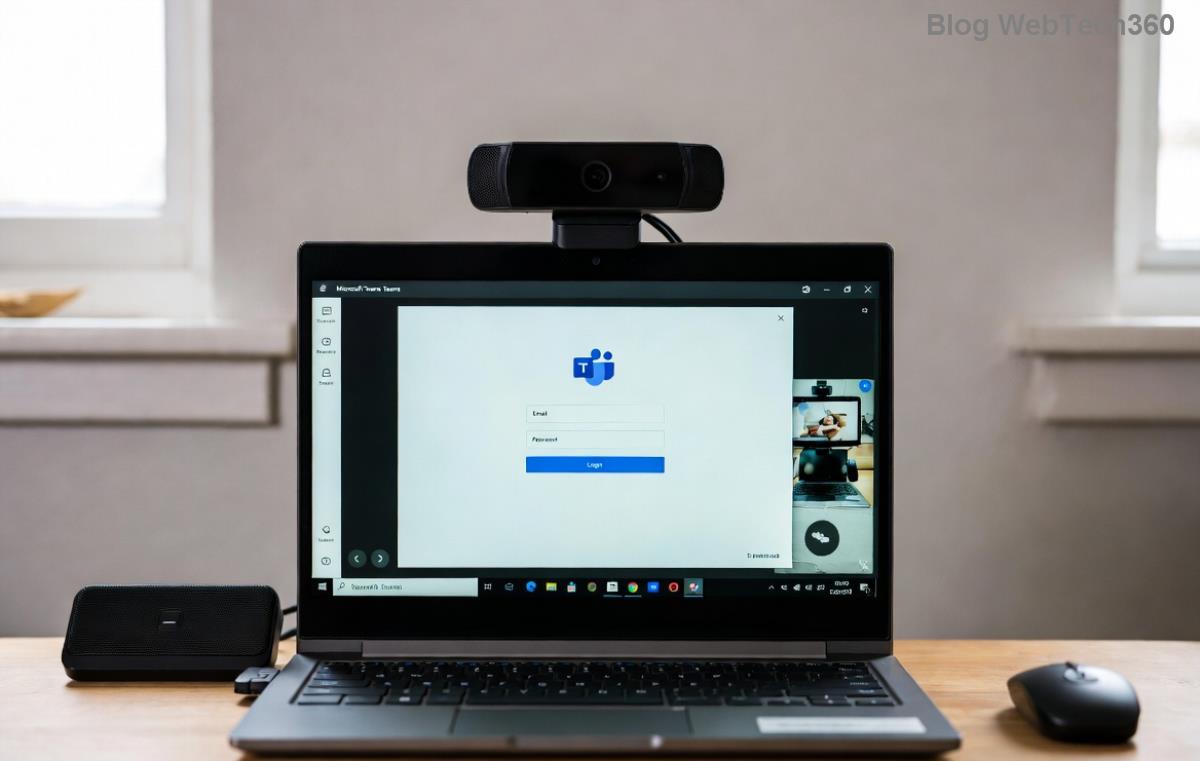
🔍 Quick Diagnosis: Why Your Teams Mic Has No Sound
Before diving in, identify the root cause. Common culprits include:
- Permission blocks in Windows/Mac or browser.
- Incorrect device selection in Microsoft Teams.
- Outdated audio drivers.
- Conflicting apps or Teams glitches.
✅ Pro Tip: Test your mic in another app like Voice Recorder (Windows) or QuickTime (Mac) first. If it works there, the issue is Teams-specific.
1️⃣ Step-by-Step Fixes for Microsoft Teams "Microphone Error" No Sound
Start with these basics – most users fix it here!
Fix 1: Verify Mic Permissions in Teams
- Open Microsoft Teams > Click your profile picture > Settings (gear icon).
- Go to Devices tab.
- Under Microphone, select your device from the dropdown. 🔊
- Make a test call or use Make a test call button.
If no device shows? Proceed to OS permissions.
Fix 2: Grant Permissions in Windows/Mac
For Windows:
- Settings > Privacy & security > Microphone.
- Toggle Allow apps to access your microphone ON.
- Scroll to Microsoft Teams and enable it. ✅
For Mac:
- System Settings > Privacy & Security > Microphone.
- Check Microsoft Teams. Restart Teams after.
Fix 3: Run Windows Audio Troubleshooter
Windows has a built-in wizard that's a game-changer:
- Right-click speaker icon (taskbar) > Troubleshoot sound problems.
- Select Recording tab > Run for your mic.
- Follow prompts – it auto-fixes drivers or conflicts! 🎉

📋 Common Causes & Fixes Table
Bookmark this for instant reference:
| Cause |
Symptom |
Quick Fix |
| Mic Muted in Teams |
No input bar movement |
Devices > Unmute & select correct mic |
| Driver Outdated |
Microphone error popup |
Device Manager > Update audio drivers |
| Permissions Denied |
Silence despite hardware OK |
OS Privacy settings > Enable Teams |
| App Conflict |
Intermittent no sound |
Close Zoom/Discord; restart Teams |
| Teams Cache |
Sudden failure post-update |
Clear cache: %appdata%\Microsoft\Teams > Delete contents |
2️⃣ Advanced Troubleshooting for Stubborn Teams No Sound Issues
If basics fail, level up:
Update Audio Drivers Manually
- Right-click Start > Device Manager.
- Expand Audio inputs and outputs > Right-click your mic > Update driver > Search automatically.
- Restart PC. 🔧
No luck? Download latest from manufacturer: Realtek, etc.
Clear Teams Cache & Reset
Corrupted files cause glitches:
- Quit Teams (fully: Task Manager > End task).
- Press Win+R > Type
%appdata%\Microsoft\Teams > Delete all folders inside.
- Re-launch Teams – it rebuilds fresh! 🚀
Reinstall Microsoft Teams
Last resort, but 90% success rate:
- Uninstall via Settings > Apps > Teams.
- Download fresh from official site.
- Install & test. Your settings sync via account.
Browser Version Fix (Web Teams)
For web.teams.microsoft.com:
- Chrome/Edge: Settings > Privacy > Site settings > Microphone > Allow teams.microsoft.com.
- Clear browser cache for the site.
🛡️ Prevention Tips: Avoid Future Microsoft Teams Microphone Error
Stay ahead:
- ✅ Keep Teams & OS updated automatically.
- ⭐ Use wired headset for reliability over Bluetooth.
- 🔊 Test mic before important meetings via Teams' test call.
- Close bandwidth-hogging apps during calls.
Still stuck? Check Microsoft Teams Support or community forums for device-specific advice.
🎯 You're Set! Enjoy Crystal-Clear Calls
Congratulations! 🎉 Following these steps resolves Microsoft Teams "microphone error" no sound for most users in under 5 minutes. If your mic roars back to life, drop a comment below on what worked. Ready for seamless virtual meetings? Dive back into Teams and crush those calls. Questions? Scroll up and retry – success awaits! 🚀