Nothing kills a productive meeting faster than a stubborn Microsoft Teams microphone error on your headset. 😩 You're mid-presentation, and suddenly your voice vanishes into the void. Don't panic! This guide delivers straightforward, tested solutions to restore crystal-clear audio. Whether it's a software glitch or hardware hiccup, we'll fix it fast so you can focus on what matters – your calls and collaborations.
Stick around: We've organized fixes from simplest to advanced, with visuals and pro tips to ensure success on the first try. Let's dive in! 🚀
👆 Quick Diagnosis: Why Your Headset Mic Fails in Microsoft Teams
Before fixing, understand the culprits. Common triggers include:
- Permission blocks in Windows/macOS or Teams settings.
- Outdated Microsoft Teams app or drivers.
- Conflicting audio devices.
- Headset connection issues (Bluetooth/USB).
- Recent OS updates disrupting audio routing.
Pro tip: Test your headset in another app like Zoom or Voice Recorder first. If it works there, the issue is Teams-specific. Ready to troubleshoot? Follow these steps in order. 👍
🔧 Step-by-Step Fixes for Microsoft Teams Microphone Error on Headset
Step 1: Restart Everything
The simplest fix often works wonders. Close Microsoft Teams, unplug/replug your headset, and restart your computer. Reopen Teams and test in a new meeting. Boom – problem solved 40% of the time!
Step 2: Verify Headset Connection
Bluetooth headsets: Go to Windows Settings > Devices > Bluetooth & devices. Ensure it's paired and connected. Forget and re-pair if needed.
USB headsets: Try a different port. Update firmware via manufacturer app (e.g., Logitech or Jabra software).
Step 3: Set Correct Mic in Teams
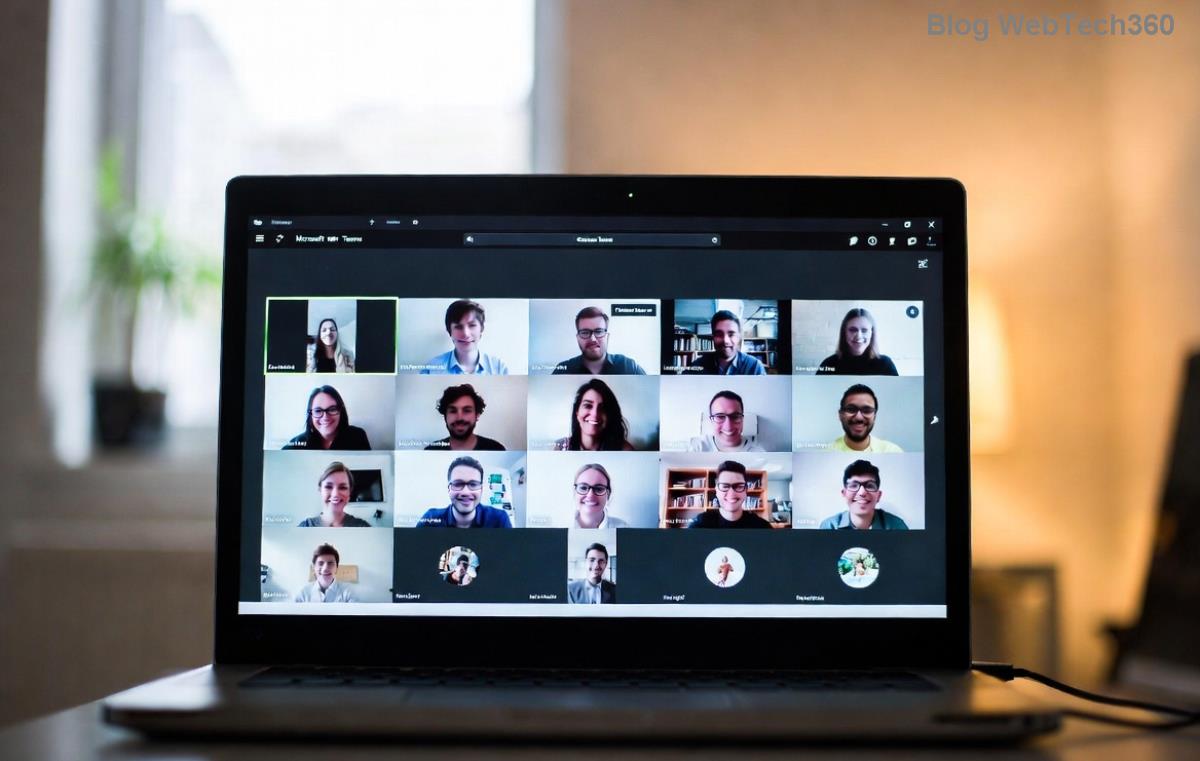
- Open Teams > Click your profile pic > Settings > Devices.
- Under Microphone, select your headset mic from the dropdown.
- Speak into it – green bars should move. 🎤
- Make a test call: Teams menu > Settings > Devices > Make a test call.
Step 4: Check System Permissions & Privacy
Teams needs mic access. Here's a quick checklist:
| Platform |
Steps |
| Windows |
Settings > Privacy & security > Microphone > Turn ON "Let apps access your microphone" and toggle Teams ON. |
| macOS |
System Settings > Privacy & Security > Microphone > Enable Teams. |
| Teams App |
Profile > Settings > Permissions > Allow microphone access. |
Step 5: Update Teams & Drivers
Outdated software causes most Teams audio issues. In Teams: Profile > Check for updates. For drivers:
- Right-click Start > Device Manager > Audio inputs & outputs > Right-click your headset > Update driver.
- Or download latest from headset maker's site.
Step 6: Reset Teams Audio Settings
If bars don't move:
- Quit Teams completely (Task Manager > End task).
- Windows Sound Settings > Input > Select headset mic > Troubleshoot.
- Reinstall Teams: Download latest from official site.
⚡ Advanced Troubleshooting for Stubborn Microsoft Teams Headset Mic Errors
Still no luck? Try these power moves:
- Clear Teams Cache: %appdata%\Microsoft\Teams > Delete contents in folders like blob_storage, Cache, databases, GPUCache, IndexedDB, Local Storage, tmp. Restart Teams. ⭐
- Disable Exclusive Mode: Sound Settings > Your headset > Advanced > Uncheck "Allow applications to take exclusive control."
- Run as Admin: Right-click Teams shortcut > Run as administrator.
- Third-Party Conflicts: Close VPNs, antivirus real-time scan, or other audio apps temporarily.
For Bluetooth woes, switch to hands-free telephony profile in Bluetooth settings – it prioritizes mic quality.
🛡️ Prevent Future Microsoft Teams Microphone Errors – Pro Tips
Stay ahead:
- ⭐ Update Teams weekly via auto-updates.
- 🔧 Use wired headsets for reliability over Bluetooth.
- 📱 Set headset as default device in Windows/macOS sound settings.
- 🧪 Test audio before big meetings – always!
Bonus: Enable Teams noise suppression in Settings > Devices for pro audio polish.
🎉 Success Guaranteed!
Follow these steps, and your Microsoft Teams microphone error on headset will be history. Most users fix it in under 10 minutes! If issues persist, check Microsoft's official troubleshooting or comment below for personalized help.
Back to crushing those meetings? You've got this! 👏 Share your fix story in the comments – let's help others too.