Home
» News
»
Salesforce Workbench Errors: Troubleshooting API Tools During Downtime
Salesforce Workbench Errors: Troubleshooting API Tools During Downtime
Salesforce Workbench errors during downtime: start by separating tool failure from platform failure
When Salesforce Workbench suddenly stops logging in, REST Explorer returns an error, or a query that worked minutes ago begins timing out, the fastest path is not to keep clicking Retry. First determine which layer is failing: the Workbench web app, your browser or network, Salesforce authentication, your specific Salesforce instance, or the API request itself.
That distinction matters because Workbench is a community-maintained, web-based API utility rather than a fully supported Salesforce product. Salesforce explicitly says it does not maintain Workbench and recommends supported alternatives such as Salesforce CLI, Code Builder, and the Salesforce Extensions for Visual Studio Code. The Workbench project itself also describes the tool as maintenance-only. See Salesforce's Workbench replacement guidance and the original Workbench source repository.
Use this page as a practical reference when an outage or degraded service is suspected. The goal is to preserve evidence, avoid unnecessary retries, and decide whether to wait, change tools, or fix something local.
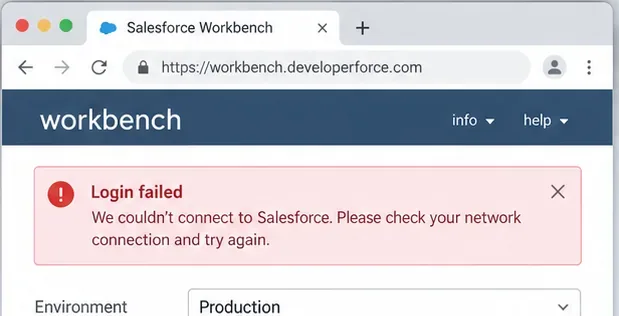
Illustrative Workbench connection error. Capture the exact message before changing settings or retrying repeatedly.
Quick triage checklist
Check
What to look for
What it tells you
Salesforce Trust
Incident, degradation, maintenance, or instance-specific impact
Whether Salesforce reports a platform-side problem
Workbench itself
Can the login page load? Does OAuth redirect correctly?
Whether the community-hosted tool is reachable
Salesforce login
Can you sign in to the org normally?
Whether authentication is broadly affected
Minimal API call
Try a lightweight endpoint such as /services/data/ or /services/data/v66.0/limits
Whether the API path works independently of a complex query
Salesforce CLI, an existing integration, or another approved API client
Whether the failure is Workbench-specific
1. Check Salesforce Trust before changing your configuration
Go to the official Salesforce Trust status site and search for the instance, domain, pod, or tenant relevant to your org. Salesforce incidents can be regional or instance-specific, so a green status for an unrelated instance does not prove that your org is healthy.
If Trust reports a service disruption, performance degradation, login problem, or maintenance affecting your environment, record the incident ID and time. Then avoid making speculative changes to connected apps, credentials, profiles, permission sets, network policies, or API versions unless the error specifically points to those settings. Configuration changes made during an outage can create a second problem after the platform recovers.
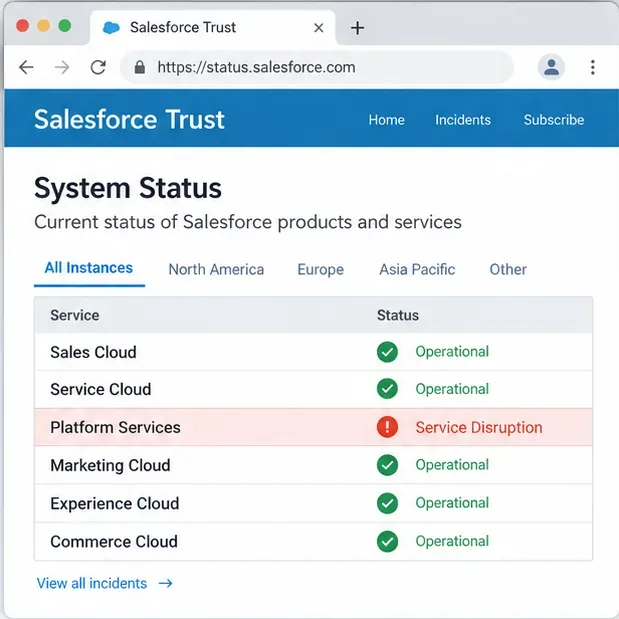
Use Salesforce Trust to confirm the live status for your own instance. The statuses shown here are illustrative; the live Trust page is the source of truth.
2. Preserve the exact Workbench error and classify it
Workbench often passes Salesforce API error responses through with little interpretation. That is useful for troubleshooting: the exact HTTP status, Salesforce error code, endpoint, and message usually tell you more than a generic browser banner.
Connection failure, timeout, or HTTP 5xx
A timeout, 502, 503, or other 5xx response can be consistent with service degradation, overloaded infrastructure, or an intermediate network failure. Do not assume a 5xx proves a Salesforce-wide outage. Compare the same lightweight request from another approved client and check Trust. If multiple clients fail against the same Salesforce instance at the same time, the evidence points away from Workbench alone.
401 or invalid-session errors
These generally point to authentication or session problems. Re-authenticate with OAuth instead of copying old session IDs between browsers. If normal Salesforce login also fails and Trust reports login impact, wait for service recovery before rotating credentials. If Salesforce login works but Workbench OAuth does not, investigate the Workbench connected-app path or use a supported alternative client.
403 and authorization errors
A 403 usually means the request reached a service that refused it. Check user permissions, connected-app policy, IP restrictions, and the exact Salesforce error code. One known Workbench-specific example is OAUTH_APP_BLOCKED, which can occur when an administrator blocks the Workbench connected app. The Workbench project's connected-app guidance describes this scenario.
3. Reduce the test to the smallest safe API request
During a suspected outage, do not diagnose with a bulk load, metadata deployment, long SOQL query, or multi-step script. Start with a read-only endpoint that is cheap to execute. In REST Explorer, a request such as GET /services/data/ checks basic API reachability. A request such as GET /services/data/v66.0/limits can help you inspect organization limits when the API is functioning.
Salesforce documents Workbench REST Explorer as a way to call REST endpoints, but Workbench is not ideal for large or performance-intensive operations. The original Workbench documentation notes that browser and connection timeouts make it better suited to quick, on-the-fly API interactions than large data loads or exports.
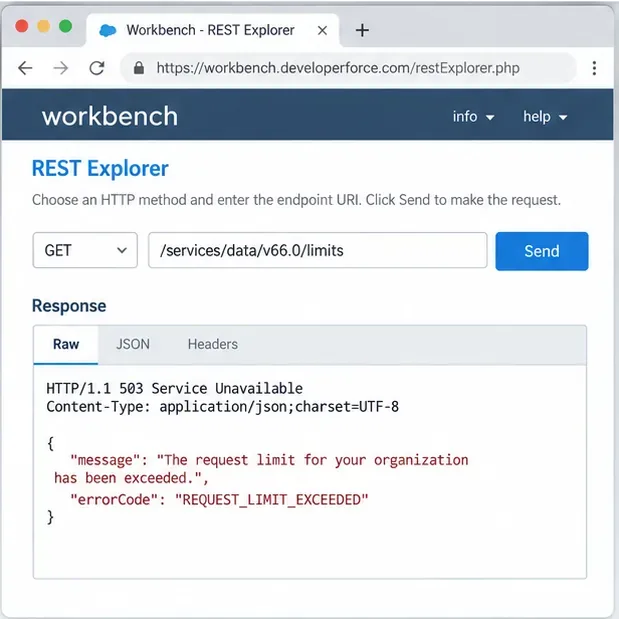
REST Explorer is useful for a minimal reproducible request. Record the HTTP status and Salesforce error code rather than relying only on the banner message.
4. Treat API-limit errors differently from downtime
REQUEST_LIMIT_EXCEEDED is not the same thing as a platform outage. Salesforce applies API request allocations, and when an org exceeds its rolling usage limit, further API calls can be blocked until usage falls below the threshold. Salesforce's July 2026 support article confirms that REST API, SOAP API, Bulk API, and Bulk API 2.0 calls all contribute to API consumption. See Salesforce guidance for REQUEST_LIMIT_EXCEEDED and its rolling API limit explanation.
If the error is a limit condition, repeated retries make the situation worse by consuming more calls when requests are still accepted. Identify high-volume integrations, pause nonessential jobs where operationally safe, and monitor usage in Salesforce Setup. Do not wait for a Trust incident to resolve a tenant-specific limit problem.
5. Check for an API-version mismatch
UNSUPPORTED_API_VERSION deserves its own branch. Salesforce published a May 2026 support article explaining that Workbench can default to a newer API version before a production or Developer Edition org supports it. The recommended Workbench fix is to lower the default API version to one supported by the target org. See Salesforce's UNSUPPORTED_API_VERSION troubleshooting article.
This matters during release windows because an API-version mismatch can look like an outage if you focus only on the timing. Verify the version error itself before waiting on platform recovery.
6. Compare Workbench with a supported client
If the task is urgent and Workbench is the only component failing, reproduce the smallest request using Salesforce CLI or another supported, approved client. The purpose is diagnosis, not bypassing a genuine Salesforce outage. If both clients fail against the same org with comparable server-side errors, switching tools is unlikely to restore service. If CLI succeeds while Workbench fails, you have stronger evidence that the Workbench hosting, browser session, or connected-app path is the problem.
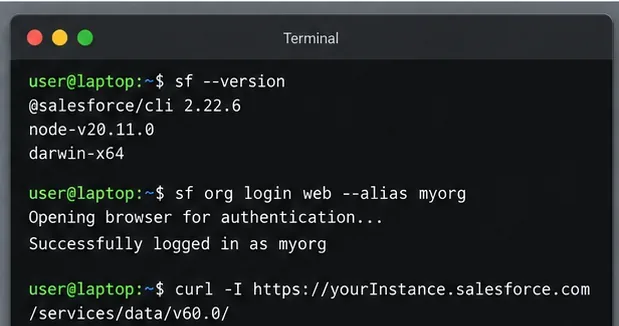
A second client can help isolate the failing layer. Use an approved Salesforce CLI workflow and avoid exposing access tokens, session IDs, or secrets in screenshots or tickets.
7. Use retry discipline instead of retry storms
During a confirmed service disruption, aggressive manual retries rarely help. For automated clients, use bounded retries with exponential backoff and jitter where your integration design permits it. For manual Workbench use, wait for a meaningful status update or a reasonable interval before repeating the same request.
For write operations, be especially careful. A timeout does not always prove that Salesforce did nothing; the client may have lost the response after the server processed the request. Before resubmitting a create, update, delete, or deployment, verify whether the original action committed. Duplicate writes are often more damaging than a delayed retry.
Common symptoms and the next action
Symptom
Most useful next check
Avoid
Workbench page does not load
Check Workbench reachability and use another approved client
Changing Salesforce permissions immediately
OAuth redirects fail
Check Salesforce login, Trust, and connected-app policy
Sharing session IDs or credentials
REST Explorer returns 5xx
Check Trust and repeat a minimal read-only call from a second client
Running larger test jobs
REQUEST_LIMIT_EXCEEDED
Review org API consumption and rolling limits
Rapid retries
UNSUPPORTED_API_VERSION
Select an API version supported by the target org
Waiting for an outage that may not exist
Only one complex query times out
Simplify the query and inspect selectivity/volume
Assuming platform-wide downtime
What evidence should you collect for an incident ticket?
UTC timestamp and your local time zone.
Salesforce org and instance identifiers that are safe to share internally.
The exact endpoint and HTTP method, with sensitive parameters removed.
HTTP status, Salesforce errorCode, and a short response excerpt.
Whether normal Salesforce login worked.
Whether the same minimal request failed from a second approved client.
Relevant Salesforce Trust incident ID or a note that no matching incident was visible.
Whether the operation was read-only or could have committed a write.
Never paste access tokens, passwords, session IDs, OAuth authorization codes, or full sensitive payloads into shared tickets or chat channels.
When to stop troubleshooting Workbench and switch tools
Switch away from Workbench when the failure is clearly isolated to Workbench, when the operation is too large for a browser-based utility, when you need repeatable scripted behavior, or when you require a supported development workflow. Salesforce's own replacement guidance specifically points developers toward Code Builder, Salesforce CLI, and the Salesforce Extensions for VS Code.
Do not switch tools merely to keep hammering an unavailable Salesforce service. A different client cannot fix a server-side outage, and repeated calls can make diagnosis noisier. During downtime, the best result is a clear classification: confirmed platform incident, Workbench-only failure, local network/browser issue, API-version mismatch, permission/authentication problem, API-limit exhaustion, or request-specific failure.
Bottom line
Salesforce Workbench errors are easier to handle when you treat them as signals, not diagnoses. Check Salesforce Trust, preserve the exact error, reduce the request, compare with one supported client, and follow the error code. That sequence helps you avoid unnecessary configuration changes during outages while also catching problems that look like downtime but are actually tenant-specific or Workbench-specific.