Home
» News
»
How to Contact Salesforce Support During a Major System Failure
How to Contact Salesforce Support During a Major System Failure
When Salesforce stops responding, the fastest route to a useful answer is a coordinated one: check the official Trust Status page, identify whether the problem is platform-wide or limited to your org, then use the support channel your Success Plan actually includes. A well-prepared case gives Salesforce enough context to connect your symptoms to an incident or investigate an org-specific failure.
This guide reflects the Salesforce Help support experience documented on September 4, 2026. Salesforce can change labels, eligibility, phone routing, and language coverage, so treat the linked Salesforce pages as the current authority when you are in the incident.
Use this order during the first 15 minutes
Check Salesforce Trust Status. Look for an incident that matches your cloud, instance, region, and symptoms. Record the incident identifier, current status, affected services, and the time of the latest update.
Confirm the scope. Test a small, safe set of actions from an approved user: login, a read-only record view, the affected API or integration, and—if relevant—a separate Salesforce service. Do not repeatedly change configuration while Salesforce is investigating.
Choose one owner. Have an authorized admin or support contact coordinate the case. Duplicate cases from several employees make it harder to maintain one timeline and can split evidence across tickets.
Use the highest-priority permitted channel. For a business-stopping issue, follow your contract's Severity 1 process. Salesforce's current guidance recommends phone support for Sev 1 issues across all Success Plans; the actual phone option and regional number are shown after you select the applicable support path.
Preserve evidence and communicate internally. Capture timestamps in UTC, error text, affected users, instance, request IDs, and the last known successful transaction. Share an internal status message so every team is not contacting Salesforce independently.
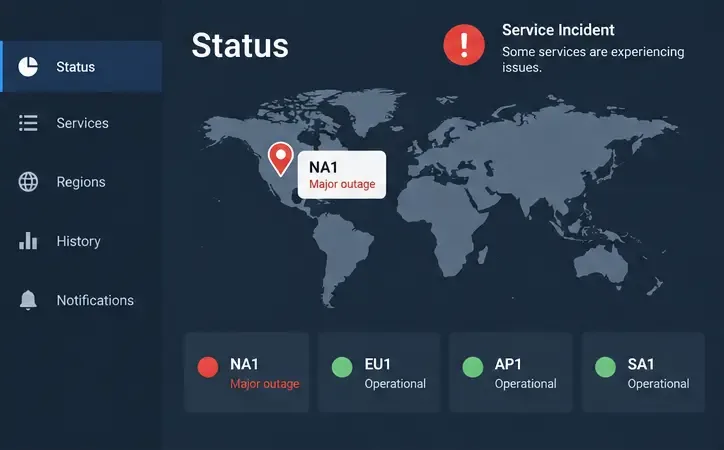
A conceptual status dashboard shows how to compare the affected instance with other regions and capture the latest incident status before contacting support.
Start with Trust Status, not a random phone number
Trust Status is the public place to look for Salesforce service incidents and maintenance information. It is useful even when Salesforce Help is slow or the application itself is unavailable. Match the status entry to your own instance rather than assuming that a report about “Salesforce” affects every customer.
A matching incident changes how you contact support. If Salesforce has already acknowledged the outage, include its incident identifier in your internal timeline and case. Ask support to associate your org with the incident or confirm whether your symptoms are expected. If no matching incident exists, an org-specific case becomes more important, especially when only one org, integration, permission set, or API client is failing.
Do not use a third-party outage tracker as proof. It can be a useful signal, but Salesforce Trust Status and your own tests are the sources that should drive the escalation.
Know which Salesforce support channel you can use
Salesforce says support options depend on the Success Plan attached to the relevant org. In Salesforce Help, sign in and open My Success Plan. If you manage more than one org, select the plan that matches the org and cloud experiencing the failure.
Situation
Best route
Important limitation
Business-stopping Sev 1 issue
Phone support, plus the official status page
Standard customers are directed to phone support for Sev 1; regional routing depends on the support page.
Premier or Signature customer
Phone support or Help Agent
Phone support is available under these plans, but use the number shown for your region and product.
Standard customer, non-Sev 1 issue
Help Agent or case submission through Salesforce Help
Phone support is not the general route for Standard issues.
Free or trial org
Self-service resources and the support options displayed for that org
Salesforce states that live chat is not available for free/trial org users.
For the live rules and regional language coverage, use Salesforce's How to Get Support from Salesforce Help. It documents Help Agent, phone support, case creation, My Cases, and the Standard, Premier, and Signature differences. The public Salesforce contact page is useful for general customer-service routes, but it is not a substitute for the authenticated support workflow for a production outage.
How to open a Salesforce support case
1. Sign in to Salesforce Help and select the correct org
Go to Salesforce Help. Select the production org and cloud that are actually affected. This matters when the same administrator has sandboxes, multiple production orgs, or more than one Salesforce product. If the case option is missing, check that you are using an eligible Salesforce license and ask your Salesforce administrator or designated support contact to submit it.
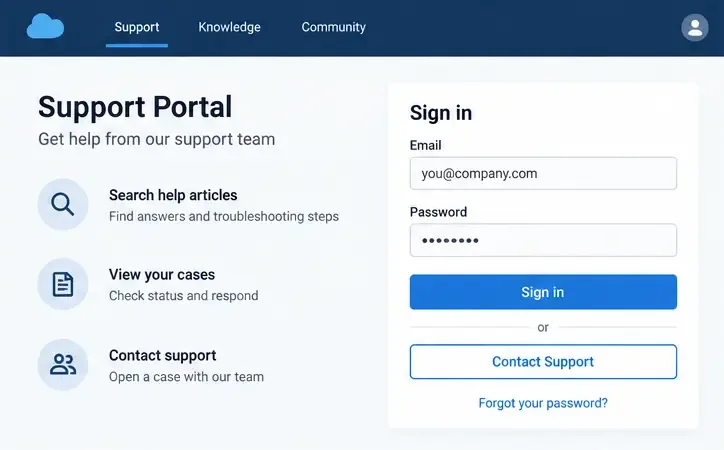
A conceptual support portal places case history and the Contact Support action next to the sign-in area; use the authenticated Salesforce Help portal for the org-specific workflow.
2. Start Help Agent or the case submission form
Salesforce's current Help experience can start with Help Agent. Describe the failure clearly and ask it to connect you with a support engineer when self-service guidance is not enough. If your language or plan does not expose that route, use the case submission form when it is offered. For Sev 1, use the phone path recommended by Salesforce and quote the case number or incident identifier if you already have one.
3. Write the case so an engineer can act on it
Put the impact and scope in the first two sentences. A useful subject looks like: “Production access failure on [instance]—all users unable to load Sales Cloud since [UTC time].” Then provide the operational detail in a stable order:
Product and affected cloud, such as Sales, Service, Data, or Tableau.
Production or sandbox, org ID, instance, region, and your Salesforce release or relevant integration version if known.
Exact UTC start time, last known successful time, and whether the problem is continuous or intermittent.
Number or percentage of affected users, business process blocked, and whether all profiles or only a subset are affected.
Exact error message, request ID, correlation ID, browser or API client, and a minimal reproducible sequence.
What you expected, what happened instead, and safe tests already performed.
The Trust Status incident ID, if a matching incident exists, plus any workaround that is helping or failing.
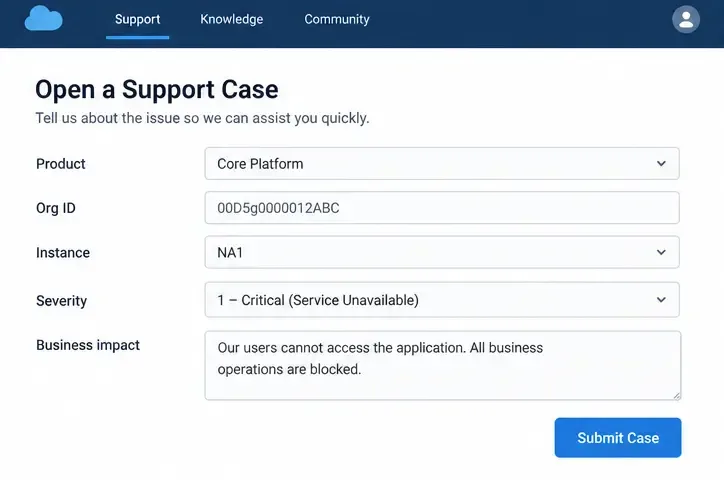
A conceptual case form highlights the fields that help an engineer connect a production failure to the correct org, instance, severity, and business impact.
Do not paste passwords, access tokens, full customer exports, payment details, health information, or other regulated data. Salesforce notes that Salesforce Help is separate from your Salesforce environment and is not intended for sensitive or regulated data. Redact screenshots, use synthetic record IDs, and provide only the smallest diagnostic sample needed.
What to say on the phone
Keep the call focused. Start with three facts: “This is production,” “the business impact is [specific blocked process],” and “the failure began at [UTC time] on [instance].” Next give the org ID, existing case number, Trust Status incident ID, number of affected users, and one exact error. Ask the representative to confirm the severity classification, case number, next update channel, and whether your org has been linked to a known incident.
Do not exaggerate severity to move up the queue. A precise description of business impact is more useful than labels such as “everything is broken.” If the issue is intermittent, say so and give the failure rate from a defined time window instead of guessing.
After the case is submitted
Save the case number in the incident channel and your internal incident log.
Assign one person to post updates to Salesforce; add collaborators only when they need the case updates.
Use My Cases to read replies, add comments, upload redacted attachments, or adjust the information as the scope changes.
Keep a timestamped record of recovery: login, read/write transaction, API calls, integrations, scheduled jobs, and customer-facing workflows.
After service returns, ask what remains to be checked and whether Salesforce will publish a final incident update or root-cause summary. Do not treat a green status page as proof that every downstream integration has recovered.
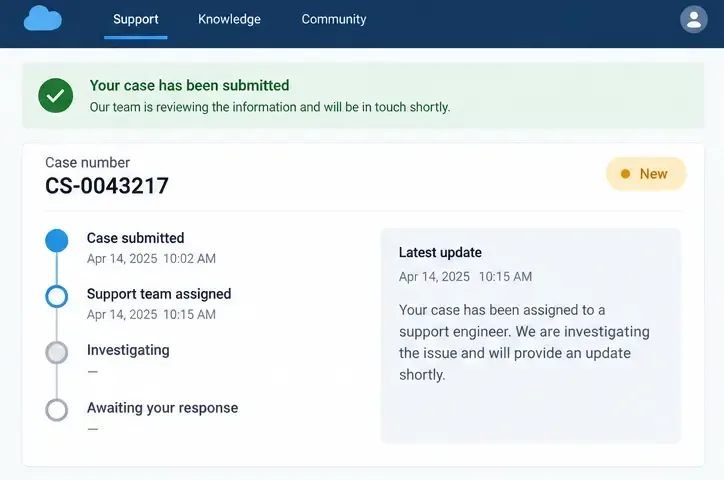
A conceptual case-tracking view shows the case number, assignment, investigation stage, and latest update that should be recorded during the outage.
Major-failure contact checklist
Status: Trust Status checked; matching incident ID and latest timestamp recorded.
Scope: correct org, instance, product, environment, users, and blocked business process confirmed.
Channel: Success Plan identified; Sev 1 phone path used when the issue is genuinely business-stopping.
Evidence: UTC times, exact errors, request IDs, last success, safe reproduction steps, and redacted screenshots ready.
Ownership: one case owner, one internal incident channel, and one source of truth for updates.
Security: no credentials, tokens, or sensitive customer data included in the case.
Recovery: critical transactions and integrations retested after Salesforce reports recovery.
The practical rule is simple: use Trust Status to establish the shared event, use Salesforce Help to establish the org-specific support record, and use phone support when your Success Plan and the business impact justify it. That sequence gives Salesforce the identifiers it needs while giving your own team a defensible incident timeline.