Home
» News
»
How to Check If Salesforce Is Experiencing a Global Outage
How to Check If Salesforce Is Experiencing a Global Outage
The fastest reliable way to check whether Salesforce is experiencing a broad outage is to start with the official Salesforce Trust Status site, then compare the listed incident scope with your own instance. If Salesforce reports disruptions across many instances, services, or regions, that is strong evidence of a widespread platform problem. If only your organization is failing while your instance is marked available, the cause is more likely to be org-specific, integration-related, identity-related, or local to your network.
There is an important limitation: Salesforce does not need to label an event “global outage” for it to be serious, and a problem affecting many customers can still be limited to particular products, instances, or regions. The practical goal is therefore to determine scope, not just to look for a single global yes-or-no indicator.
Step 1: Check the official Salesforce Trust incident list
Go first to Salesforce Trust Status. Salesforce describes Trust Status as the site for learning about the availability and performance of Salesforce products. Its current documentation says the home page shows ongoing incidents and maintenance events across Salesforce instances and services.
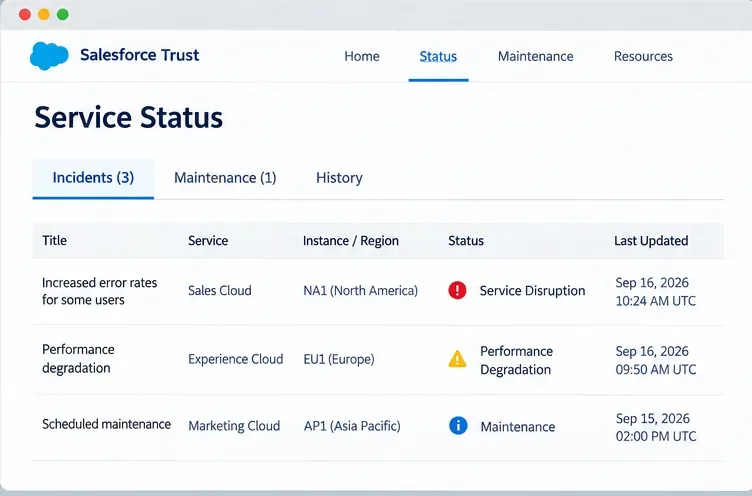
An illustrative status view shows why the first check is scope: compare incident entries, affected services, instances or regions, and the reported status rather than relying on a generic “Salesforce is down” claim.
Open the Incidents section and look at the event details. Salesforce says an incident record can show the event status, affected instances and services, start and end times, and additional updates. The official instructions are in Check for Ongoing Incidents or Maintenance.
For example, suppose your sales team in the United States cannot load account records. If Trust shows a Core Service disruption affecting a long list of U.S., European, and Asia-Pacific instances, the evidence points toward a broad Salesforce-side incident. If the incident affects only one Commerce Cloud POD and you use Sales Cloud on a different instance, that event probably does not explain your symptom.
Step 2: Find the instance that hosts your Salesforce org
A global-looking incident list is useful, but you still need to know whether your org is part of the affected scope. Salesforce recommends identifying the instance that hosts the organization.
If you can access Salesforce Setup, Salesforce’s August 4, 2026 guidance says to open Setup, search for Company Information, and find the Instance field in Organization Detail. If you cannot get into Salesforce, you can use your domain on the Trust Status site. Salesforce says to enter the domain name in the Trust search bar and view the instance returned next to it.
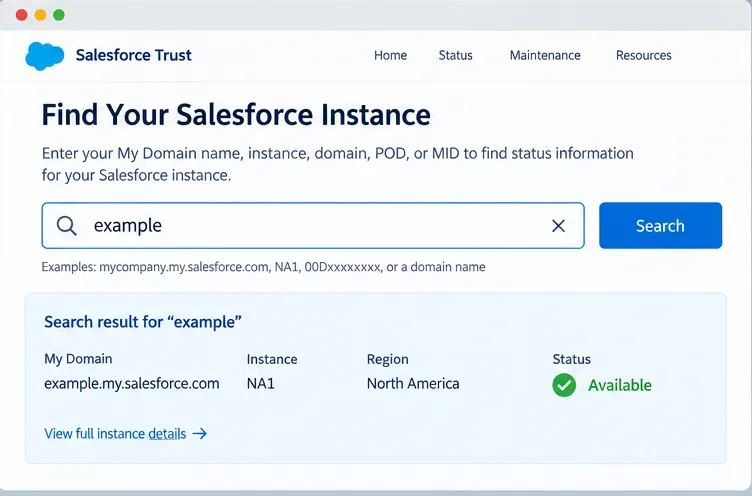
An illustrative domain search returns the Salesforce instance associated with an organization. Salesforce documents domain search as one way to identify the instance when checking Trust Status.
If your My Domain login URL is something like https://example.my.salesforce.com, Salesforce also documents that you can search Trust using the My Domain name rather than the entire login URL. See Get Your Org Status and Upcoming Maintenance Dates with My Domain.
Step 3: Read your instance status correctly
Once you are on the instance page, do not stop at a green or red icon. Salesforce documents four important status categories for an instance:
Available: the instance and its services are available.
Performance Degradation: the instance is reachable, but one or more services are not operating at optimal performance.
Service Disruption: the instance is unavailable.
Maintenance: the instance is undergoing maintenance.
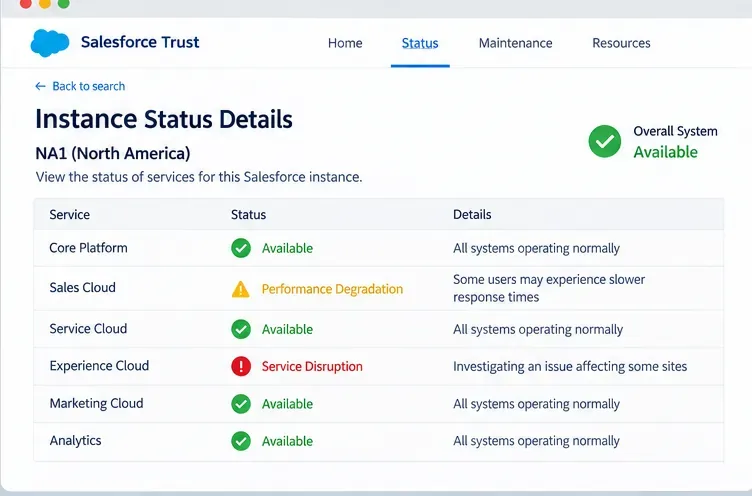
An illustrative instance detail view shows how individual services can have different health states. A problem with one service does not automatically mean the entire Salesforce platform is unavailable.
This distinction is especially important when people report “Salesforce is down” even though they can still log in. Slow searches, timeouts, delayed integrations, unavailable Experience Cloud pages, or a failing Service Cloud feature can correspond to a performance degradation or service-specific incident rather than a complete instance outage.
Step 4: Decide whether the evidence is global, regional, service-specific, or local
You can now classify the problem using the evidence you have gathered.
What you observe
Most reasonable interpretation
What to do next
Many instances and regions appear in one active Trust incident
Broad Salesforce-side disruption
Follow the incident timeline and internal continuity procedures
Your instance is listed in an active incident, but other regions are healthy
Instance- or region-specific Salesforce issue
Track the incident and avoid calling it global
One Salesforce service is degraded while other services remain available
Service-specific incident
Use unaffected functions where practical and monitor that service
Your instance is available and no matching incident exists
Not enough evidence of a Salesforce-wide outage
Check your org configuration, identity provider, integrations, browser, DNS, VPN, and local network
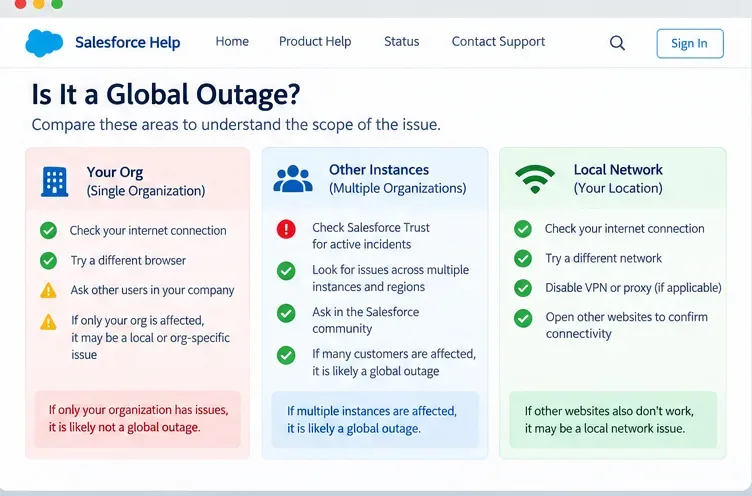
A scope comparison helps distinguish three common situations: one organization is affected, multiple Salesforce instances are affected, or the user’s local network is the source of the problem.
A useful rule is: the wider the confirmed Trust impact across unrelated instances, services, and regions, the stronger the case for describing the event as widespread. But avoid overstating the evidence. A dozen affected instances in one region may be major without being worldwide. Likewise, an incident spanning several clouds may affect a large customer population without disrupting every Salesforce product.
What counts as evidence of a genuinely widespread Salesforce outage?
Look for several signals together rather than one clue:
Salesforce Trust has an active incident rather than only planned maintenance.
The incident lists multiple affected instances.
The affected instances span more than one geographic region, if the problem is truly cross-regional.
Multiple services or a core service are affected, depending on the incident.
Your own instance appears in the affected scope or shows a matching service status.
The timing on the Trust incident aligns with when your users began seeing errors.
No single one of these proves that every Salesforce customer worldwide is affected. Together, however, they provide a much better basis for describing the scale of the event.
What if Salesforce Trust says your instance is available?
An “Available” result means Salesforce is not currently reporting an instance-level disruption under that status, but it does not prove that every problem you experience is imaginary or local. Some issues can be intermittent, limited to a subset of users, tied to an integration, or associated with a service that needs to be checked separately.
Start by comparing users and networks. If everyone in your company fails but external websites work, test Salesforce from a different network or device if your security policies allow it. If only users behind a particular VPN, proxy, DNS resolver, or identity provider are affected, that narrows the investigation.
Then isolate integrations. If Salesforce pages load but an automation that calls an external API fails, the outage may be in the integration path rather than Salesforce Core. If login fails only through single sign-on while direct authentication behaves differently, your identity layer deserves attention.
Do not confuse maintenance with an outage
The Trust home page separates incidents from maintenance. Salesforce also provides maintenance information on instance pages. Planned maintenance can temporarily affect a service, but it should not be presented as an unexpected global outage unless Salesforce reports a separate incident.
When checking a status entry, compare its type and timestamps with your symptoms. If maintenance was scheduled for a different instance or occurred hours before your problem started, it is unlikely to be the cause.
Know when to use Salesforce My Trust Center
Salesforce’s current Trust documentation includes an important product-specific note. The Trust Status site shows data from instances for Salesforce products generally, but Salesforce directs customers to Salesforce My Trust Center for certain products, including Agentforce 360 Platform, Data 360, Salesforce AI, and Marketing Cloud Engagement, and for production environments of some Agentforce products and Salesforce Industries.
You can review the current scope in Salesforce Help: Trust Status. This matters because an administrator checking only one public status view could miss product-specific information that Salesforce now surfaces through My Trust Center.
Subscribe instead of repeatedly refreshing the status page
If Salesforce availability is operationally important to your organization, configure Trust notifications before the next incident. Salesforce says Trust notifications can provide near-real-time email or SMS messages about service issues, maintenance events, and product releases posted to Trust Status.
Salesforce’s Incident Trust Communications documentation also describes additional incident communication channels, including Trust updates, informational messages, Help banners, incident alert emails to administrators, and live webinars for critical incidents.
Notifications are especially useful for operations teams because they reduce the delay between an incident being posted and someone discovering it manually.
A concrete example: one office cannot access Salesforce
Imagine that at 9:05 AM, everyone in one office reports that Salesforce will not load. A global outage is only one possible explanation.
First, open Salesforce Trust. There are no incidents affecting your instance. Next, check the instance page and it shows Available. Employees working from home can access Salesforce normally, but users on the office network cannot. Other internet sites are also intermittent.
In that situation, the available evidence does not support calling the event a global Salesforce outage. The more likely next investigation is the office network, DNS, proxy, firewall, or connectivity path.
Now change the example: Salesforce Trust shows a Core Service disruption affecting many instances across several regions, your instance appears in the incident, and users on multiple networks see the same errors. That is strong evidence of a broad Salesforce-side incident. You can then focus on continuity procedures and official updates rather than spending the first hour changing browsers or rebooting user devices.
How to check your conclusion before you communicate it
Before sending an internal message that “Salesforce is globally down,” verify four things:
Source: Is there an official Salesforce incident or only user reports?
Scope: Does the incident affect one instance, several instances, multiple regions, or a specific product?
Match: Is your own instance or service actually listed?
Timing: Do the incident start time and symptoms line up?
If those checks point to broad multi-instance impact, describe the outage precisely: for example, “Salesforce is reporting a multi-instance Core Service disruption affecting several regions.” That wording is more accurate than saying “Salesforce is globally down” unless the evidence genuinely supports worldwide impact.
Bottom line
To check whether Salesforce is experiencing a global outage, use Salesforce Trust as the primary source, identify your own instance, inspect the affected instances and services in the active incident, and compare the geographic scope with your symptoms. If many unrelated instances and regions are affected, the incident is broad. If only your org is failing while Salesforce reports your instance as available, investigate local and organization-specific dependencies before blaming a global platform outage.
The key is precision. Salesforce availability is reported by instance and service, so the most reliable answer comes from matching the official incident scope to your own environment rather than relying on social posts, generic outage claims, or a single failed login.