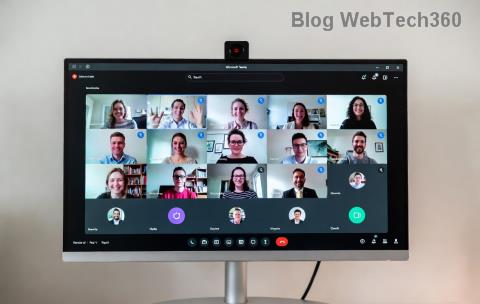
Imagine transforming your next Microsoft Teams meeting from a monotonous monologue into a hive of collaborative buzz. Breakout rooms make it possible by splitting participants into smaller groups for focused discussions, brainstorming, or problem-solving. But why wait until the meeting starts? Pre-configuring breakout rooms in Microsoft Teams before a meeting saves time, reduces chaos, and sets the stage for seamless interaction.
Whether you're a teacher fostering student debates, a manager running workshops, or a team lead hosting strategy sessions, this guide delivers everything you need. Ready to supercharge your meetings? Let's dive into the how to create breakout rooms in Microsoft Teams before a meeting process with precise, up-to-date steps. 🚀
Why Pre-Create Breakout Rooms in Microsoft Teams Before a Meeting?
Setting up breakout rooms in advance offers game-changing benefits:
- Pre-assign participants: Automatically place attendees into specific rooms based on roles, teams, or topics—no last-minute shuffling.
- Time efficiency: Configure room names, timers, and settings beforehand for a smooth launch.
- Enhanced engagement: Participants join knowing their group, sparking immediate conversations. 😊
- Scalability: Perfect for large meetings with up to 50 rooms and 200 participants per room.
Pro tip: Use this for hybrid events too—everyone stays connected regardless of location.
Prerequisites for Creating Breakout Rooms in Microsoft Teams
Before jumping in, ensure you're set up for success:
| Requirement | Details |
|---|---|
| Account Type | Teams for work/education (not personal). Must be meeting organizer or co-organizer. |
| App Version | Latest desktop, web, or mobile app. Update via Microsoft Store or app settings. |
| Meeting Status | Schedule a new meeting or edit an existing scheduled one (not channel/recurring without edits). |
✅ Bonus: Enable Meet now meetings don't support pre-creation—schedule ahead for full control.
Step-by-Step: How to Create Breakout Rooms in Microsoft Teams Before a Meeting
Follow these straightforward steps using the Microsoft Teams desktop app (web works similarly). We'll use a scheduled meeting example.
- 1️⃣ Open Calendar and Edit Meeting
Launch Microsoft Teams, go to Calendar. Find your scheduled meeting, click the three dots (More options) > Edit.
This opens the meeting editor—your command center. - 2️⃣ Access Breakout Rooms Tab
In the editor, scroll to the Breakout rooms tab (right side on desktop). Toggle Turn on breakout rooms to enable. ✨ - 3️⃣ Create Rooms
Click Create rooms. Choose:- Number of rooms: Up to 50.
- Automatically or Manually assign later.
- 4️⃣ Assign Participants
Select Assign participants. Drag/drop attendees from the list or use Randomly. Pre-assign by email for absent guests—they'll auto-join! - 5️⃣ Customize Settings
Set Room timer (e.g., 10 mins), enable Allow participants to return to main meeting, or switch rooms. Enable Move all to main room for easy recall. - 6️⃣ Save and Confirm
Hit Save. Reopen the meeting details to verify—your breakout rooms are locked in! During the live meeting, click Breakout rooms > Open rooms.
That's it! Your setup is ready. Test with a quick practice meeting to build confidence. 👏
Pro Tips for Maximizing Microsoft Teams Breakout Rooms
Elevate your setup:
- Reuse rooms: Edit future occurrences in recurring meetings.
- Presenter controls: As organizer, visit rooms, share content, or end early.
- Notifications: Enable countdown alerts so groups stay on track.
- Integration: Pair with polls or whiteboards for dynamic sessions.
Troubleshooting Common Issues
Encounter snags? Quick fixes:
- No Breakout tab? Update Teams or check admin policies. Microsoft Docs has details.
- Can't assign? Ensure guests are invited via email.
- Mobile limits: Use desktop for pre-setup; manage in-meeting on phone.
- Error saving? Close/reopen editor or restart Teams. ❌
Ready to Transform Your Meetings?
Mastering how to create breakout rooms in Microsoft Teams before a meeting unlocks endless possibilities for productive, fun interactions. Start scheduling your next event with this superpower—your team will thank you!
What breakout strategy will you try first? Drop a comment below or experiment today. For more Microsoft Teams hacks, stay tuned! 🌟