Ever felt your Microsoft Teams meetings drag on with everyone talking over each other? 😩 Breakout rooms are your secret weapon to transform chaotic sessions into focused, productive discussions. Whether you're leading workshops, training sessions, or team brainstorms, mastering how to create breakout rooms in Microsoft Teams meetings will skyrocket engagement and deliver real results.
Ready to dive in? 👆 This guide walks you through every step using the latest Microsoft Teams features, complete with pro tips to keep your audience hooked. Let's make your next meeting unforgettable!
What Are Breakout Rooms in Microsoft Teams?
Breakout rooms let meeting organizers split participants into smaller, private groups for targeted conversations. Participants can chat, share screens, and collaborate just like in the main room—but without distractions. Once done, everyone reconvenes seamlessly.
Perfect for:
- ⭐ Icebreakers and networking
- Group problem-solving
- Role-playing exercises
- Deep-dive Q&A
Only organizers and co-organizers with the right permissions can create breakout rooms in Microsoft Teams meetings. Excited? Let's get to the steps! 🚀
Prerequisites: Who Can Create Breakout Rooms?
- Teams License: Available in most paid plans (e.g., Microsoft 365 Business or Education).
- Role: Meeting organizer or co-organizer.
- App Version: Use the latest Teams desktop app, web, or mobile for full features.
- ✅ Up to 50 rooms, 200 participants per room.
Pro Tip: Enable breakout rooms in your meeting settings beforehand for smoother setup. Check Microsoft Support for the newest limits.
Step-by-Step: How to Create Breakout Rooms During a Live Meeting
Hosting a meeting? Here's the fastest way to launch breakout rooms in Microsoft Teams. Follow these numbered steps:
- 1️⃣ Join or Start your Teams meeting as the organizer.
- 2️⃣ Click the Breakout rooms icon in the meeting toolbar (looks like a grid of rooms). If missing, select More actions (⋯) > Breakout rooms.
- 3️⃣ Choose Create rooms. Select:
- Automatically: Teams assigns participants evenly.
- Manually: Drag-and-drop people into rooms (ideal for custom groups).
- 4️⃣ Set room count (1-50) and hit Add or Create.
- 5️⃣ Preview assignments, then click Open to send everyone to their rooms. 👏
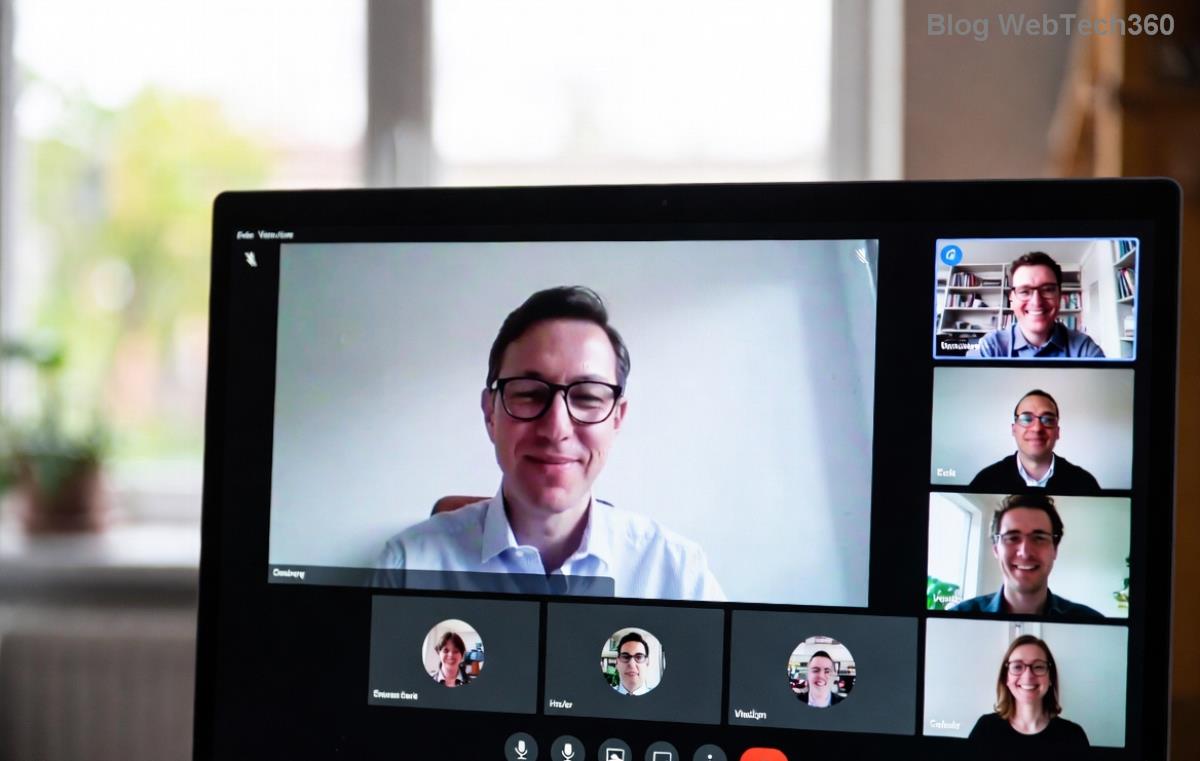
Your participants get a notification and move automatically. Monitor from the main room or join any group!
Pro Move: Pre-Assign Breakout Rooms Before the Meeting
Want zero hassle? Set up rooms in advance during scheduling.
- 1️⃣ In Teams Calendar, create a new meeting.
- 2️⃣ Go to Breakout rooms in the meeting options.
- 3️⃣ Toggle Pre-assign breakout rooms ON.
- 4️⃣ Add participants and assign them manually via Excel import or drag-drop.
- 5️⃣ Save and send invites. Boom—rooms activate on start! ✨
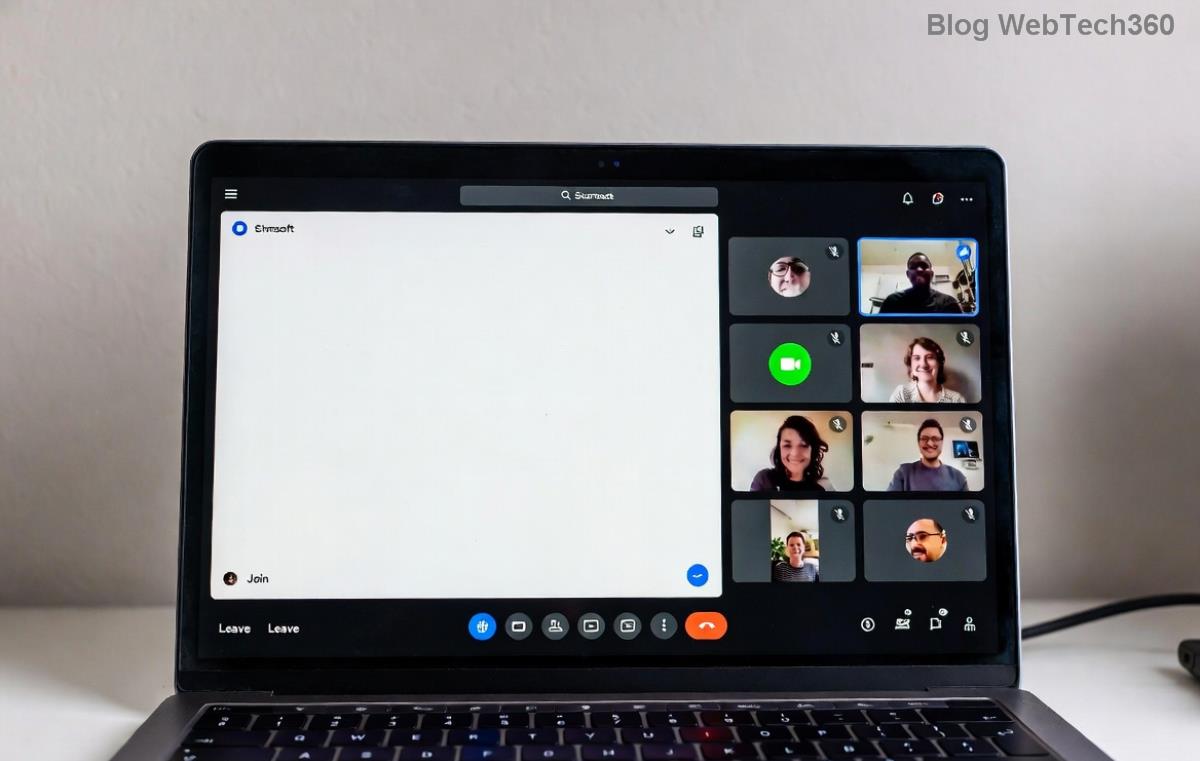
This shines for large events. Import from CSV for hundreds of attendees effortlessly.
Managing Your Breakout Rooms: Controls at Your Fingertips
Don't just create—control the flow:
| Action |
How-To |
| Add/Remove Participants |
Click room name > Swap or Move. |
| Set Timers |
Room settings > Countdown (5-20 mins). |
| Rec convene |
Close rooms—auto-redirects everyone. |
| Join a Room |
Click room > Join. Return anytime. |
Bonus: Enable room announcements to broadcast messages to all groups. Game-changer! 🎯
Best Practices for Killer Teams Breakout Rooms
Make sessions shine:
- 👥 Group Smartly: Mix skills, avoid cliques.
- ⏰ Time It Right: 10-20 mins per room.
- 📝 Give Clear Tasks: Share agendas in chat.
- 🔄 Rotate Rooms: For ongoing events.
- 📊 Debrief: Poll or share key takeaways post-reconvene.
Result? Participants rave about interactive vibes. Your feedback scores? Through the roof! 😎
Troubleshooting: Fix Breakout Rooms Issues Fast
Glitches happen—here's quick fixes:
- Icon Missing? Update Teams or check license.
- Can't Assign? Ensure pre-assign enabled in policy.
- Mobile Woes? Desktop for setup; mobile joins fine.
- Large Meetings? Test with 50+ first.
Still stuck? Dive into Microsoft Learn docs.
Wrap-Up: Level Up Your Meetings Today
Congrats—you're now a breakout rooms expert! Implement these steps in your next Microsoft Teams meeting and watch engagement soar. What's your first use case? Drop it in the comments below—we'd love to hear! 👇
Share this guide, bookmark for later, and host epic sessions. Your teams will thank you. 🎉










Hoàng Eagle -
lol imagine breakout rooms for family zoom calls. chaos level 1000
Lan ITer -
great stuff. one tip: pre-assign participants if you know groups in advance. saves time
Tâm VN -
been there done that. but your visuals make it clearer. good job
Đức Code -
for it folks: integrate with power automate for auto room assignment. next level pro!
Mèo con -
pro tips right here! used it in my last class and engagement skyrocketed lol
Phúc IT -
tried your method yesterday. breakout rooms in teams are game changer for large groups. thx dude
Bình 2023 -
what if meeting has 100+ people? any limits on breakout rooms
Yến Flower -
perfect timing. our team meeting tomorrow—testing breakout rooms now. wish me luck! anyone got more tips
Minh Anh -
haha my boss will think i'm a pro now. funny how simple it is once you know.
Linh Mèo -
does this work on mobile app too? i always use teams on phone during meetings
Phương Star -
thanks author! simple and effective. five stars ⭐⭐⭐⭐⭐
Mai Cute -
yesss! thốt lên vui mừng khi tìm được giải pháp này 😍
Hương KT -
This tutorial is gold. In my team's last meeting, we split into breakout rooms for brainstorming, and everyone loved it. Productivity up 200%! Will share with colleagues. Highly recommend for anyone hosting workshops.
Việt Pro -
anyone else get the timer option? set it to 10 mins and boom, back on track.
Sơn Hà Nội -
share this everywhere! my students hate long lectures, breakout rooms fix that
Thuy Linh -
awesome guide! finally figured out breakout rooms in microsoft teams. thanks a ton!
Kim Chi -
Last week I hosted a virtual conference with 50 attendees. Following your guide, I created themed breakout rooms for networking—people raved about it in feedback surveys. Engagement was through the roof, and it was seamless. Thanks for the pro tips; now I'm the go-to Teams expert in my circle
Tuấn Dev -
I've been using Microsoft Teams for years but never mastered breakout rooms until this post. The step-by-step with screenshots made it foolproof. Implemented in our dev sprint retrospectives today—team feedback was amazing, more candid discussions in small groups. Epic indeed! Will experiment with auto-move next
Huyền Lizzie -
super helpful. i teach online and this will make my sessions way more interactive. cheers
Ngọc Gaming -
works like a charm. used for gaming tourney planning. engagement maxed out 🔥
Hương Đà Nẵng -
question: how do you assign rooms randomly? mine always manual and chaotic 😂
Linh ProMax -
Quick question similar topic: how to record breakout rooms separately? tried but no luck. help pls! In the meantime, this guide boosted my workshop engagement big time—participants stayed focused and shared more ideas. Loving Teams features more now.
Quang vn -
nailed it! just tried and it worked perfectly. epic engagement unlocked ✅
Duy Sinh 6789 -
thanks! been struggling with breakout rooms forever. bookmarked this