Transform Your Meetings: Ultimate Step-by-Step Guide to Uploading Custom Backgrounds to Microsoft Teams

Ever felt your video calls in Microsoft Teams need a fresh vibe? Custom backgrounds are your secret weapon! They hide clutter, showcase personality, and make meetings fun. Whether it's a beach paradise or your company logo, uploading custom backgrounds to Microsoft Teams is simple and game-changing. Follow this step-by-step guide to nail it on any device. Ready to wow your team? Let's dive in! 🚀

Why Bother with Custom Teams Backgrounds?

  • ✅ Professional Polish: Blur out messy rooms instantly.
  • ⭐ Brand Boost: Use logos or themes for team unity.
  • 😊 Fun Factor: Holidays, memes, or motivational scenes keep energy high.
  • Privacy Perks: Stay focused without distractions.

Pro tip: Stick to high-res images (1920x1080 pixels, JPG/PNG under 4MB) for crisp results. Now, gear up!

Quick Requirements Before Uploading Custom Backgrounds to Microsoft Teams

Device Teams Version Image Specs
Desktop/Web Latest app/browser 1920x1080, <4MB, JPG/PNG
Mobile (iOS/Android) Latest app Same as above

Got that? Perfect. Start with desktop—the most popular way.

Step-by-Step: Uploading Custom Backgrounds to Microsoft Teams on Desktop

Fire up your Microsoft Teams desktop app (Windows/Mac). Here's the magic:

  1. ✅ Join or Start a Meeting: Click Calendar > New Meeting, or hop into a call. Hit More actions (three dots) > Apply background effects.

    Microsoft Teams background effects menu
  2. ⭐ Access Background Settings: In the preview window, spot More choices or the + icon at the top. Click it to reveal custom options.
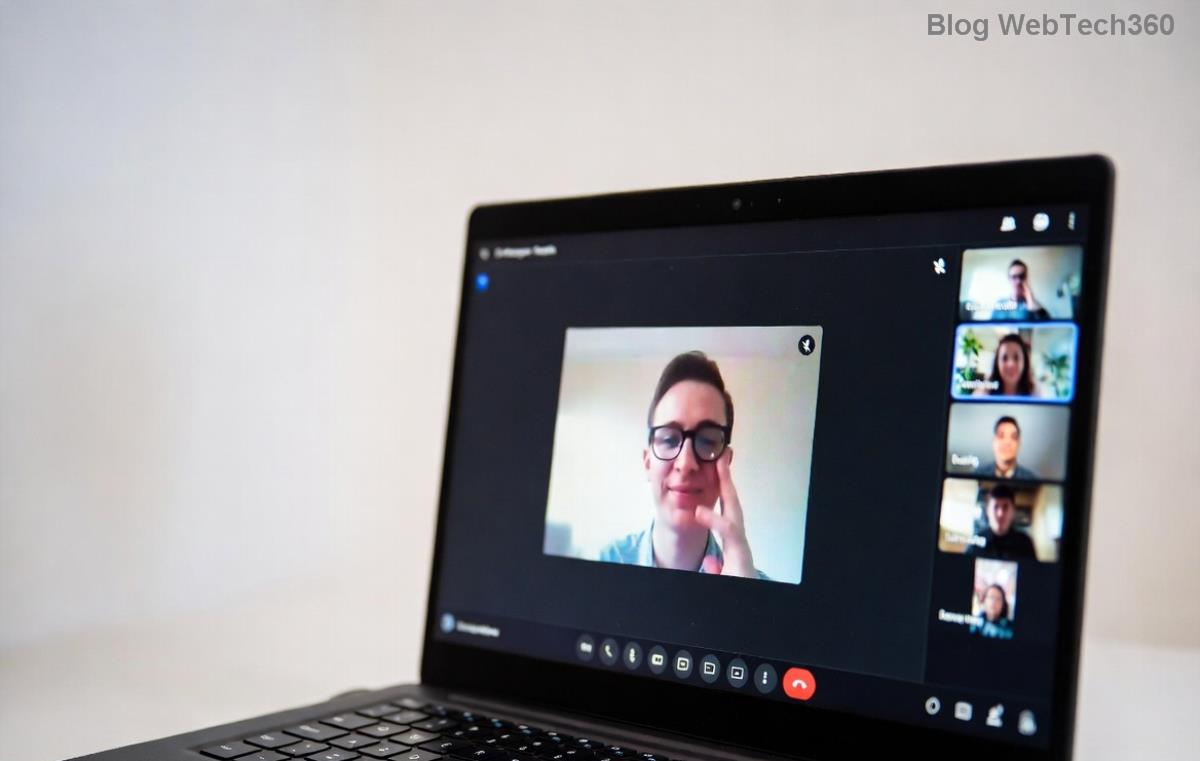
    Teams custom background upload button
  3. 🎉 Upload Your Image: Select Add new > Browse your files. Pick your image, hit Preview to test, then Apply. Boom—your custom background is live!
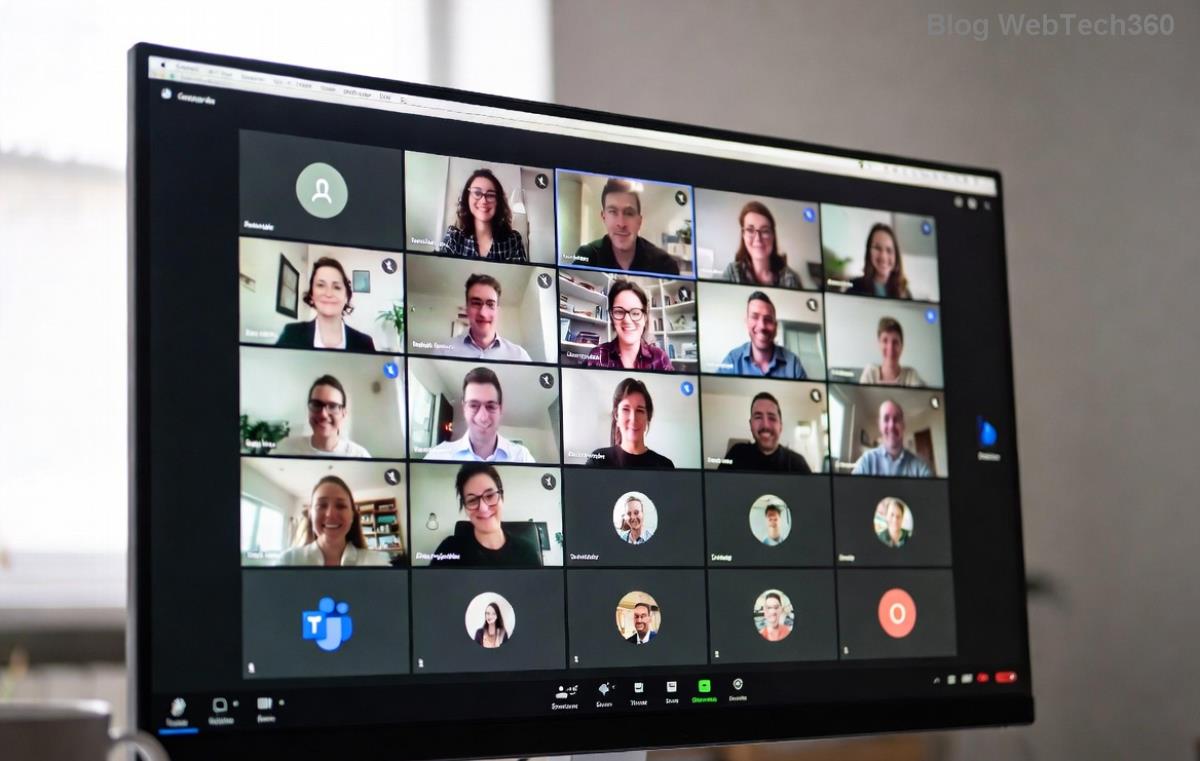
    Uploading and applying custom background in Teams
  4. 💡 Save for Later: It auto-saves to your collection. Reuse anytime via the same menu.

Stuck? Ensure Teams is updated—check Help > Check for updates. Want mobile magic next? Keep reading!

Mobile Mastery: Upload Custom Backgrounds to Microsoft Teams on iOS/Android

On the go? No sweat. Open the Teams app:

  1. 👆 Tap Join/Start: Enter a meeting > Tap your video preview > Effects.
  2. ⭐ Choose Custom: Scroll to + Add new background > Gallery or Files.
  3. ✅ Apply & Go: Select image > Preview > Done. Instant transformation!

Mobile limits uploads per meeting, but desktop saves permanently. Switch devices seamlessly.

Web Version: Quick Custom Teams Backgrounds Upload

Using teams.microsoft.com? It's similar:

  1. Join meeting > More > Show background effects.
  2. Click Add new > Upload from device.
  3. Preview and apply—works in Chrome/Edge best.

For official details, check Microsoft's guide.

Troubleshooting Common Hiccups When Uploading Custom Backgrounds to Microsoft Teams

Issues? We've got fixes:

  • ❌ Image Rejected? Resize to 1920x1080; convert to JPG.
  • ⚠️ No Custom Option? Update Teams or enable video in settings.
  • 😩 Blurry Result? Use high-res originals; avoid stretching.
  • 🔄 Not Saving? Clear cache or reinstall app.

Still stuck? Permissions might block—ask your admin. Pro move: Test in a solo meeting first.

Pro Tips to Elevate Your Custom Teams Backgrounds

  • ⭐ Themed Sets: Create holiday or weekly themes for team fun.
  • ✅ Free Resources: Grab from Unsplash or Canva (resize first).
  • 🎨 Edit Smart: Dark backgrounds for low light; add subtle animations if advanced.
  • 👥 Share with Team: Export and suggest via chat—spark creativity!

Imagine the claps when your epic background drops mid-presentation. 👏

Ready to Personalize? Your Next Meeting Awaits!

Congrats—you're now a pro at uploading custom backgrounds to Microsoft Teams! This tweak turns boring calls into engaging spectacles. Experiment today, share your faves in comments, and watch engagement soar. What's your dream background? Drop it below!

Stay tuned for more Teams hacks. Happy meeting! 🌟


Leave a Comment

🚀 Instant Fix: Banish Microsoft Teams Error U User Forever – Proven Steps!

🚀 Instant Fix: Banish Microsoft Teams Error U User Forever – Proven Steps!

Stuck with Microsoft Teams "Error U" User error? Get step-by-step fixes to resolve it quickly. Clear cache, reset app, update credentials – ultimate guide for seamless Teams experience.

🚀 Fix Microsoft Teams Sync Error on Mac: Proven Troubleshooting Guide 2026

🚀 Fix Microsoft Teams Sync Error on Mac: Proven Troubleshooting Guide 2026

Struggling with Microsoft Teams "For Mac" Sync Error? Discover step-by-step fixes for sync issues, from cache clearing to advanced resets. Get seamless collaboration back fast with our expert guide.

🚀 Fix Microsoft Teams Error N Network Error Instantly: Ultimate 2026 Guide

🚀 Fix Microsoft Teams Error N Network Error Instantly: Ultimate 2026 Guide

Tired of Microsoft Teams "Error N" network disruptions? Follow our proven, step-by-step fixes to solve connectivity issues fast and restore seamless video calls and chats. Latest troubleshooting tips included.

Teams Installation Has Failed on Windows 11? Fix It in Minutes – Ultimate Guide 🚀

Teams Installation Has Failed on Windows 11? Fix It in Minutes – Ultimate Guide 🚀

Facing Microsoft Teams "Installation Has Failed" error on Windows 11? Discover proven troubleshooting Microsoft Teams "Installation Has Failed" on Windows 11 steps, from quick resets to advanced fixes, to get back to seamless collaboration.

🚀 Instant Fix: Solve Microsoft Teams Download Failed Due to Unexpected Error in 5 Minutes!

🚀 Instant Fix: Solve Microsoft Teams Download Failed Due to Unexpected Error in 5 Minutes!

Frustrated by Microsoft Teams "Download Failed Due to Unexpected Error"? Discover proven, step-by-step fixes to resolve it quickly. Clear cache, reinstall, and more for seamless updates. Get back to work!

🔥 Fix Microsoft Teams Planner Error in Channels: 7 Proven Steps to Instant Relief!

🔥 Fix Microsoft Teams Planner Error in Channels: 7 Proven Steps to Instant Relief!

Struggling with Microsoft Teams Planner Error in channels? Discover proven, step-by-step fixes to resolve the issue quickly, restore tabs, and boost productivity without frustration. Latest troubleshooting tips included.

Effortless Step-by-Step: Download Microsoft Teams Videos Recorded by Others Instantly!

Effortless Step-by-Step: Download Microsoft Teams Videos Recorded by Others Instantly!

Master downloading Microsoft Teams videos recorded by others with this simple step-by-step guide. Save meeting recordings from OneDrive or Stream effortlessly—no admin rights needed. Updated for the latest features.

🔥 Fix Microsoft Teams Mic Not Working: Others Cant Hear You? Proven Solutions!

🔥 Fix Microsoft Teams Mic Not Working: Others Cant Hear You? Proven Solutions!

Struggling with Microsoft Teams microphone error where others can’t hear you? Discover step-by-step fixes for Teams mic not working, from quick checks to advanced troubleshooting. Get back to clear calls instantly!

🚀 Instant Fix: Solve Microsoft Teams Whiteboard Error Login Issues Now!

🚀 Instant Fix: Solve Microsoft Teams Whiteboard Error Login Issues Now!

Tired of the frustrating Microsoft Teams Whiteboard Error Login? Follow our proven, step-by-step guide to fix it fast and resume seamless collaboration. Updated with the latest solutions.

🚀 Quick Guide: Where to Find Microsoft Teams Installation Folder on Your PC (2026 Edition)

🚀 Quick Guide: Where to Find Microsoft Teams Installation Folder on Your PC (2026 Edition)

Discover exactly where to find the Microsoft Teams installation folder on your PC. Step-by-step guide for New Teams, Classic Teams, and troubleshooting tips to locate files instantly. Save time and boost productivity!









