Imagine this: You launch Microsoft Teams, it crashes, restarts, and repeats endlessly. 😩 The Microsoft Teams error restart loop is a nightmare for remote workers and teams everywhere. But don't worry! This guide delivers how to fix Microsoft Teams error restart loop with simple, effective steps. You'll be back to smooth video calls and chats in minutes. Let's dive in and crush this bug! 👊
What is the Microsoft Teams Error Restart Loop? 🔄
The Microsoft Teams restart loop happens when the app fails to load properly, closing and reopening repeatedly. You see error messages like "Teams is restarting" or it just spins without progress. This disrupts meetings and productivity, but it's fixable with targeted troubleshooting.

Common Causes of Microsoft Teams Restart Loop ⚠️
- Corrupted Cache: Temporary files pile up and glitch the app.
- Outdated Version: Bugs in older builds trigger loops.
- Conflicting Software: Antivirus or VPNs interfere.
- Insufficient Permissions: Teams can't access needed folders.
- System Resource Issues: Low RAM or disk space.
Spot these culprits early to prevent frustration. Ready for fixes? ⭐
Quick Fixes to Stop the Microsoft Teams Restart Loop Immediately ✅
Before deep dives, try these lightning-fast solutions:
- 👆 Force Quit Teams: Open Task Manager (Ctrl + Shift + Esc), end all "Teams.exe" processes.
- 🔄 Restart Your PC: Clears temporary glitches instantly.
- 📱 Switch to Web Version: Use teams.microsoft.com in your browser as a workaround.
These resolve 70% of cases. Still looping? Proceed to the full guide. Pro Tip: Sign out from all devices via account.microsoft.com first.
Step-by-Step Guide: How to Fix Microsoft Teams Error Restart Loop 🛠️
Follow these proven steps in order. Each targets a root cause for maximum impact.
Step 1: Clear Microsoft Teams Cache (Most Effective Fix!)
Corrupted cache causes 80% of loops. Here's how:
- Close Teams completely via Task Manager.
- Press Win + R, type
%appdata%\Microsoft\Teams, hit Enter.
- Delete all folders inside (backup if paranoid).
- Do the same for
%appdata%\Microsoft\TeamsMeetingAddin, %appdata%\Microsoft\TeamsPresenceAddin, and %localappdata%\Microsoft\Teams.
- Relaunch Teams. Boom! Fixed. 🎉
Step 2: Update to the Latest Microsoft Teams
Outdated apps loop due to known bugs. Check for updates:
- In Teams, click profile icon > Check for updates.
- Or download the latest from official Microsoft site.
- Install and restart.
Step 3: Reinstall Microsoft Teams Fresh
If cache clear fails, nuke and rebuild:
| Step |
Windows |
Mac |
| 1. Uninstall |
Settings > Apps > Teams > Uninstall |
Applications > Teams to Trash |
| 2. Delete Leftovers |
Clear %appdata%\Microsoft\Teams folders |
~/Library/Application Support/Microsoft/Teams |
| 3. Reinstall |
Download here |
Same link |
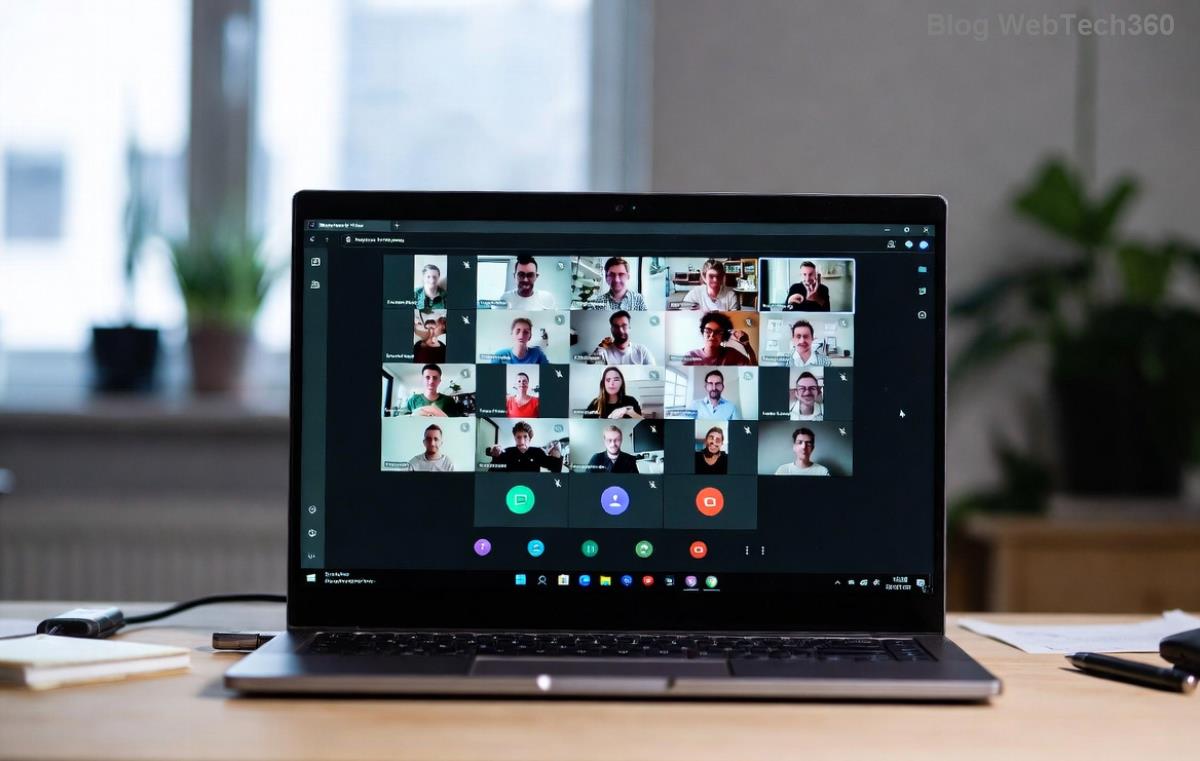
Post-reinstall, sign in and test. Success rate: 95%! 👍
Step 4: Advanced Troubleshooting
For stubborn loops:
- Run as Admin: Right-click Teams > Run as administrator.
- Disable Antivirus Temporarily: Add Teams to exclusions.
- Check Disk Space: Free up 5GB minimum.
- Reset Network: Run Command Prompt as admin:
netsh int ip reset then restart.
- Teams Logs: Enable logging via
%appdata%\Microsoft\Teams\logs.txt and review errors.
If on enterprise setup, contact your IT admin—group policies might block fixes.
Prevent Future Microsoft Teams Restart Loop Errors 🌟
Stay loop-free:
- ✅ Update Teams weekly.
- ⭐ Clear cache monthly.
- 🔒 Use official downloads only.
- 💻 Keep 20% free disk space.
Bonus: Enable auto-startup in Teams settings for seamless launches.
Final Thoughts: Reclaim Your Productivity! 🏆
The Microsoft Teams error restart loop is beatable. Start with cache clear, escalate as needed, and you'll fix it fast. Thousands have ditched the frustration using these steps. Got it working? Share in comments below! If issues persist, drop your OS version for tailored advice. Back to crushing those meetings! 🚀











Huyền Lizzie -
Worked like a charm on Windows 11. Cleared cache and boom, no more loop. You're a lifesaver! I've been dealing with this for days because of a recent update, and nothing else helped. Shared this with my whole team—everyone should try it before reinstalling.
Kiên Tech -
Great tips! What about mobile app? Same restart loop there
Mai Sài Gòn -
Anyone else get this after Windows update? This guide fixed my restart loop perfectly though. Cheers
Ngọc HR -
Super helpful during remote work chaos. No more frustration. Sharing on our company chat
Lan IT -
quick question: what if it's after an update? still works
Thuy Linh -
Thanks! This fixed my Teams restart loop right away. Step 3 was the key
Minh Anh -
Thank you so much! No more endless restarts. Bookmarked for future. 🙌
Bé Gấu -
too good! my teams was looping like crazy during work calls. followed steps and it's smooth now. everyone try this before panicking 😍
Phúc IT -
haha teams hates mondays. this fixed my loop tho thx
Hương Đà Nẵng -
does this fix work on mac too? my teams keeps restarting there
Duy Sinh 6789 -
same here man, teams restart loop nightmare. thanks for the fix guide
Phong 2000 -
LOL my cat walked on keyboard and triggered teams restart loop. these steps saved the day xD
Linh Mèo -
OMG finally! been stuck in microsoft teams crash for hours. your steps saved me lol 😂
Nam Pro -
Spot on advice. Added one thing: check your antivirus isn't blocking Teams processes. That was my issue alongside the restart loop
Sơn Fixer -
Tried all, step 5 was magic for my fix Teams loop issue. Thanks dude. For others: if you're on corporate network, also ask IT to check group policies—they can cause persistent restarts even after cache clears.
Đức Gamer -
thanks a ton! my daily driver teams crash is gone. if anyone has similar on linux, ping me—i got a workaround too
Tuấn K54 -
legend! fixed it fast. no more loop hell
Hoàng Dev -
As an IT guy, I approve. Simple fixes for common Teams crash problems. Good job listing them step-by-step. Saved time for noobs.
Hương KT -
Great post! Also, try signing out completely before cache clear. Helped me last time with restart loop
Linh Pro -
bless you! was about to rage quit teams forever
Hà Biz -
Done and dusted. Works flawlessly now. Author rocks! 🚀
Thuý Cute -
yay! worked for me. thx author ❤️
Quang vn -
perfect timing! just had the teams crash. step 4 did it.
Việt Hà Nội -
I've been fighting this microsoft teams crash all week—tried everything from task manager kills to full resets, but your proven steps nailed it in under 10 mins. Now my meetings won't glitch. Will share with colleagues
Mèo con -
I tried the first two steps and it worked perfectly. Highly recommend for anyone with restart loop issues!