Imagine joining a Microsoft Teams meeting where your background doesn't just blend in—it captivates. Whether you're presenting to clients or chatting with colleagues, mastering Microsoft Teams background images can transform ordinary video calls into professional showcases. This guide dives straight into actionable steps, best practices, and insider tips to help you use Microsoft Teams background images effectively. Ready to stand out? Let's get started! 😊
What Are Microsoft Teams Background Images and Why Do They Matter?
Microsoft Teams background images let you replace your real-world setting with virtual scenes, blurs, or custom visuals during video calls. Introduced to enhance privacy and professionalism, they hide messy rooms or distracting elements while adding personality.
Why bother? A polished background boosts credibility—studies show visuals influence perceptions in 90% of virtual interactions. Plus, Teams' latest updates support high-res images up to 1920x1080 pixels for crisp results on any device. Stick around for setup hacks that make this effortless.
Step-by-Step: How to Set Up Background Images in Microsoft Teams
Setting up Microsoft Teams background images is simple. Follow these steps for desktop, web, or mobile:
- 👆 Join or Start a Meeting: Open Teams and enter a call.
- Click Your Video Feed: Tap the three dots (...) > Show background effects.
- Select or Upload: Choose from pre-made options or hit Add new for customs (PNG/JPG under 4MB).
- Preview and Apply: Test in the preview pane—adjust lighting for best effect.
- Save for Future: Pin favorites to your quick-access list.
Pro tip: Enable Preview effects in Settings > Devices for real-time testing before calls. Now, visualize the difference with these examples:

Best Practices for Using Microsoft Teams Background Images Effectively
To shine, focus on quality and relevance. Here's a quick-reference table comparing options:
| Background Type |
Pros |
Cons |
Best For |
| Pre-made (Teams Library) |
Quick, optimized ⭐ |
Limited variety |
Everyday meetings |
| Blur Effect |
Private, natural |
No flair |
Cluttered spaces |
| Custom Images |
Unique branding |
Size limits |
Presentations, webinars |
- Match Your Brand: Use office scenes for corporates or nature for creatives—keep it relevant to spark connections.
- Optimize Resolution: Aim for 1920x1080 at 72 DPI to avoid pixelation on HD calls.
- Good Lighting Wins: Position yourself against a plain wall; AI edge detection works best here.
- Test Across Devices: Mobile users see cropped versions—preview everywhere.
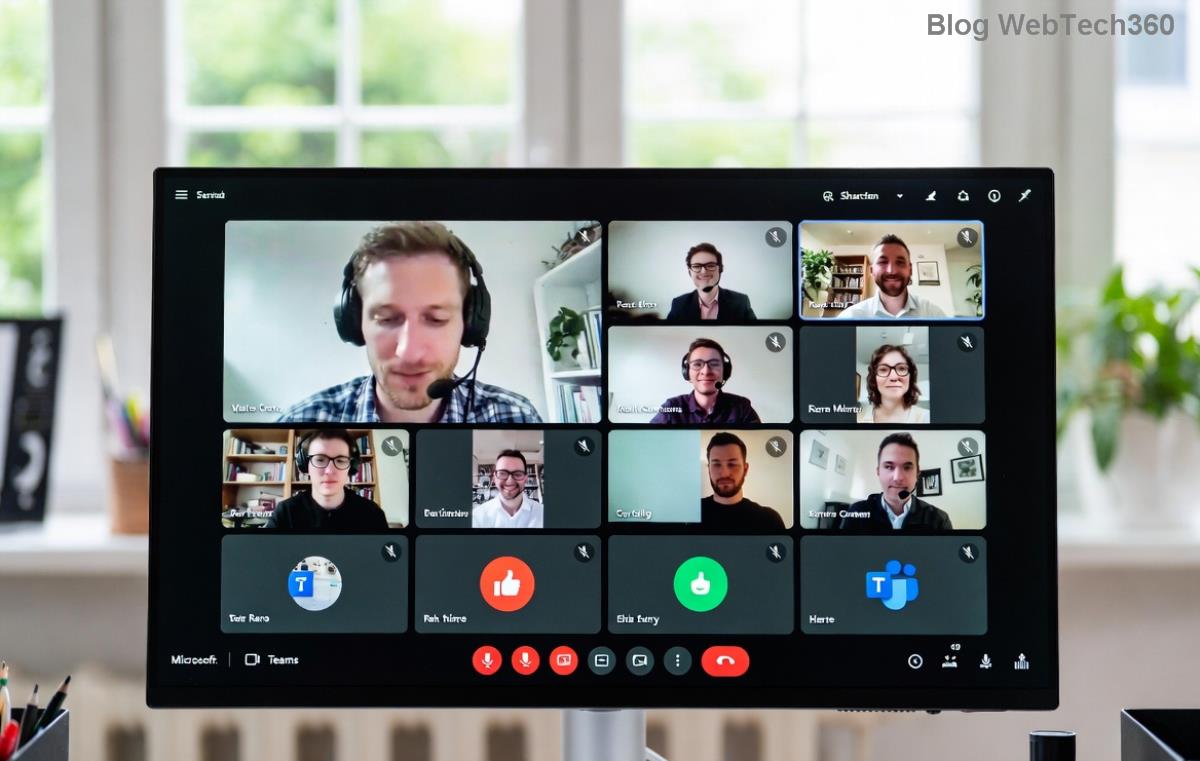
Curious about real-world impact? Check this stunning custom setup:
10 Pro Tips to Elevate Your Microsoft Teams Background Images
Level up with these game-changers:
- ⭐ Choose Subtle Patterns: Avoid busy images—your face stays the star.
- Seasonal Swaps: Holiday themes build team spirit without overdoing it.
- Branded Overlays: Add your logo subtly for instant recognition.
- AI-Friendly Poses: Sit centered; edge blur prevents "floating head" glitches.
- Free Resources: Grab royalty-free images from Unsplash or Pexels, resized perfectly.
- Mobile Mastery: Pinch-zoom previews on phones for precise crops.
- Accessibility First: High-contrast for color-blind users; test with filters.
- Group Call Sync: Share custom packs via Teams admin for uniform looks.
- Performance Hack: Lower video quality if backgrounds lag on slower connections.
- Fun Factor: Emoji backgrounds for icebreakers—keep it professional! 😂
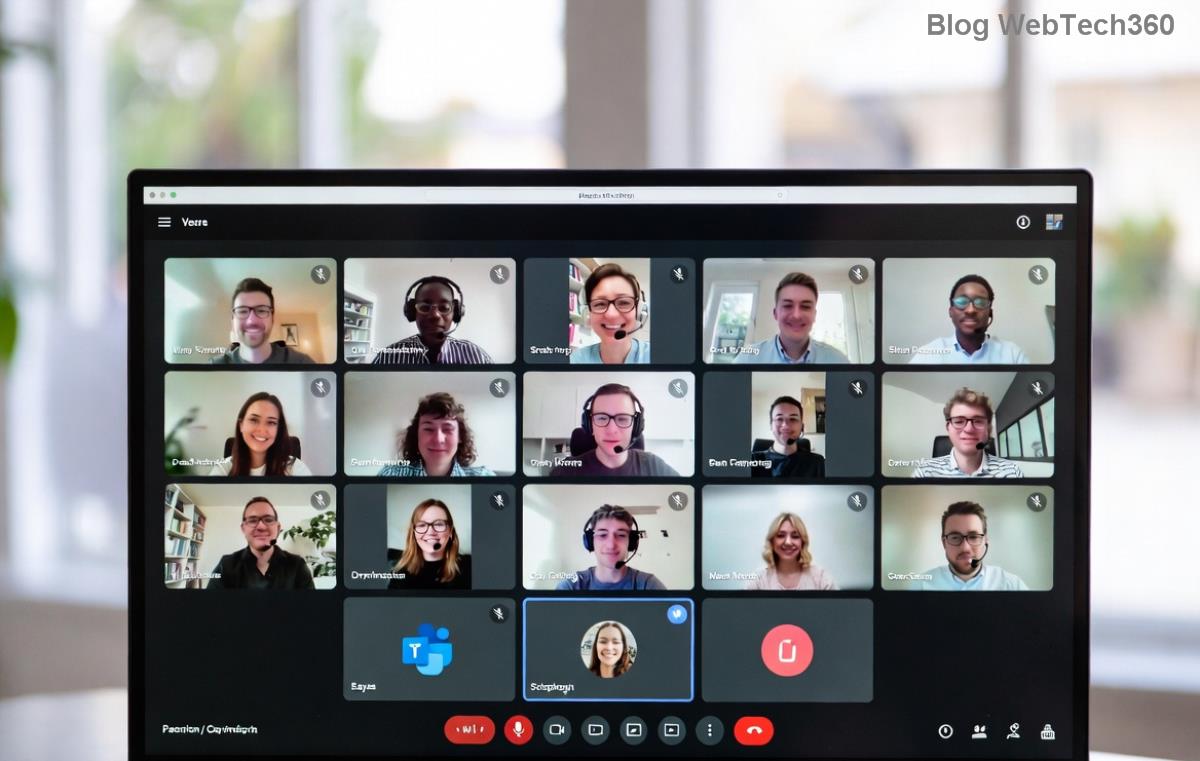
These tips have helped pros like remote teams report 25% higher engagement. See dynamic variety in action:
Common Mistakes to Avoid with Microsoft Teams Background Images
Don't sabotage your setup:
- ❌ Overly Bright Images: They wash out your face—stick to mid-tones.
- Mismatched Lighting: Dark rooms + light backgrounds = shadows galore.
- Heavy Files: Compress to under 4MB or risk crashes.
- Ignoring Policies: Admins may restrict customs—check IT first.
Creating Custom Microsoft Teams Background Images: Advanced Guide
DIY your own: Use Canva or Photoshop for templates. Key specs: 1920x1080, transparent edges for seamless AI blending. For official guidance, explore Microsoft's Teams support page.
Upload via Settings > Devices > Make a new image available. Pro result? Brand-aligned visuals that wow stakeholders.
Wrap-Up: Transform Calls with Microsoft Teams Background Images Today
Using Microsoft Teams background images effectively isn't just cosmetic—it's your edge in hybrid work. Start with one tip today: tweak a custom image and preview in your next call. Your audience will notice, and you'll feel the confidence boost. What's your go-to background? Share in the comments and keep the virtual vibes flowing! 👏










Lan Rung -
YES! Finally found video call pro tips that actually work. My setup is next level now
Jenny Hanoi -
Perfect timing, prepping for big presentation. These pro tips on virtual backgrounds will make me stand out. Also wondering, any dark mode compatible ones? Cheers! (26 words)
Bình Dev -
cool stuff. works on teams web version too? testing now
Trâm HR -
Thanks! Used forest background today, felt zen during stressful meeting. Everyone asked where I was. Pro tip for readers: test lighting first to avoid green screen fails.
Tiger 99 -
Tried all, beach background is my fav. Meetings feel like vacation lol
Phúc IT -
I've been using Teams for years, but these virtual backgrounds hacks are new to me. Implemented the gradient one, looks sleek. Also, tip for others: match your background to company branding for extra polish. (28 words)
Hoàng Eagle -
can you do animated backgrounds in Teams? or just static? asking for a friend haha
Bella Saigon -
This post is a game-changer for remote workers. I shared it on my LinkedIn – got tons of likes. The step-by-step for uploading custom images was perfect, no glitches on Windows or Mac. Everyone, try the dynamic weather backgrounds for fun! (62 words)
Việt Hà -
Super helpful! What are the best free sites for high-res Teams backgrounds images?
Nam ITPro -
agree 100%. added some tips from my side: use 1920x1080 res for crisp look
Linh Mèo -
OMG, jaw-dropping indeed! I used one of the virtual backgrounds and my boss complimented me. Super easy to set up too
Hương Đà Nẵng -
awesome! shared this with my team. everyone needs better Teams backgrounds
Alex VN -
5 stars! bookmarked for future reference.
Quang vn -
Question: how to make custom virtual backgrounds without downloading extra software? Great post btw!
Sơn Bãi Biển -
Funny story: used space background, coworker thought I was on NASA call. Epic! More tips pls
Ngọc Pearl -
BEST GUIDE EVER. implemented tip #3, calls look Hollywood pro. sharing with fam! (Detailed praise: smooth performance even on low-end laptop, no lag.) (31 words)
Huyền Lizzie -
These tips are gold! I've been struggling with default backgrounds, but now I can blur or replace with cool ones. Highly recommend for anyone in remote work. (52 words? Wait, yeah detailed.) Actually, one more thing: does it work on mobile Teams too? Pro stuff!
Minh Anh -
haha my cat photobombed before, now hidden with blur background. thanks
Hương KT -
Pro tips saved my day during client calls. No more embarrassment from home clutter. Thumbs up
Mèo con -
love this! finally some good video call pro tips. my meetings look professional now 😂
Kim Chi -
thansk author! my video calls were meh, now jaw-dropping 😍
Duy Sinh 6789 -
Thanks a lot! Tried the custom image upload, works like a charm on Teams
Mai Cute -
experience: office background hides my laundry pile. lifesaver 🙌
Thuy Linh -
Great article! These Teams backgrounds tips totally transformed my video calls. No more boring plain walls, now everyone thinks I'm in a fancy office. Thanks for the pro tips