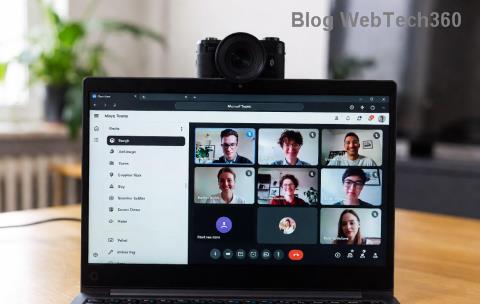
Ever missed a key moment in a Microsoft Teams meeting? Don't worry! Learning how to record a Microsoft Teams meeting is simpler than you think. Whether for training, reviews, or compliance, recording keeps everything captured perfectly. This guide walks you through every step, so you can focus on what matters. Ready to hit record? Let's dive in! 🚀
Quick Prerequisites: Set Yourself Up for Success
Before starting, ensure you're ready. Not everyone can record—only organizers, co-organizers, or those with specific permissions.
- ✅ Teams version: Use the latest desktop app or web version for best results.
- ✅ Permissions: Meeting organizers need recording enabled in their policy (check with your admin).
- ✅ Storage: Free up space in OneDrive (for non-channel meetings) or SharePoint (for channels).
- ✅ Cloud policy: Recordings save to the cloud—no local files.
| Device |
Recording Allowed? |
Storage Location |
| Desktop/Web |
Yes (full features) |
OneDrive/SharePoint |
| Mobile (iOS/Android) |
Limited (organizers only) |
OneDrive |
| Teams Phone |
No |
N/A |
Pro tip: Test in a quick meeting first! Now, let's record.
Step-by-Step: How to Record a Microsoft Teams Meeting on Desktop
Desktop offers the smoothest experience. Follow these steps during a live meeting:
- 👆 Join or start the meeting: Open Teams, go to Calendar > New Meeting or join via link.
- Click the More actions button: Look for the three dots (...) in the meeting toolbar.
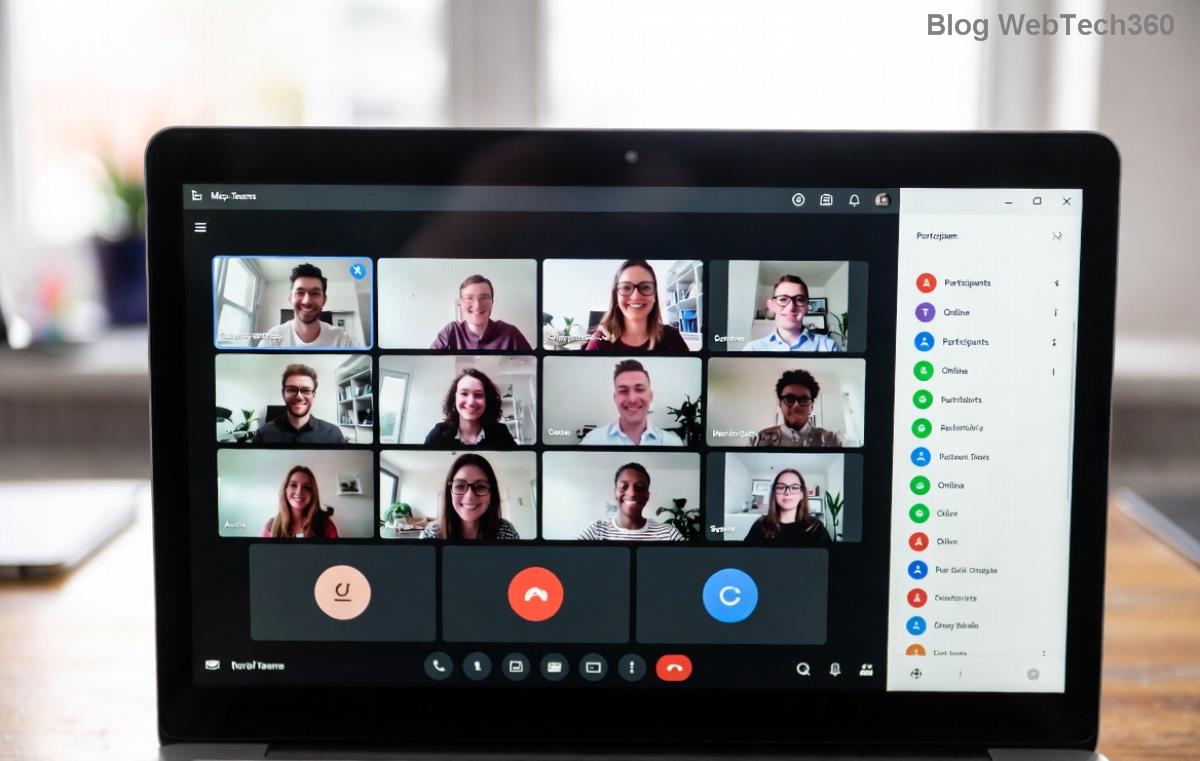
- Select Record and transcribe > Start recording. A notification alerts participants!
- Confirm: Everyone sees a red recording indicator at the top. 🎥
- Stop when done: More actions > Stop recording. It processes for a few minutes.
Your recording auto-saves to the organizer's OneDrive (personal meetings) or SharePoint (channel meetings). Share the link via chat—done! ✨
Recording a Microsoft Teams Meeting on the Web
No app? Use browser (Edge/Chrome recommended):
- Join via teams.microsoft.com.
- Click More actions > Record and transcribe > Start.
- Follow the same stop process.
Note: Web recordings work identically but may lack advanced transcription.
How to Record a Microsoft Teams Meeting on Mobile (iOS/Android)
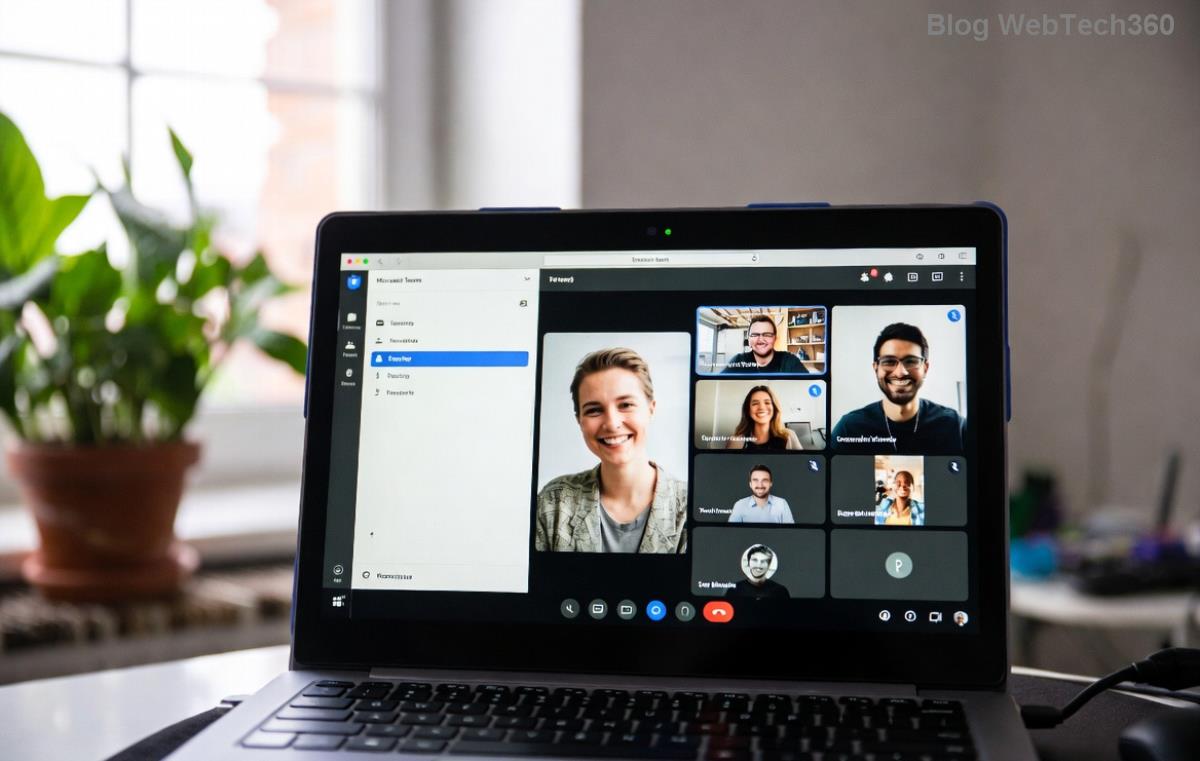
Mobile is handy for on-the-go, but limited to organizers.
- Open Teams app > Join meeting.
- Tap More (three dots) > Start recording.
- Red bar appears. Tap Stop recording when finished.
Mobile files land in OneDrive too. Share easily from the app! 📱
Where Do Teams Recordings Go? Easy Access Guide
Recordings aren't local— they're cloud magic:
- Personal meetings: Organizer's OneDrive > Recordings folder.
- Channel meetings: Files tab in the channel.
- Access for all: Post-meeting chat tab > Recording link (expires per policy, usually 60 days).
Want to download? Right-click in OneDrive > Download. Edit in Stream for clips or transcripts. Smooth sailing! 🌊
Manage Your Recordings: Share, Edit, Delete
- Share: Copy link from OneDrive/Stream > Paste in email or chat.
- Edit: Open in Microsoft Stream > Trim, add captions.
- Delete: OneDrive > Right-click > Delete (permanent after 93 days).
Enable transcription for searchable text—game-changer for long meetings! ⭐
Troubleshooting: Fix Common Microsoft Teams Recording Issues
Hit a snag? Quick fixes:
| Issue |
Solution |
| No record button |
Check permissions with admin or become organizer. |
| Recording fails |
Update Teams, check internet/storage. |
| Can't find file |
Search OneDrive "Teams Recordings" or chat history. |
| Mobile won't record |
Only organizers; use desktop instead. |
For official help, visit Microsoft Support.
Pro Tips to Supercharge Your Teams Meeting Recordings
- 📢 Announce recording at start for courtesy.
- 🎯 Use Record and transcribe for AI-generated notes.
- 🔒 Set expiration dates for sensitive content.
- 💡 Integrate with Power Automate for auto-sharing.
- ⚡ Test audio/video quality pre-meeting.
These hacks make you a recording pro. Imagine never missing action again! 😊
FAQ: Your How to Record a Microsoft Teams Meeting Questions Answered
- Can participants record?
- Only if given permission by the organizer.
- Is recording free?
- Yes, with any Teams license allowing it.
- What about private meetings?
- Perfect—saves privately to OneDrive.
- Offline recording?
- No, requires internet for cloud upload.
Mastered it? Your next meeting is recording-ready. Share this guide and level up your team! 👏 Questions? Drop in the comments.