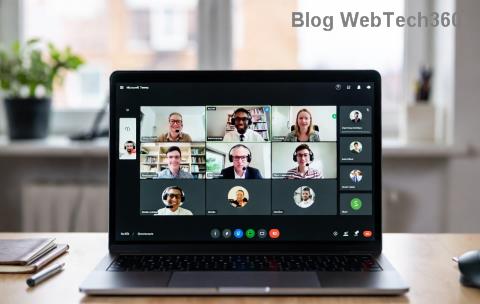
Ever received a quick Microsoft Teams Meeting ID and passcode but unsure how to jump in? You're not alone! Whether it's a work call, virtual class, or casual chat, joining a Teams meeting by ID and passcode is the fastest way to connect without needing a full calendar invite. This guide delivers crystal-clear steps for desktop, mobile, and web browsers using the latest Teams features. Ready to dive in? Let's get you connected in under 2 minutes! ✅
Why Use Meeting ID and Passcode? The Smart Choice
Microsoft Teams prioritizes security and simplicity. The Meeting ID (a 10-digit code) identifies the session, while the passcode ensures only authorized guests enter. No app download? No problem—join via browser. Perfect for one-off meetings or when you're on someone else's device. Pro tip: Save these details in your notes app for lightning-fast access next time! 🌟
Prerequisites Before Joining
- A stable internet connection 📡
- The Meeting ID (e.g., 123 456 7890) and passcode (4-6 digits)
- Microsoft Teams app (optional; browser works too)
- Microphone/speakers (test in advance!)
Step-by-Step: How to Join Microsoft Teams Meeting by ID on Desktop
Using Windows, Mac, or Linux? Follow these exact steps for seamless entry.
- 👆 Open your web browser (Chrome, Edge, Firefox recommended) or launch the Teams desktop app.
- Navigate to teams.microsoft.com or click "Join or start a meeting" in the app.
- Enter the Meeting ID in the "Meeting ID or link" field. No link? Just the ID works!
- Input the passcode when prompted.
- ✅ Choose your role: "Join as a guest" for quick access or sign in for more features.
- Select "Join now." Mute your mic if needed, and you're live!

Stuck? If the ID doesn't load, double-check digits—no spaces! This method supports screen sharing and reactions instantly.
How to Join on Mobile: Android & iOS Guide
Mobile users love the native app for push notifications and better camera quality. Here's the streamlined process:
- 📱 Download Teams from Google Play or App Store (or use in-app browser).
- Open Teams and tap "Join a meeting" at the top (star icon or calendar).
- Type or paste the Meeting ID.
- Enter the passcode.
- 🎥 Preview your video/audio, then tap "Join meeting."
- Grant permissions for mic/camera—done!

| Platform | Best For | App Needed? | Pro Feature |
|---|---|---|---|
| Desktop | Large screens, sharing | Optional | Multi-window |
| Mobile | On-the-go calls | Recommended | Live captions |
Join via Web Browser: No Download Required
Perfect for shared computers! Steps mirror desktop:
- Go to teams.microsoft.com.
- Enter ID and passcode.
- Click "Join as a guest" → "Join now."
Note: Browser mode limits downloads but shines for audio/video. Upgrade to app for full power later! 💪
Common Issues & Fixes: Troubleshoot Like a Pro
Encounter hurdles? We've got solutions:
- ❌ "Meeting not found": Verify ID/passcode with host. Typos happen!
- Mic not working: Check system settings → Allow Teams access.
- Passcode rejected: Hosts can disable it—ask for a link instead.
- Slow connection: Switch to audio-only or lower video quality.
- Waiting room: Patiently wait; host approves entry.
For official fixes, check Microsoft Teams Support.
Bonus Tips to Ace Your Teams Meetings
- ⭐ Test beforehand: Join a practice meeting via teams.microsoft.com/testcall.
- Enable "Do not disturb" on your device for focus.
- Use reactions 👍 or raise hand 🙋 for engagement.
- Record with host permission—great for absentees!
- Explore live captions for accessibility. 👂
Ready to Join Your Next Meeting?
Now that you know how to join a Microsoft Teams meeting by ID and passcode, you're set for success! Share this guide with colleagues and never miss a beat. Got questions? Drop a comment below—we're here to help. Happy teaming! 🎊
For the most up-to-date info, visit official Microsoft resources.