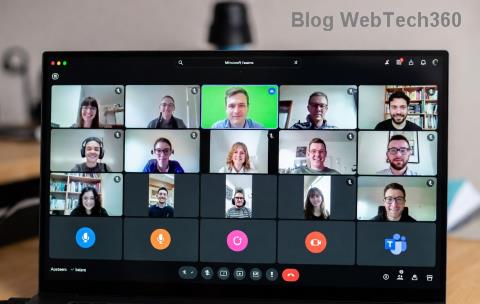
Frustrated with Microsoft Teams recording location defaults cluttering your OneDrive or SharePoint? You're not alone! Whether you're an admin optimizing storage or a user needing quick access, customizing where Teams recordings save can boost productivity and organization. In this guide, we'll walk you through proven methods using the latest Teams features, ensuring your meetings are stored exactly where you want. Let's dive in and reclaim control! ✅
Why Change Microsoft Teams Recording Location?
By default, Microsoft Teams recordings land in specific spots:
| Meeting Type |
Default Location |
Why Change It? |
| Personal or non-channel meetings |
OneDrive of the meeting organizer |
Free up personal storage; centralize for teams |
| Channel meetings |
SharePoint site of the team |
Improve compliance; easier sharing |
| With admin policies |
Microsoft Stream (optional) |
Advanced analytics and retention |
Customizing saves space, enhances security, and streamlines workflows. Ready for the steps? Follow along – it's simpler than you think! 😊
Method 1: For Admins – Change Microsoft Teams Recording Location via Teams Admin Center (Recommended)
As an admin, you hold the power to set policies organization-wide. This is the most efficient way to change Microsoft Teams recording location for everyone. Here's how:
- ✅ Sign in to Teams Admin Center: Go to admin.teams.microsoft.com and log in with admin credentials.
- Navigate to Meetings & webinars > Meeting policies. Select or create a new policy.
- Under Recording & transcription, find Cloud recording location.
- Choose your preference:
- OneDrive for Business (personal meetings)
- SharePoint (channel meetings)
- Microsoft Stream (for advanced features like auto-transcription)
- Save changes and assign the policy to users or groups via Users tab.
Pro Tip: Test with a sample meeting to confirm. Changes propagate in minutes!

Method 2: For Regular Users – Manual Ways to Manage Teams Recording Location
No admin access? No problem! Users can influence Microsoft Teams recording location indirectly:
1️⃣ Request Admin Changes
Contact your IT team with this guide. Share the admin steps above – they'll thank you! 🚀
2️⃣ Move Recordings Post-Meeting
- After recording ends, locate it in Teams > Recents or OneDrive/SharePoint.
- Download or use the Move to option in OneDrive web (under Files > Move).
- Target a custom folder like "Teams Recordings Archive".
3️⃣ Customize OneDrive Default Folder (Quick Hack)
In OneDrive settings, create a dedicated folder and pin it. Future recordings stay organized without full relocation.
Advanced: Use PowerShell to Change Microsoft Teams Recording Location
For power users, scripting automates everything. Install the MicrosoftTeams PowerShell module first:
Install-Module -Name MicrosoftTeams
Connect and set policy:
Connect-MicrosoftTeams
Set-CsTeamsMeetingPolicy -Identity Global -CloudRecordingLocation OneDriveForBusiness
Replace "Global" with your policy name. Microsoft Docs has full syntax. ⚡
Troubleshooting Common Issues
- ❌ Recordings not appearing? Check policy application (up to 24 hours) or storage quotas.
- ❌ Access denied? Ensure you're the organizer or have SharePoint permissions.
- ❌ Mobile app issues? Use desktop/web for admin changes; sync follows.
- Pro Tip: Clear Teams cache via %appdata%\Microsoft\Teams and restart.
Still stuck? Verify your license supports cloud recording (E3/E5 or equivalent).
Best Practices for Optimal Teams Recording Storage
To keep things smooth:
- ⭐ Set retention policies in Purview compliance center.
- ⭐ Use naming conventions: "MeetingDate-Topic.mp4".
- ⭐ Integrate with Power Automate for auto-moves. 👏
Mastering these ensures your Microsoft Teams recording location works for you, not against you.
Wrap-Up: Take Control Today!
Congrats – you're now equipped to change Microsoft Teams recording location like a pro! Start with admin settings for impact, or tweak personally for quick wins. Share this guide with your team and watch collaboration soar. Got questions? Drop a comment below. Happy meeting! 🎉