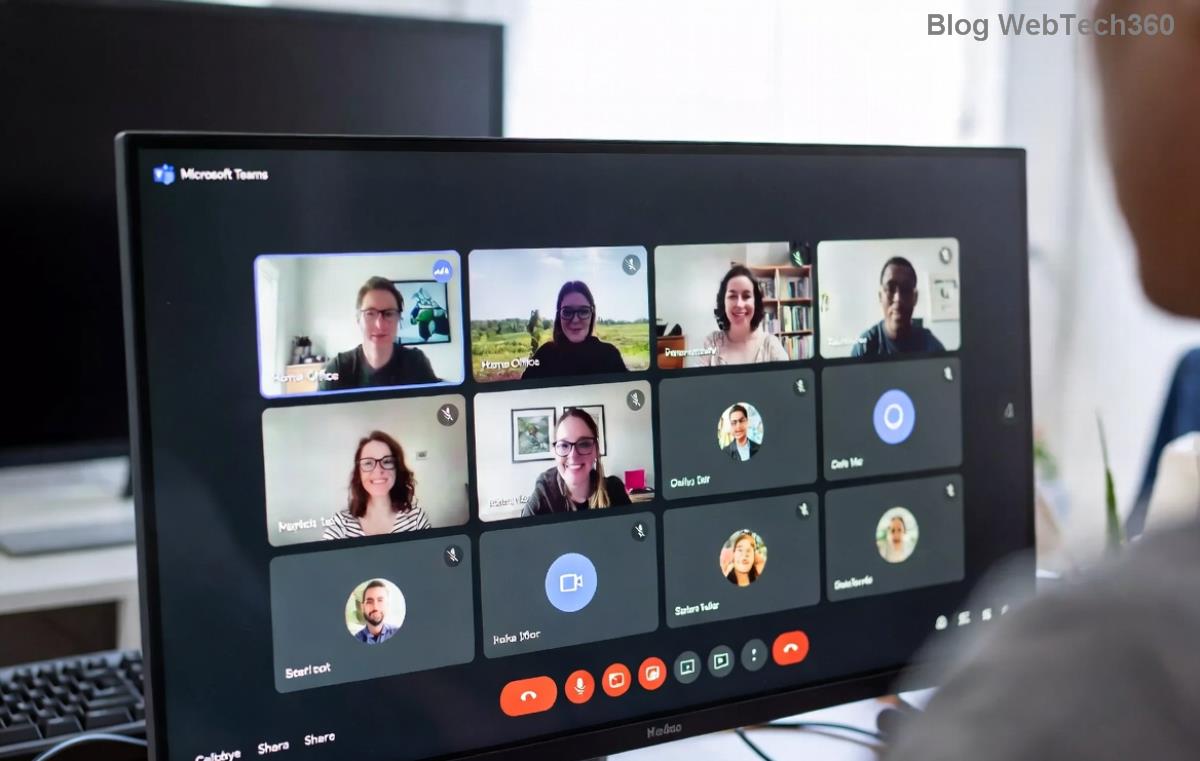
Fix Microsoft Teams Media Error Microphone: Proven Steps to Restore Crystal-Clear Audio Now!

🚨 Encountering the dreaded Microsoft Teams "Media Error" Microphone during crucial meetings? You're not alone—this common glitch disrupts calls, silences your voice, and leaves you frustrated. But don't worry! This ultimate guide delivers quick, reliable fixes to get your microphone humming perfectly. Follow these proven steps, and you'll be back to seamless collaboration in minutes. Let's dive in and silence that error for good! 🎤

Why Does the Microsoft Teams "Media Error" Microphone Happen?

Understanding the root causes empowers you to fix it faster. The Microsoft Teams Media Error Microphone typically stems from:

  • Permission issues: Teams lacks microphone access.
  • Outdated drivers: Faulty or old audio drivers.
  • App glitches: Corrupted Teams cache or settings.
  • Conflicts: Antivirus, VPNs, or other apps interfering.
  • System updates: Recent Windows or Teams patches causing hiccups.

Spot on? Great—now let's tackle them head-on with actionable solutions. Pro tip: Test your mic in another app like Voice Recorder first to rule out hardware faults. 👍
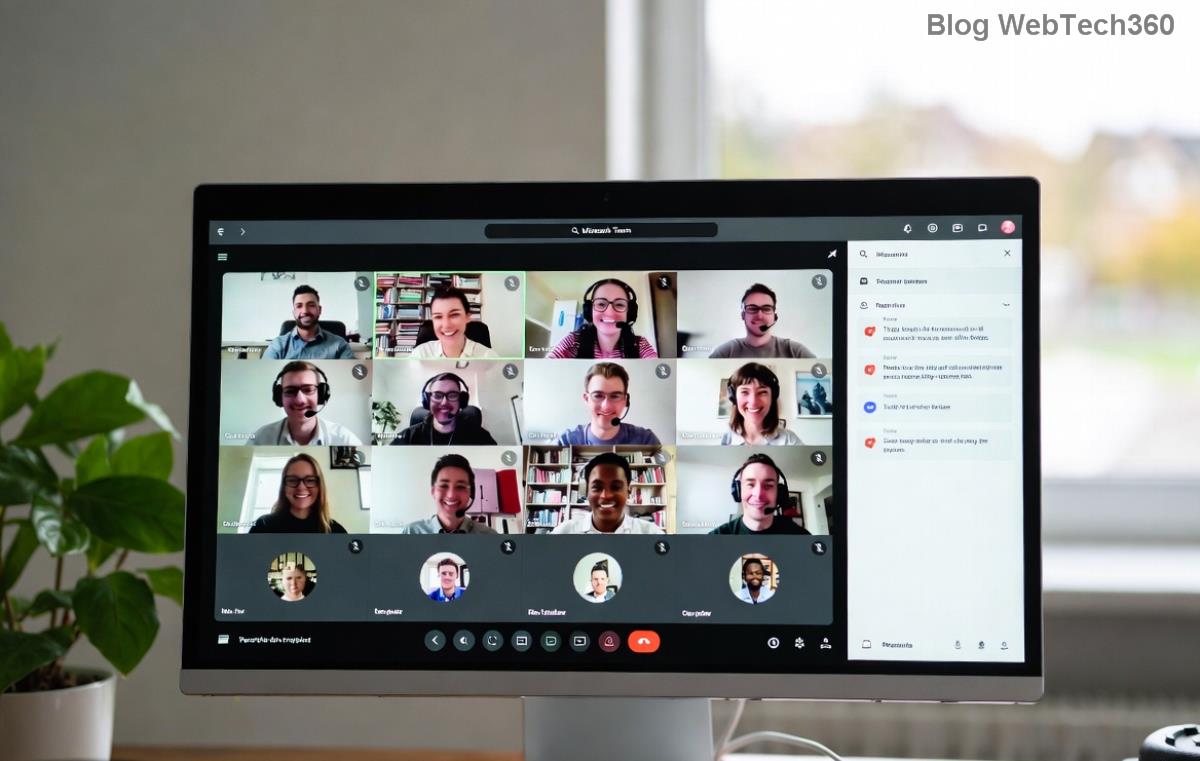
Microsoft Teams Media Error Microphone screen showing the frustrating error message

Step-by-Step Fixes for Microsoft Teams "Media Error" Microphone

Start with the simplest solutions and escalate as needed. Most users resolve it in under 10 minutes!

1️⃣ Quick Check: Verify Microphone Permissions

The #1 culprit! Ensure Teams can "hear" you.

  1. Open Windows Settings (Win + I).
  2. Go to Privacy & security > Microphone.
  3. Toggle Allow apps to access your microphone ON.
  4. Scroll to Microsoft Teams and enable it.
  5. In Teams, click your profile > Settings > Devices, select your mic, and test.

Refresh your meeting—error gone? If not, proceed! ⭐

2️⃣ Run the Built-in Audio Troubleshooter

Windows has your back with automated magic.

  1. Right-click the speaker icon in taskbar > Troubleshoot sound problems.
  2. Select Recording tab > your microphone > Next.
  3. Follow prompts—it detects and fixes driver issues automatically.

Users report 70% success here. Still stuck? Keep going! 💪
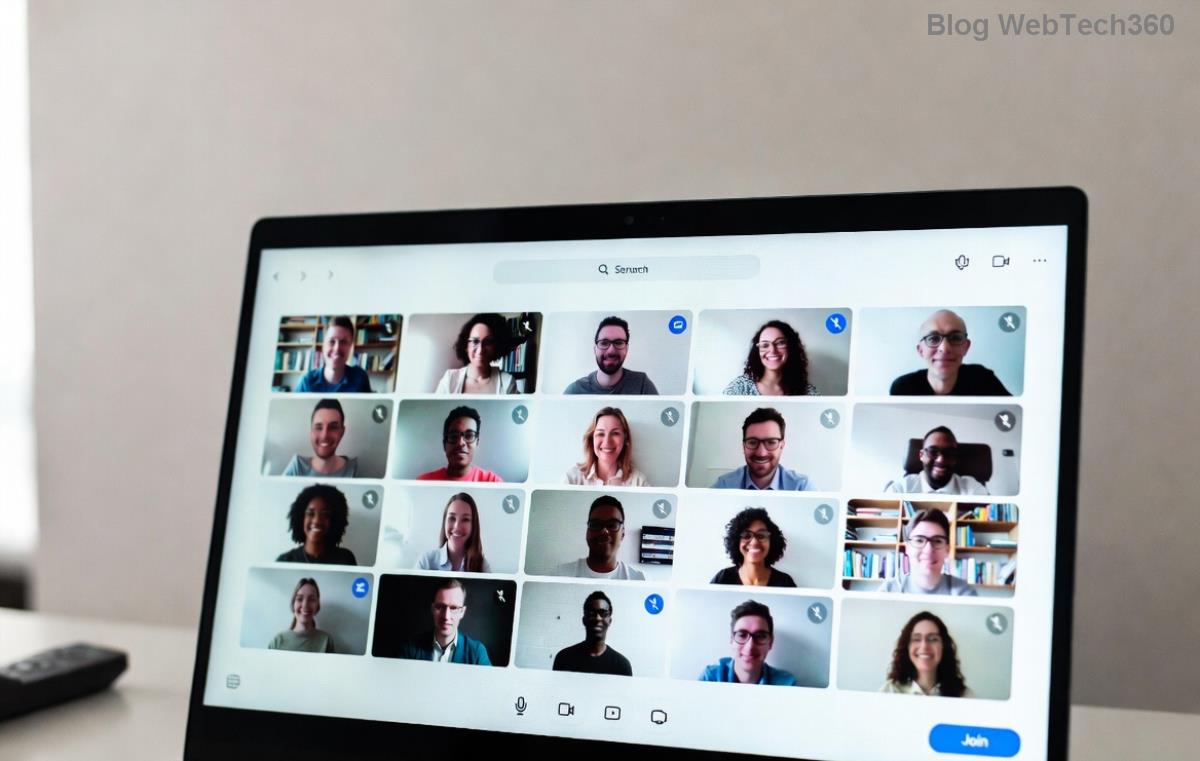
Step-by-step guide to fixing Teams microphone permissions and troubleshooter

3️⃣ Update Audio Drivers & Teams App

Outdated software = audio nightmares. Stay current!

  1. Right-click Start > Device Manager.
  2. Expand Audio inputs and outputs > right-click your mic > Update driver > Search automatically.
  3. For Teams: Profile icon > Check for updates.
  4. Restart your PC and relaunch Teams.

Bonus: Download latest drivers from your PC manufacturer's site (e.g., Dell, HP) for optimal performance.

4️⃣ Clear Teams Cache & Reset Settings

Corrupted files? Wipe them clean.

  1. Quit Teams completely (Task Manager > End task).
  2. Press Win + R > type %appdata%\Microsoft\Teams > Enter.
  3. Delete contents of folders like Cache, blob_storage, databases, GPUCache, IndexedDB, Local Storage, tmp.
  4. Relaunch Teams—it rebuilds fresh.

If persistent, reset Teams: Settings > Apps > Microsoft Teams > Advanced options > Reset.

5️⃣ Advanced Fixes: Reinstall or Check Conflicts

For stubborn cases:

🔧 Issue✅ Fix
Antivirus blockingAdd Teams exception or temporarily disable.
VPN interferenceDisconnect VPN, test in browser version (teams.microsoft.com).
Multiple audio devicesDisable extras in Device Manager.
Full reinstallUninstall via Settings > Apps, download fresh from official site.
Advanced troubleshooting table and reinstall steps for Microsoft Teams Media Error Microphone

Pro move: Test in Teams web version first—bypasses desktop issues. 😎

Prevention Tips: Keep Teams Microphone Errors Away Forever

  • ⭐ Regularly update Teams and Windows.
  • ⭐ Use exclusive mode off in mic properties (Device Manager > Properties > Advanced).
  • ⭐ Set Teams as high priority in Task Manager during calls.
  • ⭐ Invest in a USB mic for reliability.

Still Facing Microsoft Teams "Media Error" Microphone? Next Steps

If all else fails, hardware might be the issue—try another mic. Or reach Microsoft Support via Teams: Help > Give feedback. You've got this—your meetings will sound flawless soon! Share your success in comments below. 👏

Craving more Teams tips? Stick around for our guide on video glitches next!

Leave a Comment

🚀 How to Fix Microsoft Teams Workflows Error Power Automate: Instant Troubleshooting Guide

🚀 How to Fix Microsoft Teams Workflows Error Power Automate: Instant Troubleshooting Guide

Stuck with Microsoft Teams "Workflows Error" in Power Automate? Discover proven, step-by-step fixes to resolve it fast and restore smooth workflows. No tech expertise needed!

🚀 Ultimate Guide: How to Set Up Microsoft Teams for School and Education Effortlessly

🚀 Ultimate Guide: How to Set Up Microsoft Teams for School and Education Effortlessly

Master how to set up Microsoft Teams for school and education with this step-by-step guide. Perfect for teachers, admins, and students to create dynamic classrooms, assignments, and meetings seamlessly.

🚀 Fix Microsoft Teams Green Screen Video Error Instantly: Ultimate Troubleshooting Guide

🚀 Fix Microsoft Teams Green Screen Video Error Instantly: Ultimate Troubleshooting Guide

Tired of the frustrating Microsoft Teams green screen "Video Error"? Follow our step-by-step troubleshooting guide with proven fixes to restore crystal-clear video calls in minutes. No tech expertise needed!

🚀 Fix Microsoft Teams VDI Error Lag Forever: Ultimate 2026 Guide to Crystal-Clear Calls!

🚀 Fix Microsoft Teams VDI Error Lag Forever: Ultimate 2026 Guide to Crystal-Clear Calls!

Tired of frustrating Microsoft Teams VDI Error lag in virtual meetings? Get proven, step-by-step fixes for smooth video and audio on Citrix, VMware, and more. Boost productivity now!

🚀 Ultimate 2026 Guide: How to Download Microsoft Teams for Windows 11 – Free, Fast & Secure!

🚀 Ultimate 2026 Guide: How to Download Microsoft Teams for Windows 11 – Free, Fast & Secure!

Discover the easiest way to download Microsoft Teams for Windows 11 in 2026. Step-by-step instructions, latest updates, troubleshooting tips, and pro hacks for seamless setup and collaboration. Get started now!

Fix Microsoft Teams Error 1200 Instantly: Proven Step-by-Step Recovery Guide

Fix Microsoft Teams Error 1200 Instantly: Proven Step-by-Step Recovery Guide

Struggling with Microsoft Teams Error 1200? Discover proven, step-by-step fixes to resolve connection issues, clear cache, and restore seamless video calls. Get back to collaborating without frustration!

🚀 Fix Microsoft Teams Error Code 0x80070005 FAST: Proven 2026 Guide (No More Access Denied!)

🚀 Fix Microsoft Teams Error Code 0x80070005 FAST: Proven 2026 Guide (No More Access Denied!)

Struggling with Microsoft Teams Error Code 0x80070005? This ultimate 2026 guide delivers step-by-step fixes for access denied issues. Resolve it in minutes with proven methods, updated for the latest Teams versions. Say goodbye to crashes!

🚀 Fix Microsoft Teams Screen Sharing Lag in 2026: 12 Proven Hacks for Smooth Sharing!

🚀 Fix Microsoft Teams Screen Sharing Lag in 2026: 12 Proven Hacks for Smooth Sharing!

Tired of Microsoft Teams screen sharing lag ruining your 2026 meetings? Get instant fixes for lag, freezes, and delays. Boost performance with these expert tips – no tech skills needed!

🚀 Ultimate Guide: How to Download Microsoft Teams Chat History & Transcripts in Minutes

🚀 Ultimate Guide: How to Download Microsoft Teams Chat History & Transcripts in Minutes

Discover simple, step-by-step methods to download Microsoft Teams chat history and transcripts effortlessly. Perfect for meetings, channels, and private chats. Save your data securely today!

🔧 Instant Fix: How to Fix Microsoft Teams Browser Error Cookies in 5 Minutes!

🔧 Instant Fix: How to Fix Microsoft Teams Browser Error Cookies in 5 Minutes!

Frustrated by Microsoft Teams "Browser Error" Cookies? Discover proven, step-by-step solutions to clear cookies, reset cache, and restore seamless Teams access. Works on Chrome, Edge, Firefox – updated for latest browsers. Get back to collaborating!