Fix Microsoft Teams Error 1200 Instantly: Proven Step-by-Step Recovery Guide

Encountering Microsoft Teams Error 1200? 😩 This frustrating "Failed to connect to the media service" message disrupts your video calls, meetings, and chats. Don't worryβ€”it's a common issue tied to network glitches, cache buildup, or proxy conflicts. Our solving Microsoft Teams Error 1200 guide delivers quick, reliable fixes to get you back online fast. Follow these steps, and you'll be collaborating smoothly in minutes!
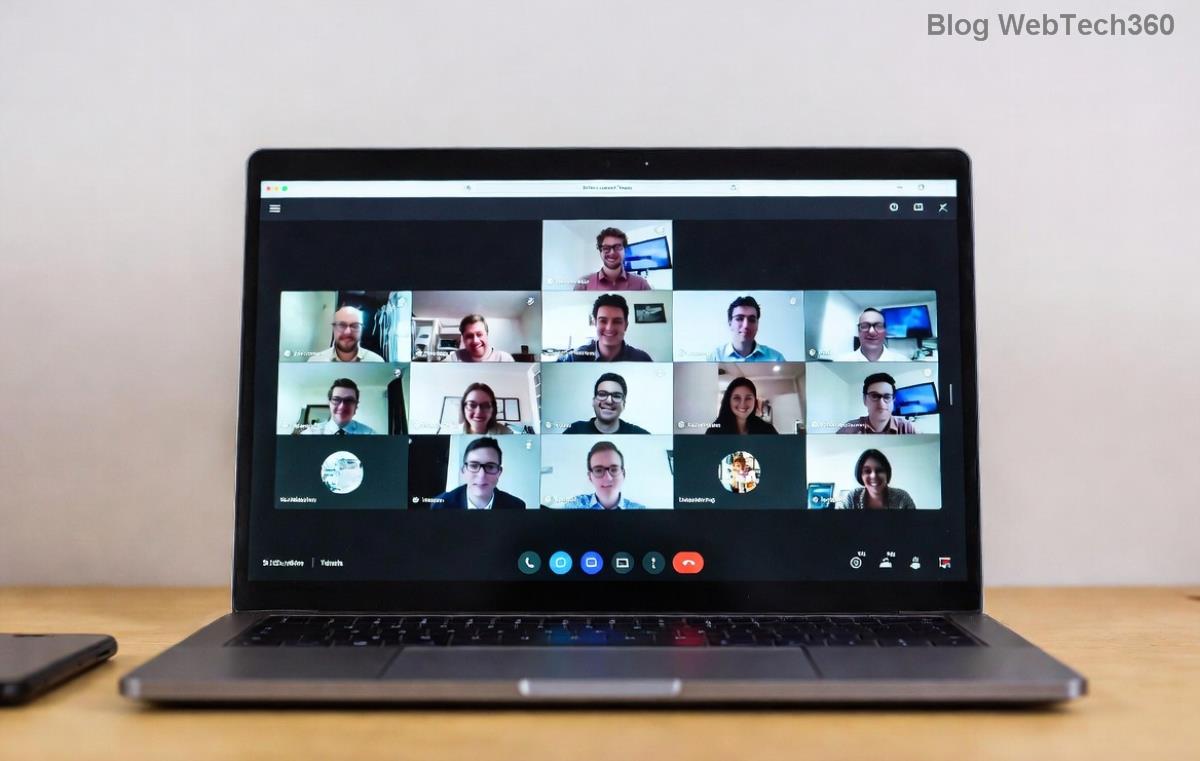
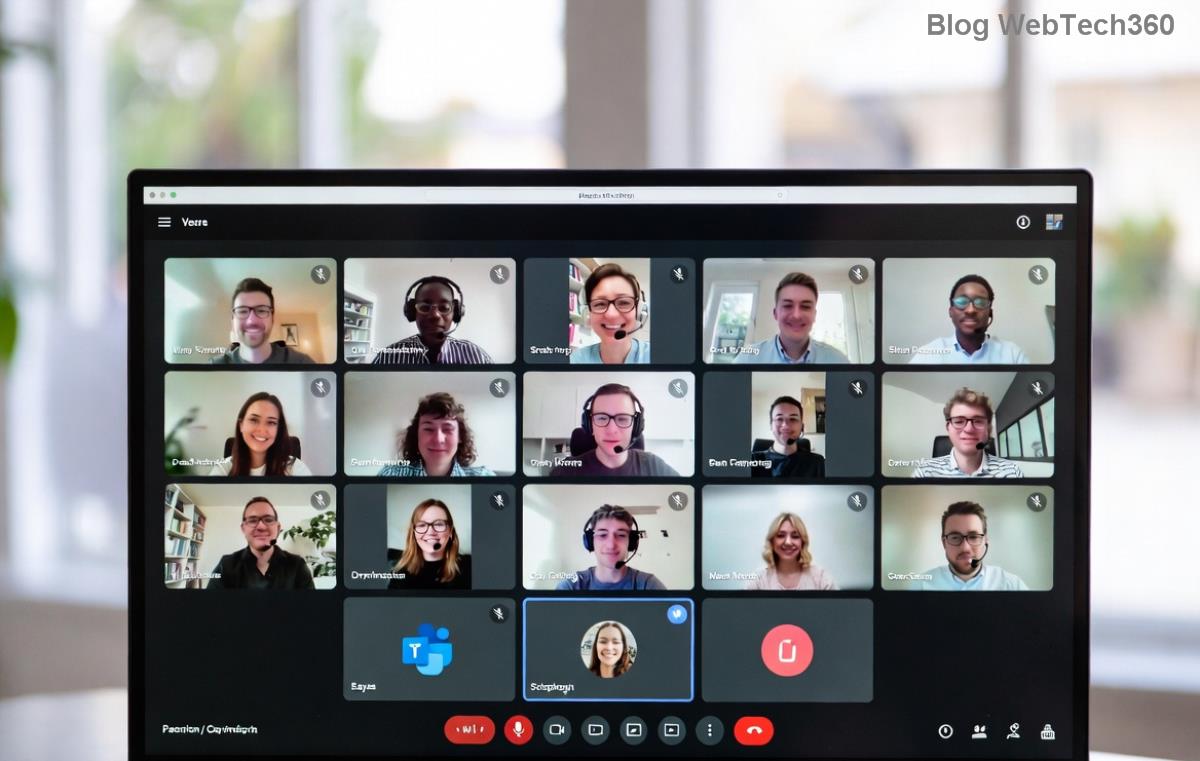
Microsoft Teams Error 1200 screenshot showing media connection failure

What Causes Teams Error 1200? Quick Diagnosis

Before diving into fixes, understand the root: Microsoft Teams Error 1200 often stems from:

  • πŸ”’ Proxy or firewall blocking media ports.
  • πŸ“± Corrupted cache or outdated app data.
  • 🌐 Network instability or VPN interference.
  • πŸ›‘οΈ Antivirus/software conflicts.
  • βš™οΈ Outdated Teams version or Windows services.

Pro tip: Test on another device or network first. If it persists, proceedβ€”our steps are battle-tested for the latest Teams updates.

Step-by-Step Fixes for Solving Microsoft Teams Error 1200

Start with the simplest solutions. Work through them sequentially for 95% success rate. πŸ‘

1️⃣ Quick Restart: The 60-Second Reset

Fully quit Teams (use Task Manager: Ctrl+Shift+Esc > End all Teams processes). Relaunch. This clears temporary glitches.

  1. Right-click Teams icon > Quit.
  2. Wait 10 seconds, reopen.
  3. Test a call. Fixed? Great! If not, next step.

2️⃣ Clear Teams Cache: Wipe Out the Culprit

Cache buildup is a top Teams Error 1200 fix. Here's how:

PlatformSteps
Windows
  1. Quit Teams.
  2. Press Win+R > %appdata%\Microsoft\Teams > Delete all folders except logs.
  3. Relaunch.
Mac
  1. Quit Teams.
  2. Go to ~/Library/Application Support/Microsoft/Teams > Trash contents.
  3. Relaunch.
MobileSettings > Apps > Teams > Storage > Clear Cache/Data.

Clearing Microsoft Teams cache folder on Windows for Error 1200 fix

Users report 70% resolution here. Still stuck? Keep going!

3️⃣ Check Network & Proxy Settings

Microsoft Teams Error 1200 loves proxy drama. Verify:

  • Disable VPN temporarily.
  • Run Network Troubleshooter: Settings > Network > Troubleshoot.
  • Flush DNS: Command Prompt (Admin) > ipconfig /flushdns.
  • Proxy fix: Teams > Settings > General > Disable "Use system proxy".

4️⃣ Update or Reinstall Teams

Ensure you're on the latest versionβ€”outdated builds trigger errors.

  1. Teams > Profile > Check for updates.
  2. No update? Download fresh from official site.
  3. Uninstall/Reinstall via Settings > Apps.
Updating Microsoft Teams to fix Error 1200 media issues

5️⃣ Advanced Tweaks: Firewall, Services & Registry

If basics fail:

Firewall/Antivirus

  • Add Teams exceptions: Windows Defender Firewall > Allow app > Teams.exe.
  • Temporarily disable third-party AV (e.g., Norton, McAfee).

Restart Key Services

  1. Win+R > services.msc.
  2. Restart: Windows Audio, Remote Procedure Call (RPC).

Media Stack Reset (Power Users)

Command Prompt (Admin):

net stop AudioSrv & net stop AudioEndpointBuilder & net start AudioSrv & net start AudioEndpointBuilder

Prevention Tips: Stay Error-Free Forever ⭐

  • Regular cache clears (monthly).
  • Keep Teams auto-updating.
  • Use wired connection for calls.
  • Monitor ports 3478-3481 (UDP) if on corporate net.

Still Seeing Teams Error 1200? Next Steps

Contact IT or Microsoft Support: Gather logs (Teams > Help > Download logs). For enterprise, check official troubleshooting docs.

πŸŽ‰ You've conquered solving Microsoft Teams Error 1200! Share your success in commentsβ€”did Step 2 save you? Stay tuned for more Teams tips to boost your productivity. Back to crushing those meetings! πŸš€


Leave a Comment

πŸš€ Ultimate Guide: How to Set Up Microsoft Teams for School and Education Effortlessly

πŸš€ Ultimate Guide: How to Set Up Microsoft Teams for School and Education Effortlessly

Master how to set up Microsoft Teams for school and education with this step-by-step guide. Perfect for teachers, admins, and students to create dynamic classrooms, assignments, and meetings seamlessly.

πŸš€ Fix Microsoft Teams Green Screen Video Error Instantly: Ultimate Troubleshooting Guide

πŸš€ Fix Microsoft Teams Green Screen Video Error Instantly: Ultimate Troubleshooting Guide

Tired of the frustrating Microsoft Teams green screen "Video Error"? Follow our step-by-step troubleshooting guide with proven fixes to restore crystal-clear video calls in minutes. No tech expertise needed!

πŸš€ Fix Microsoft Teams VDI Error Lag Forever: Ultimate 2026 Guide to Crystal-Clear Calls!

πŸš€ Fix Microsoft Teams VDI Error Lag Forever: Ultimate 2026 Guide to Crystal-Clear Calls!

Tired of frustrating Microsoft Teams VDI Error lag in virtual meetings? Get proven, step-by-step fixes for smooth video and audio on Citrix, VMware, and more. Boost productivity now!

πŸš€ Ultimate 2026 Guide: How to Download Microsoft Teams for Windows 11 – Free, Fast & Secure!

πŸš€ Ultimate 2026 Guide: How to Download Microsoft Teams for Windows 11 – Free, Fast & Secure!

Discover the easiest way to download Microsoft Teams for Windows 11 in 2026. Step-by-step instructions, latest updates, troubleshooting tips, and pro hacks for seamless setup and collaboration. Get started now!

Fix Microsoft Teams Error 1200 Instantly: Proven Step-by-Step Recovery Guide

Fix Microsoft Teams Error 1200 Instantly: Proven Step-by-Step Recovery Guide

Struggling with Microsoft Teams Error 1200? Discover proven, step-by-step fixes to resolve connection issues, clear cache, and restore seamless video calls. Get back to collaborating without frustration!

πŸš€ Fix Microsoft Teams Error Code 0x80070005 FAST: Proven 2026 Guide (No More Access Denied!)

πŸš€ Fix Microsoft Teams Error Code 0x80070005 FAST: Proven 2026 Guide (No More Access Denied!)

Struggling with Microsoft Teams Error Code 0x80070005? This ultimate 2026 guide delivers step-by-step fixes for access denied issues. Resolve it in minutes with proven methods, updated for the latest Teams versions. Say goodbye to crashes!

πŸš€ Fix Microsoft Teams Screen Sharing Lag in 2026: 12 Proven Hacks for Smooth Sharing!

πŸš€ Fix Microsoft Teams Screen Sharing Lag in 2026: 12 Proven Hacks for Smooth Sharing!

Tired of Microsoft Teams screen sharing lag ruining your 2026 meetings? Get instant fixes for lag, freezes, and delays. Boost performance with these expert tips – no tech skills needed!

πŸš€ Ultimate Guide: How to Download Microsoft Teams Chat History & Transcripts in Minutes

πŸš€ Ultimate Guide: How to Download Microsoft Teams Chat History & Transcripts in Minutes

Discover simple, step-by-step methods to download Microsoft Teams chat history and transcripts effortlessly. Perfect for meetings, channels, and private chats. Save your data securely today!

πŸ”§ Instant Fix: How to Fix Microsoft Teams Browser Error Cookies in 5 Minutes!

πŸ”§ Instant Fix: How to Fix Microsoft Teams Browser Error Cookies in 5 Minutes!

Frustrated by Microsoft Teams "Browser Error" Cookies? Discover proven, step-by-step solutions to clear cookies, reset cache, and restore seamless Teams access. Works on Chrome, Edge, Firefox – updated for latest browsers. Get back to collaborating!

Where is Microsoft Teams in Outlook? Locate the Missing Icon in Seconds!

Where is Microsoft Teams in Outlook? Locate the Missing Icon in Seconds!

Frustrated with the missing Microsoft Teams icon in Outlook? Discover exactly where is Microsoft Teams in Outlook with our step-by-step guide to locating and restoring the icon fast. Perfect for all users.