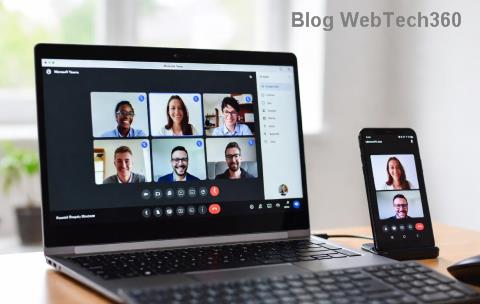
Imagine this: You're all set for an important Microsoft Teams meeting, but the Meeting ID not working error crashes your plans. 😩 Frustrating, right? Don't worry—thousands face this daily, but it's often a quick fix. In this guide, we'll walk you through exactly how to fix Microsoft Teams Meeting ID not working with simple, tested steps. By the end, you'll be joining meetings smoothly. Let's dive in! 👇

⚠️ Common Causes of Microsoft Teams Meeting ID Not Working
Before fixing, understand why it happens. Pinpointing the root saves time:
- Incorrect or Expired ID: Typos or outdated links.
- Network Glitches: Weak Wi-Fi or firewalls blocking Teams.
- App/ Browser Issues: Outdated Microsoft Teams version or cache buildup.
- Account Problems: Sign-in errors or guest restrictions.
- Server-Side Hiccups: Temporary outages on Microsoft's end.
Quick check: Use Teams Status to rule out outages. Ready to fix? Start here! ✅
🔧 Quick Fixes: Resolve Teams Meeting ID Not Working in Under 5 Minutes
Try these first—they solve 80% of cases. Follow step-by-step:
- ✅ Double-Check the Meeting ID
Copy-paste directly from the invite. Avoid manual typing. Pro tip: Ask the host for a fresh link.
- 🔄 Restart Teams App
Close completely (Task Manager on Windows: End Task). Relaunch and try joining.
- 📱 Switch Devices or Browsers
Teams app failing? Use Edge/Chrome web version at teams.microsoft.com. Mobile? Toggle airplane mode.
Still stuck? No sweat—move to advanced steps. These have helped users worldwide reclaim their meetings! 🌟
🛠️ Advanced Troubleshooting: Deep Dive to Fix Microsoft Teams Meeting ID Not Working
If basics don't cut it, level up with these targeted solutions:
| Issue |
Symptom |
Fix |
| Cache Overload |
Slow loading, ID rejected |
Clear cache: Teams > Settings > General > Clear cache. Restart. |
| Network Blocks |
"Can't connect" error |
Disable VPN/firewall temporarily. Run Network Troubleshooter (Windows Search). |
| Outdated App |
Version mismatch |
Update via Microsoft Store or official download. |
| Permissions Denied |
Guest join fails |
Host enables "People can bypass lobby." Reinvite. |
- 💻 Update Teams to Latest Version
Go to profile icon > Check for updates. Latest builds fix ID validation bugs.
- 🔒 Check Permissions & Sign Out/In
Teams > Settings > Permissions > Allow camera/mic. Sign out, clear credentials, sign back in.
- 🌐 Flush DNS & Reset Network
Command Prompt (Admin): ipconfig /flushdns, then netsh winsock reset. Restart PC.
- 📞 Host-Side Checks
Ask host to: Recreate meeting, share new ID, or use "Meet Now" for tests.
🛡️ Prevention Tips: Avoid Microsoft Teams Meeting ID Not Working Forever
Stay ahead of glitches:
- ⭐ Pin frequent meetings in Teams calendar.
- 📧 Always save invites in email/notes.
- 🔄 Keep Teams auto-updating.
- 📶 Use wired connection for critical calls.
- 👥 Test joins 5 mins early.
Bonus: Enable Teams web app as backup—it's lightweight and bypasses app issues.
❓ FAQ: Microsoft Teams Meeting ID Not Working Answered
- Why does Teams say "Meeting ID is invalid"?
- Usually expired link or typo. Request new one from host.
- Can I join without Meeting ID?
- No, but use full invite link or calendar RSVP.
- Is it a Teams outage?
- Check Microsoft Support.
- Fix for Mac/iOS?
- Same steps: Force quit, update, clear cache via Settings.
There you have it—your complete toolkit to conquer Microsoft Teams Meeting ID not working! 🎉 Applied these? Meetings should fire up instantly. Share your success in comments below—what fixed it for you? Stay connected! 🚀