Imagine diving into your classes without a hitch, collaborating with classmates, and staying ahead in your studies—all from Microsoft Teams for Students. In 2026, Microsoft Teams remains the go-to platform for education, powering millions of virtual classrooms worldwide. Whether you're a freshman or senior, this guide delivers everything you need to confidently join classes in Microsoft Teams. Let's get you connected! 👏

Why Microsoft Teams for Students Rocks Your Learning in 2026
Microsoft Teams for Students isn't just a video call tool—it's a full learning hub. Features like real-time chat, file sharing, breakout rooms, and AI-powered insights make classes interactive and fun. With the latest updates, joining is faster than ever, supporting hybrid learning seamlessly. Ready to experience it? Follow these steps! ⭐
Prerequisites: Gear Up Before You Join
Before jumping in, ensure you're set:
- Device: Laptop, tablet, or smartphone (Windows, macOS, iOS, Android).
- Account: School-issued Microsoft 365 Education account (provided by your teacher or admin).
- Internet: Stable connection (at least 1.5 Mbps upload/download).
- App: Latest Microsoft Teams version—download from the official site.
| Platform |
Download Link |
Minimum Specs |
| Windows/macOS |
Microsoft Store or teams.microsoft.com |
4GB RAM, modern browser |
| Mobile (iOS/Android) |
App Store/Google Play |
iOS 15+, Android 8.0+ |
| Web |
No download needed—teams.microsoft.com |
Chrome/Edge latest |
👉 Step-by-Step: How to Join Classes in Microsoft Teams for Students
Getting started is a breeze. Your teacher shares a class code, link, or invites via email. Here's the foolproof process:
✅ Step 1: Download and Install Teams
- Visit teams.microsoft.com or your app store.
- Search "Microsoft Teams" and install the free app. Pro tip: Enable auto-updates for 2026's newest features! 🚀
✅ Step 2: Sign In with Your Student Account
- Open Teams and tap "Sign in."
- Enter your school email (e.g., student@your school.edu) and password.
- Complete multi-factor authentication if prompted—security first! 🔒
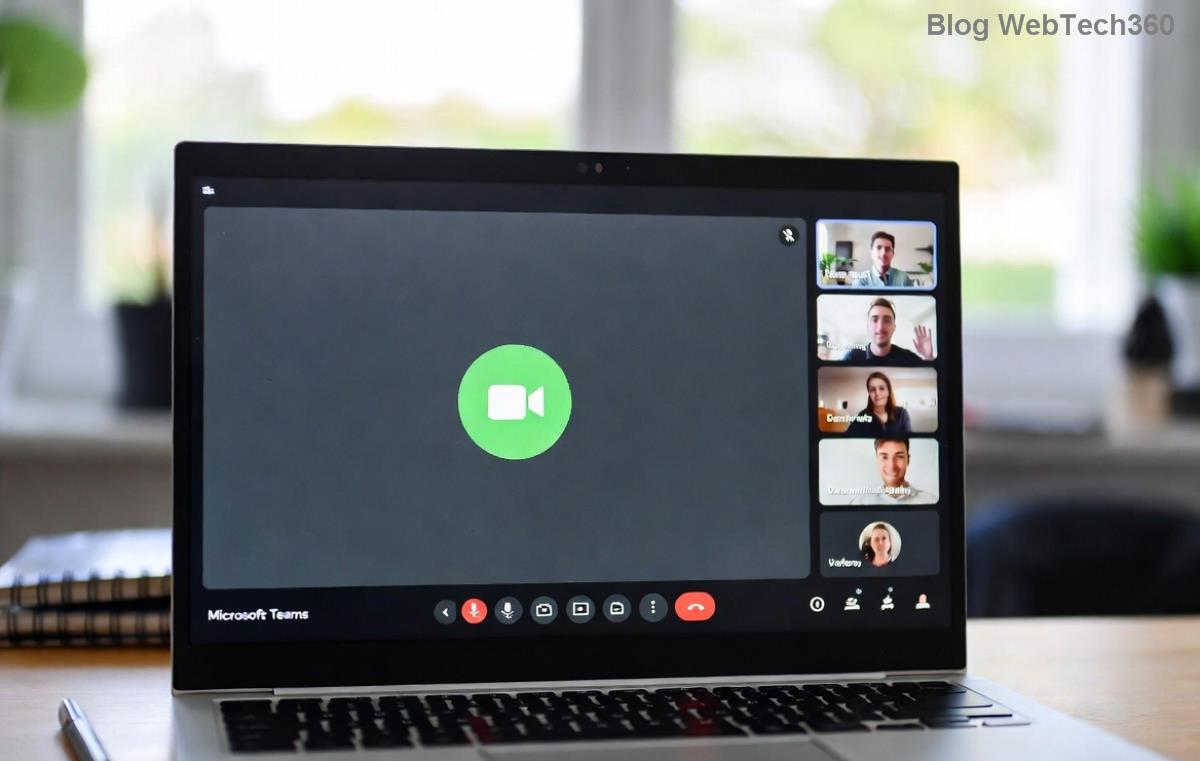
✅ Step 3: Find and Join Your Class
- In the Teams app, go to "Teams" tab (left sidebar).
- Your classes appear under "Class Teams" or search by name/code.
- Click the class → "Join" or use the meeting link from your teacher’s email/calendar.
- Enter the class code if prompted (found in syllabus or email).
- Hit "Join now"—camera/mic permissions pop up; allow them for full participation! 🎥
Voila! You're in. Chat, raise hand, or share screen like a pro. 😊
Quick Troubleshooting: Fix Common Join Issues Fast
Stuck? Don't panic—these fixes work 99% of the time:
- No Audio/Video? Check permissions in device settings and test in Teams settings ⚙️.
- Class Not Found? Verify code/link or ask your teacher—double-check spam folder! 📧
- Laggy Connection? Switch to web version or close background apps.
- Login Errors? Reset password via account.microsoft.com or contact IT support.
- Mobile Glitches? Force quit and relaunch the app.
For deeper dives, check Microsoft's official help: Teams Support.
⭐ Pro Tips to Excel in Microsoft Teams Classes in 2026
Elevate your game:
- Customize Notifications: Settings → Notifications → Mute non-essentials to stay focused.
- Use Channels: Organized per subject—post questions anytime!
- Record Sessions: Teachers can enable; review later for better retention.
- Integrate OneNote/Assignments: Auto-syncs homework—seamless workflow.
- AI Features: Try Copilot for summaries (if enabled by your school). Futuristic learning! 🤖
- Practice Offline: Download class materials for anytime access.
Bonus: Join the Microsoft Teams student community for templates and hacks. Your virtual classroom awaits!
Ready to Join and Thrive?
With this guide, mastering Microsoft Teams for Students: How to Join Classes in 2026 is effortless. Start today, engage fully, and watch your grades soar. Got questions? Drop them in the comments—happy learning! 🎓✨