Ever clicked on a Microsoft Teams shared folder only to hit the frustrating "Access Denied" wall? 😩 You're not alone—this common hiccup disrupts workflows, but don't worry! Our focused troubleshooting Microsoft Teams shared folder access denied guide delivers quick, actionable fixes. By the end, you'll regain access and collaborate smoothly. Let's dive in!
Why Does Access Denied Happen in Microsoft Teams Shared Folders?
Teams integrates with SharePoint for file storage, so access denied errors often stem from permissions, sync issues, or glitches. Key culprits include:
- ❌ Insufficient permissions: Guest or external users missing SharePoint access.
- ❌ Outdated cache: Local Teams or OneDrive sync holding stale data.
- ❌ Channel/team changes: Folder moved or permissions revoked post-share.
- ❌ Account conflicts: Multiple logins or conditional access policies.
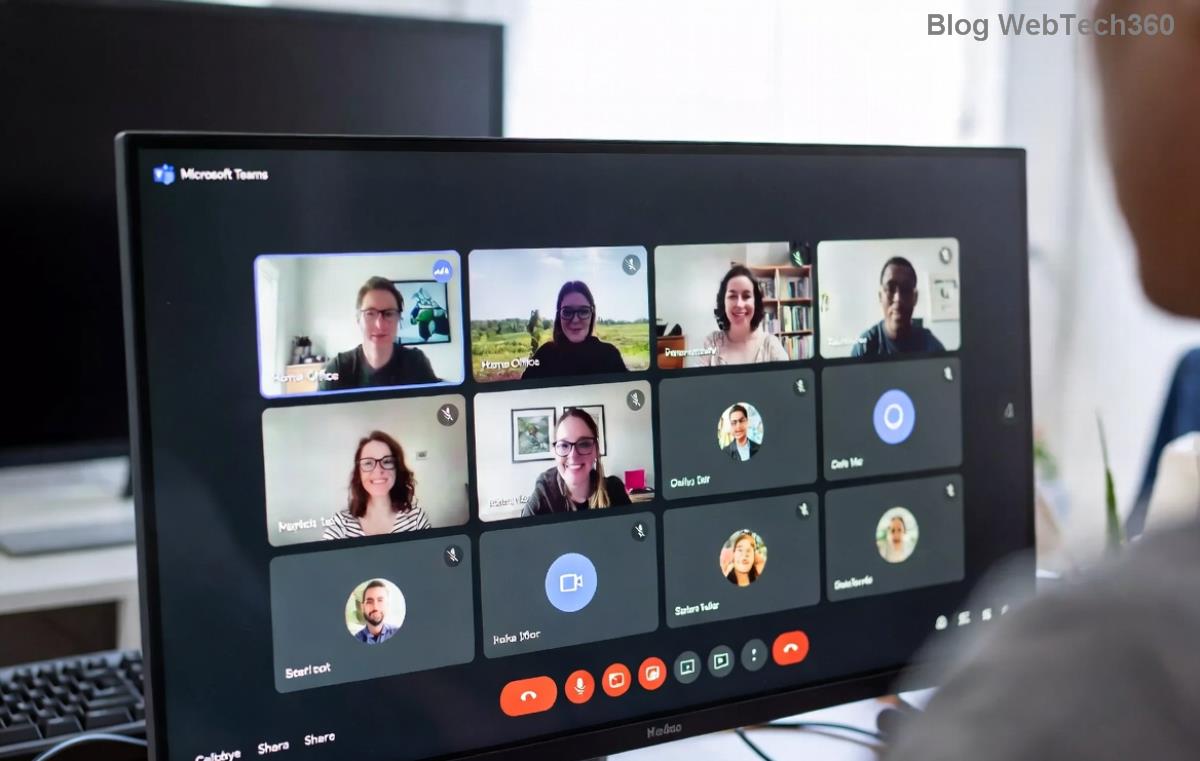
Understanding these roots makes fixing faster—stick with us for step-by-step wins! 👍
👉 Step-by-Step Troubleshooting Microsoft Teams Shared Folder Access Denied
Start simple and escalate. Test access after each step.
Step 1: Verify Permissions in Teams & SharePoint
- Open Teams > Navigate to the channel > Files tab.
- Click "Open in SharePoint" (top-right).
- In SharePoint, check Share > Manage Access. Ensure your account has Edit or View rights.
- If not, ask the channel owner to add you: Teams > Manage Team > Settings > Members.
Pro Tip: For private channels, confirm you're added explicitly. 🎯
Step 2: Clear Teams Cache & Restart
- Quit Teams completely (Task Manager > End task for all Teams processes).
- Delete cache:
%appdata%\Microsoft\Teams> Delete contents of folders likeCache,blob_storage,databases,Local Storage,tmp. - Restart Teams & sign in.

Step 3: Sync OneDrive & Check Files On-Demand
- Open OneDrive settings > Files On-Demand > Ensure enabled.
- Right-click Teams folder in OneDrive > Free up space or Always keep on this device.
- Resync: OneDrive icon > Sync > Restart sync.
Step 4: Browser-Based Access Test
Use teams.microsoft.com in an incognito window. If it works here but not in the app, it's a local issue—reinstall Teams via official download.

Quick Fix Checklist: Teams Shared Folder Access Denied
| 🔍 Symptom | ⚠️ Likely Cause | ✅ Solution |
|---|---|---|
| Can't open any files | Permission revoked | Re-request access from owner |
| Intermittent access | Cache/sync lag | Clear cache + resync OneDrive |
| External user blocked | Guest policy | Admin enables external sharing |
| App crashes on open | Corrupt install | Reinstall Teams |
Advanced Fixes for Stubborn Access Denied Errors
If basics fail:
- Check Conditional Access: Admins, review Azure AD policies blocking access. Reference: Microsoft Entra docs.
- Private Channel Woes: Folders in private channels need explicit member adds.
- VPN/Firewall: Temporarily disable to test network blocks.
- Update Teams: Ensure latest version—go to Profile > Check for updates.
Still stuck? Hit F1 in Teams > Give feedback or contact IT. Most resolve 90% of cases here! ⭐
🛡️ Prevent Future Microsoft Teams Shared Folder Access Denied Issues
- Always share via Teams channels, not direct links.
- Regularly audit permissions: Teams > Manage Team > Members.
- Enable Files On-Demand to avoid local storage bloat.
- Train teams on proper sharing etiquette. 👏
Bonus: For large orgs, use PowerShell for bulk permission checks—details in Microsoft docs.
Ready to Collaborate Without Hassles?
Congrats—you've mastered troubleshooting Microsoft Teams shared folder access denied! Apply these steps, and say goodbye to errors. Share your success in comments below—what fixed it for you? Keep your Teams humming smoothly. 🚀
Optimized for latest Teams features—bookmark for quick reference!