🚀 Ultimate Guide: How to Download Microsoft Teams Recordings on Laptop or PC in Minutes!

Ever missed a key moment in a Microsoft Teams meeting? 😩 Don't worry—downloading Microsoft Teams recordings on your laptop or PC is simpler than you think. Whether you're the host, a participant, or even a guest, this guide walks you through every step with crystal-clear instructions. You'll save videos hassle-free, keeping your productivity soaring. Ready to reclaim your meetings? Let's dive in! ✅

Why Download Microsoft Teams Recordings? Quick Benefits

  • 📥 Offline access for travel or spotty internet.
  • 🔄 Review action items anytime without replay limits.
  • ✨ Share clips easily with non-Teams users.

Teams stores recordings in OneDrive (for chats) or SharePoint (for channels)—perfect for seamless Microsoft Teams recording download on PC. Pro tip: Act fast, as retention policies might auto-delete them. Now, let's get to the steps! 👇
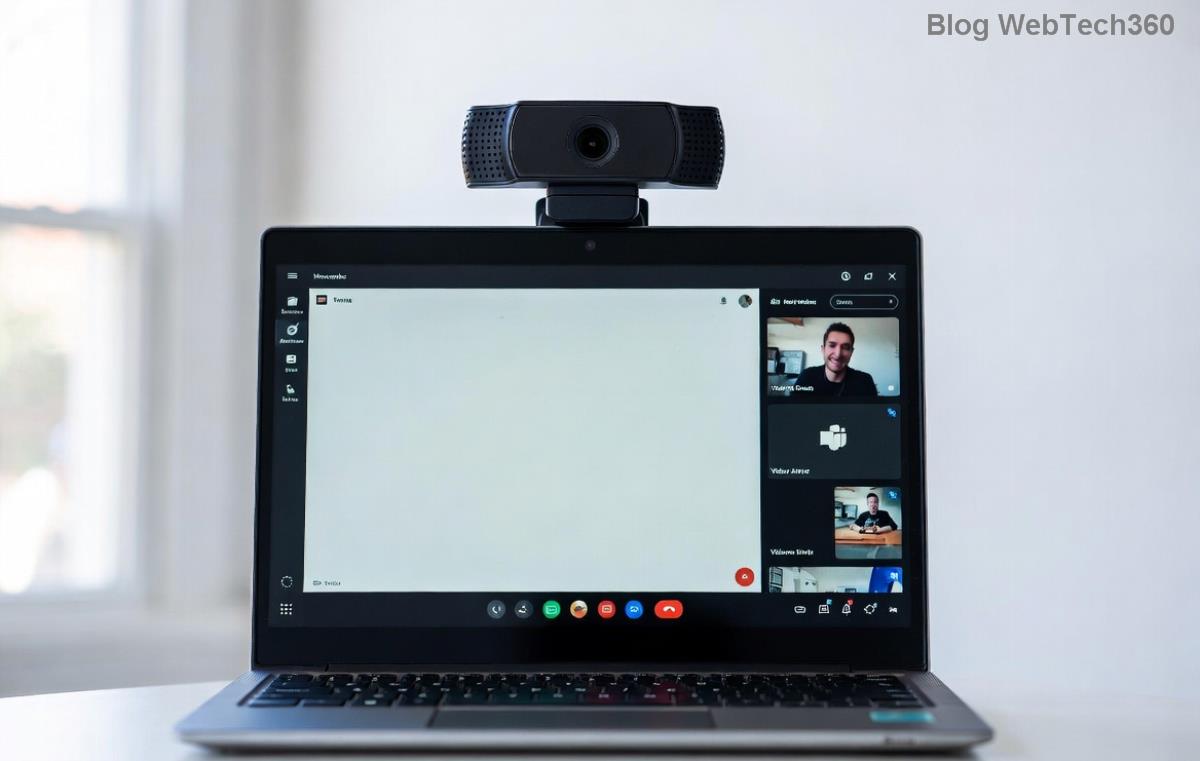
Microsoft Teams recordings tab on PC interface

1️⃣ Method 1: Download from Teams App (Easiest for Hosts & Participants)

This is the go-to way for most users. Works on Windows or Mac laptops/PCs with the latest Teams desktop app.

Step-by-Step for Meeting Organizers:

  1. Open the Microsoft Teams app on your laptop/PC.
  2. Navigate to Chat or Channel where the meeting happened.
  3. Click the Recordings & Transcripts tab at the top. (See the image above? That's your spot!)
  4. Hover over the recording thumbnail, click the More options (three dots) ⋮.
  5. Select Download. Your file saves as an MP4—boom, done! 🎉

For Participants & Guests:

✅ Same steps apply if you have access. No permission? Request from the organizer via chat. Guests: Ensure you're signed in with your meeting account.

"Pro Tip: Files download in standard quality. For HD, check your OneDrive later!"

2️⃣ Method 2: Via OneDrive or SharePoint (Unlimited Flexibility)

Recordings auto-sync here post-meeting. Ideal if the Teams tab feels clunky.

User Type Storage Location Download Steps
Organizer (1:1 or Chat) OneDrive > Recordings folder 1. Go to OneDrive. 2. Find folder. 3. Right-click > Download.
Channel Meeting Organizer SharePoint site > Recordings 1. Open Teams site in browser. 2. Files tab. 3. Select > Download.
Participants/Guests Shared link from organizer Click link > Open in OneDrive > Download ZIP if multiple files.
Downloading Microsoft Teams recording from OneDrive on PC

Stuck on SharePoint? Click the recording in Teams > Open in SharePoint. Downloads start instantly—large files might take a minute. ✨

3️⃣ Browser Method: No App Needed

  1. Head to teams.microsoft.com on your PC browser (Chrome/Edge best).
  2. Sign in, go to the meeting chat/channel.
  3. Recordings tab > Three dots > Download.

Perfect for quick grabs without installing anything! 📱💻

⚠️ Common Issues & Fixes (Troubleshooting Table)

Hit a snag? We've got you covered—no more frustration!

Problem Quick Fix
"No recordings tab?" Wait 5-30 mins post-meeting for processing. Check Microsoft Support.
Download blocked? Admin policy—ask IT or use OneDrive method.
File won't play? Update Teams app/browser. Use VLC player.
Guest access denied? Organizer must share link manually.

Bonus Tips for Smarter Teams Recording Downloads

  • Batch Download: Select multiple via Ctrl+click in OneDrive.
  • Edit on PC: Use free tools like Clipchamp (built into Windows) post-download.
  • Mobile Sync: Downloads appear in your phone's OneDrive app too.
  • Enable transcripts during meetings for searchable text downloads.

Mastered it? You're now a Microsoft Teams pro! 👏 Share this guide if it saved your day. Got questions? Drop them below—we're here to help. For the latest updates, check Teams Support. Happy downloading! 🚀



Leave a Comment

🚀 How to Fix Microsoft Teams Workflows Error Power Automate: Instant Troubleshooting Guide

🚀 How to Fix Microsoft Teams Workflows Error Power Automate: Instant Troubleshooting Guide

Stuck with Microsoft Teams "Workflows Error" in Power Automate? Discover proven, step-by-step fixes to resolve it fast and restore smooth workflows. No tech expertise needed!

🚀 Ultimate Guide: How to Set Up Microsoft Teams for School and Education Effortlessly

🚀 Ultimate Guide: How to Set Up Microsoft Teams for School and Education Effortlessly

Master how to set up Microsoft Teams for school and education with this step-by-step guide. Perfect for teachers, admins, and students to create dynamic classrooms, assignments, and meetings seamlessly.

🚀 Fix Microsoft Teams Green Screen Video Error Instantly: Ultimate Troubleshooting Guide

🚀 Fix Microsoft Teams Green Screen Video Error Instantly: Ultimate Troubleshooting Guide

Tired of the frustrating Microsoft Teams green screen "Video Error"? Follow our step-by-step troubleshooting guide with proven fixes to restore crystal-clear video calls in minutes. No tech expertise needed!

🚀 Fix Microsoft Teams VDI Error Lag Forever: Ultimate 2026 Guide to Crystal-Clear Calls!

🚀 Fix Microsoft Teams VDI Error Lag Forever: Ultimate 2026 Guide to Crystal-Clear Calls!

Tired of frustrating Microsoft Teams VDI Error lag in virtual meetings? Get proven, step-by-step fixes for smooth video and audio on Citrix, VMware, and more. Boost productivity now!

🚀 Ultimate 2026 Guide: How to Download Microsoft Teams for Windows 11 – Free, Fast & Secure!

🚀 Ultimate 2026 Guide: How to Download Microsoft Teams for Windows 11 – Free, Fast & Secure!

Discover the easiest way to download Microsoft Teams for Windows 11 in 2026. Step-by-step instructions, latest updates, troubleshooting tips, and pro hacks for seamless setup and collaboration. Get started now!

Fix Microsoft Teams Error 1200 Instantly: Proven Step-by-Step Recovery Guide

Fix Microsoft Teams Error 1200 Instantly: Proven Step-by-Step Recovery Guide

Struggling with Microsoft Teams Error 1200? Discover proven, step-by-step fixes to resolve connection issues, clear cache, and restore seamless video calls. Get back to collaborating without frustration!

🚀 Fix Microsoft Teams Error Code 0x80070005 FAST: Proven 2026 Guide (No More Access Denied!)

🚀 Fix Microsoft Teams Error Code 0x80070005 FAST: Proven 2026 Guide (No More Access Denied!)

Struggling with Microsoft Teams Error Code 0x80070005? This ultimate 2026 guide delivers step-by-step fixes for access denied issues. Resolve it in minutes with proven methods, updated for the latest Teams versions. Say goodbye to crashes!

🚀 Fix Microsoft Teams Screen Sharing Lag in 2026: 12 Proven Hacks for Smooth Sharing!

🚀 Fix Microsoft Teams Screen Sharing Lag in 2026: 12 Proven Hacks for Smooth Sharing!

Tired of Microsoft Teams screen sharing lag ruining your 2026 meetings? Get instant fixes for lag, freezes, and delays. Boost performance with these expert tips – no tech skills needed!

🚀 Ultimate Guide: How to Download Microsoft Teams Chat History & Transcripts in Minutes

🚀 Ultimate Guide: How to Download Microsoft Teams Chat History & Transcripts in Minutes

Discover simple, step-by-step methods to download Microsoft Teams chat history and transcripts effortlessly. Perfect for meetings, channels, and private chats. Save your data securely today!

🔧 Instant Fix: How to Fix Microsoft Teams Browser Error Cookies in 5 Minutes!

🔧 Instant Fix: How to Fix Microsoft Teams Browser Error Cookies in 5 Minutes!

Frustrated by Microsoft Teams "Browser Error" Cookies? Discover proven, step-by-step solutions to clear cookies, reset cache, and restore seamless Teams access. Works on Chrome, Edge, Firefox – updated for latest browsers. Get back to collaborating!