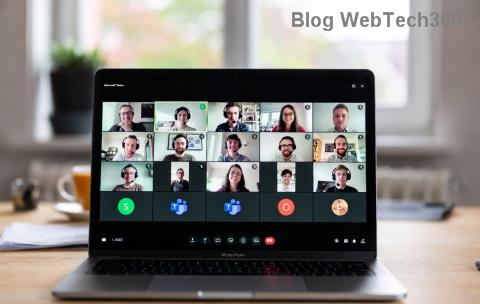
Ever felt your Microsoft Teams meetings drag on with too many voices competing for airtime? Enter breakout rooms – the game-changer for interactive sessions, workshops, and training. But the real magic happens when you know exactly how to assign participants to breakout rooms in Microsoft Teams. This guide delivers precise, up-to-date steps to make it effortless, whether pre-planning or improvising live. Stick around for pro tips that keep everyone engaged! 👏
Why Use Breakout Rooms in Microsoft Teams?
Breakout rooms split large meetings into smaller groups for focused discussions, brainstorming, or role-playing. Benefits include:
- 🔥 Boosted participation – shy attendees shine in small groups.
- 📈 Better collaboration – targeted topics yield deeper insights.
- ⏰ Time efficiency – parallel discussions wrap up faster.
Ready to dive in? Let's cover prerequisites first.
Prerequisites for Assigning Participants to Breakout Rooms
Only meeting organizers or presenters with permissions can create and assign participants to breakout rooms. Ensure:
- Your Teams account is updated to the latest version.
- Meeting is scheduled or ad-hoc with 10+ participants for best impact.
- Desktop app or web version (mobile limited for management).
Pro tip: Test in a practice meeting to avoid live hiccups! 🌟
Method 1: Pre-Assign Participants to Breakout Rooms (Recommended for Control)
For structured events like conferences, pre-assign breakout rooms in Microsoft Teams via Excel. This ensures perfect group balance by roles, skills, or randomness.
| Step |
Action |
Details |
| 1️⃣ Schedule Meeting |
Open Teams Calendar → New Meeting |
Add attendees; enable Breakout rooms in meeting options. |
| 2️⃣ Access Pre-Assign |
Meeting options → Breakout rooms → Create rooms |
Choose number of rooms (up to 50) or auto-generate. |
| 3️⃣ Download Template |
Download Excel (.csv) template |
Columns: Email, Room (e.g., Room1, Room2). |
| 4️⃣ Edit & Upload |
Fill emails, assign rooms → Upload CSV |
Teams auto-maps; edit manually if needed. |
| 5️⃣ Save |
Confirm assignments → Save |
Attendees see their room pre-meeting. |
Excel magic: Randomize with formulas like =RANDBETWEEN(1,5) for 5 rooms. Attendees get notifications – no surprises! Microsoft Docs
Method 2: Assign Participants During the Meeting (Flexible for Live Adjustments)
Need spontaneity? Assign participants to breakout rooms in Microsoft Teams on-the-fly.
- Start/join meeting as organizer.
- Click Breakout rooms (top toolbar) → Create rooms.
- Select count → Assign participants:
- Automatically: Teams randomizes evenly. 🎲
- Manually: Drag/drop or search names to rooms.
- Preview assignments → Open rooms. Participants auto-move (5-sec countdown).
Visual cue: Rooms appear as tabs; hover for participant lists. 💡
Managing Breakout Rooms Like a Boss
Don't stop at assignment – control the flow:
- Recreate/Close Rooms: Return everyone to main; restart fresh.
- Move Participants: Drag between rooms live.
- Visit Rooms: Pop in/out; broadcast announcements to all.
- Set Timers: Auto-close after X minutes – keeps momentum! ⏱️
- Allow Rejoin: Toggle for flexible returns to main.
Post-room: Ask "What insights emerged?" to debrief seamlessly.
Best Practices for Microsoft Teams Breakout Rooms
| Do ✅ |
Don't ❌ |
| Balance groups (4-6 people ideal). |
Overload one room. |
| Provide clear tasks/instructions. |
Forget timers. |
| Mix diverse participants. |
Assign randomly every time. |
| Test audio/video in rooms. |
Ignore permissions. |
Engage further: Rotate rooms mid-session for cross-pollination. Your meetings will feel electric! ⚡
Troubleshooting Common Issues
Hit a snag? Quick fixes:
- No breakout option? Check role (organizer only); update Teams.
- Assignment fails? Verify emails exact; no duplicates.
- Participants stuck? Force close/reopen; check internet.
- Mobile woes? Use desktop for management; join via app.
For edge cases, consult official Microsoft guidance.
Level Up Your Teams Game Today
Mastering how to assign participants to breakout rooms in Microsoft Teams transforms passive calls into dynamic hubs. Pre-assign for precision, live-assign for fun – you've got the tools. Experiment in your next session and watch engagement soar! What's your first breakout topic? Share in comments below. 😊
Stay tuned for more Teams hacks – bookmark now!