Imagine this: You're building a killer app for Microsoft Teams, calling the Graph API to fetch channels or messages, and BAM! A pesky permission error crashes everything. 😩 Frustrating, right? Don't worry—this comprehensive guide will walk you through solving Microsoft Teams "Graph API" permission errors step-by-step. By the end, you'll have your app humming smoothly. Let's dive in and reclaim your dev flow! 💪

What Exactly is the Graph API Permission Error in Microsoft Teams?
The Graph API permission error typically shows up as HTTP 403 Forbidden or "Insufficient privileges to complete the operation." It hits when your app lacks the right consents for endpoints like /teams/{id}/channels or /me/joinedTeams. This isn't just a Teams issue—it's tied to Microsoft Graph security in Microsoft Entra ID (formerly Azure AD).
Common error messages include:
- AADSTS65001: The user or administrator has not consented to use the application.
- 403 Forbidden: Access denied due to missing Graph API scopes.
Understanding this sets the stage. Ready for the fixes? Keep reading! 🔍
✅ Top Causes of Graph API Permission Errors in Teams
Pinpointing the root cause speeds up resolution. Here's a quick breakdown:
| Cause |
Symptoms |
Quick Check |
| App Registration Missing Permissions |
403 on API calls |
Entra ID > App > API Permissions |
| Admin Consent Not Granted |
AADSTS65001 |
Check consent status |
| Delegated vs. Application Permissions Mismatch |
Works for user but not daemon |
Verify auth flow |
| Token Scope Issues |
Intermittent failures |
Decode JWT at jwt.ms |
Spot yours? Great—now let's fix it! 🚀
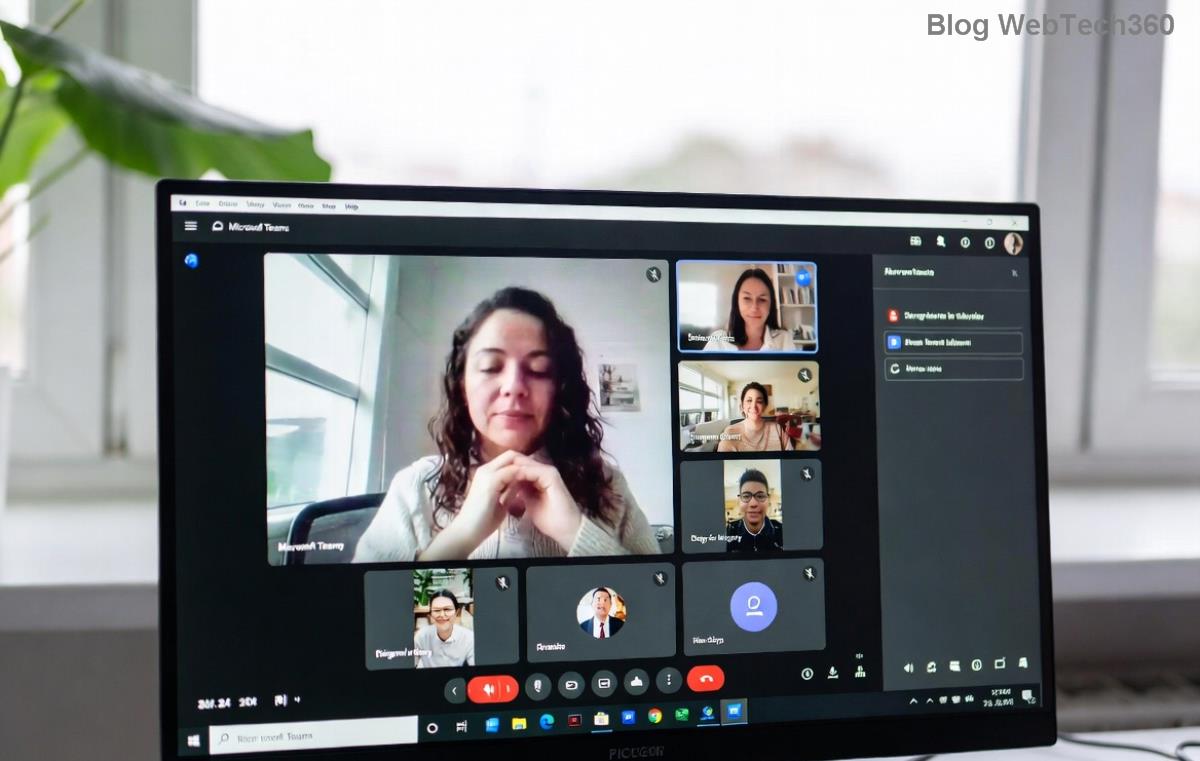
🔧 Step-by-Step Guide: Solving Microsoft Teams Graph API Permission Errors
Follow these proven steps. No fluff—just action. We'll use the official Microsoft Graph docs as our foundation for accuracy.
- ✅ Register or Update Your App in Microsoft Entra ID
Navigate to portal.azure.com > Microsoft Entra ID > App registrations. Create new or select existing.
Pro tip: Enable "Accounts in this organizational directory only" for Teams bots.
- 🔑 Add Required Graph API Permissions
Go to API permissions > Add a permission > Microsoft Graph.
For Teams, grab these essentials:
| Permission Type |
Scope |
Use Case |
| Delegated |
Team.ReadBasic.All, Channel.ReadBasic.All |
User-context reads |
| Application |
Team.ReadAll, Group.Read.All |
Daemon apps |
- ✨ Grant Admin Consent
Click "Grant admin consent for [tenant]." Refresh and verify green checkmarks. 👏
- 🔄 Acquire Fresh Token with Scopes
In code, request scopes explicitly:
scopes: ['https://graph.microsoft.com/Team.ReadBasic.All']
Use MSAL.js or similar for auth.
- 🧪 Test with Graph Explorer
Head to Graph Explorer. Sign in, consent, and test GET /me/joinedTeams. Success? Your app will too!

Nailed the basics? If errors persist, advanced troubleshooting awaits below. 📈
⚡ Advanced Troubleshooting for Stubborn Graph API Errors
Still hitting walls? Try these:
- Token Validation: Paste access token at jwt.ms. Check
scp or roles match permissions.
- Role Assignments: For app permissions, assign roles via Entra ID > Enterprise apps > Your app > Security > Permissions.
- Conditional Access Policies: Review Entra ID policies blocking your IP or device.
- API Versioning: Stick to v1.0 or beta as needed—mismatches cause silent fails.
Pro tip: Enable app logging with Application Insights for real-time insights. 🎯
⭐ Best Practices to Prevent Future Permission Errors
Stay ahead:
- Principle of least privilege: Request only needed scopes.
- Automate consent with PowerShell: Use
Grant-MgServicePrincipalAppRoleAssignment.
- Monitor with Microsoft Defender for Cloud Apps.
- Keep SDKs updated—MSAL handles edge cases effortlessly.
Implement these, and Graph API permission errors become history. High-five! 🙌
Ready to Crush Those Errors?
You've got the full playbook for solving Microsoft Teams "Graph API" permission errors. Start with app registration, grant consents, and test rigorously. Your Teams integrations will thank you. Got a unique twist? Drop a comment below—we're all in this dev journey together! 🚀
Bookmark this, share with your team, and build boldly. Success awaits! ✨









