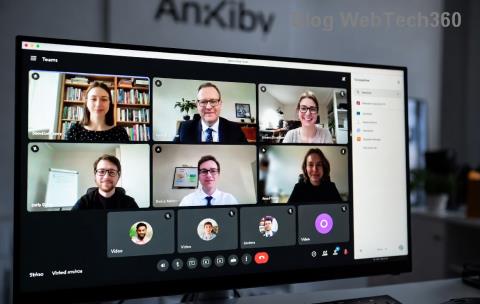
Imagine kicking off your Zoom meeting with perfectly organized breakout rooms already set up—no chaos, just focused discussions. Whether you're a teacher dividing classes, a manager running workshops, or a team leader fostering ideas, pre-creating breakout rooms before a meeting starts saves time and amps up productivity. 😊
This guide delivers the exact steps for Zoom (the gold standard for this feature), using the latest interface. Follow along, and you'll be a pro in minutes. Ready to transform your meetings? Let's dive in! 👇

Why Pre-Set Breakout Rooms Before a Meeting Starts? ⭐
- Seamless Flow: Participants join rooms instantly—no manual sorting mid-meeting.
- Higher Engagement: Custom groups encourage deeper talks on topics like brainstorming or role-playing.
- Time-Saver: Prep in advance for large events (up to 200 rooms in Zoom Pro).
- Inclusivity Boost: Pre-assign by email, name, or reports for fair distribution. ✅
Pro Tip: Ideal for hybrid teams. Studies show breakout sessions increase retention by 30%—don't miss out!
Prerequisites: Get Your Zoom Ready
Ensure you're the host with a Pro, Business, or Education account (free accounts limit to 3 rooms during meetings only). Update to the newest Zoom desktop app for full pre-assignment power.
| Account Type |
Max Rooms |
Pre-Assign? |
| Free |
3 (live only) |
No ❌ |
| Pro/Business |
50+ |
Yes ✅ |
| Education Large |
200 |
Yes ✅ |
Step-by-Step Guide: Create Breakout Rooms Before a Meeting Starts in Zoom
We'll schedule a new meeting or edit an existing one via the web portal—fastest method for pre-assignment. Follow these numbered steps precisely. 📋
- Sign In to Zoom Web Portal
👉 Go to zoom.us and log in. Click "Meetings" > "Schedule a New Meeting" or select an existing one to edit.
- Enable Breakout Rooms
Scroll to "Breakout Room" in advanced options. Toggle it ON. Choose Allow host to assign participants or Automatically (pre-set later).
- Pre-Assign Participants
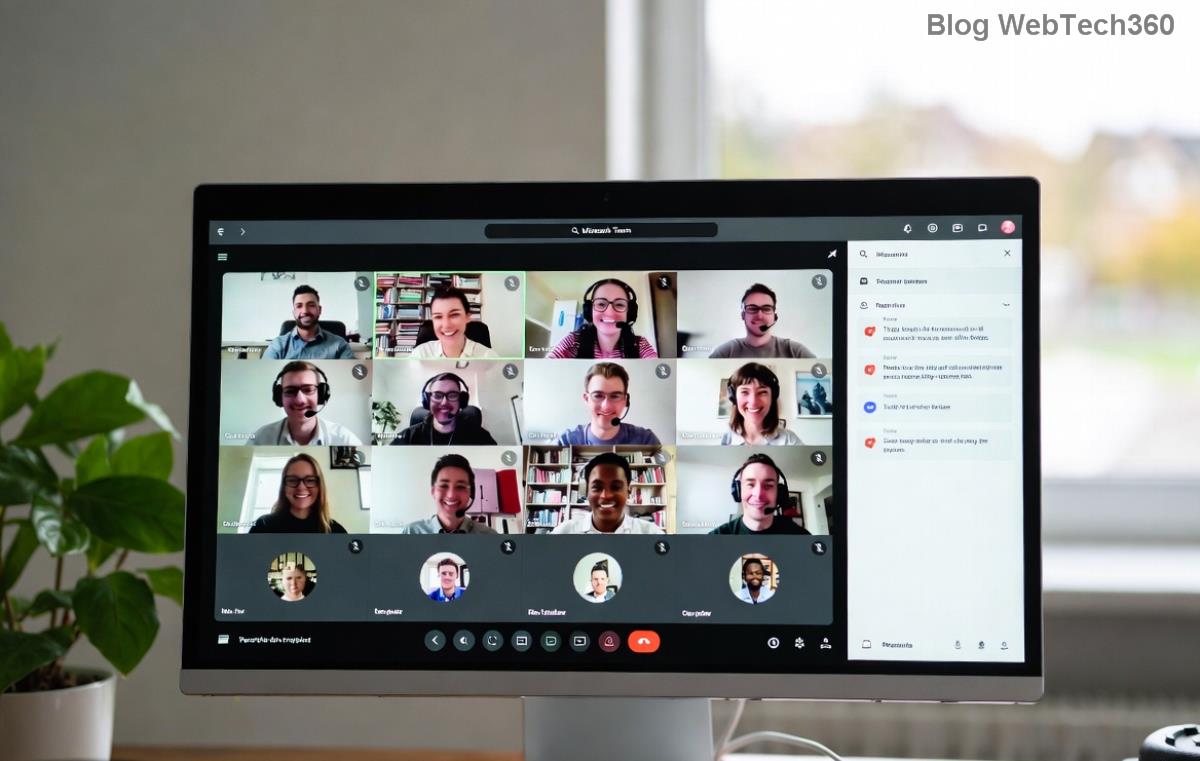
Click "Breakout Rooms" below. Set number of rooms (e.g., 4) and participants per room. Add attendees via email or name—Zoom auto-suggests from past meetings. Drag to reassign! ✨
- Customize Rooms
Rename rooms (e.g., "Team Alpha", "Brainstorm Beta"). Set room duration or enable countdown timers. Save changes.
- Save & Share
Hit Save. Copy the meeting link/invite. Participants see their assigned room upon joining—magic! 🎉
- Test Before Launch
Start a practice meeting as host. Click Breakout Rooms > Open All Rooms. Verify assignments.
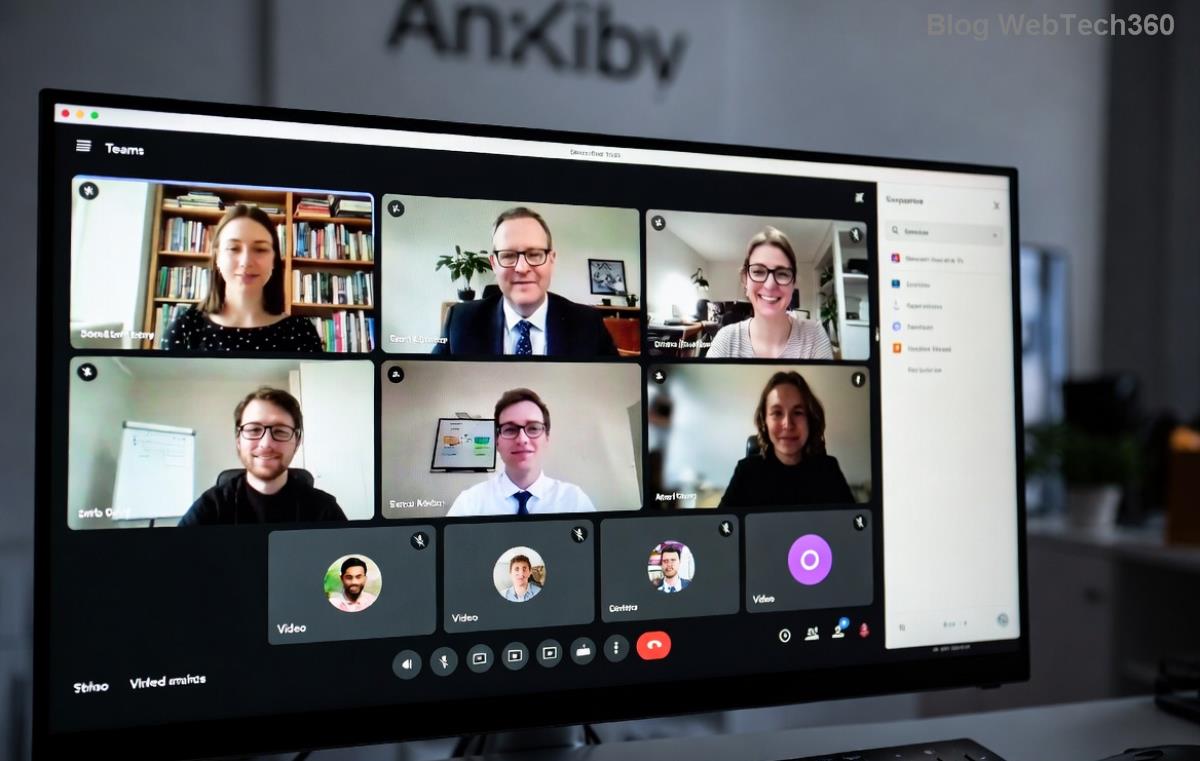
Done! Your breakout rooms are prepped. During the live meeting, manage via the Zoom toolbar: Add/remove participants, switch rooms, or end early. 👏
Advanced Tips for Epic Breakout Rooms Sessions
- Import from CSV: For 100+ users, upload a report (Zoom Help).
- Auto-Assign by Criteria: Use reports for random or topic-based grouping.
- Mobile Management: Edit on-the-go via Zoom app.
- Permissions: Co-hosts can manage too—delegate!
Common Issues & Quick Fixes ❌➡️✅
| Problem |
Fix |
| Can't pre-assign |
Upgrade account or use web portal (not desktop scheduler). |
| Participant not assigned |
Re-add exact email; they must join with registered Zoom. |
| Rooms not opening |
Host must click "Open All Rooms" first. |
Stuck? Check Zoom's status or restart app.
Level Up Your Meetings Today
Mastering how to make breakout rooms before a meeting starts turns ordinary Zooms into powerhouse sessions. Try it next time—your team will thank you! Got questions? Drop a comment below. What's your favorite breakout hack? Share and subscribe for more Zoom tips. 🚀
Stay collaborative!