Want to refresh your professional image in Microsoft Teams? Updating your Microsoft Teams profile picture on mobile is a breeze and instantly boosts your virtual presence. Whether you're on iPhone or Android, these steps ensure your avatar reflects your best self—think sharper focus for meetings and chats. Let's dive in! 📱
Why Update Your Teams Profile Picture?
A great profile photo makes you memorable and approachable. It's the first thing colleagues see in channels, calls, and DMs. Pro tip: Use a clear, well-lit headshot for that polished vibe. Ready? Follow these device-specific guides—no desktop needed!
Change Microsoft Teams Profile Picture on iPhone 📱
iOS users, rejoice! The Teams app makes it super simple. Ensure you have the latest Microsoft Teams version from the App Store for seamless updates.
- 👆 Open the Microsoft Teams app and tap your profile picture or initials in the top-left corner.
- Scroll down and select Settings (gear icon).
- Tap your current profile picture or Edit profile photo.
- Choose Take Photo for a fresh snap or Choose from Album to upload. Crop and adjust as needed.
- Hit Save. Your new Teams profile picture syncs across devices in seconds! ✨
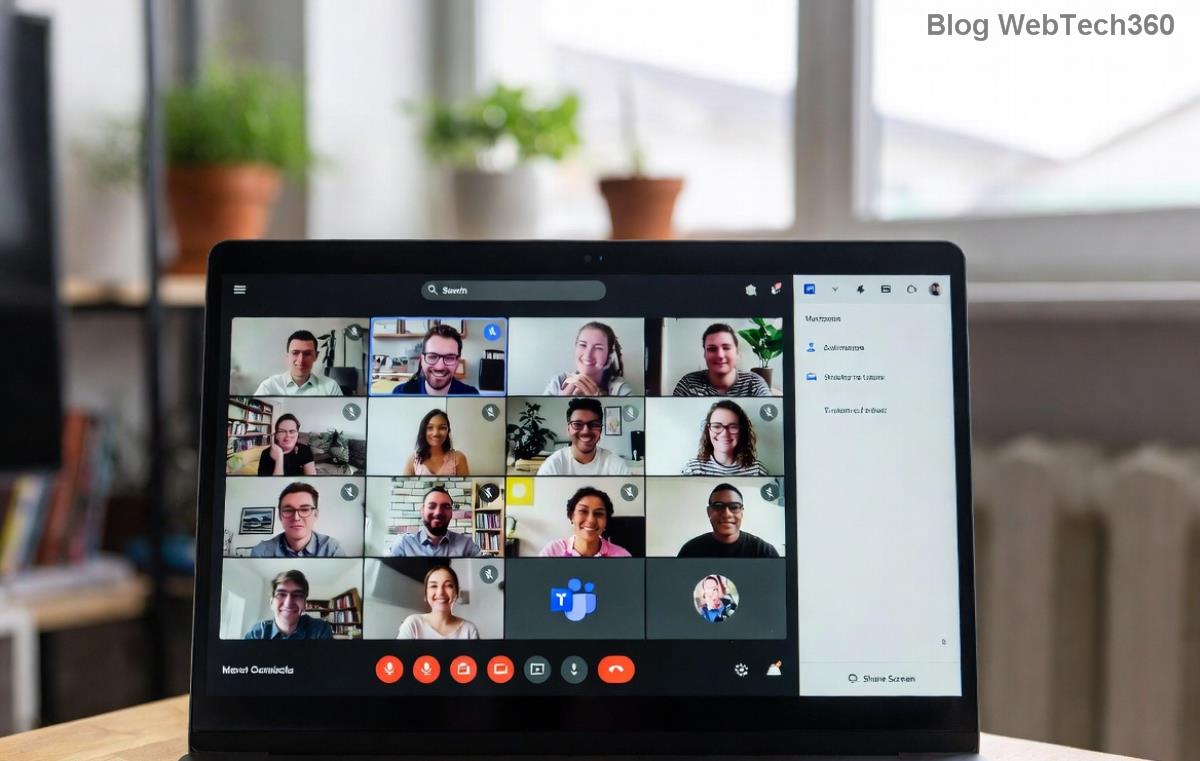
Troubleshooting Tip: If changes don't appear, force-quit the app and restart. Sync issues? Check your internet connection.
Change Microsoft Teams Profile Picture on Android 🤖
Android folks, your turn! The process is nearly identical but tailored for Google Play's latest Teams build. Quick and intuitive—let's go!
- 👆 Launch Microsoft Teams and tap your profile icon (top-left).
- Go to your profile > Edit profile.
- Select the camera icon next to your current photo.
- Pick Take a photo or Choose from gallery. Edit with pinch-to-zoom or filters.
- Tap Done or Save. Boom—updated Teams profile picture live! 👍
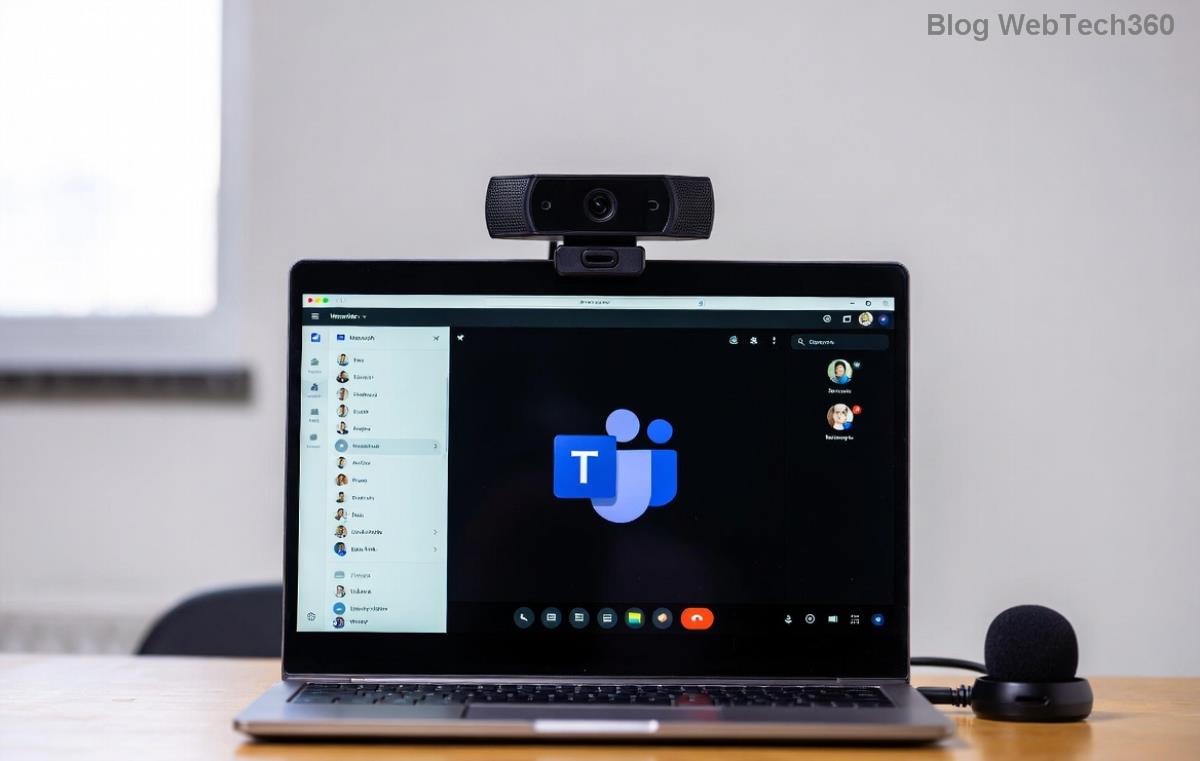
Bonus: Android supports GIFs for profile pics in some regions—add personality without overdoing it!
Compare iPhone vs. Android: Teams Profile Picture Update at a Glance
| Step |
iPhone |
Android |
| Open Profile |
Top-left icon → Settings |
Top-left icon → Edit profile |
| Select Photo |
Edit profile photo |
Camera icon |
| Source |
Camera/Album |
Camera/Gallery |
| Save Time |
Instant sync |
Under 10 seconds |
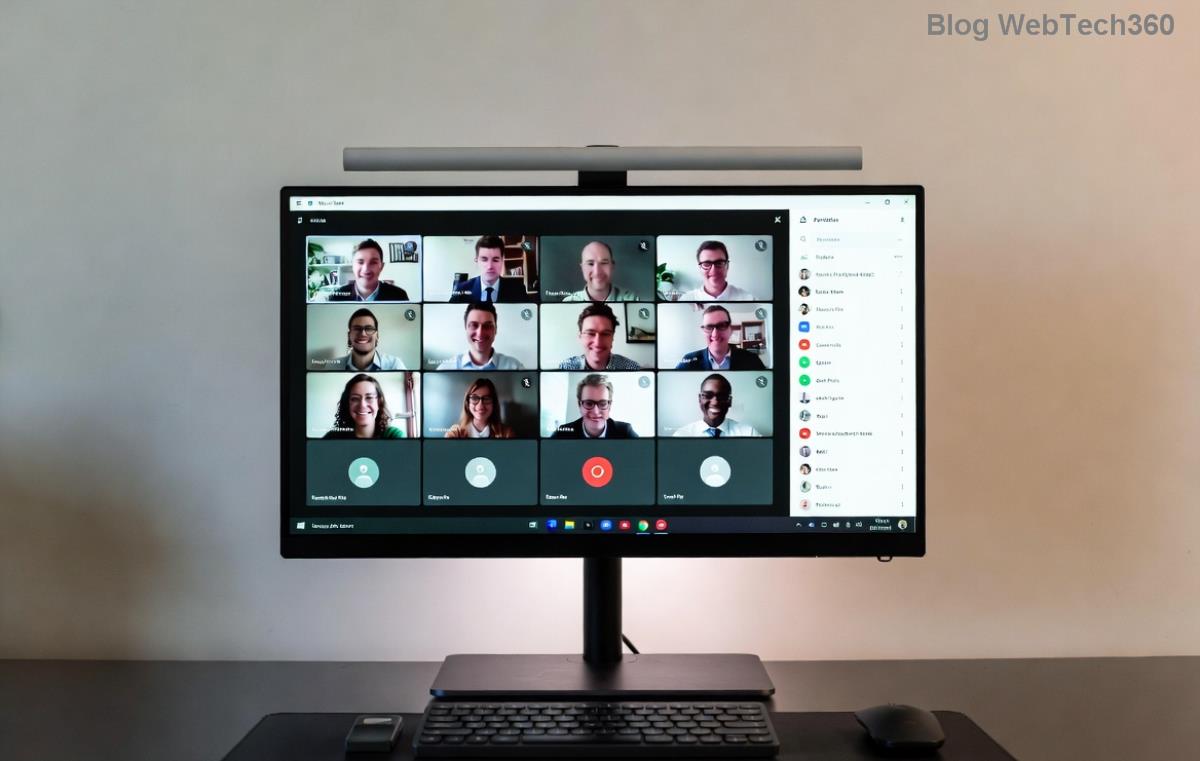
Pro Tips for the Perfect Teams Profile Picture ⭐
- Size & Format: Use 400x400 pixels minimum, JPG/PNG. Avoid blurry images!
- Privacy: Changes are visible organization-wide unless set private.
- Common Errors: ❌ "Photo not uploading"? Clear app cache (Settings > Apps > Teams > Storage > Clear Cache).
- Advanced: For bulk edits or admin controls, check Microsoft's official guide.
Stuck? Update the app or restart your device—99% of issues vanish. 👏
Final Thoughts: Elevate Your Microsoft Teams Game
Congrats! Your shiny new Microsoft Teams profile picture is set on iPhone or Android. Notice more engagement in meetings? That's the power of a fresh look. Share this guide with your team and keep your profile on point. Got questions? Drop them below—we're here to help! 😊
Stay tuned for more Teams tips to supercharge your workflow.









