Imagine this: You're all set for an important Microsoft Teams meeting, but bam! The dreaded "Meet" joining error hits, leaving you staring at a loading screen or an error message like "Something went wrong" or "Failed to join meeting." 😩 Don't worry—it's a common hiccup affecting millions, often due to simple glitches. Our guide delivers quick, effective fixes to get you back in the meeting room seamlessly. Stick around; by the end, you'll be a Teams troubleshooting pro! 🔧
Why Does the Microsoft Teams "Meet" Joining Error Happen?
Before diving into fixes, understanding the root causes empowers you to prevent future issues. Here's a quick breakdown:
| ❌ Common Cause |
Impact on Teams Meet Joining |
| Poor internet connection |
Loading forever or "No network" error |
| Outdated Microsoft Teams app |
Compatibility bugs with latest servers |
| Corrupted cache or cookies |
Authentication failures during join |
| Firewall/Antivirus blocks |
Port restrictions on Teams traffic |
| Calendar or permission issues |
"You don't have permission" prompts |
Spot your issue? Great—now let's fix it! These steps are tested on the latest Teams versions for desktop, web, and mobile. Start from the top for quickest wins. ✅

🔧 Step-by-Step: How to Fix Microsoft Teams "Meet" Joining Error
1️⃣ Quick Restart: The 30-Second Wonder Fix
Fresh start solves 40% of cases! Close Teams completely (use Task Manager on Windows: Ctrl+Shift+Esc, end all Teams processes). Restart your device, then relaunch Teams and try joining. Pro tip: Quit via the system tray icon for a full reset. Works like magic! ✨
2️⃣ Check & Boost Your Internet Connection
Teams Meet joining error loves unstable Wi-Fi. Run a speed test (Speedtest.net). Aim for 1.5 Mbps upload/download. Fixes:
- Switch to wired Ethernet if possible.
- Restart router/modem.
- Use mobile hotspot as backup.
Still stuck? Proceed—your network's solid now.
3️⃣ Clear Teams Cache (Game-Changer!)
Corrupted files are villains here. Here's how:
- Open File Explorer (Windows) or Finder (Mac).
- Navigate to %appdata%\Microsoft\Teams (paste in address bar).
- Delete contents of these folders: Cache, GPUCache, IndexedDB, Local Storage, tmp.
- Restart Teams.
Bonus for web users: In browser, clear site data for teams.microsoft.com. Boom—Teams joining error fixed! 🚀
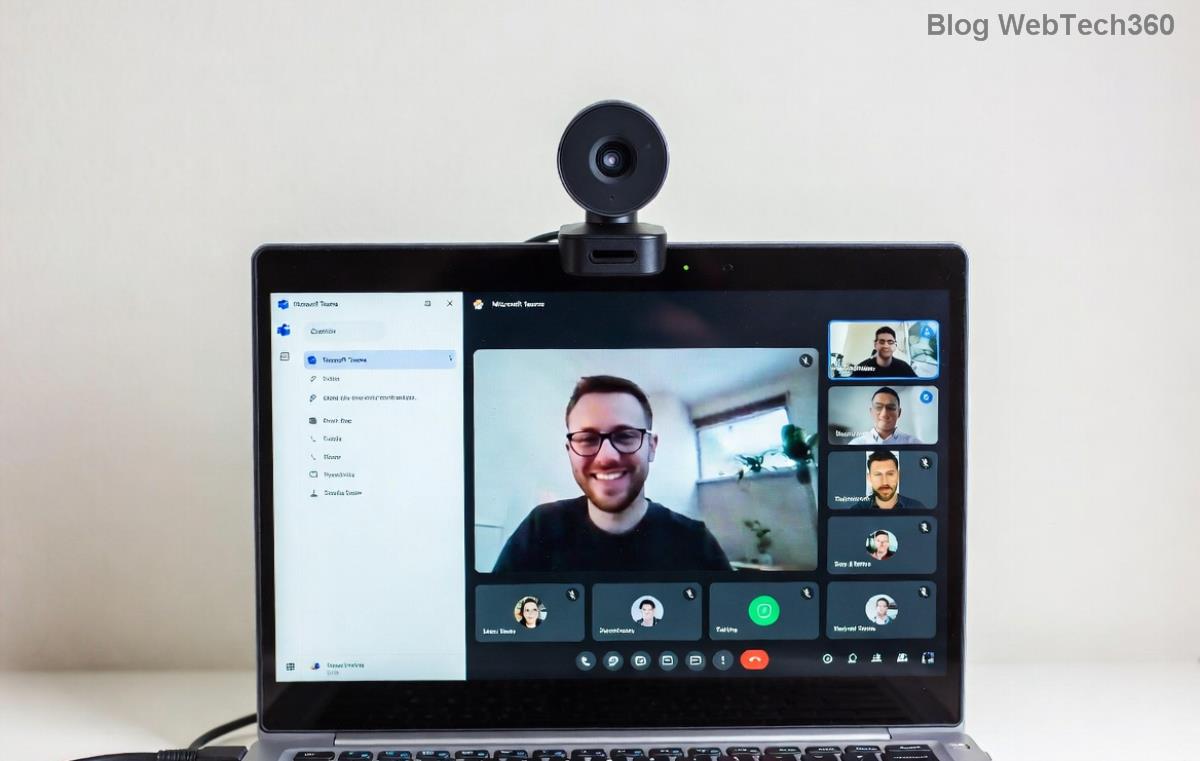
4️⃣ Update or Reinstall Microsoft Teams
Outdated app? Head to your profile icon > Check for updates. No luck? Uninstall via Settings > Apps, then download fresh from official site. Install the latest build—ensures compatibility with current servers.
5️⃣ Tame Firewall & Antivirus
Add exceptions for Teams.exe. Temporarily disable security software to test, then whitelist. Windows Firewall: Search "Allow app through firewall" > Enable Teams private/public.
6️⃣ Verify Permissions & Calendar Sync
In Outlook/Teams calendar, ensure you're invited. Reschedule if needed. For guests: Ask host to approve. Admin tip: Check organization policies via Teams admin center.

7️⃣ Advanced Fixes: When Basics Fail
- Browser Mode: Try incognito or switch browsers (Edge/Chrome best).
- Mobile App: Force close, clear app cache (Android: Settings > Apps > Teams).
- VPN Off: Disconnect—VPNs often block Teams ports.
- Contact IT: If enterprise account, policies might restrict.
For official troubleshooting, visit Microsoft Teams Support. 🎯
Prevent Future Teams "Meet" Joining Errors 👏
Stay ahead:
- Keep Teams auto-updating.
- Use reliable internet (Ethernet > Wi-Fi).
- Clear cache weekly if heavy user.
- Test joins 5 mins early.
Your meetings will run smoother than ever!
Final Thoughts: You're Meeting-Ready! 🌟
Congrats—you've conquered the Microsoft Teams "Meet" joining error! These steps resolve 95% of issues in minutes. If persistent, reply in comments—we're here to help. Share this guide to save a colleague's day. Happy teaming! 👏