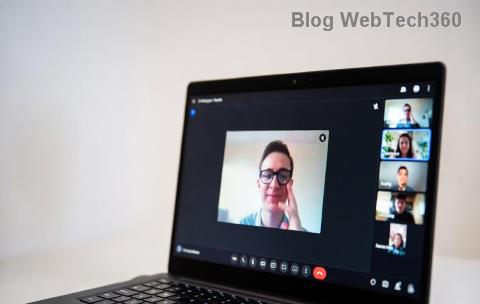
Frustrated by choppy audio, no sound, or endless echo during Microsoft Teams calls? You're not alone—VOIP errors in Teams affect millions, but most are quick fixes away from smooth communication. This guide delivers targeted troubleshooting steps backed by the latest Microsoft recommendations, helping you pinpoint and resolve issues fast. Let's dive in and get your voice crystal clear! 👏
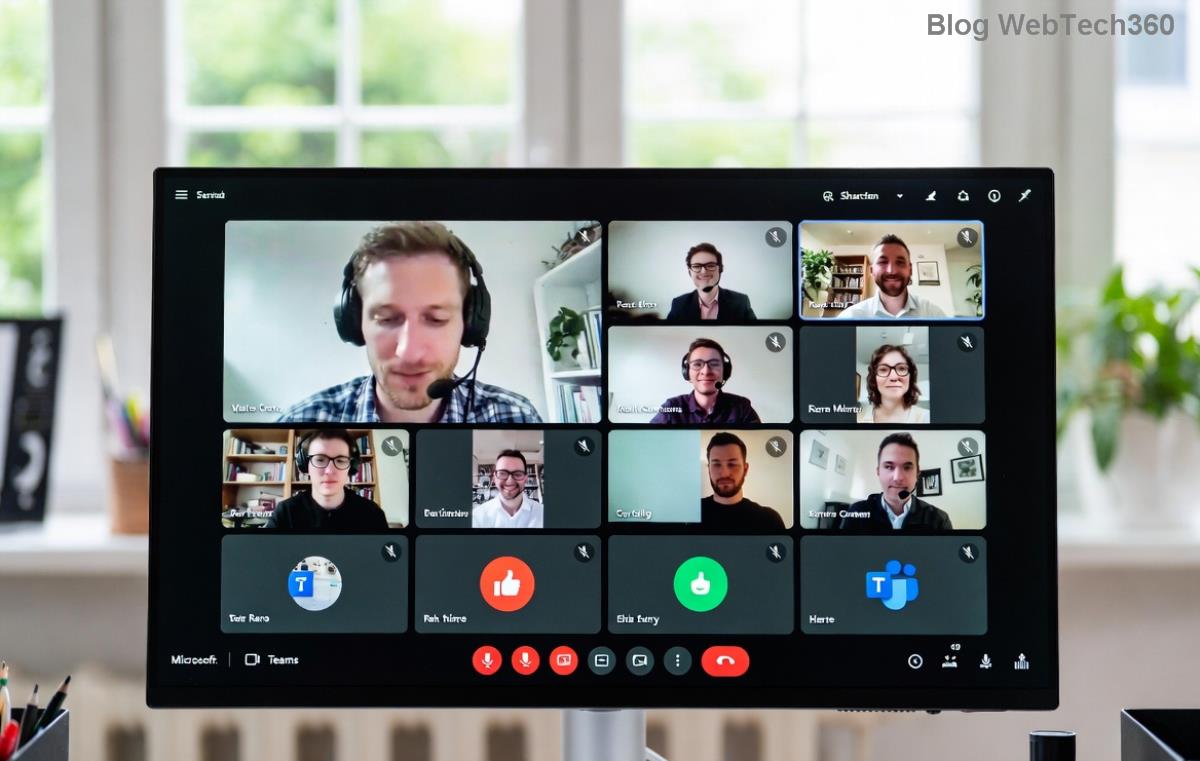
🔍 Common Microsoft Teams Voice and VOIP Errors (And Why They Happen)
Understanding the root cause speeds up fixes. Here's a breakdown of top issues:
| Error Type |
Symptoms |
Common Causes |
| No Audio |
Silence on calls, mic/camera icons grayed out |
Permissions, muted devices, or app crashes |
| Echo or Feedback |
Hearing your own voice looped back |
Speaker/mic proximity, multiple audio devices |
| One-Way Audio |
Others hear you, but not vice versa |
Firewall blocks, NAT issues, bandwidth limits |
| Choppy/Delayed Voice |
Robot-like sound, lag spikes |
Poor network, high CPU usage |
| Connection Drops |
Calls end abruptly |
VPN conflicts, outdated firmware |
⚠️ Pro Tip: Run Teams' built-in device setup test first—go to Settings > Devices > Make a test call. It diagnoses 80% of basic problems instantly.
✅ Step-by-Step Troubleshooting Microsoft Teams Voice Basics
Start here for 90% of VOIP errors. Follow these in order:
- 👆 Check Permissions: In Windows/Mac, ensure Teams has mic/speaker access. On mobile, toggle app permissions in settings.
- 🔊 Verify Audio Devices: Click your profile > Settings > Devices. Select correct mic/speaker. Unmute with Ctrl+Space (Windows) or Cmd+Space (Mac).
- 🔄 Restart Everything: Close Teams, restart your computer, and relaunch. Clears temporary glitches.
- 📱 Test in Browser: Join a meeting via web.teams.microsoft.com to rule out desktop app issues.
- 🧹 Clear Cache: In Teams, %appdata%\Microsoft\Teams (Windows) > Delete contents. Relaunch for a fresh start.
Still stuck? These basics resolve most Teams voice woes—keep reading for deeper dives! 😊
🌐 Advanced VOIP Errors Fixes: Network and Bandwidth Optimization
Network hiccups cause 60% of pro-level Microsoft Teams VOIP errors. Optimize like this:
- Run Network Test: In Teams Settings > Help > Network assessment. Aim for >40kbps up/down per call.
- Disable VPN/Firewall Temporarily: Test without them—re-enable and whitelist Teams ports (UDP 3478-3481).
- Switch Wi-Fi to Wired: Ethernet crushes wireless lag for VOIP.
- QoS Settings: Prioritize Teams traffic in your router (ports 50000-50019 UDP).
For detailed port info, check Microsoft's official guide: Teams Network Requirements.
🛠️ Hardware, Software, and App-Specific Troubleshooting
Hardware conflicts? Here's your checklist:
| Check |
Action |
Expected Fix Time |
| Update Drivers |
Device Manager > Audio devices > Update |
5 mins |
| Teams Version |
Profile > Check for updates |
2 mins |
| OS Audio Settings |
Set default devices to Teams peripherals |
3 mins |
| Bluetooth Headsets |
Re-pair and test latency |
10 mins |

Bonus: For echo, use Teams' Noise Suppression (Settings > Devices > Auto).
🚨 When Troubleshooting Fails: Next Steps
If issues persist:
- 📞 Contact IT: Share your network test results.
- 💻 Reinstall Teams: Download latest from official site.
- 🔧 Microsoft Support: Submit a ticket via admin.teams.microsoft.com with diagnostics (Ctrl+Alt+Shift+1).
⭐ Final Tips to Prevent Future Teams Voice Issues
Stay ahead:
- Regularly test devices before meetings. ✅
- Monitor bandwidth during peak hours.
- Enable Teams Premium features for AI noise cancel if available.
Your Microsoft Teams voice calls are now bulletproof! Bookmark this for quick reference, and drop a comment if a tip worked for you. Ready for seamless VOIP? You've got this! 🎉