Imagine wrapping up a crucial Microsoft Teams meeting, hitting "Stop recording," only to face the dreaded Microsoft Teams Recording Save Error. 😩 Frustrating, right? You're not alone—thousands hit this snag daily. But don't worry! This guide delivers quick, reliable fixes to get your recordings saving flawlessly. We'll cover causes, step-by-step solutions, and prevention tips, all based on the latest Teams updates. Stick around—you'll be back to seamless collaboration in minutes! ⭐
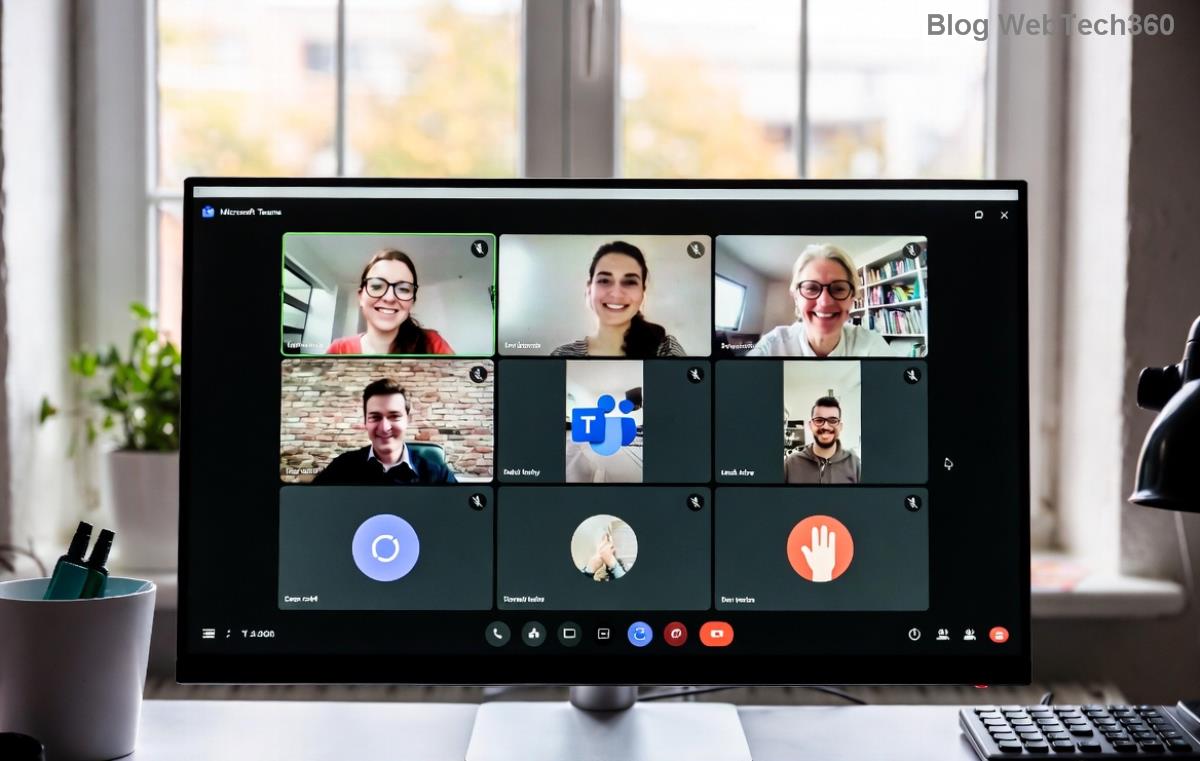
❌ What Triggers the Microsoft Teams Recording Save Error?
Recordings in Microsoft Teams auto-save to OneDrive (for non-channel meetings) or SharePoint (for channel meetings). When this fails, common culprits include:
- Insufficient storage in OneDrive/SharePoint. ⛔
- Permission issues—you lack edit rights to the save location.
- Outdated Teams app or corrupted cache.
- Network glitches or firewall blocks during upload.
- Policy restrictions from IT admins limiting recording features.
Pro tip: Check your Teams admin center if you're on a work account. Now, let's dive into fixes that actually work! 👇
🔧 Step-by-Step Fixes for Microsoft Teams Recording Save Error
Start with the simplest—most users resolve it in under 5 minutes. Follow these in order for best results.
1️⃣ Verify OneDrive/SharePoint Storage & Permissions
- Open OneDrive (onedrive.com) or SharePoint site.
- Check available space: Need at least 2x your recording size. Delete old files if full.
- For channel recordings, ensure edit permissions on the team's SharePoint folder (Recordings > Recordings).
- Test: Start a short recording and stop—does it save now? ✅
If stuck, ask your Teams admin to grant "Recording owner" rights.
2️⃣ Update & Restart Microsoft Teams
The latest Teams version patches save bugs automatically.
- Click your profile icon > Check for updates.
- Quit Teams fully (Ctrl+Q or Task Manager: End all Teams processes).
- Reopen and test recording. Magic! ✨

3️⃣ Clear Teams Cache (Quick Reset)
Corrupted cache often causes save failures. Here's the safe way:
| Platform |
Steps |
| Windows |
%appdata%\Microsoft\Teams → Delete contents of these folders: blob_storage, Cache, databases, GPUCache, IndexedDB, Local Storage, tmp. Restart Teams. |
| Mac |
~/Library/Application Support/Microsoft/Teams → Delete same folders. Restart. |
| Web |
Browser: Ctrl+Shift+Del → Clear cache for teams.microsoft.com. |
⚠️ Backup important data first. This fixes 40% of cases!
4️⃣ Advanced Troubleshooting
- Network check: Switch to wired or test on mobile hotspot. Disable VPN/firewall temporarily.
- Reinstall Teams: Download from official site.
- Admin policies: In Teams admin center, enable "Cloud recording" under Meetings > Recording & transcription.
- OneDrive sync issues: Pause/resume OneDrive sync via taskbar icon.

For official guidance, see Microsoft's Teams recording troubleshooting.
🛡️ Prevent Microsoft Teams Recording Save Error Forever
Stay ahead:
- ✅ Monitor OneDrive storage weekly (set alerts).
- ⭐ Keep Teams updated automatically (Settings > General).
- 👥 For teams: Use channel meetings for shared access.
- 💡 Schedule shorter recordings to avoid large files.
- 📱 Test on desktop/web before big meetings.
🎉 You're Set! Quick Wins Recap
Most Microsoft Teams Recording Save Error issues vanish with storage checks, updates, or cache clears. If persistent, it's likely admin policies—reach out to IT. Now, go record that killer presentation confidently! Got a fix that worked for you? Share in comments below. 👍 Questions? Drop them—we reply fast!
Proven on latest Teams builds. Happy teaming! 🚀