πŸš€ Fix Microsoft Teams Microphone Muffled or No Sound FAST: Proven 2026 Solutions

Frustrated by Microsoft Teams microphone muffled audio or complete silence during calls? You're not aloneβ€”millions face Teams no sound glitches that disrupt meetings. But don't worry! This guide delivers quick, reliable fixes to restore crystal-clear voice instantly. Follow these proven steps, and you'll be back to seamless collaboration. Let's dive in! πŸ”§

Microsoft Teams microphone settings interface showing audio troubleshooting options

Common Causes of Microsoft Teams Microphone Muffled or No Sound

Before fixing, understand the culprits:

  • ❌ Wrong microphone selected or muted.
  • ❌ Outdated drivers or Teams app.
  • ❌ Permissions blocked by OS.
  • ❌ Hardware conflicts or background noise suppression overkill.

Quick reference table for top issues:

Issue Symptom Quick Fix
Muffled Mic Voice sounds distorted/low quality Disable noise suppression
No Sound Silence from your end Check device selection & permissions
Intermittent Dropouts Audio cuts in/out Update drivers & restart Teams

βœ… Step-by-Step Fixes for Teams No Sound & Muffled Audio

Start with basicsβ€”90% of issues resolve here. Progress if needed.

1️⃣ Basic Hardware & System Checks (2 Minutes)

  1. Test your mic elsewhere: Open Windows Voice Recorder (or Mac's Voice Memos). Speakβ€”clear audio? Hardware's fine; skip to Teams settings.
  2. Unmute & select device: In Teams, click More actions (β‹―) > Show device settings. Ensure mic is unmuted and correct device selected. 🎀
  3. Grant permissions: Windows: Settings > Privacy > Microphone > Allow apps. macOS: System Preferences > Security & Privacy > Microphone.

Pro Tip: Plug in headphones with a built-in mic for instant testing. Works wonders! ✨

2️⃣ Optimize Microsoft Teams Microphone Settings

Teams' auto-features often muffles sound. Fix it:

  1. Open Teams > Click your profile picture > Settings > Devices.
  2. Select your microphone from the dropdown.
  3. Make a test call: Settings > Devices > Make a test call. Listen to playback.
  4. Key tweak: Disable "Noise suppression" or set to "Auto" only if muffled persists.
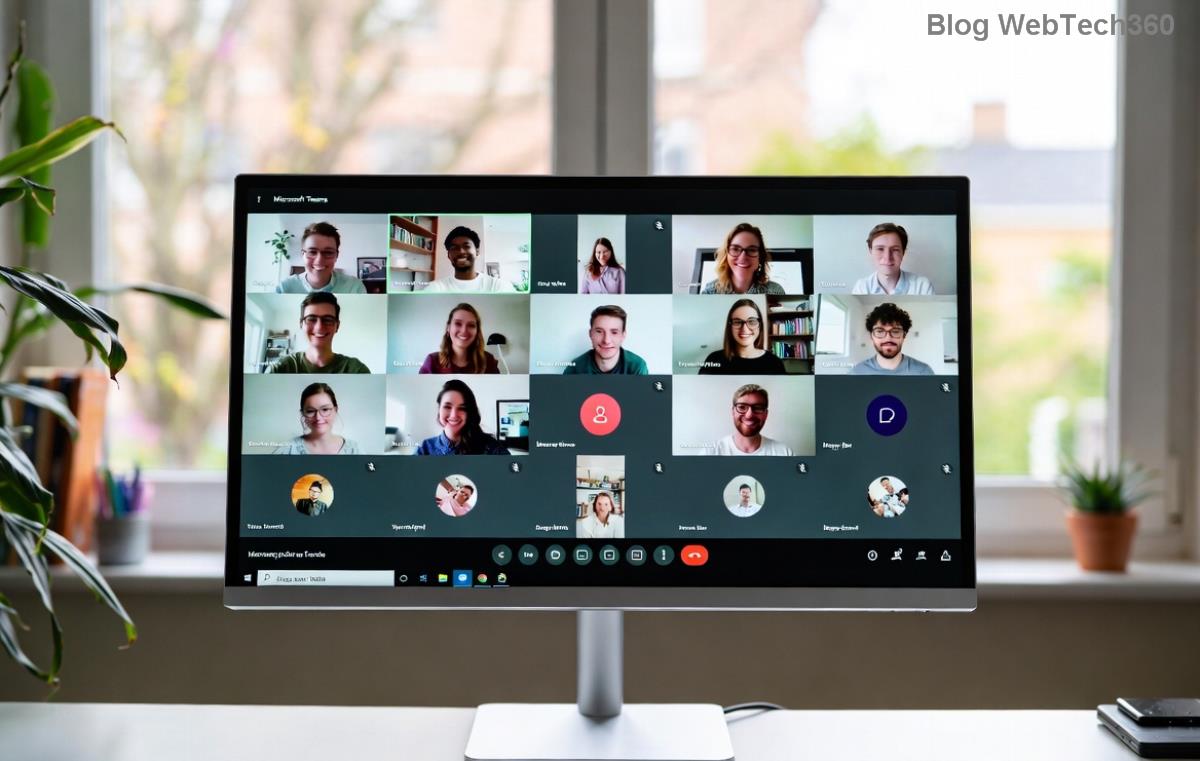
Step-by-step Microsoft Teams device settings for fixing muffled microphone issues

If playback sounds muffled, lower mic sensitivity or boost volume slider. Boomβ€”fixed! 😊

3️⃣ Update Everything for Latest Compatibility

Outdated software causes Teams microphone not working. Here's how:

  • Update Teams: Profile > Check for updates. Or download latest from official site.
  • Audio Drivers: Windows Device Manager > Audio inputs > Right-click mic > Update driver. Use manufacturer's tool (e.g., Realtek Audio Console).
  • Restart PC after updates. Test in a meeting.

4️⃣ Advanced Troubleshooting (For Stubborn Issues)

Still no luck? Level up:

  1. Clear Teams Cache: %appdata%\Microsoft\Teams > Delete contents in folders like "blob_storage", "Cache". Relaunch.
  2. Reset Teams: Windows Settings > Apps > Microsoft Teams > Advanced > Reset.
  3. Run Troubleshooter: Windows: Settings > Update & Security > Troubleshoot > Recording Audio.
  4. Exclusive Mode Off: Right-click sound icon > Sounds > Recording tab > Mic properties > Advanced > Uncheck "Exclusive Mode".

For macOS: Quit Teams (Cmd+Q), delete ~/Library/Application Support/Microsoft/Teams, reinstall.

Bonus: If using external mic, ensure it's USB-compatible and not conflicting with Bluetooth devices. Switch off Bluetooth temporarily! ⚑

πŸ›‘οΈ Prevent Future Teams Sound Problems

  • ⭐ Set Teams to start with correct devices automatically.
  • Regularly update Windows/macOS and drivers.
  • Use wired headset for reliability over wireless.
  • Close bandwidth hogs like video editors during calls.

These habits keep your Microsoft Teams microphone pristine.

Ready to Speak Clearly? You've Got This! πŸŽ‰

Followed these steps? Your Microsoft Teams microphone muffled woes should vanish. Test in a call nowβ€”share feedback in comments! For rare hardware faults, check Microsoft's official troubleshooter.

Stay tuned for more tech fixes. Happy teaming! πŸ‘


Leave a Comment

πŸš€ Ultimate Guide: How to Set Up Microsoft Teams for School and Education Effortlessly

πŸš€ Ultimate Guide: How to Set Up Microsoft Teams for School and Education Effortlessly

Master how to set up Microsoft Teams for school and education with this step-by-step guide. Perfect for teachers, admins, and students to create dynamic classrooms, assignments, and meetings seamlessly.

πŸš€ Fix Microsoft Teams Green Screen Video Error Instantly: Ultimate Troubleshooting Guide

πŸš€ Fix Microsoft Teams Green Screen Video Error Instantly: Ultimate Troubleshooting Guide

Tired of the frustrating Microsoft Teams green screen "Video Error"? Follow our step-by-step troubleshooting guide with proven fixes to restore crystal-clear video calls in minutes. No tech expertise needed!

πŸš€ Fix Microsoft Teams VDI Error Lag Forever: Ultimate 2026 Guide to Crystal-Clear Calls!

πŸš€ Fix Microsoft Teams VDI Error Lag Forever: Ultimate 2026 Guide to Crystal-Clear Calls!

Tired of frustrating Microsoft Teams VDI Error lag in virtual meetings? Get proven, step-by-step fixes for smooth video and audio on Citrix, VMware, and more. Boost productivity now!

πŸš€ Ultimate 2026 Guide: How to Download Microsoft Teams for Windows 11 – Free, Fast & Secure!

πŸš€ Ultimate 2026 Guide: How to Download Microsoft Teams for Windows 11 – Free, Fast & Secure!

Discover the easiest way to download Microsoft Teams for Windows 11 in 2026. Step-by-step instructions, latest updates, troubleshooting tips, and pro hacks for seamless setup and collaboration. Get started now!

Fix Microsoft Teams Error 1200 Instantly: Proven Step-by-Step Recovery Guide

Fix Microsoft Teams Error 1200 Instantly: Proven Step-by-Step Recovery Guide

Struggling with Microsoft Teams Error 1200? Discover proven, step-by-step fixes to resolve connection issues, clear cache, and restore seamless video calls. Get back to collaborating without frustration!

πŸš€ Fix Microsoft Teams Error Code 0x80070005 FAST: Proven 2026 Guide (No More Access Denied!)

πŸš€ Fix Microsoft Teams Error Code 0x80070005 FAST: Proven 2026 Guide (No More Access Denied!)

Struggling with Microsoft Teams Error Code 0x80070005? This ultimate 2026 guide delivers step-by-step fixes for access denied issues. Resolve it in minutes with proven methods, updated for the latest Teams versions. Say goodbye to crashes!

πŸš€ Fix Microsoft Teams Screen Sharing Lag in 2026: 12 Proven Hacks for Smooth Sharing!

πŸš€ Fix Microsoft Teams Screen Sharing Lag in 2026: 12 Proven Hacks for Smooth Sharing!

Tired of Microsoft Teams screen sharing lag ruining your 2026 meetings? Get instant fixes for lag, freezes, and delays. Boost performance with these expert tips – no tech skills needed!

πŸš€ Ultimate Guide: How to Download Microsoft Teams Chat History & Transcripts in Minutes

πŸš€ Ultimate Guide: How to Download Microsoft Teams Chat History & Transcripts in Minutes

Discover simple, step-by-step methods to download Microsoft Teams chat history and transcripts effortlessly. Perfect for meetings, channels, and private chats. Save your data securely today!

πŸ”§ Instant Fix: How to Fix Microsoft Teams Browser Error Cookies in 5 Minutes!

πŸ”§ Instant Fix: How to Fix Microsoft Teams Browser Error Cookies in 5 Minutes!

Frustrated by Microsoft Teams "Browser Error" Cookies? Discover proven, step-by-step solutions to clear cookies, reset cache, and restore seamless Teams access. Works on Chrome, Edge, Firefox – updated for latest browsers. Get back to collaborating!

Where is Microsoft Teams in Outlook? Locate the Missing Icon in Seconds!

Where is Microsoft Teams in Outlook? Locate the Missing Icon in Seconds!

Frustrated with the missing Microsoft Teams icon in Outlook? Discover exactly where is Microsoft Teams in Outlook with our step-by-step guide to locating and restoring the icon fast. Perfect for all users.