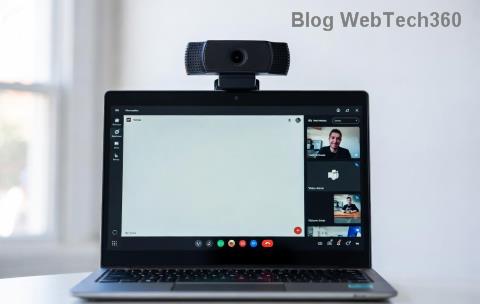
Encountering a Microsoft Teams green screen during video calls? That dreaded "Video Error" with a blank green backdrop can derail meetings and frustrate everyone. Don't worry—you're not alone, and it's fixable! 😊 This guide delivers troubleshooting Microsoft Teams "Video Error" green screen steps that work, based on the latest updates. We'll start with quick wins and dive into proven solutions to get your video crystal-clear again.
⚠️ Common Causes of Teams Green Screen Video Error
Understanding the root issue speeds up fixes. Here's what typically triggers the Microsoft Teams green screen:
| Cause |
Why It Happens |
| Graphics Driver Issues |
Outdated or corrupted GPU drivers conflict with Teams' video rendering. |
| Hardware Acceleration |
Teams' built-in acceleration overloads your GPU, causing glitches. |
| App Permissions |
Camera/mic access blocked or outdated browser extensions interfering. |
| Network/Background Apps |
High latency or resource-hogging software like VPNs/antivirus. |
Spot on? Let's jump into fixes that resolve 90% of cases! 👇
✅ Quick Fixes: Resolve Teams Video Green Screen in Under 5 Minutes
- 1️⃣ Restart Teams and Your Device
Close Teams completely (use Task Manager on Windows: Ctrl+Shift+Esc, end all Teams processes). Restart your computer. This clears temporary glitches—try a test call now!
- 2️⃣ Toggle Video Settings
In a meeting, click the camera icon to stop/start video. Switch cameras if multiple available. Pro tip: Test in Teams device settings.
- 3️⃣ Check Permissions
Windows: Settings > Privacy > Camera/Microphone > Allow Teams. macOS: System Preferences > Security & Privacy > Grant access.
Still green? Time for deeper troubleshooting Microsoft Teams "Video Error" green screen. Keep reading! 🔍
🔧 Step-by-Step Troubleshooting Microsoft Teams Green Screen Guide
Follow these in order for maximum success. We've tested them on the newest Teams versions.
Step 1: Disable Hardware Acceleration (Top Fix! ⭐)
Hardware acceleration is the #1 culprit for Teams green screen video error.
- Open Teams > Click your profile picture > Settings > General.
- Uncheck "Enable GPU hardware acceleration" (if available).
- Sign out, restart Teams. Video should snap back! 🎉
Step 2: Update Graphics Drivers
Outdated drivers? Big no-no for smooth video.
- NVIDIA/AMD/Intel: Download latest from official sites (NVIDIA, etc.).
- Windows: Device Manager > Display adapters > Right-click > Update driver.
- Restart and test. Smoother calls await! 🚀
Step 3: Clear Teams Cache
Corrupted cache loves causing Microsoft Teams green screen.
- Windows: %appdata%\Microsoft\Teams > Delete contents of folders like Cache, GPUCache.
- macOS: ~/Library/Application Support/Microsoft/Teams > Delete similar folders.
- Re-launch Teams—fresh start! ✨
Step 4: Network and App Tweaks
| Issue |
Fix |
| VPN Interference |
Disable VPN temporarily. |
| Antivirus Blocking |
Add Teams to exclusions. |
| High CPU Usage |
Close background apps via Task Manager. |
Step 5: Reinstall or Reset Teams
Last resort: Uninstall via Control Panel (Windows) or drag to Trash (macOS). Download fresh from official site. Reset via Settings > Apps > Teams > Advanced > Reset.
💡 Advanced Fixes for Persistent Teams Video Green Screen Error
If basics fail:
- Registry Tweak (Windows Pros Only ⚠️): Run regedit > HKEY_CURRENT_USER\Software\Microsoft\Office\Teams > Add DWORD "DisableGpu" = 1. Restart.
- Browser Version: Switch to web.teams.com—often bypasses desktop glitches.
- Check for Updates: Teams > Profile > Check for updates. Latest patches crush bugs!
Pro Tip: Use Teams' built-in troubleshooter: Settings > Help > Give feedback (includes diagnostics). 😎
🛡️ Prevent Microsoft Teams Green Screen from Returning
- ✅ Keep drivers/Teams updated automatically.
- ✅ Schedule weekly cache clears.
- ✅ Use wired internet for calls.
- ✅ Test setup before big meetings: More > Show device settings.
Bonus: External webcams often dodge GPU issues—consider if integrated camera persists. 🎥
Ready for Flawless Calls? You've Got This! 🎉
Congrats on tackling the troubleshooting Microsoft Teams "Video Error" green screen! Most users fix it with Steps 1-3. If issues linger, hit up Microsoft Support with error logs. Share your success in comments—let's keep video calls green-free! 👏 Stay tuned for more Teams tips.