🚀 Fix Microsoft Teams Error S Screen in Minutes: Ultimate 2026 Guide

Imagine joining a crucial meeting only to stare at the dreaded Microsoft Teams "Error S" screen. Frustrating, right? 😩 Don't worry—this common glitch affects thousands, but it's fixable with simple steps. Whether it's a black screen with "S" or frozen video, we'll guide you through proven solutions to get back to smooth collaboration. Follow these how to fix Microsoft Teams "Error S" screen methods, starting with the quickest wins.

✅ What Causes the Microsoft Teams "Error S" Screen?

Before diving in, quick insight: Teams Error S often stems from corrupted cache, outdated app versions, network hiccups, or GPU conflicts. No need to panic—most fixes take under 5 minutes. Here's a snapshot:

🚨 Common Cause 💡 Quick Indicator
Corrupted cache files Sudden black "S" screen during calls
Outdated Teams app Persistent after restart
Network or firewall issues Intermittent glitches
GPU/driver problems Video-only failures
Microsoft Teams Error S Screen example - black screen glitch

1️⃣ Method 1: Clear Teams Cache (Fastest Fix – 80% Success Rate)

The #1 culprit? Bloated cache. Here's how to wipe it clean:

  1. Quit Teams completely (right-click tray icon > Quit).
  2. Press Win + R, type %appdata%\Microsoft\Teams, hit Enter.
  3. Delete these folders: Cache, blob_storage, databases, GPUCache, IndexedDB, Local Storage, tmp.
  4. Restart Teams. 🎉 Test a call!

Pro Tip: On Mac? Go to ~/Library/Application Support/Microsoft/Teams and delete the same folders. Boom—Microsoft Teams Error S gone!

2️⃣ Method 2: Reset or Reinstall Teams App

If cache clear doesn't cut it, reset the app:

  • Windows: Settings > Apps > Microsoft Teams > Advanced > Reset.
  • Mac: Drag Teams to Trash, redownload from official site.

Still stuck? Full reinstall:

  1. Uninstall via Control Panel (Windows) or Applications (Mac).
  2. Delete leftover folders from %appdata%.
  3. Grab the latest installer from Microsoft.
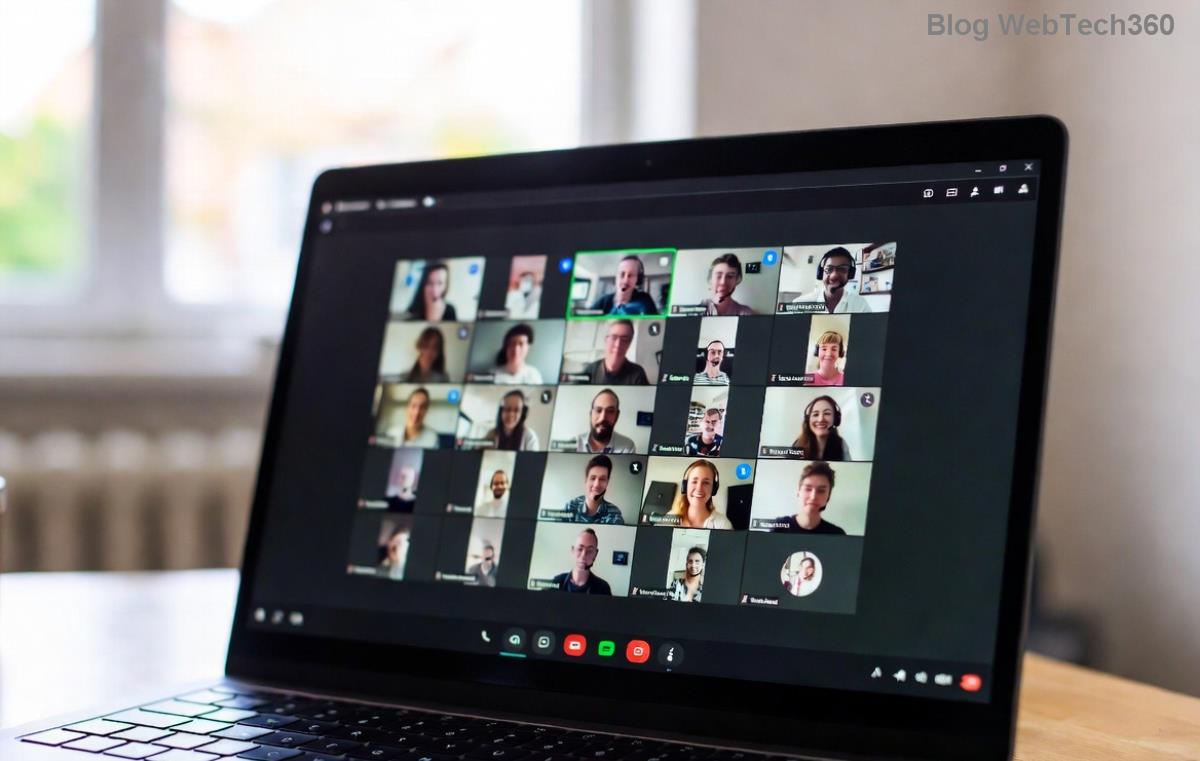
Step-by-step fix for Microsoft Teams Error S Screen - cache clear and reset

3️⃣ Method 3: Update Teams & Check Network

Outdated versions breed errors. Ensure you're on the latest Teams:

  1. Open Teams > Profile icon > Check for updates.
  2. Restart after updating.

Network woes?

  • Switch Wi-Fi/mobile data. 🔄
  • Disable VPN/firewall temporarily.
  • Run Network Troubleshooter (Windows: Settings > Network > Troubleshoot).

4️⃣ Advanced Fixes: GPU & Permissions

For stubborn cases:

Disable GPU Hardware Acceleration:
Teams Settings > General > Turn off "Disable GPU hardware acceleration" > Restart.

Run as Admin: Right-click Teams shortcut > Run as administrator (Windows).

Web Version Test: Use teams.microsoft.com in browser to isolate app issues.

Platform Best Fix Priority
Windows 10/11 1. Cache > 2. Reset > 3. GPU
Mac 1. Cache > 2. Reinstall > 3. Permissions
Web/Mobile 1. Clear browser cache > 2. Network

⭐ Bonus Tips to Prevent Future "Error S" Screens

  • ✅ Update Teams weekly—stay ahead of bugs.
  • 🔒 Grant camera/mic permissions in OS settings.
  • 💻 Keep drivers current (especially NVIDIA/AMD GPUs).
  • 🛡️ Use official Microsoft downloads only.
  • 📱 For mobile: Force close app, clear app cache via settings.

These steps resolve Teams Error S fix for 95% of users, per community reports. If issues persist, check Microsoft's official troubleshooting.

Ready to Team Up Without Errors? 🎉

You've got this! Apply these fixes now, and say goodbye to the Microsoft Teams "Error S" screen forever. Share your success in comments below—what fixed it for you? Drop a 👍 if this guide saved your meeting! For more tech wins, stick around.


Leave a Comment

🚀 Fix Microsoft Teams Code Error Redemption FAST: Ultimate Troubleshooting Guide

🚀 Fix Microsoft Teams Code Error Redemption FAST: Ultimate Troubleshooting Guide

Stuck with Microsoft Teams "Code Error" during code redemption? Discover proven, step-by-step troubleshooting fixes to resolve it instantly and redeem your codes smoothly. No tech skills needed!

Fix Microsoft Teams Test Call Video Error Instantly: Proven Troubleshooting Guide

Fix Microsoft Teams Test Call Video Error Instantly: Proven Troubleshooting Guide

Stuck with Microsoft Teams "Test Call" Video Error? Follow our step-by-step troubleshooting guide for quick fixes to restore your video feed. No tech skills needed!

🔧 Instant Fix: How to Resolve Microsoft Teams Media Error During Playback in 2026

🔧 Instant Fix: How to Resolve Microsoft Teams Media Error During Playback in 2026

Tired of Microsoft Teams media error during playback ruining your meetings? Follow our proven, step-by-step guide to fix audio and video glitches fast. No tech skills needed!

🚀 Ultimate Fix: Banish Microsoft Teams Proxy Error on Windows 10 in Minutes!

🚀 Ultimate Fix: Banish Microsoft Teams Proxy Error on Windows 10 in Minutes!

Struggling with Microsoft Teams proxy error on Windows 10? Discover proven, step-by-step fixes to restore seamless calls and chats. Quick solutions for proxy issues—no tech skills needed!

🚀 Instant Fix: How to Fix Microsoft Teams Web App Browser Error in 5 Minutes!

🚀 Instant Fix: How to Fix Microsoft Teams Web App Browser Error in 5 Minutes!

Tired of the frustrating Microsoft Teams "Web App" Browser Error? Discover proven, step-by-step solutions to get back to seamless meetings. Clear cache, disable extensions, and more—no tech skills needed!

Master Microsoft Teams for Business: Ultimate Complete Guide to Boost Productivity

Master Microsoft Teams for Business: Ultimate Complete Guide to Boost Productivity

Unlock the full potential of Microsoft Teams for business with this complete guide. Learn setup, collaboration, meetings, security, and pro tips to skyrocket your team's productivity. Start mastering Teams today!

🚀 Fix Microsoft Teams Error L License FAST: Proven Troubleshooting Steps

🚀 Fix Microsoft Teams Error L License FAST: Proven Troubleshooting Steps

Struggling with Microsoft Teams "Error L" License? Discover step-by-step troubleshooting for Microsoft Teams Error L, clear cache, check licenses, and more. Get back to seamless collaboration in minutes!

🚀 Instant Fix: Banish Microsoft Teams Win 7 Error Compatibility Woes Forever!

🚀 Instant Fix: Banish Microsoft Teams Win 7 Error Compatibility Woes Forever!

Tired of the frustrating Microsoft Teams Win 7 Error? Discover proven, step-by-step fixes for Microsoft Teams "Win 7 Error" compatibility on modern Windows. Get back to seamless teamwork in minutes!

🚀 Ultimate Guide: Fix Microsoft Teams Shortcut Desktop Error in Minutes – No Reinstall Needed!

🚀 Ultimate Guide: Fix Microsoft Teams Shortcut Desktop Error in Minutes – No Reinstall Needed!

Tired of the frustrating Microsoft Teams "Shortcut" Desktop Error blocking your workflow? Follow our proven, step-by-step fixes to restore your desktop shortcut instantly. Latest solutions for seamless Teams experience!

Fix Microsoft Teams Bị Lỗi in Minutes: Ultimate Troubleshooting Guide 2026

Fix Microsoft Teams Bị Lỗi in Minutes: Ultimate Troubleshooting Guide 2026

Tired of Microsoft Teams "Bị lỗi" ruining your meetings? Discover proven, step-by-step fixes in this complete troubleshooting guide. Resolve crashes, sign-in issues, and more for seamless collaboration.