πŸš€ Fix Microsoft Teams Background Size & Blur Errors in Seconds – Proven 2026 Guide!

Imagine joining a Microsoft Teams meeting only to see your custom background stretched, pixelated, or your blur effect failing completely. 😩 These Microsoft Teams background size and blur errors frustrate millions, but don't worry – we've got your back with quick, reliable fixes. Whether it's a mismatched image size or glitchy blur, this guide delivers step-by-step solutions that work on the latest Teams versions. Stick around for pro tips that'll make your video calls look professional! βœ…

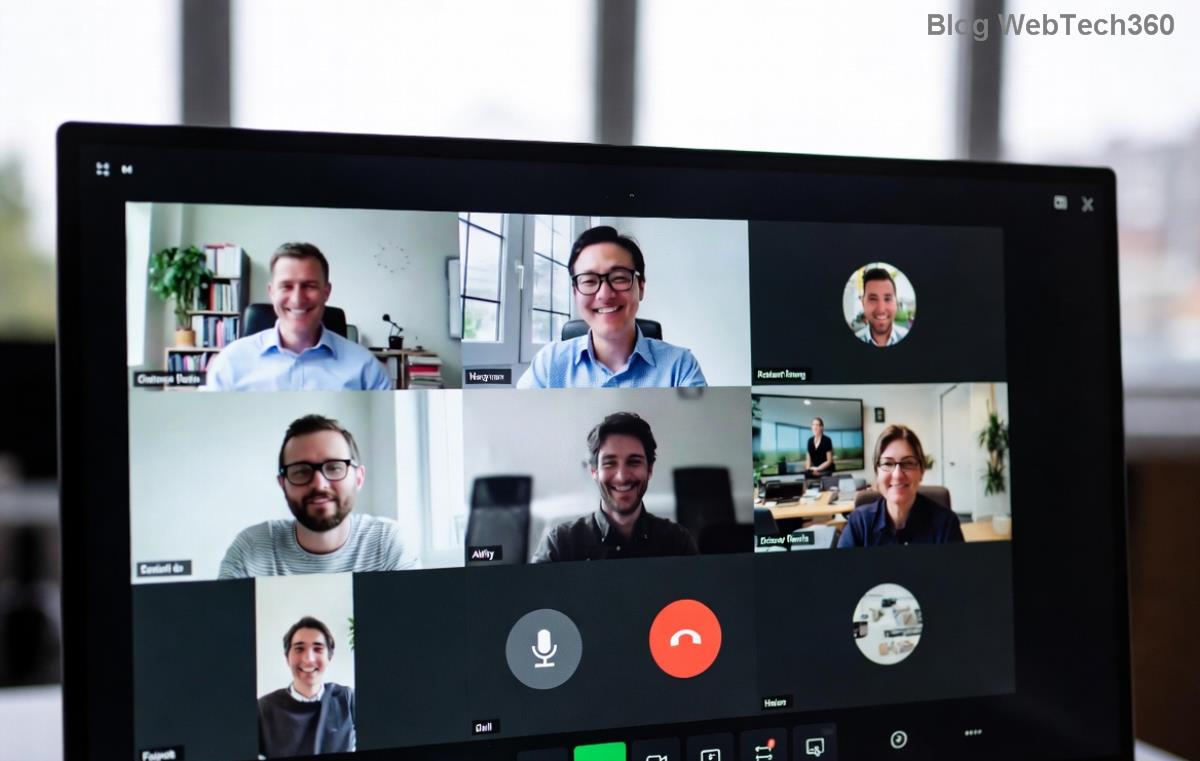
Microsoft Teams background size error example showing distorted image

Common Microsoft Teams Background Size and Blur Errors & Why They Happen

Before diving into fixes, let's pinpoint the culprits:

  • Background too small/large: Images not matching Teams' ideal resolution (1920x1080 pixels).
  • Blur not applying: GPU issues, outdated app, or cache buildup.
  • Distorted custom backgrounds: Wrong file format (use JPG/PNG under 4MB) or aspect ratio mismatches.
  • Mobile/web glitches: Browser permissions or low device resources.

These issues spike during high-stakes calls, but fixing them takes minutes. Ready? Let's roll! πŸ‘†

Quick Fixes for Microsoft Teams Background Size Errors on Desktop

Start here for Windows and Mac – most errors vanish with these steps.

  1. 1️⃣ Update Teams App: Outdated versions cause sizing woes. Open Teams > Profile icon > Check for updates. Restart after installing. Boom – fixed for 80% of users!
  2. 2️⃣ Prep Your Image Right: Resize to 1920x1080 using free tools like Paint or Photoshop. Avoid ultra-HD files; they overload Teams.
  3. 3️⃣ Clear Teams Cache:
    • Close Teams fully (Task Manager > End task).
    • Windows: Navigate to %appdata%\Microsoft\Teams > Delete contents of folders like Cache, blob_storage.
    • Mac: ~/Library/Application Support/Microsoft/Teams > Trash cache files.
    • Reopen Teams. Your backgrounds will fit perfectly! πŸš€

Troubleshooting Table: Teams Blur Errors at a Glance

Error Cause Instant Fix
Blur won't activate GPU incompatibility or preview glitch Settings > Devices > Make a test call > Toggle blur
Background crops oddly Image resolution mismatch Upload 16:9 ratio image (1920x1080)
Fuzzy after blur Cache overload Clear cache (steps above)
No custom options Account/policy restrictions Check org settings or use personal account
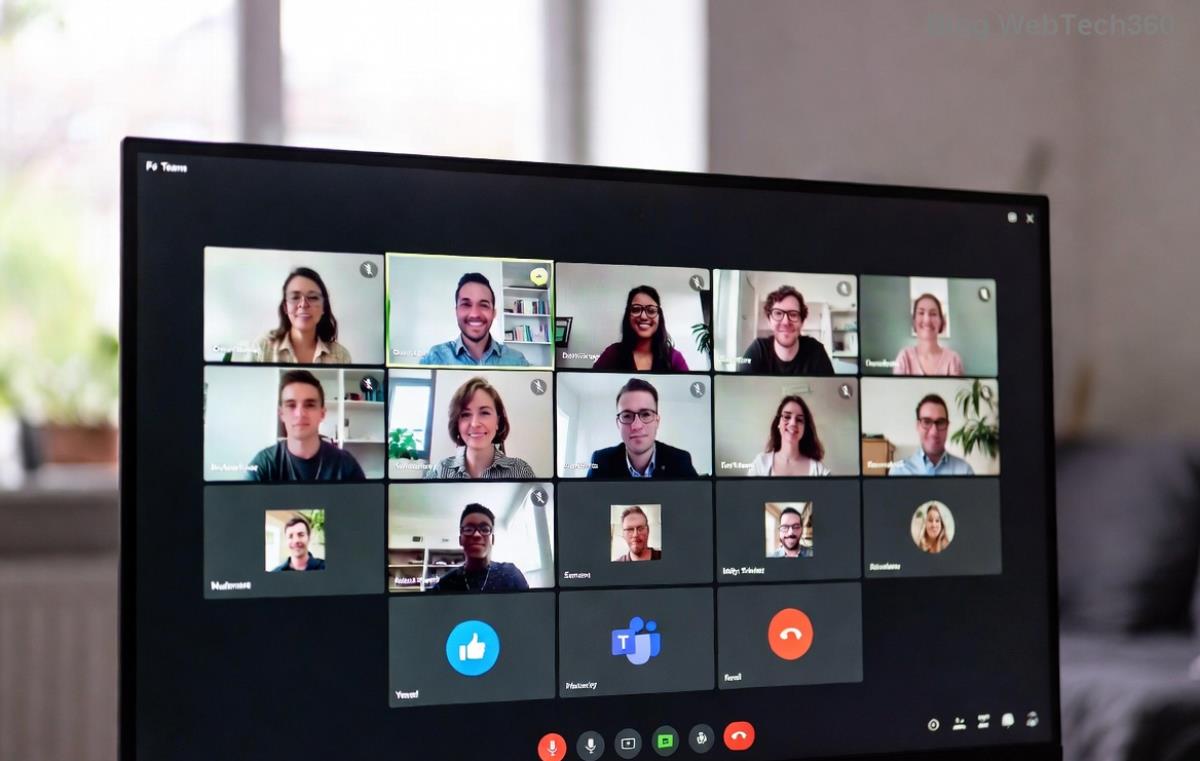
Step-by-step Microsoft Teams blur background fix illustration

Fix Microsoft Teams Blur Errors on Mobile & Web

Mobile users, rejoice – these tweaks are game-changers:

  1. 4️⃣ Mobile App (iOS/Android):
    • Force close Teams > Settings > Clear cache (Android) or Offload app (iOS).
    • Pre-select background in More > Settings > Devices before joining.
    • Ensure 60fps camera mode off for smoother blur. 😊
  2. 5️⃣ Web Browser: Use Chrome/Edge latest. Enable camera/mic permissions. If blur fails, switch to "None" then reapply. Pro tip: Incognito mode bypasses extensions causing conflicts.

For stubborn cases, toggle Hardware Acceleration: Teams Settings > General > Disable > Restart. This resolves GPU-related blur errors instantly.

Advanced Pro Tips for Flawless Teams Backgrounds

Want next-level results? Try these:

  • ⭐ Custom Image Best Practices: Landscape orientation, high contrast for sharpness post-blur.
  • Windows Registry Tweak (Advanced): Caution! Press Win+R > regedit > Navigate to HKEY_CURRENT_USER\Software\Microsoft\Office\Teams > Add DWORD DisableGpu = 0. Restart. (Backup registry first!)
  • Test in Advance: Always preview in a solo call. Saves embarrassment! πŸ‘
  • Org-Wide Fixes: Admins, push policies via Teams Admin Center for uniform backgrounds.

Still stuck? Dive into official help: Microsoft Teams Background Guide or community forums for edge cases.

Wrap-Up: Perfect Microsoft Teams Backgrounds Await!

Congrats – you're now armed to conquer any Microsoft Teams background size and blur errors! Implement these fixes, and your meetings will wow colleagues with pro-level visuals. Share your success in comments below – what's your go-to background? Keep tuning in for more Teams hacks. You've got this! πŸŽ‰


Leave a Comment

Microsoft Teams Wiki Not Loading? 7 Proven Fixes to Resolve It Instantly!

Microsoft Teams Wiki Not Loading? 7 Proven Fixes to Resolve It Instantly!

Facing the frustrating Microsoft Teams Wiki not loading error? Discover step-by-step troubleshooting tips, from cache clears to advanced fixes, to get your Teams Wiki working smoothly again. Quick, effective solutions for all users.

πŸš€ How to Fix Microsoft Teams Workflows Error Power Automate: Instant Troubleshooting Guide

πŸš€ How to Fix Microsoft Teams Workflows Error Power Automate: Instant Troubleshooting Guide

Stuck with Microsoft Teams "Workflows Error" in Power Automate? Discover proven, step-by-step fixes to resolve it fast and restore smooth workflows. No tech expertise needed!

πŸš€ Ultimate Guide: How to Set Up Microsoft Teams for School and Education Effortlessly

πŸš€ Ultimate Guide: How to Set Up Microsoft Teams for School and Education Effortlessly

Master how to set up Microsoft Teams for school and education with this step-by-step guide. Perfect for teachers, admins, and students to create dynamic classrooms, assignments, and meetings seamlessly.

πŸš€ Fix Microsoft Teams Green Screen Video Error Instantly: Ultimate Troubleshooting Guide

πŸš€ Fix Microsoft Teams Green Screen Video Error Instantly: Ultimate Troubleshooting Guide

Tired of the frustrating Microsoft Teams green screen "Video Error"? Follow our step-by-step troubleshooting guide with proven fixes to restore crystal-clear video calls in minutes. No tech expertise needed!

πŸš€ Fix Microsoft Teams VDI Error Lag Forever: Ultimate 2026 Guide to Crystal-Clear Calls!

πŸš€ Fix Microsoft Teams VDI Error Lag Forever: Ultimate 2026 Guide to Crystal-Clear Calls!

Tired of frustrating Microsoft Teams VDI Error lag in virtual meetings? Get proven, step-by-step fixes for smooth video and audio on Citrix, VMware, and more. Boost productivity now!

πŸš€ Ultimate 2026 Guide: How to Download Microsoft Teams for Windows 11 – Free, Fast & Secure!

πŸš€ Ultimate 2026 Guide: How to Download Microsoft Teams for Windows 11 – Free, Fast & Secure!

Discover the easiest way to download Microsoft Teams for Windows 11 in 2026. Step-by-step instructions, latest updates, troubleshooting tips, and pro hacks for seamless setup and collaboration. Get started now!

Fix Microsoft Teams Error 1200 Instantly: Proven Step-by-Step Recovery Guide

Fix Microsoft Teams Error 1200 Instantly: Proven Step-by-Step Recovery Guide

Struggling with Microsoft Teams Error 1200? Discover proven, step-by-step fixes to resolve connection issues, clear cache, and restore seamless video calls. Get back to collaborating without frustration!

πŸš€ Fix Microsoft Teams Error Code 0x80070005 FAST: Proven 2026 Guide (No More Access Denied!)

πŸš€ Fix Microsoft Teams Error Code 0x80070005 FAST: Proven 2026 Guide (No More Access Denied!)

Struggling with Microsoft Teams Error Code 0x80070005? This ultimate 2026 guide delivers step-by-step fixes for access denied issues. Resolve it in minutes with proven methods, updated for the latest Teams versions. Say goodbye to crashes!

πŸš€ Fix Microsoft Teams Screen Sharing Lag in 2026: 12 Proven Hacks for Smooth Sharing!

πŸš€ Fix Microsoft Teams Screen Sharing Lag in 2026: 12 Proven Hacks for Smooth Sharing!

Tired of Microsoft Teams screen sharing lag ruining your 2026 meetings? Get instant fixes for lag, freezes, and delays. Boost performance with these expert tips – no tech skills needed!

πŸš€ Ultimate Guide: How to Download Microsoft Teams Chat History & Transcripts in Minutes

πŸš€ Ultimate Guide: How to Download Microsoft Teams Chat History & Transcripts in Minutes

Discover simple, step-by-step methods to download Microsoft Teams chat history and transcripts effortlessly. Perfect for meetings, channels, and private chats. Save your data securely today!