Are you ready to supercharge your productivity on your Mac? Whether you're using a sleek MacBook Air, powerful MacBook Pro, or any Mac device, downloading Microsoft Teams for Mac is a breeze. This essential app connects you to meetings, chats, and files effortlessly. In this guide, we'll walk you through the quickest, safest methods using the latest version – no fluff, just actionable steps to get you up and running in minutes. Let's dive in! ✅
📋 Quick System Requirements for Microsoft Teams on Mac
Before starting, ensure your Mac meets these specs for smooth performance. Here's a handy table:
| Requirement |
Details |
| OS |
macOS 12 Monterey or later (recommended: latest like Sequoia) |
| Processor |
Intel or Apple Silicon (M1/M2/M3/M4 chips) |
| RAM |
4 GB minimum (8 GB+ for best experience) |
| Storage |
~300 MB free space |
| Internet |
Broadband connection |
Pro tip: Update your macOS first via System Settings > General > Software Update for optimal compatibility. 😊
🔽 Method 1: Download Microsoft Teams for Mac from Official Website (Recommended)
The official site delivers the newest desktop app with full features. Here's how:
- 1️⃣ Open Safari (or your preferred browser) and head to the Microsoft Teams download page.
- 2️⃣ Scroll to the Teams for work or school section (or personal if needed).
- 3️⃣ Click the blue Download for Mac button. It auto-detects your Mac!
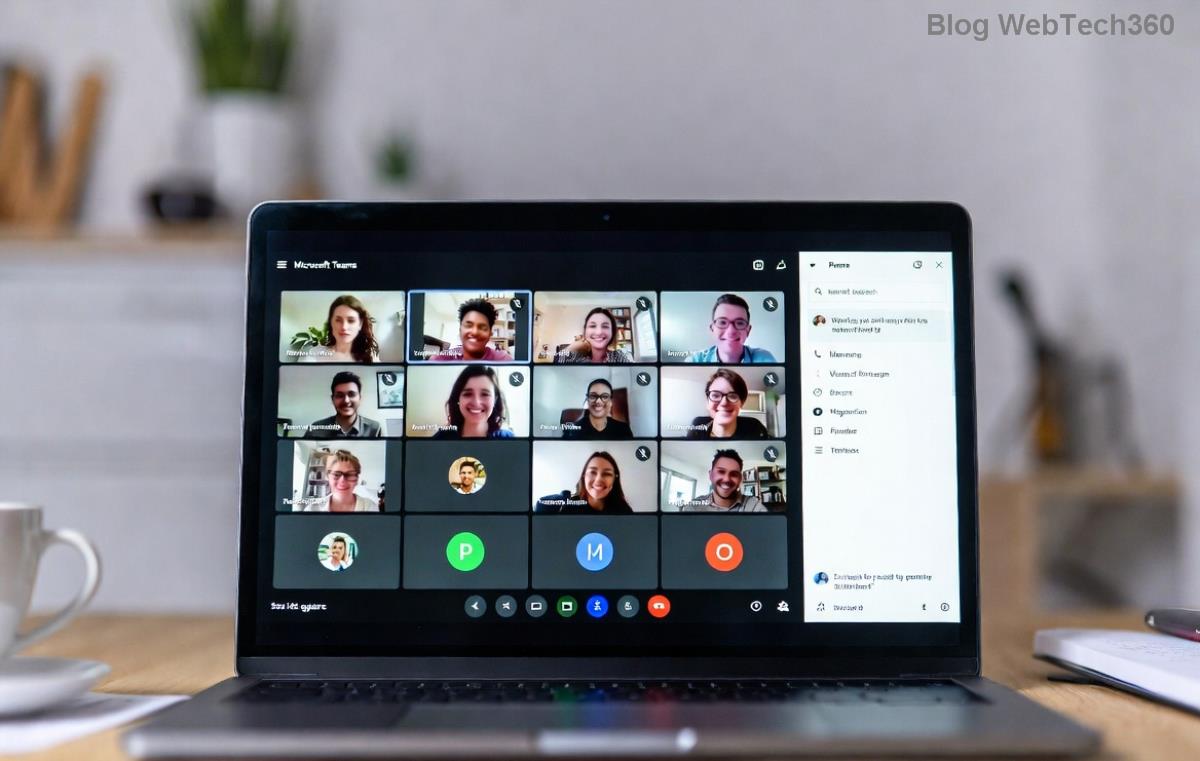
The Teams.pkg file (~150-200 MB) will download to your Downloads folder. Stay tuned for installation! 🔍
🛒 Method 2: Get Microsoft Teams for MacBook Air/Pro from Mac App Store
Prefer auto-updates? Use the App Store for simplicity:
- 1️⃣ Open the App Store app on your Mac.
- 2️⃣ Search for "Microsoft Teams".
- 3️⃣ Select the official app by Microsoft Corporation and hit Get or the cloud icon if previously installed.
This method shines for MacBook Air users wanting seamless integration. No worries about manual updates! ⭐
⚙️ Step-by-Step Installation After Download
Downloaded? Time to install Microsoft Teams on Mac:
- 1️⃣ Locate the Teams.pkg in Downloads and double-click it.
- 2️⃣ Follow the installer: Click Continue, agree to terms, and choose install location (default is fine).
- 3️⃣ Enter your Mac password if prompted, then hit Close.

Launch Teams from Applications or Spotlight (Cmd + Space). Sign in with your Microsoft account – you're set for calls and collaboration! 🎉

❌ Common Issues & Troubleshooting for Teams Mac Download
Hit a snag? Don't sweat it – quick fixes ahead:
- 🚫 Download fails? Clear browser cache or try another network.
- 🚫 Installer blocked? Go to System Settings > Privacy & Security and approve.
- 🚫 App crashes on M-series Mac? Ensure Rosetta is installed (automatic for most).
- 🚫 Slow performance? Quit background apps and allocate more RAM in Teams settings.
For advanced help, check Microsoft's support: Teams Troubleshooting Hub.
💡 Pro Tips to Maximize Microsoft Teams for MacBook Pro/Air
- Enable Do Not Disturb during meetings for focus.
- Use keyboard shortcuts: Cmd + Shift + M to mute/unmute.
- Pin frequently used chats for quick access on your MacBook Air.
- Integrate with Calendar for auto-join reminders.
- Keep updated: Teams auto-notifies for the newest patches.
These tweaks make Teams feel native on macOS – smoother than ever! 👏
🎯 Why Choose the Desktop App Over Web?
The full Microsoft Teams for Mac app offers background effects, better notifications, and offline access to chats/files. Perfect for pros on MacBook Pro handling heavy workflows. Web version? Fine for light use, but desktop wins for power users.
Ready to team up? Follow these steps, and you'll be collaborating like a boss. Got questions? Drop a comment below – happy Teaming! 🚀