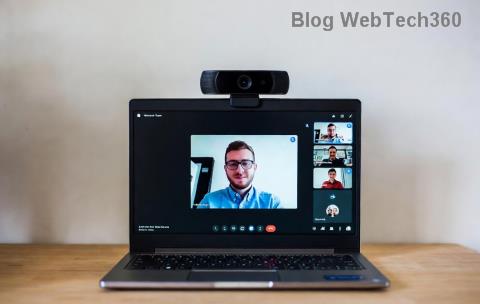
Nothing derails a Microsoft Teams meeting faster than a blank camera feed. Whether you're seeing a black screen, "camera not found" error, or no video at all, you're not alone—this is one of the most common Microsoft Teams camera not working issues. But don't worry! 😊 Our straightforward guide will walk you through how to fix Microsoft Teams camera not working in meetings with simple, effective steps. Follow along sequentially for the quickest results, and you'll be back to clear video calls in no time.
Why Is Your Microsoft Teams Camera Not Working? Quick Diagnosis
Before diving into fixes, pinpoint the cause:
- 🖥️ App permissions blocked?
- 📱 Hardware or driver outdated?
- 🔒 Antivirus interfering?
- 🌐 Browser vs. desktop app glitch?
Start with the basics—most issues resolve here. If not, proceed to advanced steps. Pro tip: Test your camera in another app like Camera or Zoom first. ✅
1️⃣ Basic Checks: 80% of Teams Camera Issues Solved Here
These no-brainer steps fix the majority of Microsoft Teams camera not working problems.
- Restart Teams and Your Device
Close Teams completely (use Task Manager on Windows: Ctrl+Shift+Esc). Restart your computer or phone. This clears temporary glitches.
- Check Camera Permissions
In Windows: Settings > Privacy & security > Camera > Allow apps access. Toggle on for Teams.
On Mac: System Settings > Privacy & Security > Camera > Enable Teams.
In Teams: Go to Settings (gear icon) > Devices > Make sure your camera is selected. 🔍
- Select the Right Camera
During a meeting, click the camera icon > "More choices" (...) > Choose your correct camera from the dropdown. Multiple webcams can confuse Teams!
Still no luck? Move on. You've just saved yourself hours. 👏
🔍 Troubleshooting Table: Common Teams Camera Not Working Errors & Fixes
| Error/Message |
Quick Fix |
Why It Works |
| Black screen or frozen video |
Switch camera in Teams Devices menu; restart app |
Resolves selection or rendering bugs |
| "Camera blocked" or no access |
Update OS privacy settings; check antivirus |
Permissions reset after updates |
| Camera works elsewhere but not Teams |
Clear Teams cache (below) |
Corrupted local files |
| "No camera found" on mobile |
Update Teams app; grant permissions in device settings |
App version mismatch |
| Pixelated/low quality |
Lower video resolution in Teams settings |
Bandwidth or hardware limits |
This table is your cheat sheet—bookmark it for future meetings! 📌
2️⃣ Update Everything: Stay Current to Avoid Teams Camera Issues
Outdated software causes 30% of problems. Here's how:
- Update Microsoft Teams
Click profile icon > Check for updates. Or download the latest from the official site. Newer versions fix camera bugs automatically.
- Update Camera Drivers
Windows: Device Manager > Cameras > Right-click your camera > Update driver.
Mac: Software Update via System Settings.
Use manufacturer tools like Dell SupportAssist for laptops. 🚀
- Update Your OS
Windows Update or macOS Software Update ensures compatibility.
3️⃣ Clear Cache & Reset Teams: Deep Clean for Stubborn Glitches
When basics fail, corrupted data is often the culprit.
- Clear Teams Cache (Windows)
Quit Teams. Press Win+R > %appdata%\Microsoft\Teams > Delete contents of folders like "blob_storage", "Cache", "databases", "GPUCache", "IndexedDB", "Local Storage", "tmp". Relaunch. 💥
- Reset Teams Settings
In Teams: Settings > General > Reset to default theme (or reinstall fully).
- Reinstall Teams
Uninstall via Settings > Apps > Teams. Download fresh installer. This nukes all issues 90% of the time!
Mac users: ~/Library/Application Support/Microsoft/Teams > Delete similar folders.
4️⃣ Advanced Fixes: Hardware, Network & Security
For rare cases:
- Disable Antivirus/Firewall Temporarily
Apps like Norton or Windows Defender can block cameras. Add Teams exception. Test, then re-enable.
- Check Hardware Connections
External webcam? Unplug/replug USB. Built-in? Clean lens. Test in Device Manager.
- Browser Mode Tweaks (Web Version)
Use Edge/Chrome. Clear site data for teams.microsoft.com. Enable camera in browser permissions. 🌐
🚀 Pro Tips to Prevent Future Microsoft Teams Camera Not Working
- ⭐ Always quit Teams properly—don't just close the window.
- ✅ Join a test meeting: teams.microsoft.com > New meeting > Test call.
- 📞 If on corporate network, contact IT for Group Policy restrictions.
- 💡 Use Teams' built-in troubleshooter: Help > Give feedback > Report a problem (includes diagnostics).
Bonus: For mobile, force-close the app and check battery optimization settings that throttle camera access.
Still Stuck? Next Steps
If these don't work, hardware failure or deep OS issues may be at play. Run Windows Troubleshooter (Settings > Update & Security > Troubleshoot > Hardware and Devices) or visit Microsoft's official Teams support.
Congratulations—you've mastered how to fix Microsoft Teams camera not working in meetings! Share this guide with your team to keep everyone on video. Got a fix that worked for you? Drop it in the comments below. 🎉 Happy meeting!