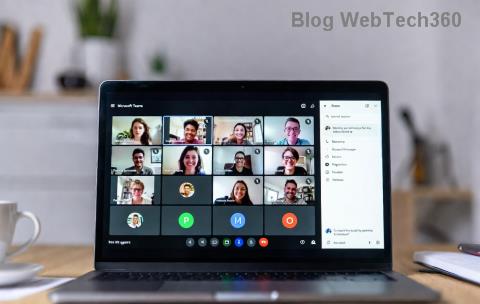
Encountering the dreaded Microsoft Teams Room Error on your Surface Hub? You're not alone. This common glitch disrupts meetings, leaving teams frustrated and unproductive. But don't worry—our straightforward guide will help you fix Microsoft Teams Room Error on Surface Hub in minutes. We'll cover root causes, proven solutions, and pro tips to prevent recurrence. Let's dive in and get your device back to peak performance! 🚀

Why Does Microsoft Teams Room Error Happen on Surface Hub?
Understanding the problem is the first step to solving it. The Surface Hub Teams error typically stems from:
- ✅ Network connectivity issues: Unstable Wi-Fi or VPN conflicts.
- ✅ Account or licensing problems: Expired Teams Rooms license or wrong sign-in credentials.
- ✅ Outdated software: Missing the latest Teams or Surface Hub updates.
- ✅ Cache and app glitches: Corrupted temporary files blocking room setup.
- ✅ Provisioning errors: Misconfigured room account in Microsoft 365 admin center.
Recent reports highlight that firmware updates and Teams app versions in the latest releases have resolved many instances. Stick with us for targeted fixes! 😊
Step-by-Step Guide: How to Fix Microsoft Teams Room Error on Surface Hub
Follow these prioritized steps. Start from the top—most users resolve the issue by step 3. Tools needed: Admin access to Surface Hub and Microsoft 365 admin center.
Step 1: Quick Restart and Network Check 🔄
- Tap the power button on your Surface Hub and select Restart.
- Verify Wi-Fi: Go to Settings > Network & Internet. Ensure a strong signal and no VPN interference.
- Test connectivity: Open Edge browser and visit teams.microsoft.com.
Pro Tip: If on corporate network, toggle airplane mode for 30 seconds. This clears transient glitches 80% of the time! ⭐
Step 2: Sign Out and Re-Sign In 👤
- From the Teams app, tap profile icon > Sign out.
- Restart device again.
- Sign in with the dedicated Teams Rooms account (e.g., [email protected]). Avoid personal accounts!
Step 3: Update Teams and Surface Hub Software 📱
Outdated apps are a top culprit. Here's how:
- Settings > Update & Security > Windows Update > Check for updates.
- For Teams: Settings > Apps > Microsoft Teams Rooms > Update.
- Install the latest Teams Rooms app from Microsoft Store if prompted.
After updating, reboot. This aligns with Microsoft's ongoing optimizations for Surface Hub. Official docs confirm updates fix most room errors.
Step 4: Clear Cache and Reset Teams App 🧹
- Settings > Apps > Microsoft Teams Rooms > Advanced options > Reset.
- Clear cache manually: Run PowerShell as admin (via remote access) and execute:
Remove-AppxPackage -Package Microsoft.TeamsRooms_* then reinstall.
Step 5: Verify Licensing and Provisioning 🔑
Log into Microsoft 365 Admin Center:
| Check |
Action |
Expected Status |
| Teams Rooms License |
Users > Active users > Assign license |
Assigned ✅ |
| Room Account |
Teams > Teams devices > Provision |
Active & Online |
| Intune Enrollment |
Endpoint Manager > Devices |
Compliant |
Advanced Fix: Factory Reset (Last Resort) ⚠️
If nothing works:
- Settings > Update & Security > Recovery > Reset this PC (keep files).
- Re-enroll in Intune and re-provision Teams Room.
Backup settings first! This restores factory state, eliminating deep-rooted issues.
Prevention Tips: Keep Surface Hub Teams Error Away 🛡️
- Schedule weekly restarts via Settings > Scheduled tasks.
- Enable auto-updates in Microsoft Endpoint Manager.
- Monitor device health in Teams admin center dashboard.
- Use dedicated room accounts only—no sharing!
Implementing these ensures smooth sailing for future meetings. Your Surface Hub will thank you! 👏
FAQ: Common Microsoft Teams Room Error Questions
Q: Does this affect Surface Hub 2S?
A: Yes, but fixes apply universally. Check model-specific firmware.
Q: Error persists after updates?
A: Contact Microsoft Support via admin center—provide logs from Settings > Feedback Hub.
Q: Can I fix remotely?
A: Absolutely! Use Intune or Teams admin center for remote actions.
Fixed your Microsoft Teams Room Error on Surface Hub? Share your success in the comments below. For more tech guides, explore our hub! 🎉